Hello! Welcome to the next lesson in your journey to mastering Linux.
In our last lesson, we focused on controlling command execution privileges using sudo. You learned how to grant administrative rights and how to use the visudo command to create fine-grained rules for who can run what.
Today, we shift our focus from controlling commands to controlling access to files and directories. This lesson addresses the learning outcome: Explain the purpose of Access Control Lists (ACLs) and when to use them. We'll explore the limitations of the standard permission model and see how ACLs provide a more powerful and flexible solution for managing complex access scenarios. This lesson will focus on the "what" and "why" of ACLs, building the conceptual foundation you need before we dive into the practical "how" in our next session.
1. The Limits of Standard Permissions
As you know, every file and directory in Linux has a set of standard permissions. These permissions define access rights for three distinct identities:
- User (Owner): A single user who owns the file.
- Group: A single group that owns the file.
- Other: Everyone else on the system.
For each of these identities, we can set read (r), write (w), and execute (x) permissions.
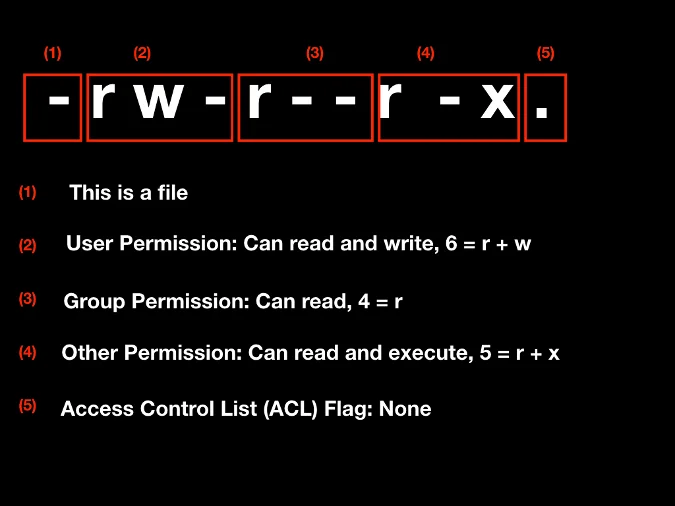
This model is simple and effective for many situations. However, it has a significant limitation: you can only assign permissions to one user and one group.
What if you have a more complex requirement? For example:
- You have a file,
project_plan.txt, owned by useraliceand themanagersgroup. - You need to give another user,
bob, who is in thedevelopersgroup, permission to edit this file.
With standard permissions, your options are messy:
- You could add
bobto themanagersgroup, but that might give him access to other files that he shouldn't see. - You could change the file's group ownership to
developers, but then themanagersmight lose their required access. - You could change the permissions for "other" to allow writing, but this is a major security risk as it lets everyone on the system modify the file.
This is precisely the kind of problem that Access Control Lists are designed to solve.
What You Need To Know To Set Linux Permissions and ...
This article from the CompTIA blog explains this limitation clearly and introduces ACLs as the solution.
Read the first two paragraphs under the heading "Configure ACLs". Focus on the explanation of why standard permissions can be challenging and how ACLs overcome this.
2. What Are Access Control Lists (ACLs)?
An Access Control List (ACL) is a feature of the filesystem that extends the standard user:group:other permission model. It allows you to define a more fine-grained list of permissions for a file or directory. With ACLs, you can grant or deny permissions to additional users and groups beyond the primary owner and group.
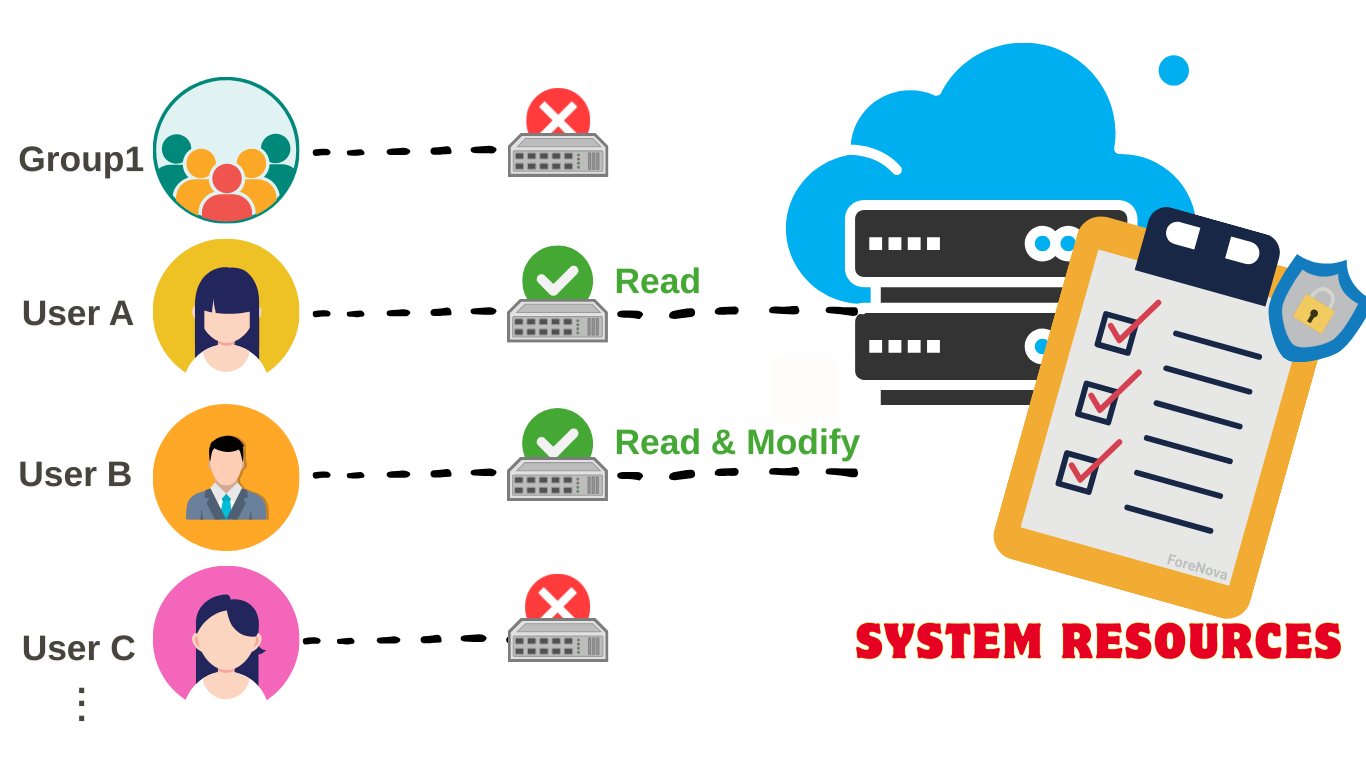
Essentially, an ACL is an additional layer of permissions that is checked after the standard permissions.
Watch this short video clip for a clear, practical explanation of this concept.
Permissions, ACLs, and Attributes. (Linux+ Objective 2.5.3)
In this segment from a Linux+ training video, Shawn Powers explains the limitation of standard permissions and introduces ACLs with a simple, relatable scenario.
Watch from 07:09 to 08:13. Notice how he frames ACLs as the solution for when you need to grant access to a user who doesn't fit into the standard owner/group model.
How to Spot an ACL
A key indicator that a file or directory has an ACL applied is a plus sign (+) at the end of the permission string in the output of ls -l.
drwxr-xr-x 2 user group 4096 Nov 20 10:30 mydir(No ACL)drwxr-xr-x+ 2 user group 4096 Nov 20 10:30 mydir(ACL is present)
This small character is a crucial clue that tells you there are more permissions at play than what is immediately visible.
3. When to Use ACLs: Practical Scenarios
Understanding when to use ACLs is the most important part of this lesson. You should reach for ACLs when the standard ugo permissions are not flexible enough for your needs.
Here are some common scenarios:
Scenario 1: The Contractor
A contractor, carol, joins your company temporarily. She needs read-only access to the /srv/data/projects directory, which belongs to the full-time-employees group. You don't want to add her to that group because it would grant her too much access.
- Standard Permission Problem: You can't give
carolaccess without changing group ownership or adding her to a group with excessive permissions. - ACL Solution: You can add a specific ACL entry just for
carol, giving her read and execute permissions on the directory, without affecting anyone else.
This scenario is perfectly demonstrated in the following video.
Linux Crash Course | User Permissions - Access Control Lists (ACL)
The Technology Sandbox channel sets up a realistic "contractor" scenario that highlights exactly why ACLs are necessary.
Watch from 06:59 to 08:13. Focus on the problem presented: how to give a user different permissions from the rest of their group without creating a complicated mess.
Test your understanding!
You are managing a server. The ls -l output for a critical configuration file shows -rw-r-----.. The file is owned by root and the root group. A monitoring tool running as the user monitor needs to read this file. You do not want to add the monitor user to the root group. Is this a good situation to use an ACL?
Show answer
Yes, this is a perfect use case for an ACL. You can use an ACL to grant read-only (r--) access specifically to the monitor user without changing the file's ownership, its group, or the base permissions.
Scenario 2: Secure Collaboration in a Complex Project
Imagine a FinTech company with a shared directory for application code. Different teams need different levels of access.
| Role | Required Access | Problem with Standard Permissions | ACL Solution |
|---|---|---|---|
Developers (devs group) |
Read/execute code, but not write | Can't grant write access to another group simultaneously. | Add a group ACL: g:devs:r-x |
SRE Team (sre group) |
Full read/write/execute for troubleshooting | The directory can only have one primary group. | Add a group ACL: g:sre:rwx |
CI/CD Runner (jenkins user) |
Full access to a specific build subdirectory |
jenkins is not in devs or sre. |
Add a user ACL: u:jenkins:rwx on the subdirectory. |
This real-world example, adapted from the "Mastering ACLs" article on dev.to, shows how ACLs enable complex, overlapping permissions that are common in modern IT environments. Without ACLs, managing this would require a complex structure of groups and could easily lead to security holes.
4. A Glimpse of ACL Management
While the next lesson will cover the practical commands in detail, it's helpful to see what they look like. The two main commands are:
getfacl <file/directory>: Gets (displays) the ACL for a file or directory.setfacl <options> <file/directory>: Sets (modifies) the ACL for a file or directory.
Let's see a quick demonstration of these commands in action.
Permissions, ACLs, and Attributes. (Linux+ Objective 2.5.3)
This clip from Shawn Powers' video shows a simple, complete cycle: viewing the initial state with getfacl, adding a user-specific permission with setfacl, and then verifying the result.
Watch from 08:56 to 10:56. Don't worry about memorizing the command syntax right now. Instead, observe: How the output of getfacl lists the standard permissions and then the new user:susie:rwx entry. The appearance of the + sign in the ls -l output after the ACL is set.
The output of getfacl test.txt from the video clearly shows the added entry:
# file: test
# owner: s-powers
# group: s-powers
user::rw-
user:susie:rwx      # <-- The added ACL entry
group::r--
mask::rwx
other::r--
This output makes it clear that in addition to the owner (s-powers), the group (s-powers), and others, there is a special rule just for user susie.
Conclusion
In this lesson, we established the conceptual groundwork for Access Control Lists. You've learned what they are, why they are necessary, and, most importantly, when you should use them. This knowledge is crucial for managing file security on Linux and is a key topic for your CompTIA Linux+ exam.
Key Takeaways:
- Standard Linux permissions (
user,group,other) are often insufficient for complex access requirements. - Access Control Lists (ACLs) extend the standard model, allowing you to set permissions for additional, specific users and groups.
- You should use ACLs when you need to grant access to a user or group that doesn't fit neatly into the single-owner, single-group model.
- A file or directory with an ACL is marked with a
+sign in the output ofls -l. - The primary commands for managing ACLs are
getfaclandsetfacl.
Now that you understand the purpose of ACLs, you're ready for the next step. In our next lesson, we will dive deep into the practical application, using getfacl and setfacl to manage ACLs on files and directories. We will cover the syntax for adding, modifying, and removing ACL entries for both users and groups.