Hello! Welcome to the final lesson in our module on System Security and Hardening.
In our last session, we fortified our system at the storage level by learning how to set restrictive mount options in /etc/fstab. This is a crucial skill for preventing unauthorized code execution and access from specific filesystems.
Today, we're diving even deeper, right to the core of the operating system. Our goal is to configure kernel runtime parameters for security using sysctl. This powerful tool allows you to tune the live, running Linux kernel, adjusting its behavior to enhance security and stability without needing to recompile it or even reboot the system. This is a key technique for hardening a Linux server against network attacks and other threats.
1. Understanding Kernel Parameters and /proc/sys
Before we start changing things, it's important to understand what's happening under the hood. The Linux kernel exposes hundreds of tunable parameters that control its behavior in areas like networking, memory management, and the filesystem.
These parameters aren't stored in regular files on your disk. Instead, they are presented as a "virtual" filesystem called procfs, which is mounted at /proc. This special filesystem gives us a window into the kernel's current state. The specific parameters we can tune with sysctl are located within the /proc/sys/ directory.
To get a clear picture of this concept, let's watch a short video.
Managing Kernel Parameters with Sysctl
The video "Managing Kernel Parameters with Sysctl" by SecureRandom provides a great introduction to the /proc filesystem and how /proc/sys is structured.
Watch the first two minutes of the video (00:00 - 01:58). Focus on understanding that /proc/sys is a virtual directory structure where you can see and change live kernel settings.
As the video explained, the directories inside /proc/sys correspond to different kernel subsystems:
net: Networking parameters (e.g., TCP/IP stack behavior).vm: Virtual Memory management (e.g., swappiness).kernel: Core kernel behavior (e.g., printk settings, panic behavior).fs: Filesystem-related settings (e.g., max open files).
A sysctl key like net.ipv4.ip_forward directly maps to the file path /proc/sys/net/ipv4/ip_forward. The dots in the key are replaced by slashes in the path. Reading the key with sysctl is the same as reading the content of that file with cat.
2. Viewing and Temporarily Changing Kernel Parameters
Now that we understand the theory, let's get practical. The sysctl command is our primary tool for interacting with these parameters.
You can view all current kernel parameters by running:
sysctl -a
This will produce a lot of output! You'll typically pipe this into less or grep to find what you're looking for.
To view a single value, just give sysctl the key:
# Check if IP forwarding is enabled
sysctl net.ipv4.ip_forward
To temporarily change a value, you use the -w (write) flag. This change is effective immediately but will be lost when the system reboots.
# Temporarily disable ICMP echo requests (ping)
sudo sysctl -w net.ipv4.icmp_echo_ignore_all=1
The following video demonstrates these temporary changes in action.
Managing Kernel Parameters with Sysctl
Let's continue with the same video. This next segment shows how to read and write kernel parameters using both sysctl and by interacting directly with the /proc/sys files.
Watch from 01:58 to 06:06. Pay attention to the two methods for changing a value: echo 1 > /path/to/file and sudo sysctl -w key=value. Notice that the sysctl command is cleaner and generally preferred.
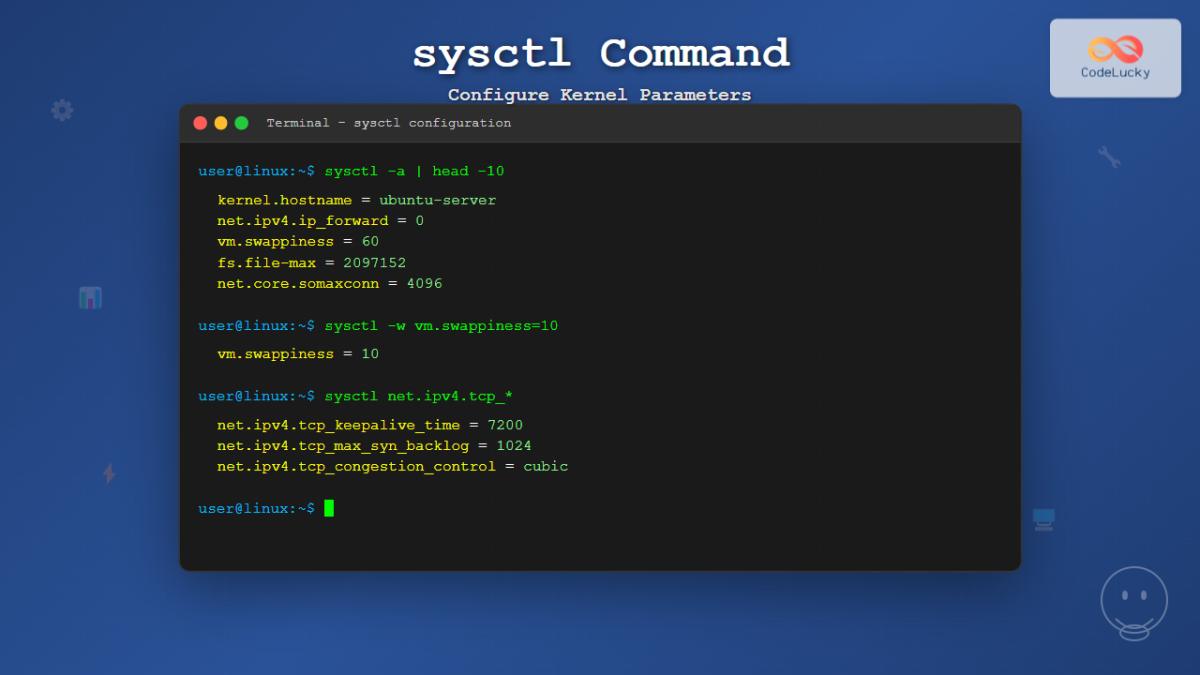
3. Making Kernel Changes Persistent
Temporary changes are great for testing, but for system hardening, we need our settings to survive a reboot. This is done by adding them to configuration files.
The Modern Approach: /etc/sysctl.d/
The recommended, modern way to manage sysctl settings is to add new configuration files to the /etc/sysctl.d/ directory.
- Files must end in
.conf. - They are processed in lexicographical (alphabetical) order. It's common practice to name files starting with a two-digit number, like
10-network-security.confor99-custom.conf. - Settings in files processed later will override earlier ones. This allows you to create a
99-local.conffile to override any distribution defaults without editing the original files.
The syntax inside these files is simple: key = value.
# Inside /etc/sysctl.d/10-security.conf
# Disable IP forwarding
net.ipv4.ip_forward = 0
Applying Persistent Changes
After creating or editing a .conf file, you don't need to reboot. You can load the new settings immediately using the -p flag.
# Load all settings from /etc/sysctl.conf and /etc/sysctl.d/
sudo sysctl -p
This command reads all the configuration files and applies them to the running kernel, making it an excellent way to test that your configuration syntax is correct.
This final segment of the video clearly explains this process.
Managing Kernel Parameters with Sysctl
This last clip covers the crucial step of making your changes permanent. It explains the role of the /etc/sysctl.d directory and how to apply your settings with sysctl -p.
Watch from 06:06 to the end. The key takeaway is the modern best practice: create your own .conf file in /etc/sysctl.d/ for your custom settings. This keeps your changes organized and separate from system-provided defaults.
4. Common sysctl Settings for Security Hardening
Now let's apply this knowledge to security. Here are some of the most common kernel parameters you'll tune to harden a Linux server.
How to Dynamically Reload Linux Kernel Parameters with ...
The tutorial "How to Dynamically Reload Linux Kernel Parameters" has a specific section on security configurations that provides excellent, relevant examples.
In the article, find the section named 'Practical Applications of sysctl' and read the subsection 'Security Configuration'. This will give you concrete examples of security-focused kernel parameters.
Here is a summary of those and a few other important settings you might place in a file like /etc/sysctl.d/10-hardening.conf:
-
Disable IP Forwarding: Unless the machine is a router, it should not forward packets.
net.ipv4.ip_forward = 0 -
Enable Reverse Path Filtering: Helps prevent IP address spoofing.
net.ipv4.conf.default.rp_filter = 1net.ipv4.conf.all.rp_filter = 1 -
Enable SYN Cookies: A classic defense against SYN flood (a type of Denial of Service) attacks.
net.ipv4.tcp_syncookies = 1 -
Ignore ICMP Broadcasts: Prevents the system from being used in a Smurf attack.
net.ipv4.icmp_echo_ignore_broadcasts = 1 -
Ignore Bogus ICMP Responses: Prevents logging of invalid error messages from misconfigured routers.
net.ipv4.icmp_ignore_bogus_error_responses = 1 -
Enable ASLR (Address Space Layout Randomization): Makes it harder for attackers to predict memory locations for buffer overflow attacks.
kernel.randomize_va_space = 2
By adding these lines to a custom .conf file and running sudo sysctl -p, you can apply a solid baseline of kernel-level security to your system.
Test your understanding!
You are tasked with hardening a new web server. Your security policy requires that you enable SYN flood protection and disable the system's ability to act as a router. You need to ensure these changes are permanent. What is the best course of action?
A. Run sudo sysctl -w net.ipv4.tcp_syncookies=1 and sudo sysctl -w net.ipv4.ip_forward=0.
B. Edit /proc/sys/net/ipv4/tcp_syncookies to contain 1 and /proc/sys/net/ipv4/ip_forward to contain 0.
C. Create a new file named /etc/sysctl.d/webserver.conf with the lines net.ipv4.tcp_syncookies = 1 and net.ipv4.ip_forward = 0, then run sudo sysctl -p.
D. Add the lines net.ipv4.tcp_syncookies = 1 and net.ipv4.ip_forward = 0 to a script in /etc/rc.local.
Show answer
The correct answer is C. This is the modern, recommended method for making persistent sysctl changes. It keeps custom configurations organized and applies them correctly at boot or when sysctl -p is run.
Options A and B make temporary changes that will be lost on reboot. Option D is an outdated method and is not the standard way to manage kernel parameters; rc.local is often disabled on modern systems.
Conclusion
You've now reached the heart of Linux security: tuning the kernel itself. This skill provides a powerful, low-level method for hardening your system against a variety of network-based threats.
Key Takeaways:
- The
sysctlcommand is used to view and modify live Linux kernel parameters. - These parameters are exposed through the virtual filesystem at
/proc/sys/. - Temporary changes can be made with
sudo sysctl -w key=value. - Permanent changes should be made by adding
.conffiles to the/etc/sysctl.d/directory. - The
sudo sysctl -pcommand applies all persistent configurations to the running system without a reboot. - Key security parameters involve disabling IP forwarding, enabling reverse path filtering, and activating protections against DoS attacks like SYN floods.
Preview of the Next Module:
This lesson concludes our module on System Security and Hardening. You've learned to secure SSH, configure firewalls, use MAC systems, harden filesystems, and now, tune the kernel.
In our next module, we will shift our focus from configuration to observation and troubleshooting. We will begin by learning how to diagnose high CPU, memory, and disk I/O issues using system monitoring tools, an essential skill for maintaining a healthy and performant Linux system.