Hello! Welcome to your fourth lesson in the "Linux Fundamentals and System Startup" module.
In our last lesson, we traced the boot process from the moment you power on your computer, through the firmware (BIOS/UEFI) and the GRUB bootloader, right up to the point where the Linux kernel is loaded into memory and ready to take charge.
This lesson addresses the learning outcome: Explain the role of the init system (systemd) in initializing the system. We'll pick up exactly where we left off: the kernel is running and needs to start the rest of the operating system. We will discover that this is the job of a single, crucial process: the init system. In nearly all modern Linux distributions, this system is systemd.
Understanding systemd is vital for the CompTIA Linux+ exam and for any real-world Linux administration, as it's the core component you'll use to manage system services and troubleshoot startup issues.
1. The First Process: What is systemd?
After the kernel finishes its own initialization, its first and most important task is to start a single user-space program. This program is always assigned Process ID 1 (PID 1) and becomes the ancestor of all other processes that run on the system. If PID 1 were to fail, the entire system would halt. This is the init system.
For decades, this role was filled by a system called SysVinit. However, most modern Linux distributions have replaced it with systemd, a more powerful and efficient system and service manager.
Let's start with a quick, high-level overview of where systemd fits into the boot process and what it does.
How Does Linux Boot Process Work?
The video 'How Does Linux Boot Process Work?' by ByteByteGo provides a clear, animated summary of systemd's role. This clip explains how the kernel hands off control to systemd (PID 1) and lists its main responsibilities.
Watch from 02:39 to 03:45. Focus on identifying systemd as the 'parent of all other processes' and the types of tasks it manages (mounting filesystems, starting services, etc.).
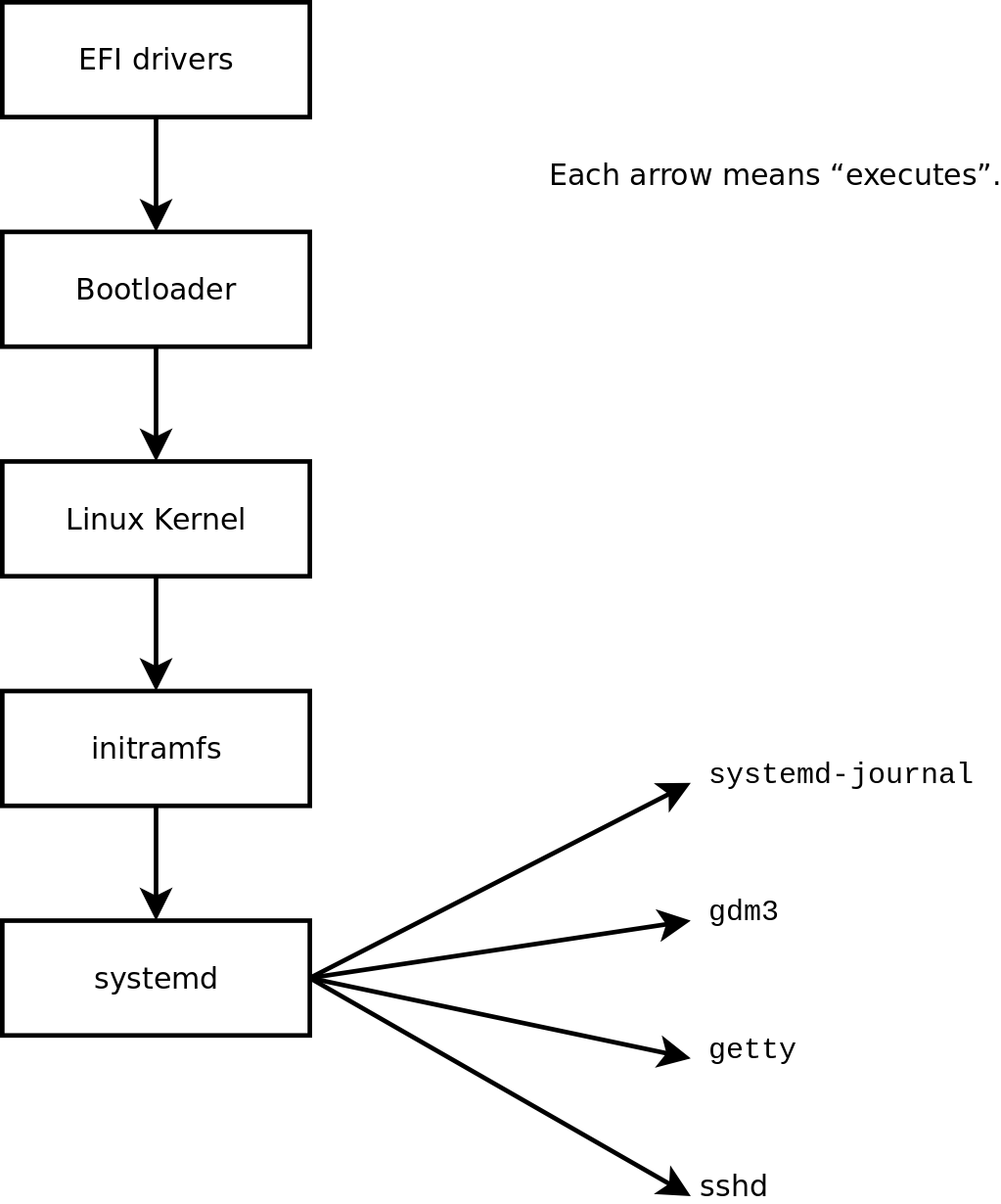
As the video showed, systemd is responsible for bringing the system from a state where only the kernel is running to a fully functional state. The following diagram illustrates this, showing systemd as the central process that "executes" other essential services like the login manager (gdm3), terminal logins (getty), and the remote access service (sshd).
Now, for a more in-depth introduction from a system administrator's perspective, let's watch the beginning of a detailed tutorial on systemd.
Systemd Explained: How to Manage Linux Services Easily
This segment from 'Systemd Explained' by Learn Linux TV reinforces the concept of systemd as the init system and PID 1, and shows how you can verify this using a process monitoring tool.
Watch from the beginning to 04:40. The video mentions some community controversy, but our focus is on understanding the technical function of systemd as the most common init system and its role as PID 1.
2. The Building Blocks: Units and Targets
systemd manages everything through configuration files called units. A unit is a file that describes a resource and tells systemd how to manage it. There are several types of units, distinguished by their file extensions:
- .service: The most common type. Represents a system service or daemon (e.g., a web server, a database).
- .mount: An instruction to mount a filesystem at a specific point.
- .socket: A network socket that can activate a service on-demand.
- .timer: A timer that can trigger another unit at a specific time, similar to a cron job.
- .target: A special unit that groups other units together to bring the system to a particular state.
Targets are particularly important. They are the systemd equivalent of the old SysVinit runlevels. A target defines a state of the system, like "graphical user interface" or "multi-user with networking." When systemd starts a target, it also starts all the units that are dependencies of that target.
To understand these core concepts, please read the following material designed for Linux+ preparation.
Boot Process and Systemd test - System Management
The article 'Boot Process and Systemd test' from Trusted Institute provides a concise, exam-focused explanation of systemd, its units, and how targets relate to legacy runlevels.
Read the section titled 'Deep Dive: Systemd'. Pay close attention to the list of common unit types and the table comparing legacy runlevels to systemd targets.
The mapping between old runlevels and systemd targets is a key concept. For example, runlevel3.target is just a symbolic link to multi-user.target. This provides backward compatibility while using the more descriptive target-based system.
The image below shows the terminal output of ls -l and clearly demonstrates this relationship.

During startup, systemd progresses through a series of targets, starting services in parallel whenever possible to speed up the boot time. It begins with low-level targets like sysinit.target (for filesystem mounting, etc.), moves to basic.target, and finally reaches the default target, which is usually multi-user.target (for servers) or graphical.target (for desktops).
3. Taking Control: The systemctl Command
Since systemd manages nearly all aspects of a running system, you need a tool to interact with it. That tool is systemctl. It's one of the most important commands you will use as a Linux administrator.
With systemctl, you can check the status of services, start or stop them, and configure them to start automatically at boot.
Let's watch a practical demonstration of the essential systemctl commands.
Systemd Explained: How to Manage Linux Services Easily
We return to 'Systemd Explained' to see how the systemctl command is used in practice. This segment covers the six most important actions you'll perform on services.
Watch from 04:40 to 15:45. Focus on understanding the function and syntax of status, start, stop, restart, enable, and disable. You don't need to install Apache yourself; just follow the demonstration.
As the video highlights, it is crucial to understand the difference between start and enable:
systemctl start <service>: Starts the service right now, for the current session. The effect is immediate but temporary.systemctl enable <service>: Configures the service to start automatically at the next boot. This action does not start the service right now; it creates a symbolic link sosystemdknows to start it in the future.
To make a service start now and persist after a reboot, you typically run both commands:sudo systemctl enable --now <service> (The --now flag is a convenient shortcut that does both).
Test your understanding!
A web server on your Linux machine is currently stopped. You need to ensure that the web server is running immediately and will also automatically start every time the server reboots. Which single command is the most efficient way to achieve this?
sudo systemctl start httpd.servicesudo systemctl enable httpd.servicesudo systemctl start httpd.service && sudo systemctl enable httpd.servicesudo systemctl enable --now httpd.service
Show answer
The correct answer is 4. sudo systemctl enable --now httpd.service.
- Command 1 only starts the service for the current session.
- Command 2 only configures the service to start on the next boot but doesn't start it now.
- Command 3 works, but it's two separate commands.
- Command 4 is the most efficient single command, as the
--nowflag tellssystemctlto bothenableandstartthe service in one step.
4. Under the Hood: Unit File Locations
A final, important concept for the Linux+ exam is knowing where systemd unit files are stored. There are two primary locations:
/usr/lib/systemd/system/: This directory contains the default unit files provided by the software packages you install. You should not edit files here directly, as they can be overwritten during package updates./etc/systemd/system/: This directory is for system administrators to create new unit files or, more commonly, to override the default settings of units from the/usr/libdirectory.
systemd always gives precedence to files in /etc/systemd/system. This is a powerful feature: to customize a service, you don't modify the original vendor file. Instead, you create a modification or a full copy in /etc/systemd/system, and your changes will be applied safely.
After you create or modify a unit file in /etc/systemd/system, you must tell systemd to rescan its configuration by running:sudo systemctl daemon-reload
This command reloads the systemd manager configuration without restarting services, making it aware of your changes.
Conclusion
We've now completed the journey from power-on to a fully initialized system. systemd is the central nervous system of modern Linux, responsible for launching, monitoring, and managing everything from low-level hardware setup to user applications.
Key Takeaways:
systemdis the init system on modern Linux, running as PID 1. It is the parent of all other processes.- It manages resources through unit files. The most common are
.servicefiles for daemons and.targetfiles for system states. - Targets are the
systemdequivalent of runlevels, grouping units to define operational states likemulti-user.targetorgraphical.target. - The
systemctlcommand is your primary tool for interacting withsystemdtostart,stop,enable,disable, and check thestatusof services. - Vendor-supplied unit files are in
/usr/lib/systemd/system, while administrator customizations go in/etc/systemd/systemto override the defaults.
In our next lesson, we will move from theory to practice. We will learn how to set up a virtual machine environment, which will serve as your personal lab for installing Linux and practicing the commands we'll cover throughout this course.