Hello! Welcome back to our module on Troubleshooting, Recovery, and Maintenance.
In our last lesson, we learned how to diagnose performance issues on a running Linux system by analyzing CPU, memory, and disk I/O metrics. We focused on what to do when a system is slow. Today, we're tackling a more critical problem: what to do when a system doesn't even start.
Our learning outcome for this lesson is to identify common boot failure stages and symptoms. To effectively troubleshoot a machine that won't boot, you must first understand the normal boot sequence and then recognize the signs that tell you where in that sequence the failure occurred. This skill is fundamental for any system administrator and is a key topic for your CompTIA Linux+ exam.
A Quick Review of the Linux Boot Process
Before we can diagnose a failed boot, we need a clear mental map of a successful one. At a high level, the boot process unfolds in a series of distinct stages.
The article "Troubleshooting Linux Startup" from Cycle.io provides a concise summary of these stages. This will give us a clear framework for our discussion.
Read the section titled "Understanding the Linux Boot Process". This provides a four-step overview that we will use as the foundation for this lesson.
As the article outlines, the sequence is:
- BIOS/UEFI Initialization: The computer's firmware wakes up, performs a hardware check (POST), and finds the bootloader.
- Bootloader (GRUB): The GRUB bootloader loads the Linux kernel and the initial RAM disk (
initramfs) into memory. - Kernel Initialization: The kernel takes control, initializes hardware drivers, and mounts the root filesystem.
- Init/systemd: The first user-space process (
systemdon modern systems) starts, bringing up services and reaching the desired system state (like a graphical login screen).
This visual diagram breaks down the process even further and is a great reference to keep in mind as we explore what can go wrong.
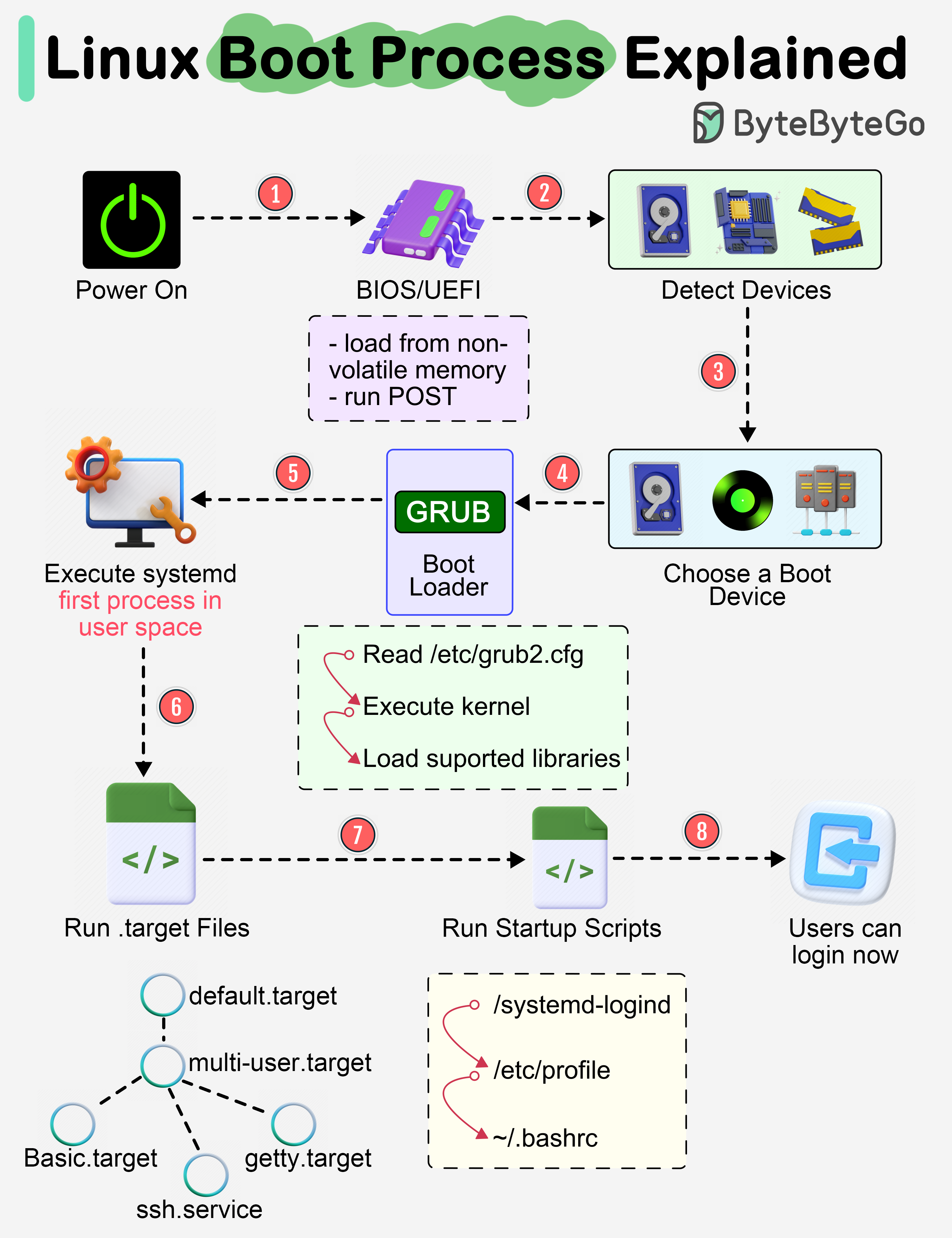
Now, let's explore the symptoms that arise when one of these stages fails.
Identifying Failures at Each Stage
We will now walk through the boot process again, but this time focusing on the common error messages and system states you'll encounter when something goes wrong.
1. Stage: Firmware & Bootloader (GRUB)
This is the earliest stage of failure. The hardware is on, but it can't find or execute the operating system's bootloader.
Common Symptoms:
- "No bootable device found" or similar BIOS/UEFI error: The firmware scanned all available disks and couldn't find a bootloader. This could mean the disk has failed, is disconnected, the boot order is incorrect in the BIOS/UEFI settings, or the bootloader itself is corrupted or missing from the disk's master boot record (MBR) or EFI partition.
- The
grub rescue>prompt: This is a specific GRUB error mode. It means the first part of GRUB loaded successfully, but it cannot find the rest of its files (likegrub.cfg) or the kernel image. This often happens after resizing partitions or moving a Linux installation incorrectly. - System hangs at the GRUB menu: If the system stops at the normal GRUB selection menu and won't proceed, it often points to a corrupted or misconfigured
grub.cfgfile.
The article "Boot Process In Linux" provides a good summary of these issues.
Boot Process In Linux – Detailed Steps For Beginners
To reinforce these points, please read the section on troubleshooting in "Boot Process In Linux – Detailed Steps For Beginners" from CyberPanel.
Focus on the first two issues described: "GRUB Rescue Mode" and "No Bootable Device Found" Error. This will solidify your understanding of failures at this early stage.
2. Stage: Kernel Initialization
If GRUB successfully loads the kernel but the boot process halts immediately after, the problem lies with the kernel itself or its very early dependencies.
Common Symptom:
- Kernel Panic: You'll see a screen full of text, ending with a message that includes "Kernel panic - not syncing:". This is an unrecoverable error detected by the kernel.
- Causes: Common culprits include a recent kernel update that's incompatible with a hardware driver, a corrupted
initramfs(the initial RAM filesystem), or a critical hardware failure (like faulty RAM).
- Causes: Common culprits include a recent kernel update that's incompatible with a hardware driver, a corrupted
The good news is that Linux distributions typically keep older, working kernels available in the GRUB menu. Let's watch how to use this feature for recovery.
The Linux Boot Process (Linux+ Objective 1.1.2)
In the video "The Linux Boot Process," Shawn Powers explains what a kernel panic is and demonstrates the most common first step in recovery: booting a previous kernel.
Watch from 22:01 to 25:39. Pay close attention to how holding the Shift key during boot reveals the GRUB menu, allowing you to enter "Advanced options" and select an older kernel. This demonstrates how a symptom (kernel panic after an update) points directly to a solution (rolling back the kernel).
3. Stage: Filesystem Mounting & initramfs
At this stage, the kernel is running but is trying to mount the root filesystem (/) to continue the boot process. Failures here are very common.
Common Symptoms:
- The system drops into an
initramfsor(boot)prompt: You will see messages indicating failure to mount the root filesystem, often followed by a minimal shell. - The system drops into
emergency mode: This is asystemdrecovery mode. It indicates thatsystemdstarted but failed to mount critical filesystems (like/or/home). The prompt will often sayYou are in emergency mode. - Errors like
fsck failedordependency failed for /home: These messages scroll by during boot and point directly to filesystem corruption or an error in the/etc/fstabfile, which defines how filesystems should be mounted.
Here is an example of what a severe filesystem mounting failure looks like:
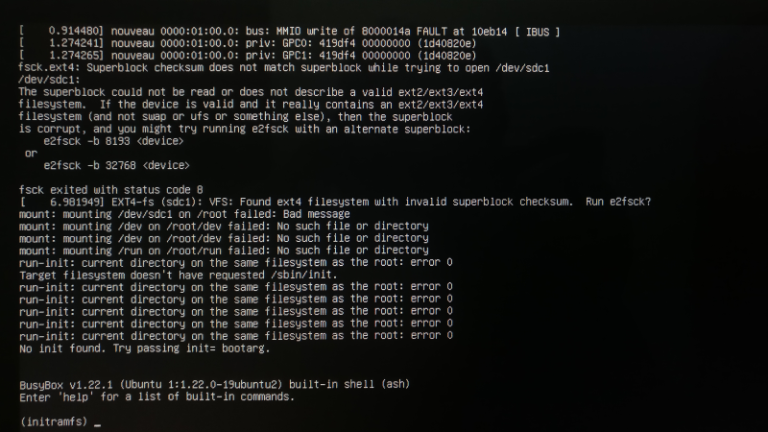
A common cause for entering emergency mode is a simple typo in /etc/fstab. Let's see a practical demonstration.
How to Repair Linux With Boot Failure
The video "How to Repair Linux With Boot Failure" from Chris Titus Tech provides an excellent real-world example of causing and fixing a boot failure related to the filesystem.
Watch from 02:06 to 04:01. The presenter intentionally creates an error in the /etc/fstab file and reboots. Observe how the system fails to boot normally and instead provides an 'emergency mode' prompt, a clear symptom of this type of configuration error.
Test your understanding!
You have just edited the /etc/fstab file to automatically mount a new disk. Upon rebooting, the system stops and displays the message: "You are in emergency mode. After logging in, type 'journalctl -xb' to view system logs...".
At which stage did the boot process most likely fail, and what is the probable cause?
Show answer
The failure occurred at the filesystem mounting stage. The symptom, "emergency mode," is a strong indicator that systemd was unable to process the filesystem mounts as directed. The probable cause is an error (like a typo in the device name or mount options) in the /etc/fstab file you just edited.
4. Stage: Graphical Interface (X Server)
Sometimes, the core system boots successfully, but the graphical user interface (GUI) fails to start.
Common Symptoms:
- The system boots to a text-based login prompt instead of a graphical one.
- The screen goes black or flickers after the boot messages disappear.
- The graphical login screen appears briefly, but trying to log in returns you to the same screen.
These symptoms almost always point to a problem with the display manager or, more commonly, the graphics drivers (e.g., NVIDIA or AMD drivers) which may have been broken by a recent system update. The underlying system is running fine; only the graphical component is affected.
A key diagnostic step is to switch to a text-only virtual console, or TTY.
How to Repair Linux With Boot Failure
Let's return to the Chris Titus Tech video to see how to bypass a broken graphical interface.
Watch from 08:13 to 09:00. The presenter explains what to do when faced with a black screen after boot. Note the key combination (Ctrl+Alt+F2) used to switch to a TTY, which gives you a working command line to log in and begin troubleshooting the graphics driver issue.
Conclusion
By understanding the distinct stages of the Linux boot process, you can interpret failure symptoms to quickly narrow down the source of a problem.
Key Takeaways:
- Boot failures can be mapped to specific stages: Firmware/GRUB, Kernel, Filesystem Mounting, and Services/GUI.
grub rescue>prompt: GRUB can't find its configuration files or the kernel.- Kernel Panic: A fatal kernel error, often related to hardware or a bad kernel update. Booting an older kernel is a common first step.
- Emergency Mode /
initramfsprompt: The kernel is running but failed to mount critical filesystems, often due to an/etc/fstaberror or filesystem corruption. - Black Screen / No GUI: The core system is likely running, but the graphics drivers or X server are failing. Switching to a TTY (
Ctrl+Alt+F[1-6]) is the primary way to gain access.
Preview of the Next Lesson:
We've just learned how to identify the symptoms of a boot failure. In our next lesson, we will focus on the solution. We will explore how to use single-user and emergency modes to perform basic system repairs, putting the diagnostic skills you've acquired today into practical action.