Hello! Welcome to your next lesson in the CompTIA Linux+ preparation course.
In our last lesson, we examined the /etc/passwd, /etc/shadow, and /etc/group files, which form the database of users and groups on your system. Now, we'll build directly upon that knowledge to see how Linux uses those user and group identities to control access to files and directories.
Your learning outcome for this lesson is to interpret file permissions using symbolic and numeric notation. This is a fundamental concept in Linux security and a core topic on the Linux+ exam. Mastering this will allow you to understand, at a glance, who is allowed to do what with any file or directory on the system.
1. Viewing and Interpreting Symbolic Permissions
The most common way to view file permissions is with the ls -l command, which provides a "long" listing format. This output contains a wealth of information, but we will focus on the first column, which describes the file type and permissions.
To get a solid overview, let's start with a foundational article.
Linux file permissions explained
This article from Red Hat, "Linux file permissions explained," clearly breaks down the output of ls -l and explains how to read the permission string.
Please read the sections "How do you view Linux file permissions?" and "How do you read file permissions?". Focus on the structure of the 10-character permission string and the three distinct sets of permissions: user, group, and others.
As the article explains, the first column of the ls -l output is a 10-character string. Let's visualize this breakdown.
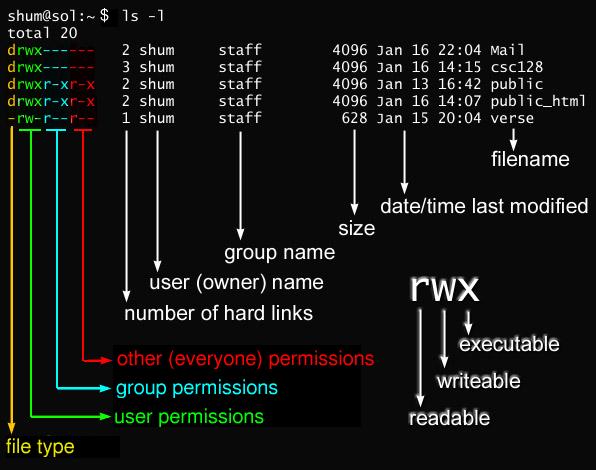
The 10-character string can be divided into four parts:
-
File Type (1st character):
-: A regular file (e.g., a text file, a program).d: A directory.- Other less common types exist, like
lfor a symbolic link, but-anddare the most important for now.
-
Owner/User Permissions (characters 2-4): What the user who owns the file can do.
-
Group Permissions (characters 5-7): What members of the group that owns the file can do.
-
Other Permissions (characters 8-10): What everyone else (any user who is not the owner and not in the group) can do.
Within each of these three sets, the permissions are always in the same order: read (r), write (w), and execute (x). If a permission is not granted, it is represented by a hyphen (-).
For example, the permission string drwxr-x--- means:
d: It's a directory.rwx: The owner can read, write, and execute.r-x: Members of the group can read and execute, but not write.---: Others have no permissions at all.
The Meaning of r, w, and x for Files vs. Directories
The permissions r, w, and x have slightly different meanings depending on whether they apply to a file or a directory. This is a critical distinction.
Linux file permissions explained
Let's return to the Red Hat article to understand the practical effects of these permissions.
Please read the sections "What do Linux file permissions actually do?" and "How do directory permissions work?". Pay close attention to the different interpretations of 'execute' for a file versus a directory.
Here's a summary of those key differences:
| Permission | For a File | For a Directory |
|---|---|---|
| Read (r) | View the contents of the file. | List the names of the files inside the directory (e.g., using ls). |
| Write (w) | Modify or delete the content of the file. | Create, delete, or rename files within the directory. |
| Execute (x) | Run the file as a program or script. | Enter the directory (e.g., using cd) and access its files. |
Notice the importance of the execute (x) permission on a directory. Without it, you cannot cd into the directory, and even if you have read (r) permission on files inside it, you won't be able to access them.
Test your understanding!
You see the following file listing: -rw-r----- 1 alice staff 1024 Oct 26 10:30 report.txt. A user named bob, who is not alice but is a member of the staff group, tries to open report.txt in a text editor and save a change. Will this succeed? Why or why not?
Show answer
No, it will not succeed. The group permissions for staff are r--. This means bob can read (view) the file's contents, but he does not have write (w) permission, so he cannot save any changes.
2. Understanding Numeric (Octal) Notation
While symbolic notation (rwx) is descriptive, you will frequently see permissions represented by a three-digit number, like 755 or 644. This is called numeric or octal notation. It's a shorthand that is essential for using commands like chmod, which we'll cover in the next lesson.
The key to understanding this system is that each permission has a numeric value:
- Read (r) = 4
- Write (w) = 2
- Execute (x) = 1
To get the numeric value for a permission set (owner, group, or other), you simply add the values for the granted permissions.
File Permissions and chmod (Octal Syntax Explained) - Linux Tutorial 20
This concept is often easiest to grasp by watching it in action. This video by Caleb Curry provides an excellent, step-by-step explanation of how to calculate octal permission values.
Watch the section from 01:35 to 04:32. The video will walk you through the math of converting rwx to its numeric equivalent, showing how values like 7, 6, 5, and 4 are derived.
To summarize the video's explanation:
rwx= 4 + 2 + 1 = 7 (full permissions)rw-= 4 + 2 + 0 = 6 (read and write)r-x= 4 + 0 + 1 = 5 (read and execute)r--= 4 + 0 + 0 = 4 (read only)--x= 0 + 0 + 1 = 1 (execute only)---= 0 + 0 + 0 = 0 (no permissions)
The following image provides a complete reference chart for all possible combinations.

A complete permission setting is represented by three of these digits, one for the owner, one for the group, and one for others.
-
rwxr-xr-xbecomes755- Owner:
rwx= 4+2+1 = 7 - Group:
r-x= 4+0+1 = 5 - Others:
r-x= 4+0+1 = 5
- Owner:
-
rw-r--r--becomes644- Owner:
rw-= 4+2+0 = 6 - Group:
r--= 4+0+0 = 4 - Others:
r--= 4+0+0 = 4
- Owner:
These combinations are not arbitrary. Certain numeric permissions are standard for specific file types.
Learning the shell - Lesson 9: Permissions
The linuxcommand.org tutorial provides a handy table of common permission settings and their typical use cases. This is very useful for the Linux+ exam.
Review the table in the middle of the page. You don't need to memorize it right now, but familiarize yourself with the common patterns, such as 755 for programs and 644 for data files.
Test your understanding!
What would be the symbolic permission string for a file with numeric permissions of 760?
Show answer
The symbolic string would be rwxrw----.
- 7 (Owner) = 4+2+1 =
rwx - 6 (Group) = 4+2 =
rw- - 0 (Others) = 0 =
---
Conclusion
You have now learned the two essential ways Linux file permissions are represented. Understanding both is critical for reading system state and for using system administration commands effectively.
Key Takeaways:
- Permissions are viewed with
ls -land apply to three classes: owner, group, and others. - Symbolic notation uses
r,w, andxto represent read, write, and execute permissions. - Numeric (octal) notation uses a three-digit number (e.g.,
755), where each digit is the sum of the values for read (4), write (2), and execute (1). - The meaning of
r,w, andxis different for files than it is for directories, with the directory'sxbit controlling access.
In our next lesson, we will put this knowledge into practice. Now that you can interpret permissions, you will learn how to modify file permissions using the chmod command and set default permissions with umask.