Hello! Welcome back to your Linux+ preparation course.
In the last lesson, you learned how to interpret Linux file permissions in both symbolic (rwx) and numeric (octal) formats. You can now look at the output of ls -l and understand who is allowed to do what with a file or directory.
Today, we'll take the next logical step. Your learning outcome is to modify file permissions using chmod and set default permissions with umask. This moves us from simply reading permissions to actively managing them, which is a crucial skill for any Linux administrator and a key topic for the CompTIA Linux+ exam.
1. Modifying Permissions with chmod
The primary tool for changing permissions on existing files and directories is the chmod (change mode) command. You can use it in two ways: with the numeric (octal) notation you learned previously, or with a more descriptive symbolic notation.
Method 1: Numeric (Octal) Notation
Using octal numbers is a fast and common way to set the exact permissions you want for a file. As a quick reminder, the values are:
- Read (r) = 4
- Write (w) = 2
- Execute (x) = 1
You combine these to form a three-digit number representing the permissions for the owner, group, and others, respectively.
The basic syntax is: chmod <numeric_code> file_or_directory_name
Linux File Permissions in 5 Minutes | MUST Know!
Let's start with a quick, practical demonstration. This video from Travis Media efficiently shows how to apply common numeric permissions with chmod.
Watch from 03:43 to 05:30. Pay attention to how commands like chmod 774 and chmod 644 instantly change the file's permission string, and note the common permission sets mentioned for files and directories.
As the video highlights, certain numeric permissions are standard practice:
644(rw-r--r--): A common default for data files. The owner can read/write, while everyone else can only read.755(rwxr-xr-x): A common default for directories and executable programs. The owner can do everything, while everyone else can read and execute (which for a directory, means they can enter it and list its contents).700(rwx------): A private setting. Only the owner has any permissions. This is often used for sensitive data or private SSH keys.
Now, let's see a more detailed, practical scenario of how changing permissions affects user access.
File Permissions and chmod (Octal Syntax Explained) - Linux Tutorial 20
This video by Caleb Curry provides a great example of modifying permissions to restrict access and then testing the result from another user account.
Watch from 05:37 to 09:08. Notice how he uses different numbers for each permission group (e.g., chmod 660) and then demonstrates how a user who is not the owner or in the right group is denied access.
Method 2: Symbolic Notation
While numeric notation is great for setting all permissions at once, sometimes you only want to make a small change, like adding execute permission for the owner. Symbolic notation is perfect for this, as it lets you modify permissions relative to their current state.
The syntax follows a clear pattern: chmod <who><operator><permission> file_name
Let's break down the components.
Chapter 9. Managing file system permissions
The official Red Hat documentation provides a very clear, structured explanation of using chmod with symbolic values. This is an essential reference.
Read the section titled "Changing file permissions using symbolic values". Focus on understanding the three components: who (u,g,o,a), what operator (+, -, =), and which permission (r,w,x).
Here is a summary of the key components from the article:
| Component | Symbol | Meaning | Example Usage |
|---|---|---|---|
| Who | u |
The user who owns the file. | chmod u... |
g |
The group that owns the file. | chmod g... |
|
o |
Others (everyone else). | chmod o... |
|
a |
All (user, group, and others). | chmod a... |
|
| Operator | + |
Adds a permission. | chmod u+x (add execute) |
- |
Removes a permission. | chmod g-w (remove write) |
|
= |
Sets the exact permission. | chmod o=r (set read only) |
|
| Permission | r |
Read permission. | chmod a+r |
w |
Write permission. | chmod u+w |
|
x |
Execute permission. | chmod g+x |
Example Scenarios:
- You've written a shell script named
backup.shand need to make it executable for yourself:
chmod u+x backup.sh - You want to prevent members of your group from modifying a shared report:
chmod g-w report.docx - You want to make a file completely private, removing all rights for the group and others:
chmod go= private.dat
Test your understanding!
A file has the permission rw-r----- (octal 640). You want to allow members of the group to write to the file.
- What command would you use with symbolic notation?
- What would the new octal permission be after the change?
Show answer
- The symbolic command is
chmod g+w <filename>. This adds (+) the write (w) permission for the group (g). - The original permission was
rw-r-----(640). Adding group write permission makes itrw-rw----. The new octal permission would be 660 (Owner:rw-=6, Group:rw-=6, Others:---=0).
2. Setting Default Permissions with umask
When you create a new file with touch or a new directory with mkdir, Linux assigns it a set of default permissions. The umask (user file-creation mode mask) command allows you to control what these default permissions are.
This is a very important security concept. umask works by "masking" or removing permissions from a system-wide base value. It does not define the permissions that are set.
- The base permission for new directories is
777(rwxrwxrwx). - The base permission for new files is
666(rw-rw-rw-). (Note: For security, Linux doesn't grant execute permission to new files by default).
The umask value is subtracted from the base value to determine the final permission.
Let's visualize this process.
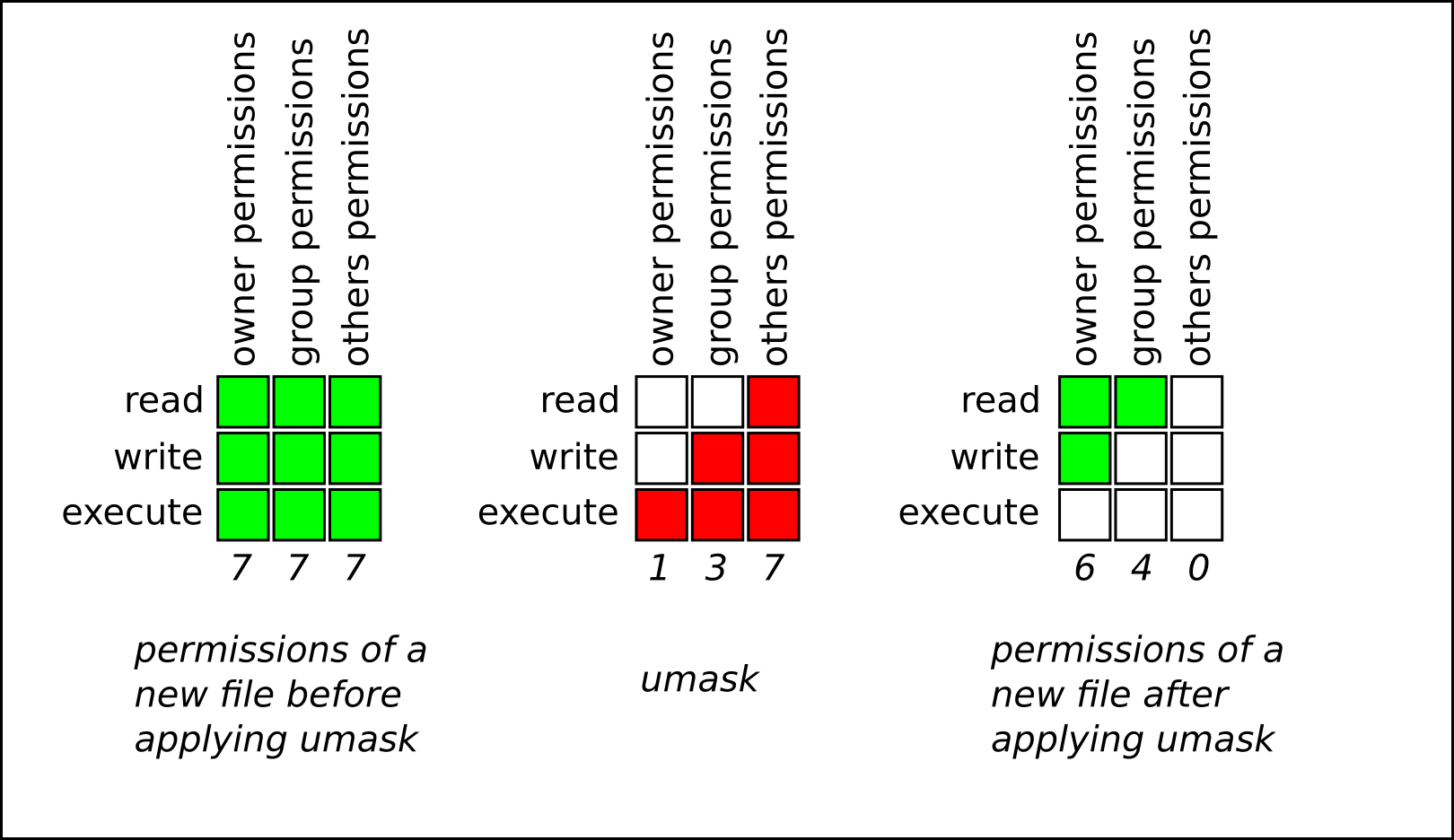
The most common default umask is 022. Let's see how that works:
- For a new directory:
777(base) -022(umask) =755(rwxr-xr-x) - For a new file:
666(base) -022(umask) =644(rw-r--r--)
This is why you so often see new files with 644 and new directories with 755 permissions.
Manage Special Permissions and umask in Linux
The LabEx.io tutorial provides a concise, hands-on explanation of how to calculate permissions with umask and then verify the results.
Read the sections "Restrict Default File Permissions with umask 027" and "Create a File and Verify the New umask Permissions". Focus on the calculation (666 - 027 = 640) and the steps to test its effect (umask, touch, ls -l).
Using the umask Command
Now let's put this into practice on the command line.
You can view the current umask setting in two ways:
umask: Shows the octal value (e.g.,0022).umask -S: Shows the symbolic "allowed" permissions (e.g.,u=rwx,g=rx,o=rx).
You can set a new umask for your current terminal session by simply providing the new octal value. For example, to make new files private by default:umask 077
- New Directory:
777 - 077 = 700(rwx------) - New File:
666 - 077 = 600(rw-------)
Practical Exercise:
Open your terminal and try these steps:
- Check your current umask:
umask - Create a test file and check its permissions:
touch testfile1 && ls -l testfile1 - Set a more restrictive umask:
umask 077 - Create a second test file and check its permissions:
touch testfile2 && ls -l testfile2 - Notice the difference in the permission strings between
testfile1andtestfile2. - Remember to close your terminal or open a new one to revert to the default
umask. The change is only for the current session.
Conclusion
You have now gained practical control over file permissions in Linux. You can not only interpret who has access but can now actively manage that access for existing files and set secure defaults for new ones.
Key Takeaways:
- The
chmodcommand modifies permissions on existing files and directories. chmodcan be used with numeric notation (e.g.,chmod 755 file) to set absolute permissions or symbolic notation (e.g.,chmod u+x file) to make relative changes.- The
umaskcommand controls the default permissions for newly created files and directories. umaskworks by subtracting its value from the system's base permissions (666for files,777for directories).- A common default
umaskis022, resulting in644permissions for files and755for directories.
In our next lesson, we will complete our foundation in standard access control by learning how to change which user and group a set of permissions applies to. We will explore how to change file ownership and group assignment using the chown and chgrp commands.