Hello! Welcome back to our course on Linux software management.
In our last lesson, you successfully compiled and installed software from a source tarball. We saw that while this method is powerful, it can be complex, and managing the software afterward can be tricky. We concluded by highlighting that for most system maintenance, using your distribution's package manager is the safer, simpler, and more reliable approach.
Today, we'll apply that principle to the most critical component of the entire operating system: the Linux kernel. This lesson will show you how to perform a kernel update using your system's package manager and how to manage the kernel's dynamic components, known as kernel modules. Mastering these skills is essential for maintaining a secure and functional Linux system.
1. The Core of the System: The Linux Kernel
Before we update it, let's briefly clarify what the kernel is and why keeping it up-to-date is so important. The kernel is the central program of the operating system. It acts as the ultimate bridge between your software (like the shell or a web browser) and the computer's hardware (the CPU, memory, and devices).
There are several compelling reasons to update your kernel.
Updating Linux Kernel: A Step-by-Step Guide - PHB Crystal Ball
The article 'Updating Linux Kernel: A Step-by-Step Guide' from PHB Crystal Ball starts by explaining the key benefits of a kernel update. Understanding the 'why' is just as important as the 'how'.
Please read the introductory section titled 'Why Update the Linux Kernel?'. Pay attention to the four main reasons listed.
As the article notes, updates provide:
- Security: Patches for vulnerabilities that could be exploited.
- Performance: Optimizations that can make your system run more efficiently.
- New Features: Crucially, this includes support for new hardware. If you buy a brand-new graphics card or Wi-Fi adapter, a kernel update is often what makes it work.
- Bug Fixes: Solutions for issues that might cause instability or unexpected behavior.
Before any update, you should always know what version you are currently running. You can check this with a simple command.
uname -r
The output might look something like 5.15.0-78-generic. This tells you the major version, minor version, patch level, and other distribution-specific information.
2. Updating the Kernel with a Package Manager
In the last lesson, we went through the manual ./configure, make, make install process. While it's possible to compile a kernel from source this way, it is a complex and risky task reserved for developers and very specific use cases. For system administrators, the correct and safe method is to use the package manager.
Your Linux distribution's maintainers test new kernel versions extensively to ensure they are stable and compatible with the system's other software before releasing them as an update.
Updating Linux Kernel: A Step-by-Step Guide - PHB Crystal Ball
The same guide provides clear, step-by-step instructions for updating the kernel on the two major families of Linux distributions.
Please read the section 'Option 1: Automatic Updates via Package Manager'. Find the subsection that matches your virtual machine's distribution (either 'Ubuntu/Debian' or 'Fedora'). Notice that the commands are the same ones you would use for any other system-wide update.
As you can see, the process is straightforward:
- For Debian/Ubuntu:
sudo apt update sudo apt upgrade - For Fedora/RHEL/CentOS:
sudo dnf upgrade --refresh
When a new kernel is available in the repositories, these commands will automatically download and install it. A crucial step follows the installation: you must reboot your system for the new kernel to be loaded.
After rebooting, you can verify the update was successful by running uname -r again. The output should now show the new version number.
What if an Update Goes Wrong?
A new kernel could, in rare cases, introduce a problem (e.g., a specific piece of hardware stops working). This is precisely why using a package manager is so safe. When you update the kernel, the package manager does not remove the old one. Instead, it adds the new kernel to the bootloader menu.

This image shows the GRUB bootloader menu. Notice how multiple kernel versions are listed. If the default (newest) kernel causes issues, you can simply select an older, known-good version from this menu to boot your system successfully.
This allows you to easily restart your computer, select the previous kernel from the GRUB menu, and get your system back into a working state.
Cleaning Up Old Kernels
Over time, several old kernels can accumulate and take up significant disk space in your /boot directory. While it's wise to keep at least one previous version as a backup, you can remove the older ones.
Updating Linux Kernel: A Step-by-Step Guide - PHB Crystal Ball
The guide we've been using also covers the process for removing old, unneeded kernel versions.
Read the section 'Step 5: Cleaning Up Old Kernels'. The sudo apt autoremove command on Debian/Ubuntu is particularly effective, as it's designed to remove orphaned packages, including old kernels that are no longer needed.
3. Managing Kernel Modules
The Linux kernel is not a single, massive block of code. It's modular. Features and device drivers can be loaded into and unloaded from the running kernel as needed. These pieces of code are called kernel modules. They are typically stored in /lib/modules/$(uname -r)/.
This modularity is efficient. Your kernel doesn't need to have the code for every possible webcam and printer built-in; it can just load the specific module for the hardware you've connected.
The Full Learning Guide provides a concise reference for the essential module management commands.
Let's consult the 'Full Learning Guide' for a quick summary of the key commands used to interact with kernel modules.
Find the section '1.2 Boot Process and Kernel Concept'. In the list under 'Key Commands', focus on lsmod, modprobe, and rmmod. We will explore what each of these does.
Let's break them down:
lsmod: Lists all currently loaded modules.
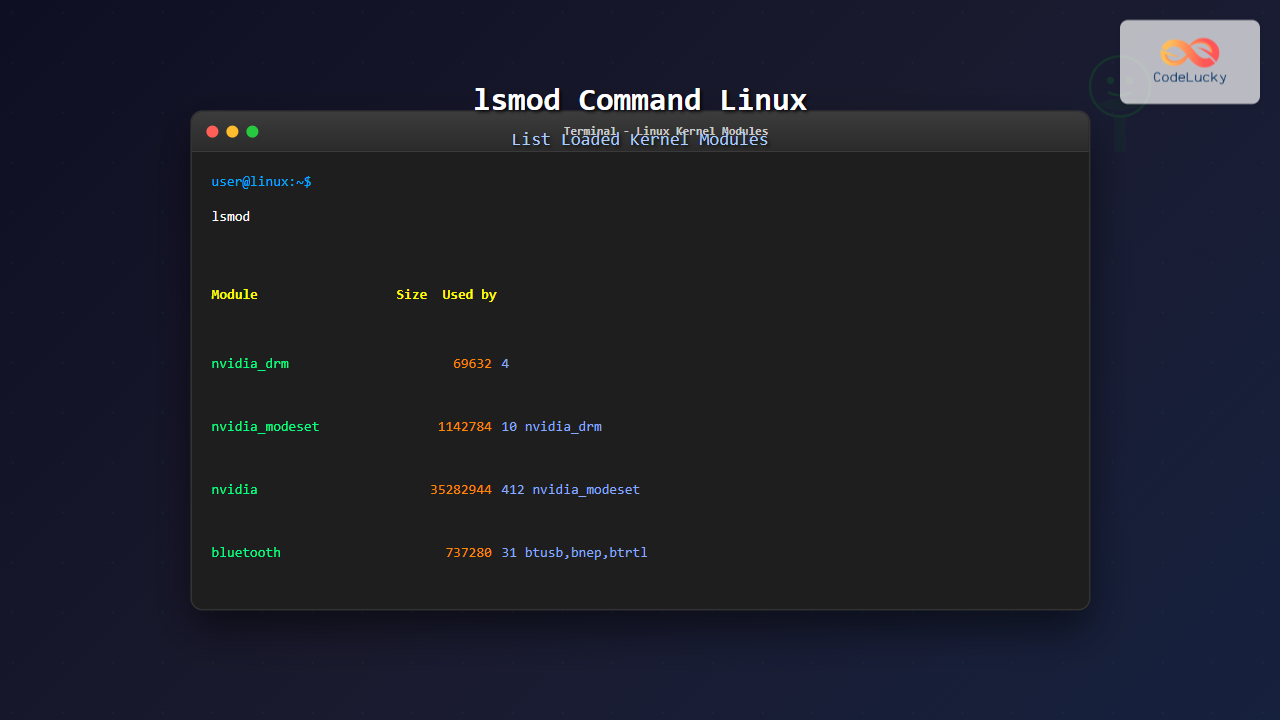
*This terminal output shows the `lsmod` command in action. The 'Module' column gives the name, 'Size' shows how much memory it uses, and 'Used by' lists other modules that depend on it.*
-
modinfo <module_name>: Shows information about a specific module, such as its filename, description, author, and any parameters it accepts. This is very useful for troubleshooting. -
modprobe <module_name>: Loads a module into the kernel. This is the preferred command for loading modules because it's "smart"—it will also load any other modules that the specified module depends on. You needsudoto run this. -
rmmod <module_name>: Removes a module from the kernel. This will fail if the module is currently in use by a process or another module. You also needsudofor this.
Test your understanding!
You suspect the module for your sound card, named snd_hda_intel, is causing issues. You want to temporarily unload it to see if it resolves a system freeze. Which command would you use? What might prevent this command from working?
Show answer
You would use the command sudo rmmod snd_hda_intel.
This command might fail if the module is currently in use. For example, if a web browser is playing audio or if the system's sound server has a lock on the hardware, the kernel will refuse to unload the module to prevent a system crash.
Conclusion
In this lesson, you've learned how to manage one of the most fundamental parts of a Linux system. You have moved beyond application management to core system administration, a key competency for the Linux+ exam.
Key Takeaways:
- Kernel updates are essential for security, hardware compatibility, and performance.
- Using the system's package manager (
aptordnf) is the standard, safe, and recommended method for performing kernel updates. - Package managers preserve old kernels, allowing you to boot from a previous version via the GRUB menu if a new kernel causes problems.
- The kernel is modular, loading drivers and features as needed.
- You can manage these modules with the
lsmod,modprobe,rmmod, andmodinfocommands.
Preview of the Next Lesson:
Having covered software installation and kernel management, we will now turn our attention to the software that is actively running on the system. In our next lesson, we will begin the "Process, Service, and Task Management" module by learning how to list and interpret process information using the ps command. This is the first step toward monitoring and controlling what your system is doing at any given moment.