Hello! Welcome to your next lesson on software and package management.
In the previous lesson, we dove deep into the Debian world, mastering the apt and dpkg commands. You learned the critical distinction between a low-level tool that handles individual files (dpkg) and a high-level tool that manages repositories and dependencies (apt).
This lesson transitions to the other major family in the Linux ecosystem: Red Hat. Our goal is to master the equivalent tools used in distributions like Fedora, CentOS, and Red Hat Enterprise Linux (RHEL). By the end of this lesson, you will be able to use rpm, yum, and the modern dnf command to install, update, query, and remove software packages, fully addressing our learning outcome.
You'll find that the core concepts are identical to what you've already learned; we're just learning a different, parallel set of commands to achieve the same results.
1. The Red Hat Package Management Ecosystem
Just as Debian systems use .deb files and apt, Red Hat-based systems have their own ecosystem built around .rpm files.
Package Management (RPM, DEB) test
To start, let's get a clear, exam-focused overview of the Red Hat package management family from the 'Package Management (RPM, DEB) test' article. This will formalize the parallel structure to what you learned about Debian systems.
Read the introductory section that contrasts RPM and DEB. Then, focus on the section titled 'RPM Systems (RHEL, Fedora, CentOS, openSUSE)'. Pay close attention to how it defines the roles of the low-level tool (rpm) and the high-level tools (dnf and yum).
As you just read, the structure is:
- Low-Level Tool:
rpm(Red Hat Package Manager), which works with individual.rpmfiles. - High-Level Tool:
dnf(Dandified YUM), which handles repositories and dependencies.
From yum to dnf
You will see yum (Yellowdog Updater, Modified) and dnf used in documentation and online forums. yum was the long-standing package manager for Red Hat systems, but it has been officially replaced by dnf. dnf is a more modern, faster, and efficient version.
For the CompTIA Linux+ exam, you should be familiar with both terms. The good news is that for most common operations, the commands are identical—you can simply substitute dnf for yum.
This chart highlights the key improvements that dnf brings over yum.

Throughout this lesson, we will use dnf, as it is the current standard.
2. The Low-Level Tool: rpm
Similar to dpkg in the Debian world, rpm is the foundational tool that installs, queries, and removes individual .rpm package files. It maintains a database of all installed packages on the local system.
Also like dpkg, rpm does not resolve dependencies automatically. If you use rpm to install a file that requires other packages, the installation will fail. This is why you will almost always use dnf for installations.
However, rpm is excellent for querying the local package database. Here are some key commands to know:
rpm -ivh package.rpm: Installs a package, showing verbose output and a hash mark (h) progress bar. You would only use this if you have all dependency.rpmfiles in the same directory.rpm -e <package_name>: Erases (removes) a package.rpm -qa: Queries all installed packages.rpm -qf /path/to/file: Queries which package a file belongs to. This is therpmequivalent ofdpkg -S.
3. The High-Level Tool: dnf
dnf is the intelligent, user-friendly tool you will use for everyday package management. It communicates with software repositories, downloads packages, and automatically resolves all dependency issues.
Let's watch a video that provides a comprehensive walkthrough of the most common dnf commands. The presenter does an excellent job of comparing dnf's behavior to apt, which will help connect this lesson to the previous one.
Package Management (Red Hat & Fedora) - Bash Basics (Linux CLI)
The video 'Package Management (Red Hat & Fedora)' from Nerd on the Street provides a practical, step-by-step guide to using dnf.
Watch from the timestamp 1:26 to 17:10. This segment covers the complete software management lifecycle. Pay special attention to: Upgrading: How dnf upgrade differs from the apt update/upgrade two-step process. Searching and Installing: The process of finding and installing a package, including how dependencies are handled. Removing: Crucially, observe how dnf handles modified configuration files by creating an .rpm_save backup. This is a key difference from apt purge.
Let's summarize and structure the essential commands from the video.
Updating the System
sudo dnf upgrade: This single command both checks for available updates and installs them. It's equivalent to runningsudo apt updateand thensudo apt upgrade. You may also seesudo dnf update, which does the exact same thing.sudo dnf check-update: If you only want to see a list of available updates without installing them, use this command.
Searching and Installing Packages
dnf search <keyword>: Searches package names and summaries for a keyword.sudo dnf install <package_name>: Installs a package and all of its required dependencies. You can list multiple packages separated by spaces to install them all at once.
Removing Packages
sudo dnf remove <package_name>: Removes a package and any dependencies that were installed with it and are no longer needed by other packages.sudo dnf autoremove: This command is used to remove any "orphaned" dependencies that may have been left over from previous removals.
As noted in the video, a key feature of rpm-based systems is how they handle configuration files. When you remove a package, if you have modified any of its configuration files (typically in /etc), the system will not delete them. Instead, it renames them with an .rpm_save extension. This prevents you from accidentally losing your custom configurations.
Querying and Inspecting Packages
Package Management (Red Hat & Fedora) - Bash Basics (Linux CLI)
Let's continue with the same video to see how to list installed packages and view their dependency trees.
Watch from 17:03 to 18:54. This short clip demonstrates how to get a list of all installed packages and how to inspect a package's dependencies.
dnf list installed: Lists all packages currently installed on the system.dnf info <package_name>: Shows detailed information about a package, such as its version, architecture, and description.dnf deplist <package_name>: Displays the package's dependencies and what packages provide them. (Note: The video transcript says "deptree", but the correct command isdeplist).
4. Common and Practical Scenarios
Now let's cover a few more scenarios you'll encounter that are critical for the exam and real-world use.
Installing a Local .rpm File
What if you download an .rpm file directly from a website? You should not use rpm -ivh because it won't fetch dependencies. The correct way is to use dnf.
Package Management (Red Hat & Fedora) - Bash Basics (Linux CLI)
The final segment of the 'Nerd on the Street' video demonstrates the proper way to handle local .rpm files and add new repositories.
Watch from 18:44 to 22:08. Notice how using dnf install ./google-chrome....rpm automatically detects and installs the necessary dependencies from the standard repositories. This is a powerful feature.
The command sudo dnf install /path/to/package.rpm tells dnf to install the local file while still using its intelligence to search online repositories for any dependencies.
Managing Repositories
The video also showed how to add a third-party repository. While we won't go as deep as we did with apt's sources, it's good to know the basics.
- Repository configuration files are stored in
/etc/yum.repos.d/. They end with a.repoextension. sudo dnf repolist: Lists all enabled repositories on your system.sudo dnf config-manager --add-repo <URL_to_.repo_file>: A common way to add a new repository.
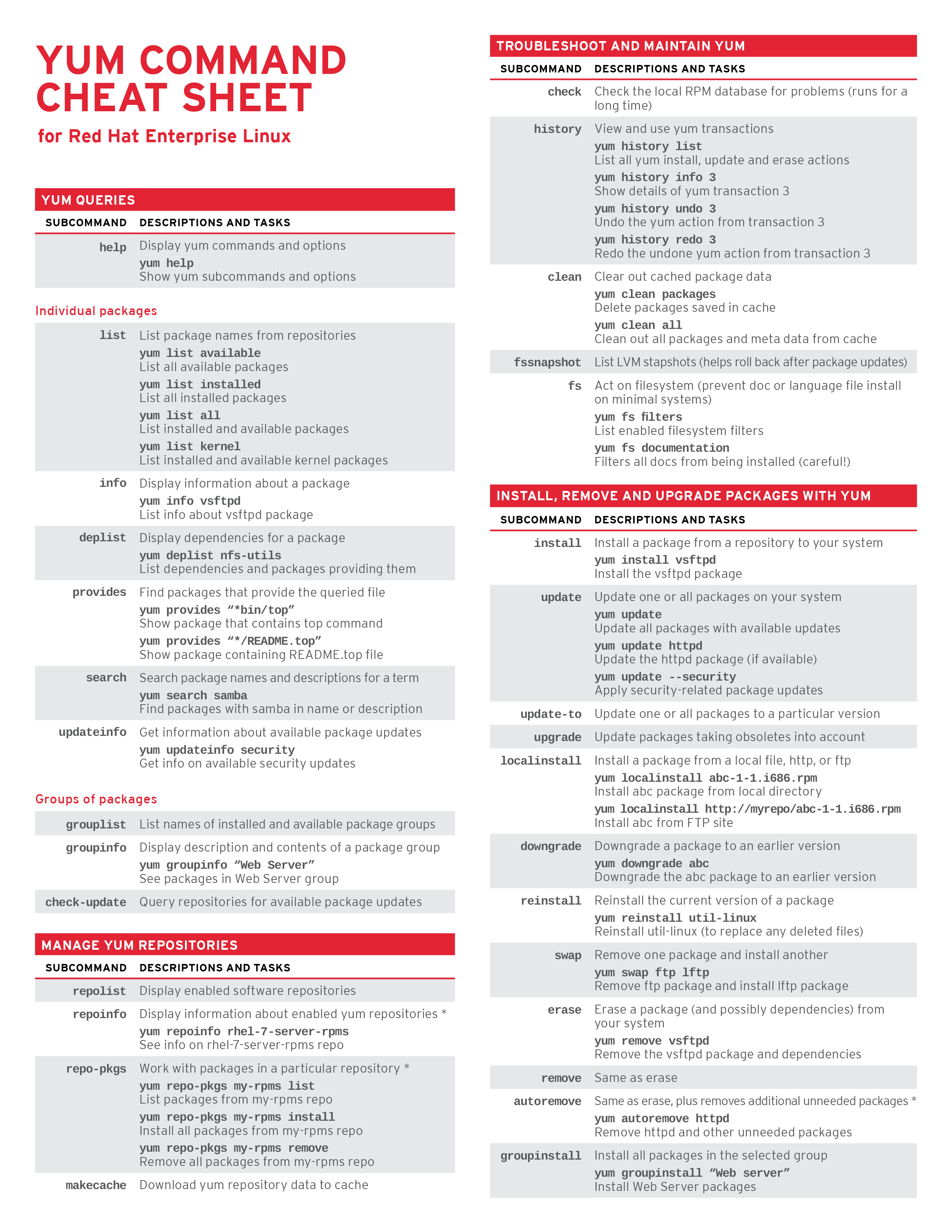
For reference, here is a fantastic cheat sheet from Red Hat. While it's for yum, remember that nearly all of these commands work by simply replacing yum with dnf.
Test your understanding!
You are now the administrator of a Fedora server.
- You want to install the Apache web server, but you're not sure if the package is called
apache,apache2, orhttpd. What command would you use to find the correct package name? - After finding the package name is
httpd, what single command would you run to get all available system updates and apply them before installing the new software? - You've installed
httpdand edited its main configuration file at/etc/httpd/conf/httpd.conf. Later, you decide to remove the web server. What command would you use, and what will happen to your modifiedhttpd.conffile? - You download a special tool as an RPM file named
special-tool-1.0.rpm. You know it has many dependencies. What is the best command to install it?
Show answer
dnf search apacheordnf search 'web server'. This will search package names and descriptions for the keyword and help you identifyhttpd.sudo dnf upgrade. This command checks for and applies all system updates.- You would use
sudo dnf remove httpd. The file/etc/httpd/conf/httpd.confwill be renamed to/etc/httpd/conf/httpd.conf.rpm_save, preserving your changes. sudo dnf install ./special-tool-1.0.rpm. Usingdnfto install a local file allows it to automatically find and install any required dependencies from the configured repositories.
Conclusion
Congratulations! You have now covered package management for the two dominant Linux families. You've seen that while the tools have different names (apt vs. dnf), their purpose and the concepts of dependencies and repositories are universal.
Key Takeaways:
- Red Hat-based systems use the RPM package format and the DNF package manager.
rpmis the low-level tool for working with individual.rpmfiles, primarily used for querying.dnfis the modern, high-level tool that has replacedyum. It handles repositories and automatically resolves dependencies.- The command
dnf upgradecombines the update and upgrade steps into one. - When removing a package,
dnfautomatically saves modified configuration files with an.rpm_saveextension. - The best way to install a local
.rpmfile is withdnf install, as it will also install dependencies.
Preview of the Next Lesson:
Now that you know how to install, update, and remove software on both Debian and Red Hat systems, how can you be sure the packages you're installing are legitimate and haven't been tampered with? In our next lesson, we will focus on verifying package integrity using checksums and signatures. This is a crucial security step in system administration.