Hello! Welcome to the third lesson in our module on Software and Package Management.
In our last lesson, we focused on configuring and managing repositories, which are the software sources your system uses. You learned how to add new repositories and update your local package list using apt update.
Now that your system knows where to find software, this lesson will teach you how to manage it. We will explore the primary tools used on Debian-based systems like Ubuntu: dpkg and apt. By the end of this lesson, you will be able to use these command-line tools to install, update, query, and remove software packages, fully addressing our learning outcome.
We'll start by looking at the low-level tool, dpkg, to understand the fundamentals, and then move to the more powerful and user-friendly apt command, which you'll use for most of your day-to-day tasks.
1. The Foundation: dpkg
Every Debian-based Linux distribution, including Ubuntu, uses the Debian Package management system. The core tool that interacts with this system is dpkg. It's a "low-level" tool because it works directly with individual package files, which have a .deb extension.
While you won't use dpkg to install software from the internet, understanding its role is crucial. Its main limitation is that it doesn't understand or resolve dependencies on its own. If you try to install a package that requires other software to be present, dpkg will fail.
Let's watch a video that perfectly illustrates this distinction.
apt, dpkg, git, Python PiP (Linux Package Management) // Linux for Hackers // EP 5
The video 'apt, dpkg, git, Python PiP' by NetworkChuck provides a high-energy but very clear demonstration of why dpkg is considered a low-level tool and how apt solves its biggest problem. We will watch two short segments.
First, watch from 2:20 to 3:36 to understand the difference between dpkg and apt. Then, continue watching from 3:36 to 6:11. In this second part, pay close attention to the process: downloading a .deb file manually and then attempting to install it with dpkg -i. Notice the dependency error that occurs—this is the key limitation of dpkg.
As you saw, dpkg is effective at one thing: installing a local .deb file. However, when the installation fails due to missing dependencies, it leaves the system in a "broken" state. This is where apt comes in.
Even though apt is the preferred tool for installations, dpkg remains essential for querying the package database on your local machine. Here are some of the most useful dpkg commands for inspecting your system:
dpkg -l: Lists all packages installed on your system. You can pipe this togrepto find a specific package (e.g.,dpkg -l | grep firefox).dpkg -s <package-name>: Shows the status and detailed information of a specific installed package.dpkg -L <package-name>: Lists all the files that were installed by a specific package, showing you exactly where they are on your filesystem.dpkg -S <path/to/file>: Searches for which package owns a specific file. This is incredibly useful for troubleshooting.
2. The Solution: apt (Advanced Package Tool)
apt is the high-level, intelligent package manager you'll use most of the time. It works with the repositories you configured in the last lesson, automatically handling dependencies and making software management simple and reliable. It essentially acts as a smart front-end for dpkg.
Fixing a Broken Installation
Remember the dependency error from the dpkg video? apt can fix that.
apt, dpkg, git, Python PiP (Linux Package Management) // Linux for Hackers // EP 5
Let's return to the NetworkChuck video to see how apt resolves the mess dpkg left behind.
Watch from 6:11 to 8:32. The key command here is sudo apt --fix-broken install. Observe how apt automatically identifies the missing dependencies, downloads them, installs them, and finishes configuring the original package (discord). This sequence perfectly demonstrates the power of apt.
This ability to resolve dependencies is the primary reason apt is the standard tool for package management on Debian-based systems.
3. Essential apt Commands
Let's walk through the main commands you'll use to manage software. For a detailed reference with many examples, the following guide is an excellent resource.
CompTIA® Linux+ / LPIC-1 Cert Guide
The 'CompTIA® Linux+ / LPIC-1 Cert Guide' provides a concise, exam-focused overview of Debian package management. We will use it as our reference text for this section.
Please read the section 'Debian Package Management' from page 58 to page 67. Focus on the sub-sections that describe using dpkg for local management and, more importantly, using apt for installing, upgrading, and removing packages from remote repositories.
Now, let's put that reading into practice with the most common commands.
Updating, Installing, and Upgrading
-
sudo apt update
As we covered in the last lesson, this is always the first step. It doesn't install or upgrade any software. Instead, it downloads the latest list of available packages and versions from all configured repositories. You must do this before installing or upgrading. -
sudo apt install <package-name>
This command installs a new package.aptwill read the dependency list, prompt you to approve the installation of all required libraries and tools, download everything, and then usedpkgto perform the actual installation and configuration. -
sudo apt upgrade
This command upgrades all installed packages on your system to the newest versions available in the repositories. It will not remove any packages to do so, making it a very safe, routine command to run to keep your system secure. -
sudo apt full-upgrade(ordist-upgrade)
This is a more powerful upgrade command. It will upgrade all packages but, if necessary, will also remove currently installed packages to satisfy dependencies for a new version. This is typically used when upgrading the entire operating system from one major release to another (e.g., Ubuntu 22.04 to 24.04).
Searching and Inspecting Packages
-
apt search <keyword>
Searches the name and description of all available packages in your local cache for a keyword. This is useful when you don't know the exact name of a package. -
apt show <package-name>
Displays detailed information about a package from the repository, including its version, dependencies, and a description of what it does. This is useful for vetting software before you install it.
Removing Packages
Removing software is just as important as installing it. apt gives you two main options.
sudo apt remove <package-name>
This command uninstalls a package but leaves its configuration files behind. This is useful if you plan to reinstall the package later and want to keep your settings.

*This image shows the `apt remove` command in action. Note that it offers to remove the package and tells you what will be freed up, then asks for confirmation.*
2. sudo apt purge <package-name>
This command uninstalls a package and deletes its configuration files. Use this when you want to completely remove all traces of an application from your system.
sudo apt autoremove
When you install a package, it often brings in other packages (dependencies). When you remove the original package, these dependencies might no longer be needed by any other software. This command cleans up these "orphaned" packages, freeing up disk space. It is good practice to run this after removing software.
4. apt vs. apt-get and apt-cache
As you search for help online, you will frequently see older commands like apt-get and apt-cache. For your exam and modern practice, it's important to know how they relate to the apt command.
apt-get: The original command-line tool for handling packages (installing, removing, upgrading).apt-cache: The tool used for searching and querying package information.
The modern apt command was introduced to consolidate the most-used features of both apt-get and apt-cache into a single, more user-friendly tool with a cleaner output. While the older commands still work, apt is the recommended tool today.
This table provides a helpful comparison:
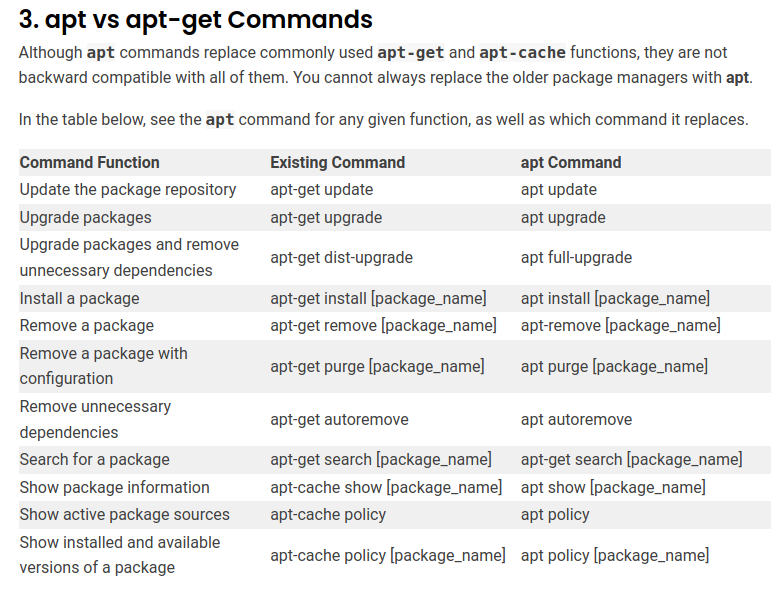
A table comparing common functions between the older apt-get/apt-cache commands and their modern apt equivalents. For example, apt-get install is now apt install, and apt-cache search is now apt search.
Test your understanding!
You are managing a new Ubuntu server and need to perform several package management tasks.
- You want to install the
htopprocess monitor, but before you do, you want to get the latest list of available software from the repositories. What two commands should you run, in the correct order? - After using
htopfor a while, you decide you don't need it. You want to remove it and all of its system-wide configuration files. What command would you use? - You know that the
/bin/lscommand is part of a core system package, but you can't remember which one. Whatdpkgcommand would you use to find out? - You've just removed several applications. What command should you run to clean up any leftover dependencies that are no longer needed?
Show answer
- First,
sudo apt updateto refresh the package lists. Then,sudo apt install htopto install the package. sudo apt purge htop. Thepurgeoption ensures that configuration files are also deleted.dpkg -S /bin/ls. The-Sflag searches for the package that owns a given file.sudo apt autoremove. This command safely removes orphaned dependencies.
Conclusion
In this lesson, you have gained hands-on knowledge of the tools that power software management on Debian-based systems. You now understand the roles of both the low-level dpkg tool and the high-level apt manager.
Key Takeaways:
dpkgis the core tool that works with.debfiles but does not resolve dependencies. It is still very useful for querying locally installed packages.aptis the modern, user-friendly tool that manages repositories, automatically resolves dependencies, and provides a clean interface for installing, upgrading, and removing software.- The standard workflow for package management is
apt update, followed byapt install,apt upgrade, orapt remove. apt removekeeps configuration files, whileapt purgedeletes them.apt autoremovecleans up unused dependencies.- The
aptcommand is the modern successor to the olderapt-getandapt-cachecommands.
Preview of the Next Lesson:
Now that you've mastered package management on Debian-based systems, we will explore the other major branch of the Linux family. In the next lesson, we will cover the equivalent tools for Red Hat-based systems: rpm and yum/dnf. You will see that while the commands are different, the core concepts are very similar.