Hello! Welcome back to our course preparing you for the CompTIA Linux+ exam.
In the last lesson, we explored how to use cut and sort to extract and reorder columns and lines of text. We saw that these are powerful tools for reshaping data, but they operate on the structure of the text (lines and fields) rather than its content. This leaves a gap: what if you need to change something within a line?
Today, we'll fill that gap by learning about sed, the stream editor. This lesson directly addresses the learning outcome: Perform pattern-based search and replace operations on text streams using sed. We will cover the fundamental syntax for finding and replacing text, how to apply these changes to files, and how to use more advanced patterns to perform complex transformations.
1. Introduction to sed and Basic Substitution
sed works by reading text from a file or standard input, processing it one line at a time according to a script of commands you provide, and then printing the result to standard output. While it has many commands, its most common use by far is for substitution.
Let's start with a video that introduces the core concept and syntax.
Linux Crash Course - The sed Command
This video from Learn Linux TV provides a great starting point for understanding sed. It clearly explains what a stream editor is and demonstrates the most fundamental search and replace operation.
Watch from 01:27 to 04:33. Focus on understanding the basic command structure sed 's/search/replace/' file.txt and notice that by default, the command only prints the changes to the screen without altering the original file.
As the video demonstrates, the basic syntax for substitution is:
sed 's/pattern/replacement/' filename
Let's break this down:
s: This is the substitute command./: This is the delimiter. It separates the parts of the command. While/is traditional, you can use almost any other character, which we'll see is very useful later.pattern: The text you want to find.replacement: The text you want to substitute in.
You may have noticed in the video's example that sed only replaced the first occurrence of the pattern on each line. To replace every occurrence on a line, you need to add the global flag, g, at the end of the command.
sed 's/pattern/replacement/g' filename

2. Saving Changes and Handling Special Characters
By default, sed acts as a filter, printing the modified text to your terminal. This is safe, as it leaves your original file untouched. But what if you want to save the changes? You have two main options.
Option 1: Output Redirection
You can redirect the standard output of sed into a new file.
sed 's/old/new/g' original_file.txt > new_file.txt
This is a safe way to work, as your original file remains intact.
Option 2: In-place Editing
sed can also modify the file directly using the -i (in-place) option. This is very powerful but should be used with care, as it overwrites your original data.
Let's see how this works.
Linux Crash Course - The sed Command
Let's return to the Learn Linux TV video to see a demonstration of the -i option.
Watch from 04:33 to 06:28. The video explains how -i changes the file directly.
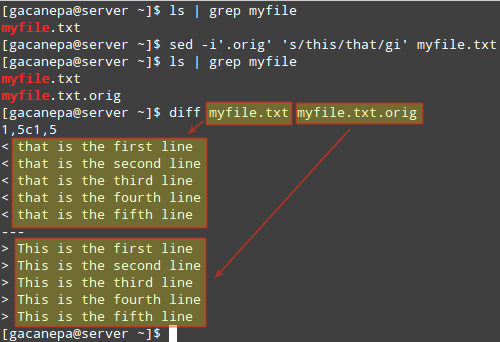
A best practice when using -i is to create a backup of the original file at the same time. You can do this by providing an extension to the -i flag.
sed -i.bak 's/old/new/g' filename.txt
This command will:
- Create a copy of
filename.txtnamedfilename.txt.bak. - Perform the substitution and save the changes to the original
filename.txt.
Handling Delimiter Conflicts
What happens if your search pattern contains a forward slash, like a file path or a URL?
sed 's/usr/local/bin/\/usr/bin/g' config.txt <- This is confusing and will fail!
The slashes in the path are misinterpreted as delimiters. You could escape them with backslashes (\/), but a much cleaner solution is to use a different delimiter.
Linux Crash Course - The sed Command
The final segment of the Learn Linux TV video provides an excellent, detailed explanation of why and how to change delimiters.
Watch from 06:28 to 13:56. Pay close attention to the example where the command fails because the search pattern contains a forward slash, and see how switching the delimiter solves the problem.
By choosing a character that is not in your pattern or replacement, such as #, |, or _, you make your command much more readable.
sed 's#/usr/local/bin#/usr/bin#g' config.txt
Test your understanding!
You have a file website.html that contains the URL http://test.com/path. You want to change it to https://production.com/path. Which of the following commands will work correctly?
sed -i 's/http/https/g' website.htmlsed -i 's/http://test.com/path/https://production.com/path/g' website.htmlsed -i 's|http://test.com/path|https://production.com/path|g' website.htmlsed -i 's/test/production/g' website.html
Show answer
The correct answer is 3.
- Option 1 only changes
httptohttpsand doesn't change the domain. - Option 2 will fail because the slashes in the URL will be confused with the
scommand's delimiters. - Option 3 correctly uses a different delimiter (
|) to avoid conflict with the slashes in the URLs. - Option 4 is too broad and might unintentionally change other instances of the word "test" in the file.
3. Advanced Pattern-Based Replacements
So far, we've replaced simple, literal strings. The true power of sed comes from using more complex patterns and referencing parts of what you found.
For this section, a detailed written guide is helpful.
The Basics of Using the Sed Stream Editor to Manipulate ...
The DigitalOcean community tutorial "The Basics of Using the Sed Stream Editor" provides excellent explanations of more advanced substitution techniques. We'll focus on the section covering substitution.
Please read the section titled Substituting Text. Pay special attention to: The i flag for case-insensitive searching. Using & to reference the entire matched pattern in your replacement string. The concept of grouping parts of a pattern with $ ... $ and referencing those groups with \1, \2, etc. This is called back-referencing.
Let's summarize those key advanced features:
-
Case-Insensitive (
iflag): To replace a word regardless of its case (e.g., "error", "Error", "ERROR"), add theiflag.sed 's/error/warning/gi' logfile.txt(This uses both global and case-insensitive flags) -
Referencing the Match (
&): The&character in the replacement string is a special character that represents the entire text that was matched by your pattern. This is great for adding prefixes, suffixes, or wrapping text.
Example: To wrap every instance of the word "Linux" in quotes:sed 's/Linux/"&"/g' my_document.txt -
Back-References (
\1,\2, etc.): This is one ofsed's most powerful features. By wrapping parts of your search pattern in$...$, you create "capture groups." You can then refer to the text captured by these groups in your replacement string using\1for the first group,\2for the second, and so on.
Example: To swap the first two words of every line:sed 's/$[^ ]*$ $[^ ]*$/\2 \1/' filename.txt$[^ ]*$: This is the first capture group (\1). It matches a sequence of non-space characters (a word).$[^ ]*$: This is the second capture group (\2).\2 \1: The replacement pattern, which puts the second captured word first, followed by a space, and then the first captured word.
Conclusion
In this lesson, you have learned the fundamentals of sed, the command-line stream editor. You now have the power not just to select lines and fields, but to perform intricate search-and-replace operations within the text itself.
Key Takeaways:
sedis a stream editor that processes text line by line.- The primary command is substitute:
s/pattern/replacement/flags. - Common flags include
gfor global replacement on a line andifor case-insensitive matching. - Changes can be saved by redirecting output (
>) or editing in-place with-i. Using-i.bakis a safe way to edit in-place while creating a backup. - When your pattern contains slashes, use a different delimiter (e.g.,
s|...|...|) for clarity. - You can reference the matched text in the replacement with
&(the whole match) or\1,\2(captured groups).
You are building a formidable toolkit for text manipulation. We started with find, moved to cut and sort for structural changes, and now have sed for content changes. In our next lesson, we will explore awk, a tool that combines the field-awareness of cut with the pattern-matching of sed and adds its own programming language for even more advanced data extraction and reporting.