Hello! Welcome to the next lesson in your journey to prepare for the CompTIA Linux+ exam.
In our last lesson, we mastered sed, the stream editor, which is fantastic for performing search-and-replace operations on lines of text. We saw how it can modify file content based on patterns. However, sed operates on the entire line and isn't inherently aware of data structured in columns or fields.
Today, we'll learn about awk, a command that excels where tools like cut and sed have their limits. awk is a powerful text-processing utility and scripting language designed specifically to work with structured, field-based data. It combines the field awareness of cut with the pattern-matching power of sed and adds programming logic, making it a cornerstone of shell scripting and data manipulation.
This lesson is designed to help you extract and format data from structured text using basic awk commands. We'll cover how awk views text, how to select specific pieces of data, and how to format that data into useful reports.
1. How awk Sees the World: Records and Fields
At its core, awk processes text by following two simple rules:
- It reads input one line at a time. Each line is called a record.
- It automatically splits each record into columns. Each column is called a field.
By default, awk assumes that fields are separated by whitespace (one or more spaces or tabs). To access a specific field, you use a dollar sign ($) followed by the field's number.
$1refers to the first field.$2refers to the second field.$0refers to the entire record (the whole line).
Let's watch a short video to see this fundamental concept in action.
This video from Learn Linux TV introduces awk and clearly demonstrates its primary function of splitting lines into fields.
Watch from 01:31 to 08:04. Pay close attention to: The definition of awk as a text manipulator. How it uses spaces as default delimiters to identify fields. The syntax for printing specific fields using $1, $2, etc. How to print multiple fields using a comma.
To solidify this, here's a helpful text-based explanation and a diagram that visually breaks down a line of text into records and fields.
Awk Command in Linux with Examples
The article "Awk Command in Linux with Examples" from Linuxize provides a concise summary of how awk works.
Read the sections "How awk Works" and "Records and fields". The diagram in this section is particularly useful for visualizing the concept.
2. The Basic awk Program: pattern { action }
Almost everything you do in awk follows a simple structure:
awk 'pattern { action }' input_file
{ action }: This is a set of commands, enclosed in curly braces, thatawkexecutes. The most common action isprint.pattern: This is a condition. Theactionis only performed on lines that match thepattern.
If you omit the pattern, the action runs for every single line. If you omit the action, the default action is print $0 (print the whole line).
Let's look at an example. Imagine you have a file inventory.txt:
Item         Category   Quantity
Apples       Fruit      50
Onions       Vegetable  15
Carrots      Vegetable  30
Oranges      Fruit      5
awk '{ print $1, $3 }' inventory.txtwould print the first and third fields of every line.awk '$3 <= 20 { print $0, "<- Reorder" }' inventory.txtwould check if the third field is less than or equal to 20. If it is, it prints the entire line followed by a "Reorder" message.
This image shows a similar practical example of using a comparison operator as a pattern.

Test your understanding!
Given the inventory.txt file above, what would the command awk '$2 == "Fruit"' inventory.txt produce?
Show answer
The command would produce:
Apples       Fruit      50
Oranges      Fruit      5
The pattern $2 == "Fruit" selects only the lines where the second field is exactly "Fruit". Since no action is specified, awk performs the default action, which is to print the entire matching line (print $0).
3. Handling Real-World Data: Custom Field Separators
While whitespace is a common delimiter, much of the structured data on a Linux system uses something else. A perfect example is the /etc/passwd file, which stores user account information separated by colons (:).
root:x:0:0:root:/root:/bin/bash
To handle this, awk provides the -F option, which allows you to specify a custom Field Separator.
This is where awk becomes incredibly useful for system administration. Let's see how to use -F to parse /etc/passwd.
Let's return to the Learn Linux TV video. This section provides a clear, practical demonstration of using the -F option to parse a non-whitespace-delimited file.
Watch from 12:16 to 15:21. The example of extracting usernames and their default shells from /etc/passwd is a classic and important use case for awk.
As the video shows, a command like awk -F':' '{ print $1, $7 }' /etc/passwd is a powerful and quick way to get a list of all users and their assigned shells. This is far more efficient than trying to do the same with cut or sed.
4. Formatting Your Output
Extracting data is only half the battle. awk also provides excellent tools for formatting that data into clean, readable reports.
BEGIN and END Blocks
awk has two special patterns: BEGIN and END.
- An action inside a
BEGINblock runs beforeawkstarts processing the input file. This is perfect for printing a header. - An action inside an
ENDblock runs after all lines have been processed. This is ideal for printing summaries, totals, or footers.
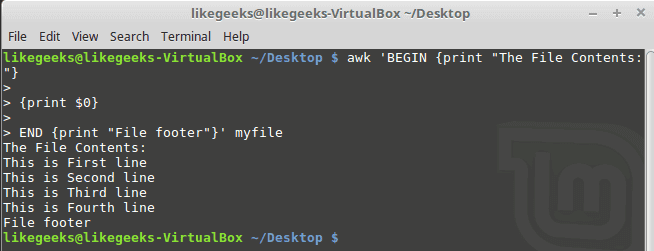
printf for Precise Formatting
While print is great for quick output, the printf action gives you fine-grained control over the output format, much like the printf function in many programming languages.
printf uses format specifiers like %s for a string or %d for a decimal integer, and requires you to explicitly add newlines with \n.
For a great overview of how to use printf to create well-aligned, tabular reports, let's look at a text resource.
AWK Tutorial: 25 Practical Examples of AWK Command in ...
The "AWK Tutorial" from Linux Handbook offers some excellent practical examples of formatting. We'll focus on the section covering printf.
Read section D, "Field formatting," specifically example #15, "Producing tabular results." Notice how printf uses width specifiers like %10s and %-10s to create neatly aligned columns.
Example:
Combining these concepts, we can create a nice report of users and shells:
awk -F':' 'BEGIN { printf "%-20s | %s\n", "USERNAME", "SHELL" } { printf "%-20s | %s\n", $1, $7 }' /etc/passwd
This command would produce a clean, two-column report with a header.
Conclusion
Today you've added awk, one of the most versatile text-processing tools in the Linux ecosystem, to your skill set. You now understand how to parse structured data, select information based on patterns, and format it into clean reports.
Key Takeaways:
awkprocesses text as records (lines) and fields (columns).- The basic syntax is
awk 'pattern { action }'. Fields are referenced with$1,$2, etc. - The
-Foption is crucial for parsing files with custom delimiters like/etc/passwd. - The special
BEGINandENDpatterns allow you to add headers and footers to your output. - The
printaction is for simple output, whileprintfgives you precise control over formatting for creating well-aligned reports.
In our previous lessons, we learned how to find text (grep), edit it (sed), and now, how to parse and format it (awk). Our text-processing toolkit is nearly complete. In our next lesson, we will shift focus from processing the contents of files to finding the files themselves across the entire filesystem using the locate and find commands.