Hello! Welcome back to our module on designing core business systems in Notion.
In our last lesson, we designed the database architecture for a scalable CRM, establishing the foundational pillars of Companies, Contacts, and Interactions/Deals. You learned how to use relations and rollups to create a robust system that ensures data integrity.
Today, we'll build the critical bridge between winning a client and delivering the work. Your learning outcome is to implement relationship mapping systems that connect CRM entities to projects and tasks. From your consulting and project management background, you know that a seamless handover from the sales team to the delivery team is vital for client satisfaction and operational efficiency. We will architect that seamless flow directly within Notion.
This lesson focuses on the "how": using Notion's Relation property to link your CRM to your project management system, creating a single source of truth for the entire client lifecycle.
1. The Power of Connection: Understanding the Relation Property
Before we connect specific databases, let's solidify our understanding of the core mechanism that makes this possible: the Relation property. In the previous lesson, you used it to link Contacts to Companies. Now, we'll generalize that concept. Disconnected databases are like separate spreadsheets—information gets siloed and jumbled. Relations create a logical network.
Master 80% of Notion with this ONE Feature
The video 'Master 80% of Notion with this ONE Feature' by Jeff Su provides an excellent conceptual overview of why relations are fundamental to any scalable Notion system. It clearly articulates the problem of disconnected data and demonstrates the solution.
Please watch the following segments: The Problem (00:00 - 02:22): Observe the inefficiencies of managing projects and tasks in separate, unconnected databases. The Solution (02:22 - 03:48): Pay attention to how the Relation property solves this by allowing databases to share information. The Implementation (03:48 - 05:25): Follow the step-by-step process of creating a two-way relation between a 'Projects' database and a 'Tasks' database.
As the video explains, a Relation allows you to link items, often in a parent-child structure. This is the key to building systems rather than just lists.

2. Architecting the CRM-to-Project Connection
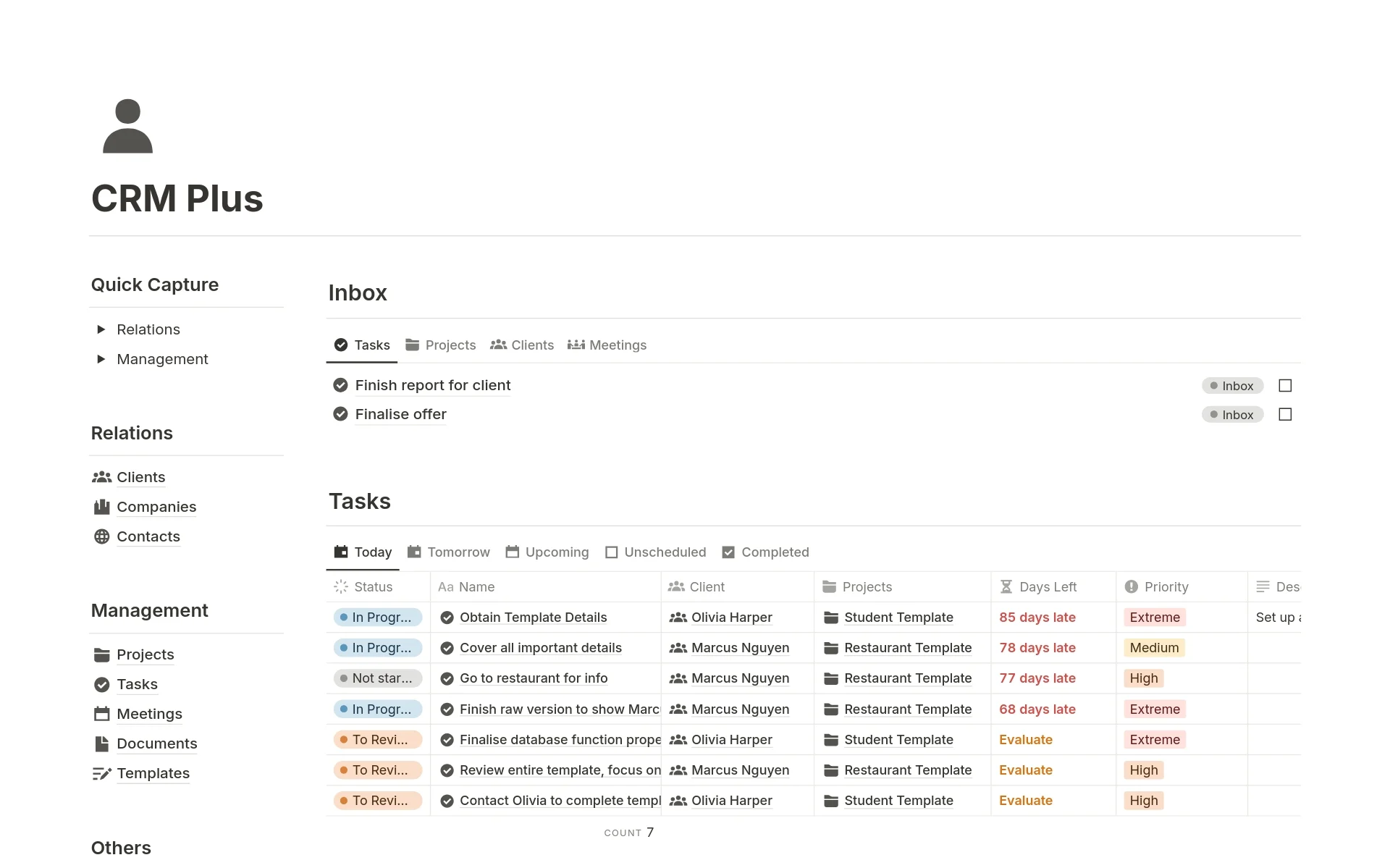
Now, let's apply this to our system. The primary goal is to link the work being done (Projects and Tasks) to the client it's for (Companies and Contacts). The most robust architecture involves two key relationships:
- Companies <-> Projects: The primary contractual relationship is usually with a company, not an individual. A company can have multiple projects over time. This is a classic one-to-many relationship.
- Projects <-> Tasks: Every project is broken down into tasks. This is another one-to-many relationship that forms the core of any project management system.
Let's see a practical demonstration of creating these connections.
Notion CRM Masterclass: Build From Scratch
We'll return to the 'Notion CRM Masterclass' video. Having already built the CRM databases, the presenter now integrates Notion's standard 'Projects and Tasks' template and establishes the crucial link back to the 'Companies' database.
Watch the segment from 29:19 to 30:59. Focus on the action of adding a Relation property to both the 'Projects' and 'Tasks' databases, linking them back to the 'Accounts/Companies' database.
This simple act of adding a relation property is the architectural lynchpin. You have now established a structural link between your CRM and your project management system.
Test your understanding!
A client asks for your advice. They have a Projects database and want to link it to the client. They ask if they should add a Relation property that links to the Contacts database.
From an architectural standpoint, what is the more scalable primary connection to make, and why?
Show answer
The more scalable primary connection is from the Projects database to the Companies database.
Reasoning: The business relationship and contractual agreement are with the company. Employees (contacts) may change roles or leave the company, but the project remains tied to the organization. Linking to the company provides a stable, long-term anchor for the project. You can still add a secondary relation to Contacts to designate a specific point of contact for the project, but the primary link should be to the company.
3. Making the System Work: Templates and Linked Views
Creating the relation is only half the battle. To make the system truly useful and efficient, you need to be able to see the connected information in context. This is where database templates and linked views become indispensable.
The goal is to automate the display of related items. For example, when you open a Company page, you should instantly see a list of all projects for that company.
Notion CRM Masterclass: Build From Scratch
This next segment of the 'Notion CRM Masterclass' demonstrates this principle perfectly. The presenter creates a template for a new 'Account' (Company) that includes sections for related items. This is the key to making your relationship mappings actionable.
Watch from 30:59 to 41:08. While the presenter focuses on adding related 'Deals' and 'Contacts', the principle is identical for 'Projects' and 'Tasks'. Focus on these key strategic steps: Creating a Database Template: Note how a template is created for the Accounts/Companies database. Adding a Linked View: Observe how a linked view of another database (like 'Deals') is added to the template's body. Applying a Self-Referential Filter: This is the most critical step. See how the linked view is filtered so it only shows items where the Relation property contains the template itself (e.g., 'Filter where Deals account contains New Account').
This self-referential filter is a cornerstone of advanced Notion architecture. When you create a new company using this template, the linked view on its page will automatically be filtered to show only the projects related to that specific company.
You would simply repeat the process shown in the video for your Projects database:
- Open the
New Accounttemplate. - Add a heading "Related Projects".
- Add a linked view of your
Projectsdatabase. - Filter that view to show only projects where the
Companyrelation containsNew Account.
Now, every new company page you create will come pre-configured with a dynamic list of its associated projects.
Conclusion
In this lesson, you've connected the dots between your business processes, implementing the system that bridges client acquisition and project delivery. By mastering relationship mapping, you are moving beyond creating isolated databases and are now truly architecting integrated business operating systems in Notion.
Key Takeaways:
- The
RelationProperty is the Bridge: It is the fundamental feature that allows you to connect disparate databases likeCompaniesandProjects. - Architect for the Business Relationship: The primary link for a project should be to the
Companydatabase, as this represents the core business entity, ensuring long-term stability of your data. - Templates Make Relations Actionable: Using database templates with pre-filtered linked views is the key to making these connections useful. This technique automatically surfaces relevant contextual information (e.g., showing all projects for a given company) and is essential for user efficiency.
In our next lesson, we will leverage these powerful connections. Now that your CRM and project data are linked, you will learn how to create automated reporting views that surface key client metrics and relationship health indicators, turning your well-structured data into actionable business intelligence.