Hello! Welcome to the first lesson of our module on Advanced Infrastructure as Code with Terraform.
In the previous module, we mastered building CI/CD pipelines to deploy applications. Now, we shift our focus to the layer underneath: provisioning and managing the very infrastructure our applications run on. This is where Terraform excels, and mastering it is a cornerstone of modern DevOps.
This lesson tackles a topic that is absolutely critical for using Terraform in any professional, collaborative environment. We'll be covering the learning outcome: Describe Terraform's state management and configure a remote backend with state locking.
We'll start by understanding what the Terraform state is and why it's so important. Then, we'll look at the significant problems that arise when working in a team with the default local state file. Finally, we'll implement the industry-standard solution: using AWS S3 as a remote backend for storing state, complete with a locking mechanism to prevent conflicts and data corruption.
1. What is Terraform State?
At its core, Terraform needs a way to map the resources defined in your configuration files (your .tf files) to the actual resources that exist in your cloud environment. This mapping is stored in a special file called the Terraform state file, by default named terraform.tfstate.
This state file is crucial. It acts as a single source of truth for Terraform to:
- Track created resources: It records the IDs and properties of all resources it manages.
- Plan changes: When you run
terraform plan, Terraform refreshes the information from your cloud provider and compares it against the state file to determine what needs to be created, updated, or destroyed. - Manage dependencies: It understands the relationships between resources, even if they aren't explicitly defined in the configuration.
To get a clear picture of what the state file is and what it contains, please read the following brief section from a well-written article on the topic.
Managing Terraform State with AWS S3 and Native Locking - Medium
The article 'Managing Terraform State with AWS S3 and Native Locking' provides an excellent introduction to what the state file is and its purpose.
Please read the section titled 'Understanding Terraform State'. It provides a clear definition and a simplified JSON example of a state file.
Without the state file, Terraform would have no memory of the infrastructure it created, leading it to either attempt to re-create resources on every run or fail entirely.
2. The Dangers of Local State in a Team Environment
By default, the terraform.tfstate file is stored locally in your project directory. While this is fine for personal projects or initial learning, it becomes a major liability in a collaborative, professional setting.
To understand why, let's explore the common pitfalls.
Managing Terraform State with AWS S3 and Native Locking - Medium
This next reading details the significant problems that arise from using local state files when more than one person is managing infrastructure.
Please read the sections 'The Challenge: Working with Teams' and 'Why Version Control Isn’t the Answer'. Pay close attention to the arguments against storing state files in Git.
To summarize the key problems with local state:
- No Single Source of Truth: If each team member has their own local copy of the state file, everyone has a different view of the infrastructure. Running
terraform applycould inadvertently overwrite or destroy a teammate's changes. - Race Conditions and State Corruption: If two engineers run
terraform applyat the same time against a shared state file (e.g., on a network drive), they can corrupt the file, leaving your state inconsistent and potentially causing major outages. - Security Risks with Version Control: Your first instinct might be to commit the
terraform.tfstatefile to Git. However, state files often contain sensitive data in plain text, such as database passwords, private keys, or other credentials. Committing this to your repository is a significant security risk.
The video below also provides a great verbal walkthrough of these challenges, especially in the context of a DevOps team using a Git repository.
Day-4 | Terraform State DeepDive | Remote Backend | State Locking #abhishekveeramalla #terraform
In this segment, the speaker discusses the practical issues of managing state files in a team setting.
Watch the segment from 07:43 to 16:32. The speaker details the security risks of sensitive information in the state file and the collaboration challenges when using a version control system for state.
3. The Solution: Remote Backends
To solve these problems, Terraform provides the concept of remote backends. A remote backend tells Terraform to store the state file in a shared, remote location instead of on your local disk. For AWS users, the standard choice is Amazon S3.
Using a remote backend like S3 elegantly solves the issues with local state:
- Centralized State: The S3 bucket becomes the single source of truth for all team members.
- State Locking: Remote backends support locking. When one person runs
terraform apply, Terraform "locks" the state file. If another person tries to run it simultaneously, they will have to wait until the first operation is complete, preventing race conditions and corruption. - Enhanced Security: You can leverage AWS IAM to control access to the S3 bucket and enable encryption-at-rest to protect sensitive data within the state file.
This workflow diagram provides a perfect overview of how remote backends and locking work in practice.
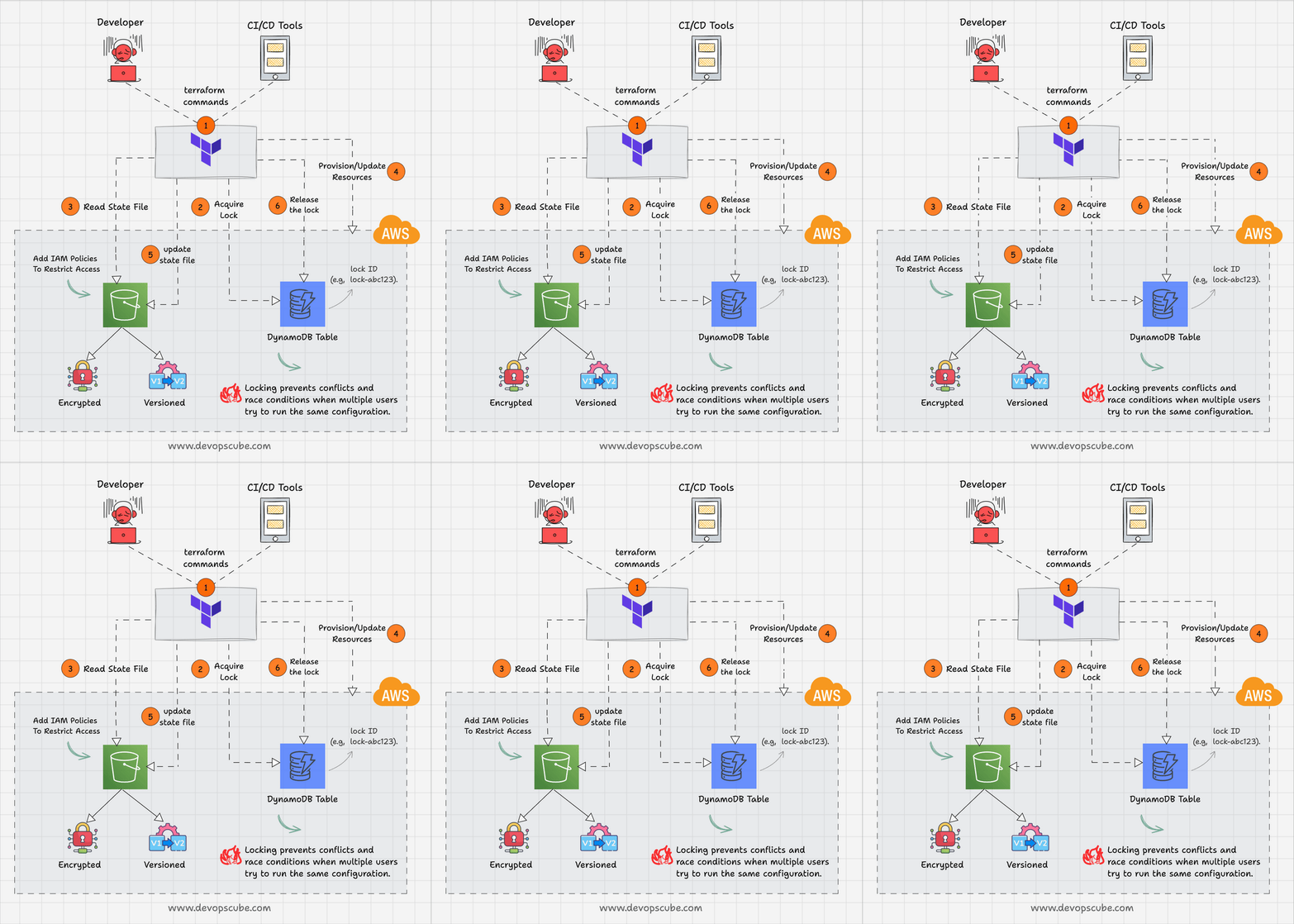
4. Configuring an S3 Remote Backend with State Locking
Now for the practical part. We will configure a remote backend using AWS S3 for storage and AWS DynamoDB for state locking. This combination is the classic, battle-tested approach used in countless production environments.
The Chicken-and-Egg Problem
There's a bootstrapping dilemma: to store our Terraform state, we need an S3 bucket and a DynamoDB table. But we'd normally use Terraform to create those resources! The standard solution is to create these "backend" resources once, either manually via the AWS console or, more cleanly, using a separate, small Terraform configuration that uses local state just for this one-time setup.
Step 1: Create the Backend Resources (S3 and DynamoDB)
First, we will create the necessary S3 bucket and DynamoDB table. The following video gives a clear, concise demonstration of writing the Terraform code for this.
Terraform Remote State Backend using S3 and DynamoDB
The video 'Terraform Remote State Backend using S3 and DynamoDB' by Cloud Champ provides a clean walk-through of creating the necessary AWS resources.
Watch the segment from 01:43 to 07:51. Pay attention to the configuration of the aws_s3_bucket (including versioning and encryption) and the aws_dynamodb_table (including the hash key).
Here is a consolidated Terraform configuration you can use to create these resources. You can place this in a dedicated directory (e.g., terraform-backend-setup) and run terraform init and terraform apply from there.
# backend-setup/main.tf
# This creates the resources needed for remote state.
# Run this once with local state.

provider "aws" {
  region = "us-east-1"
}


# 1. S3 bucket for storing Terraform state
resource "aws_s3_bucket" "terraform_state" {


  # Bucket name must be globally unique
  bucket = "your-unique-company-terraform-state"


  # Prevent accidental deletion of the state bucket
  lifecycle {
    prevent_destroy = true
  }
}


# 2. Enable versioning to recover previous state files
resource "aws_s3_bucket_versioning" "terraform_state" {
  bucket = aws_s3_bucket.terraform_state.id
  versioning_configuration {
    status = "Enabled"
  }
}


# 3. Enable server-side encryption by default
resource "aws_s3_bucket_server_side_encryption_configuration" "terraform_state" {
  bucket = aws_s3_bucket.terraform_state.id
  rule {
    apply_server_side_encryption_by_default {
      sse_algorithm = "AES256"
    }
  }
}


# 4. Block all public access
resource "aws_s3_bucket_public_access_block" "terraform_state" {
  bucket = aws_s3_bucket.terraform_state.id
  block_public_acls       = true
  block_public_policy     = true
  ignore_public_acls      = true
  restrict_public_buckets = true
}


# 5. DynamoDB table for state locking
resource "aws_dynamodb_table" "terraform_locks" {
  name         = "terraform-state-locks"
  billing_mode = "PAY_PER_REQUEST"
  hash_key     = "LockID"

  attribute {
    name = "LockID"
    type = "S" # S for String
  }
}
Action: Create a new directory, place the code above into a main.tf file (remember to change the bucket name to something unique!), and apply it.
Step 2: Configure Your Project to Use the Remote Backend
Once the S3 bucket and DynamoDB table exist, you can configure your main Terraform project to use them. You do this by adding a backend block inside the terraform block.
Terraform Remote State Backend using S3 and DynamoDB
Now, let's see how to configure the backend block in your main project and migrate your state.
Watch from 08:16 to 14:26. This segment covers: Configuring the terraform { backend "s3" { ... } } block. Running terraform init to initialize the backend and migrate existing local state. Verifying that the state file now lives in S3 and that state locking is working.
Here's what the configuration looks like in your project's code (e.g., in a providers.tf or main.tf file):
terraform {
  backend "s3" {
    bucket         = "your-unique-company-terraform-state" # The bucket you just created
    key            = "global/networking/terraform.tfstate" # A path for this specific project's state
    region         = "us-east-1"
    dynamodb_table = "terraform-state-locks"               # The lock table you just created
    encrypt        = true
  }
}

provider "aws" {
  region = "us-east-1"
}
After adding this block, you run terraform init. Terraform will detect the new backend configuration and ask if you want to copy your existing local state to the new S3 backend. After you confirm, all subsequent plan and apply commands will use the remote state and locking.
A Note on Modern Terraform: Native S3 Locking
It's important to know that since Terraform v1.6.0 (and with some earlier experimental support), the S3 backend supports native locking, meaning you no longer need a DynamoDB table for new projects. However, the DynamoDB method is still widely used and essential to understand for existing projects.
For a deep dive into the native S3 locking feature and how to migrate, the Medium article you read earlier is an excellent resource. You can refer back to its sections "Step 6: Configure the Backend in Terraform" and "Migrating from DynamoDB to Native S3 Locking."
5. Behavioral Interview Preparation
Your ability to discuss state management is a strong indicator of your experience as a DevOps professional.
Interview Question: "How do you manage Terraform state in a team environment to ensure safety and prevent conflicts?"
Here’s how you could structure an answer using the STAR method:
- Situation: "In my role managing infrastructure for a cloud platform, our team of five engineers needed a robust way to collaborate on Terraform configurations without causing conflicts or security risks."
- Task: "My task was to establish a production-ready workflow for Terraform state management that ensured a single source of truth, prevented concurrent modifications, and secured sensitive data."
- Action: "I implemented a remote state backend using AWS S3 and DynamoDB. First, I created a dedicated, non-public S3 bucket with versioning and encryption enabled. Versioning acts as a safety net, allowing us to roll back to a previous state if needed. I also set up a DynamoDB table for state locking. I then configured our main Terraform projects to use this S3 backend. This ensured that whenever an engineer runs
terraform apply, a lock is acquired in DynamoDB, preventing anyone else from running a conflicting operation. All Terraform operations were then integrated into our CI/CD pipeline, which had the necessary IAM permissions to access the state bucket and lock table." - Result: "This setup completely eliminated state file conflicts and the risk of running commands against stale state. It created a safe, reliable, and auditable process for infrastructure changes. It also improved our security posture by removing sensitive state files from developer laptops and Git history. We further improved this by organizing our state files within the S3 bucket using a logical path structure, like
environment/component/terraform.tfstate, which made managing different projects much clearer."
Conclusion
You have now learned the most fundamental best practice for using Terraform in a professional context. Managing state correctly is non-negotiable for team collaboration, security, and stability.
Key Takeaways:
- The Terraform state file is the single source of truth that maps your code to real-world resources.
- Local state is unsuitable for teams due to risks of data loss, corruption, and security vulnerabilities.
- A remote backend (like AWS S3) centralizes the state, providing a shared source of truth.
- State locking (using DynamoDB or S3's native feature) is essential to prevent race conditions when multiple people or automation tools run Terraform concurrently.
In our next lesson, we will build upon these foundational concepts. We'll explore how to write reusable Terraform modules with input variables, outputs, and local values, allowing you to create scalable, maintainable, and DRY (Don't Repeat Yourself) infrastructure code.