Introduction
Hello! In our last lesson, we explored how to monitor system resources with vmstat, iostat, and sar. This gave you the tools to diagnose performance issues by answering why a system is slow. Often, monitoring reveals tasks that need to be performed regularly—like cleaning up large log files, running backups, or generating daily reports. Simply knowing this isn't enough; the next logical step is to automate these recurring jobs.
This lesson bridges the gap between monitoring and automation. We'll cover the learning outcome: Schedule and manage recurring tasks using cron and systemd timers.
You will learn about two key tools for time-based scheduling in Linux:
cron: The traditional, universally available scheduler.systemd timers: The modern, more flexible and powerful alternative found on most current Linux distributions.
By the end of this lesson, you'll be able to choose the right tool for the job and confidently automate routine tasks, a fundamental skill for any DevOps engineer.
1. The Classic: Scheduling with cron
For decades, cron has been the standard utility for running scheduled tasks on Unix-like systems. It's simple, reliable, and available everywhere. A cron daemon (crond) runs in the background, checking a set of configuration files (called crontabs) every minute to see if any commands need to be executed.
To get a comprehensive overview of how to work with cron, let's watch the key parts of this video.
Mastering Linux Cron Jobs: Automate Your Tasks Like a Pro! [ENGLISH]
The video 'Mastering Linux Cron Jobs' provides an excellent introduction to all the essential aspects of using cron.
Please watch the following segments: (00:00 - 03:05): Focus on the introduction to cron, how the crond service works, and the basic crontab commands (-e, -l, -r). (03:05 - 06:05): This section is crucial. It explains the five-field syntax that defines the schedule. Pay attention to the demonstration of the crontab.guru website, which is an invaluable tool for creating and validating cron expressions. (09:26 - 11:40): This part covers user-specific cron jobs, advanced scheduling using ranges and steps, and special strings like @daily and @reboot.
Key cron Concepts
Let's summarize the core ideas from the video.
Crontab Management:
crontab -e: Edit your user's crontab file.crontab -l: List your current cron jobs.crontab -r: Remove your entire crontab file (use with caution!).
The Five-Field Syntax:
The heart of a cron job is its schedule, defined by five fields at the beginning of the line:
* * * * * command_to_execute
┬ ┬ ┬ ┬ ┬
│ │ │ │ │
│ │ │ │ └───── day of the week (0 - 7) (Sunday is 0 or 7)
│ │ │ └─────── month (1 - 12)
│ │ └───────── day of the month (1 - 31)
│ └─────────── hour (0 - 23)
└───────────── minute (0 - 59)
An asterisk (*) means "every". So, * * * * * means "every minute of every hour of every day...".
Practical Examples:
0 3 * * * /usr/local/bin/backup.sh: Run a backup script at 3:00 AM every day.*/15 * * * * /usr/bin/ping -c 1 my-server.com: Ping a server every 15 minutes.@reboot /opt/scripts/init-app.sh: Run a script once after the system boots.
Handling Output:
By default, any output from a cron job is emailed to the user who owns the crontab. In modern environments, it's more common to redirect this output to a log file.
> /path/to/logfile.log 2>&1: Redirects both standard output (stdout) and standard error (stderr) to a log file, overwriting it each time.>> /path/to/logfile.log 2>&1: Appends bothstdoutandstderrto the log file.
cron is powerful for its simplicity, but it has limitations, such as less flexible scheduling and cumbersome logging. This is where systemd offers a more robust solution.
2. The Modern Alternative: systemd Timers
On modern Linux systems that use systemd as their init system (like Ubuntu 16.04+, CentOS/RHEL 7+, Debian 8+), systemd timers are the preferred way to schedule tasks. They offer significant advantages over cron.
Advantages of systemd Timers:
- Integrated Logging: Output is automatically captured by
journald, so you can inspect logs withjournalctlwithout manual redirection. - Flexible Scheduling: Supports more complex calendar events, relative time spans (e.g., "1 hour after boot"), and randomized delays.
- Dependency Management: A timer job can be made dependent on other systemd services (e.g., don't run a database backup until the database service is active).
- Resource Control: You can use
systemd's resource management features (cgroups) to limit the CPU or memory a scheduled job can consume.
The Two-Unit Structure
A systemd timer setup consists of two files:
- A
.servicefile: Defines what to do (the command or script to run). - A
.timerfile: Defines when to do it (the schedule).
The service and timer files must have the same base name (e.g., backup.service and backup.timer).
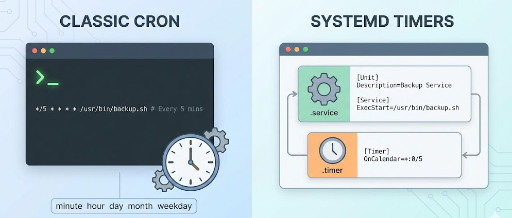
Let's watch a video that demonstrates how to convert a simple cron job into a systemd timer.
Introduction to systemd timers
This video, 'Introduction to systemd timers,' clearly illustrates the process of creating the necessary service and timer files and managing them.
Please watch these key segments: (05:11 - 06:33): See how the .service file (the 'what') and the .timer file (the 'when') are created. Notice the [Service] and [Timer] sections. (07:40 - 08:23): This part introduces systemd-analyze calendar, a fantastic tool for verifying your schedule without waiting for it to trigger. (08:23 - 09:45): Learn how to reload the systemd daemon, start the timer, check its status, and most importantly, view the job's output using journalctl.
A Practical Example
Let's say we want to run a script /usr/local/bin/cleanup.sh every day at 2:30 AM.
1. Create the .service file:
Create /etc/systemd/system/cleanup.service.
[Unit]
Description=Run daily cleanup script

[Service]
Type=oneshot
ExecStart=/usr/local/bin/cleanup.sh
Description: A human-readable description for logs and status commands.Type=oneshot: This service is expected to start, run a task, and exit.ExecStart: The command to execute.
2. Create the .timer file:
Create /etc/systemd/system/cleanup.timer.
[Unit]
Description=Run cleanup script daily at 2:30 AM

[Timer]
OnCalendar=daily 02:30:00
Persistent=true

[Install]
WantedBy=timers.target
OnCalendar: The schedule. The format is very flexible.daily 02:30:00means at 2:30 AM every day.Persistent=true: If the system was down at 2:30 AM, the job will run as soon as the system boots up.WantedBy=timers.target: This allows the timer to be enabled to start on boot.
3. Enable and Start the Timer:
# Reload systemd to recognize the new files
sudo systemctl daemon-reload


# Enable the timer to start on boot and start it now
sudo systemctl enable --now cleanup.timer
4. Check the Status:
You can list all active timers and see when they'll run next.
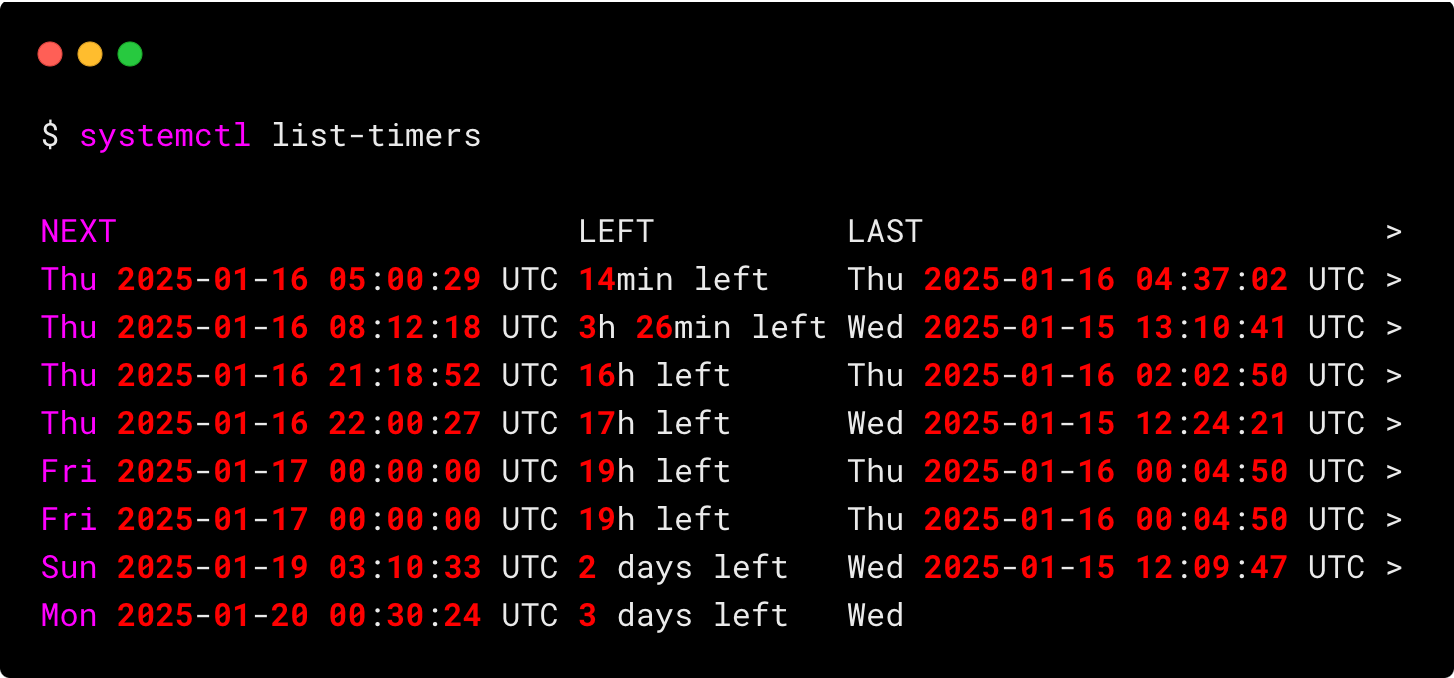
You can also check the status of a specific timer: sudo systemctl status cleanup.timer. To see the logs of the last run: sudo journalctl -u cleanup.service.
3. Advanced systemd timer Features
Given your background, you'll appreciate the fine-grained control systemd offers. Let's explore two powerful directives that are particularly relevant in distributed environments.
systemd by example - Part 5: Timers
The article 'systemd by example - Part 5: Timers' provides an excellent deep dive into some of the more advanced features. We'll focus on accuracy and randomized delays.
Please read the sections titled 'Accurate timers' and 'Randomized delay'. These explain two important directives for controlling timer execution.
Controlling Precision with AccuracySec
By default, systemd may delay a timer's execution by up to one minute. This is a power-saving feature that allows the CPU to stay in a low-power state longer by batching wake-ups.
If you need a job to run at a precise time (e.g., for a time-sensitive financial report), you can add AccuracySec= to your [Timer] section.
[Timer]
OnCalendar=*:00:00
AccuracySec=1us  # Run with microsecond precision
Spreading Load with RandomizedDelaySec
Imagine you manage hundreds of servers, and each has a daily cron job to check for updates at midnight. At midnight, your package repository gets hit with a massive spike in traffic—a "thundering herd".
RandomizedDelaySec solves this elegantly. It adds a random delay up to the specified value before starting the timer.
[Timer]
OnCalendar=daily
RandomizedDelaySec=1h  # Run at some random time between 00:00 and 01:00
AccuracySec=1s         # Once the random time is chosen, execute with 1s precision
This staggers the job execution across your fleet, smoothing out the load on shared resources. This is a pattern cron simply can't replicate without complex, custom scripting.
4. cron vs. systemd Timers: Which Should You Use?
| Feature | cron |
systemd Timers |
|---|---|---|
| Simplicity | Very simple for basic schedules. | More verbose (two files), but logical. |
| Logging | Manual. Requires output redirection. | Automatic, integrated with journalctl. |
| Scheduling | Basic time-based. | Highly flexible calendar and time-span events. |
| Dependencies | None. | Can depend on other services or system states. |
| Resource Control | None. | Full access to systemd cgroup features. |
| Failure Handling | None built-in. | Can configure automatic restarts (OnFailure=). |
| Portability | Universal on Unix-like systems. | Only available on systems with systemd. |
Verdict: For any modern Linux system running systemd, systemd timers are the superior choice. You should still know cron as you will encounter it on older systems or in environments like minimal Docker containers that don't run systemd.
Conclusion
You've now learned how to automate recurring tasks using both the classic cron and the modern systemd timer framework. This skill is essential for building reliable, "hands-off" systems.
Key Takeaways:
cronis a simple, ubiquitous tool defined by its five-field syntax in acrontabfile. Its main drawbacks are limited scheduling and manual log handling.systemdtimers are the powerful, modern standard, offering integrated logging, flexible scheduling (OnCalendar), randomized delays (RandomizedDelaySec), and precise timing (AccuracySec).- The
systemdapproach separates the what (.servicefile) from the when (.timerfile), leading to a cleaner and more manageable configuration. - For a DevOps engineer managing modern infrastructure, mastering
systemdtimers is crucial for creating robust automation.
Preview of the Next Lesson:
We've covered system monitoring and task automation, two pillars of internal system administration. Now, we'll turn our attention to securing the gateway to your servers. In the next lesson, we will begin the "Advanced Linux and Network Security" module by learning how to configure SSH key-based authentication and harden the SSH daemon against common attacks.