Hello and welcome back. In our last lesson, you gained a crucial skill for any developer: debugging. You learned to use the browser's DevTools to systematically find and fix errors, a process that is central to your goal of "Shipping with Confidence" and effectively supervising AI-generated code.
Today, we shift from fixing code that's broken to understanding a design pattern that prevents a different kind of problem: a poor user experience. This lesson addresses a fundamental concept in modern web development that is directly tied to your expertise in UI/UX. We will explore why asynchronous programming is essential by examining how slow operations can ruin an application's responsiveness.
Your goal as a Design Engineer is to ensure the final product not only matches the Figma design but also feels good to use. This means creating interfaces that are fast, responsive, and don't leave the user staring at a frozen screen. By the end of this lesson, you will be able to identify situations where asynchronous code is necessary to protect the user experience, a key insight for supervising any code-generating AI.
The Problem: One Thing at a Time
By default, JavaScript is a synchronous, single-threaded language. This is a technical way of saying it can only do one task at a time, in the order it receives them.
Imagine a coffee shop with only one barista. If the first person in line orders a simple black coffee, it's quick. But if the next person orders a complex, artisanal latte that takes five minutes to prepare, everyone else behind them has to wait. The entire line is blocked. No one else can even place an order until that one slow drink is finished.
This is precisely how synchronous JavaScript operates. The "barista" is the JavaScript engine, and the "customers" are lines of code.

When a slow operation—like fetching data from a server, processing a large file, or performing a complex calculation—is run synchronously, it blocks the main thread. While the browser is stuck waiting for that task to complete, it can't do anything else. It can't respond to user clicks, it can't process scrolls, and it can't even update the display. The user is left with a frozen, unresponsive interface.
To see this in action, watch this short segment from the "JavaScript Event Loop -- Visualized!" video. It shows what happens when a "heavy" synchronous function runs.
JavaScript Event Loop -- Visualized!
This video from ColorCode demonstrates the user-facing impact of a blocking, synchronous operation.
Watch the section from the demo. Notice how the narrator is clicking around the app, but nothing happens. The entire application is frozen until the slow task completes. This is the user experience we must avoid.
The User Experience of a Blocked Interface
As a UI/UX designer, you know that responsiveness is a cornerstone of a good user experience. A blocked interface violates several core usability principles. It provides no feedback, strips the user of control, and creates frustration and anxiety.
This problem is not theoretical; it's a common challenge in frontend development. The following article from Toptal clearly explains how this default synchronous behavior leads to poor app performance.
Asynchronous JavaScript for Steady App Performance
This article directly connects the technical concept of synchronous execution to its negative impact on end users.
Please read the introduction, starting from the first paragraph, and then jump to the section The Problem. The author explains how the "call stack" gets blocked by time-consuming functions, leading to an unresponsive program.
Slow operations that can cause this blocking effect are everywhere in modern applications:
- Network Requests: Fetching data from an API to populate a user's profile.
- File Operations: Loading a large, high-resolution image.
- Complex Calculations: Rendering a complex data visualization or chart.
- AI-driven features: Many new features rely on significant processing that can take time.
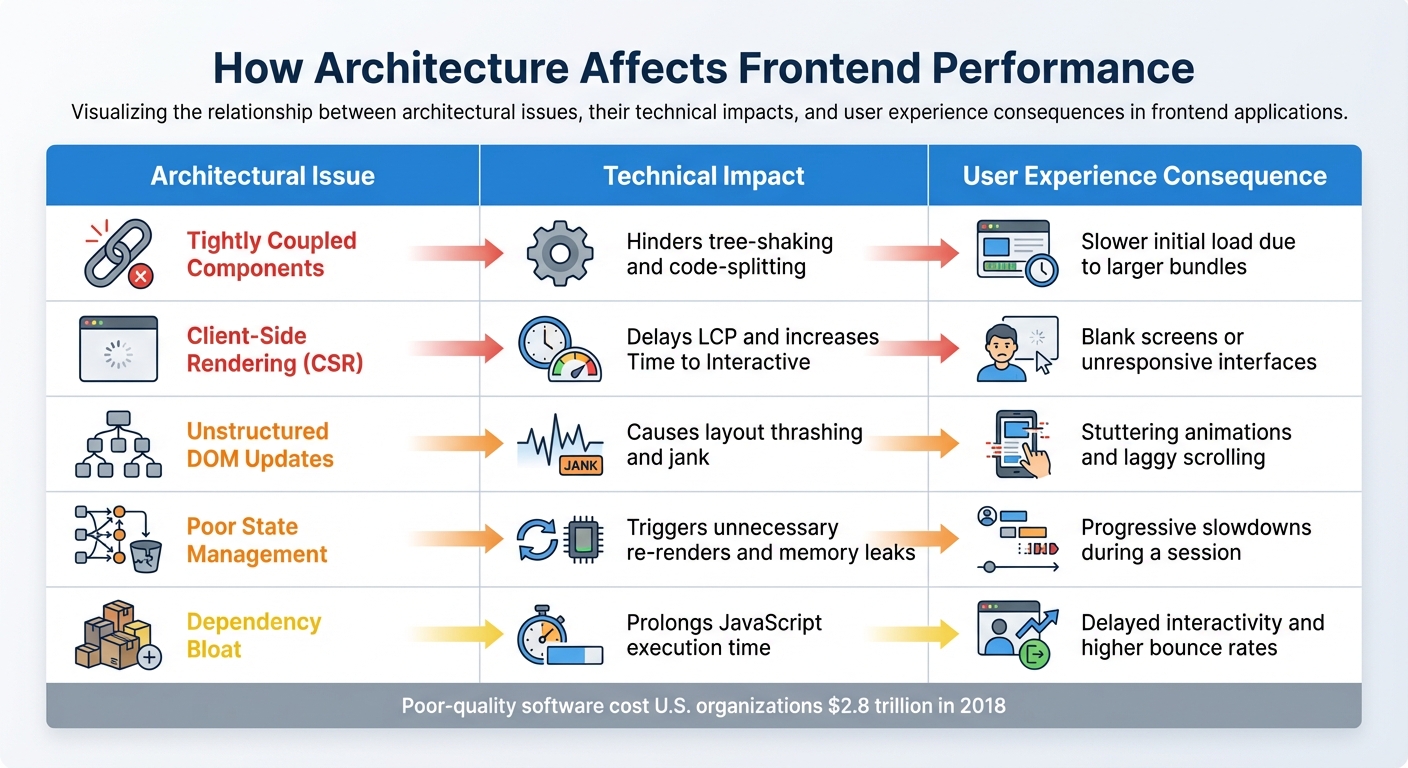
This ties directly into the "System-level thinking" you're developing. Architectural choices can have a major impact on performance.
The famed UX expert Jakob Nielsen discusses the psychological impact of waiting in his article on "Slow AI." While his focus is on tasks that take minutes or hours, the core principles apply even to waits of a few seconds.
Slow AI: Designing User Control for Long Tasks - Jakob Nielsen on UX
Jakob Nielsen's article provides a high-level UX perspective on why waiting is so detrimental to the user's experience.
Read the summary and introduction to understand the user anxiety caused by long waits. Then, read the short section UX question, which frames the central dilemma: we want powerful features, but we can't make the user suffer for them.
The Solution: Asynchronous Operations
So, how do we perform slow tasks without freezing the application? The answer is asynchronous programming.
Let's go back to our coffee shop. What if the barista could take the order for the complex latte, start the machine that prepares it, and then immediately turn to the next customer to take their simple order? The latte is still being made "in the background," but the line is no longer blocked. The barista is free to handle other requests. This is the essence of asynchronous, non-blocking behavior.
In JavaScript, when we execute a task asynchronously, we're telling the browser: "Start this task, but don't wait for it. Go do other things, and just let me know when it's done."
This frees up the main thread to continue running, keeping the UI responsive. The user can still click buttons, scroll the page, and interact with the application while the slow operation completes in the background.
Let's see the "fixed" version from the same video. Here, the heavy task is made asynchronous.
JavaScript Event Loop -- Visualized!
This segment shows the same application, but with the slow task handled asynchronously.
Watch from this section. Pay close attention to the console output and the narrator's interaction with the page. The "start singing" task runs immediately, without waiting for the "coffee" task. More importantly, the UI is no longer frozen; the narrator can interact with it while the slow task is running.
This approach is used everywhere to build smooth, modern web experiences. The Toptal article you read earlier provides excellent real-world examples.
Asynchronous JavaScript for Steady App Performance
These sections demonstrate how asynchronous patterns are applied in real applications to improve UX.
Read the sections A Chatbot Example, More Asynchronous JavaScript Examples, and the concluding paragraph. These examples—from chatbots and file uploads to lazy-loading images—show how asynchronous code is the key to a responsive and engaging user experience.
Conclusion
In this lesson, you've connected a core software engineering concept directly to your expertise in user experience. You now understand that the distinction between synchronous and asynchronous code is not just a technical detail—it's a critical decision that directly impacts how a user perceives an application's quality and usability.
Key Takeaways:
- Synchronous code blocks: By default, JavaScript runs tasks one by one. A slow task will freeze the entire application, leading to an unresponsive UI.
- Blocked UI = Bad UX: A frozen interface frustrates users, makes an application feel broken, and erodes trust.
- Asynchronous code is the solution: It allows slow operations (like API calls or file loads) to run in the background without blocking the main thread, keeping the UI responsive and interactive.
- Your role as supervisor: When using AI to generate code, you must be the user's advocate. If you see a prompt like "Fetch user data and display it," you must ensure the AI implements this asynchronously to prevent a jarring user experience.
You have now grasped the why. In our next lesson, we will begin to explore the how. You will learn to read and understand async/await, the modern JavaScript syntax for handling asynchronous operations. This will equip you to effectively review and supervise the code that AI tools like Cursor generate for these exact scenarios.