Hello! Welcome back to our movie search application project.
In our last lesson, we built the core mechanism for search. We created a controlled SearchBox component, captured user input, and used a debounced handler to trigger an API call to the OMDb API. This setup is efficient and prevents our app from spamming the API on every keystroke.
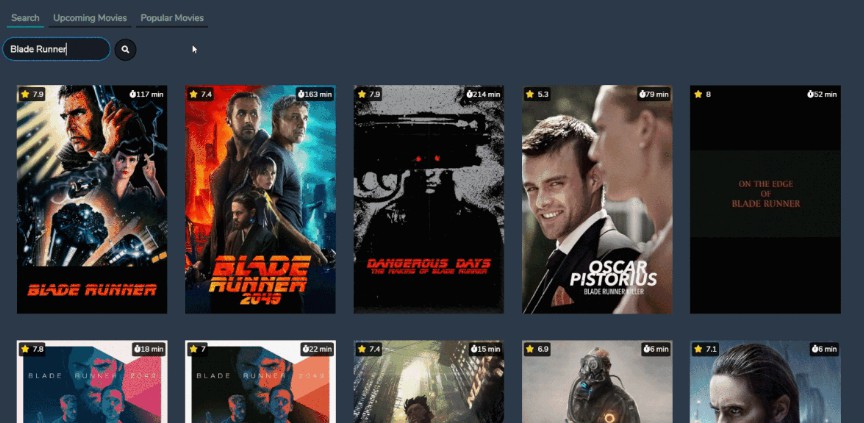
Today, we're going to upgrade our data source. Our goal is to fetch data from a public movie API (TMDB) based on search queries. While OMDb was great for getting started, we'll switch to The Movie Database (TMDB) because it provides richer data, including high-quality poster images, movie overviews, and ratings, which will be essential for building a polished UI.
We'll connect our existing search logic to the TMDB API, learning how to construct the correct request and handle the new data structure. By the end of this lesson, your search bar will be fetching detailed movie information, ready to be displayed on screen.
Step 1: Switching to TMDB and Getting an API Key
First things first, we need access to the TMDB API. Like most public APIs, it requires a free API key to track usage and prevent abuse.
The process involves signing up on their website. The video below provides a complete walkthrough.
React JS Tutorial - Build Movie React App with API, Filter, Sort & Dark Mode
Watch this segment from Code Bless You to learn what an API is in a real-world context and how to get your personal API key from the TMDB website. The video also includes a useful tip on using a VPN if you have trouble accessing the site.
Watch from the beginning of the video until 49:24. The key part is registering on the TMDB website and requesting a developer API key. Make sure to save your API key somewhere safe; we'll need it in a moment.
Once you have your key, you're ready to start making requests!
Step 2: Understanding the TMDB Search Endpoint
Before writing code, it's crucial to understand how the API works. We need to know the correct URL, what parameters to send, and what the data we get back will look like. The official TMDB documentation is the best place for this.
This official documentation page explains how to use the TMDB search functionality. It's a quick but essential read.
Read the first section titled 'Search'. Pay close attention to the URL for searching movies (/search/movie) and the example JSON response. Notice that the list of movies is inside a property named results.
From the documentation, we learn two critical things:
- The Endpoint URL: The base URL for a movie search is
https://api.themoviedb.org/3/search/movie. - Required Parameters: We need to add our
api_keyand aquery(the movie title we're searching for) to the URL. A full request will look like this:
https://api.themoviedb.org/3/search/movie?api_key=YOUR_KEY&query=Jack+Reacher - The Response Structure: The API returns a JSON object. The actual list of movies is an array located in the
resultsproperty of that object. This is a key difference from the OMDb API, which used a property calledSearch.
Step 3: Refactoring Your Data Fetching Logic
Now we can update the getMovieRequest function in your App.js file. We'll replace the OMDb URL with the new TMDB URL and adjust our code to handle the new response structure. The async/await syntax you're already familiar with is perfect for this.
The following resource provides a clear example of implementing a search bar with the TMDB API. We'll adapt its logic to fit our existing fetch-based approach.
Build a Responsive Movie Review Website in ReactJS
This article from sevensquaretech.com demonstrates building a search bar that queries the TMDB API. It provides a compact and effective code example.
Read the section 'Global Search Bar with Live Results'. The code uses axios, which is another library for making HTTP requests. The concept is identical to fetch. We will adapt this logic to our getMovieRequest function using fetch.
Let's refactor your getMovieRequest function in App.js. It should now look like this:
// In App.js

// Don't forget to import useState and useEffect from React
import { useState, useEffect } from 'react';

// ... other components

const App = () => {
    const [movies, setMovies] = useState([]);
    const [searchValue, setSearchValue] = useState('');

    // Store your TMDB API key here
    const TMDB_API_KEY = 'YOUR_TMDB_API_KEY'; // <-- PASTE YOUR KEY HERE

    const getMovieRequest = async (query) => {
        if (!query) {
            setMovies([]);
            return;
        }

        const url = `https://api.themoviedb.org/3/search/movie?api_key=${TMDB_API_KEY}&query=${query}`;

        try {
            const response = await fetch(url);
            const responseJson = await response.json();

            if (responseJson.results) {
                setMovies(responseJson.results);
            }
        } catch (error) {
            console.error("Failed to fetch movies:", error);
        }
    };

    // This useEffect hook will trigger the API call whenever searchValue changes.
    // If you implemented debouncing in the last lesson, your logic will be
    // slightly different, but the getMovieRequest function itself remains the same.
    useEffect(() => {
        getMovieRequest(searchValue);
    }, [searchValue]);

    return (
        // Your JSX, including the SearchBox component
        // Make sure SearchBox updates the `searchValue` state
        <div className='container-fluid movie-app'>
            <div className='row d-flex align-items-center mt-4 mb-4'>
                <MovieListHeading heading='Movies' />
                <SearchBox searchValue={searchValue} setSearchValue={setSearchValue} />
            </div>
            {/* The MovieList component will be used in the next lesson */}
            {/* <div className='row'>
                <MovieList movies={movies} />
            </div> */}
        </div>
    );
};

export default App;
Key changes to note:
- The
urlnow points to the TMDB search endpoint. - We use a template literal to inject your new
TMDB_API_KEYand thequery. - Crucially, we now check for
responseJson.resultsand callsetMovies(responseJson.results).
With this change, the debounced handler you built in the previous lesson will now call this updated function. Your application is now fetching data from TMDB! You won't see anything on the screen yet, but you can confirm it's working by using your browser's developer tools. Open the "Components" tab in React DevTools, select your App component, and watch the movies state array populate with data as you type in the search bar.
Test your understanding!
You've updated your getMovieRequest function to use the TMDB API, but you forget one small detail: you still have setMovies(responseJson.Search) instead of setMovies(responseJson.results). What would you observe in your application, and why?
Show answer
You would observe that no movies ever appear, even though you can see in the "Network" tab that the API calls are successful. The movies state in your App component would be set to undefined.
This happens because the TMDB API response object does not have a property named Search. When you try to access responseJson.Search, it evaluates to undefined. Calling setMovies(undefined) would likely cause an error in the next lesson when you try to .map() over the movies array. This highlights why it's so important to inspect the actual response from an API to understand its structure.
Conclusion
Fantastic work! You have successfully upgraded your application's data layer. This is a common task for a web developer: integrating with a third-party API and adapting your code to its specific requirements.
Key Takeaways:
- API Selection: You learned why choosing the right API (like TMDB) is important for building feature-rich applications.
- API Integration: You've gone through the full process of getting an API key, reading the documentation to find the correct endpoint, and constructing a valid request URL.
- Code Refactoring: You successfully refactored your existing data-fetching function to work with a new API and a different data structure, a practical skill you'll use constantly.
You are now fetching a rich set of movie data based on user queries. In our next lesson, "Display fetched data in a grid of movie cards, passing data via props," we will finally render this data to the screen, bringing our movie search application to life.