Hello! Welcome to our next lesson in the Python Programming Foundations module. So far, we've built a solid base with Python's syntax, data structures, functions, and object-oriented programming.
In our last lesson, we covered a crucial topic: handling errors with try-except blocks and creating custom exceptions. This skill is vital for writing robust programs that don't crash when faced with unexpected situations. As we discussed, file operations are a prime example of where things can go wrong—a file might not exist, or you might not have permission to read it.
Today, we'll put those skills to use as we tackle our next learning outcome: to work with files, specifically reading, writing, and processing CSV and JSON data. These are two of the most common file formats you'll encounter as a developer, especially in the world of AI and web applications. Mastering them is a fundamental step toward building data-driven applications.
We'll start with CSV for tabular data, then move on to JSON, which is ubiquitous in web APIs and configuration files.
1. Working with CSV Files
CSV stands for "Comma-Separated Values." It's a simple, plain-text format for storing spreadsheet-like or tabular data. Each line in the file represents a row, and commas (or another character called a delimiter) separate the values in each row.
While you could technically try to read a CSV file line by line and use the .split(',') string method, this approach is fragile. What if a value itself contains a comma? Python's built-in csv module handles these edge cases for you, making it the standard and recommended way to work with CSV data.

Let's watch a video that walks through the essentials of the csv module.
Python Tutorial: CSV Module - How to Read, Parse, and Write CSV Files
This comprehensive video from Corey Schafer will guide us through reading and writing CSV files. We'll start with the basics of reading data.
Watch from the beginning to 04:53. Pay attention to: The structure of a CSV file and what a delimiter is. How to use with open(...) to open a file safely. How to create a csv.reader object to iterate over rows. How each row is represented as a Python list of strings. How to use next() to skip the header row.
Reading CSV Data into Dictionaries
Accessing data by index (e.g., row[2]) can make your code hard to read and maintain. If the column order changes, your code breaks. A much better approach, especially for files with header rows, is to use csv.DictReader. This object reads each row into a dictionary, where the keys are the column headers.
Let's see how this works.
Python Tutorial: CSV Module - How to Read, Parse, and Write CSV Files
Now, let's explore the more convenient DictReader.
Watch the segment from 10:39 to 12:26. Notice how DictReader automatically uses the first row as keys and how you can access data by name (e.g., line['email']), making the code much more readable.
Writing Data to CSV Files
The csv module provides corresponding objects for writing data: csv.writer and csv.DictWriter.
csv.writer writes rows from lists, while csv.DictWriter writes rows from dictionaries. When writing, it's crucial to open the file in write mode ('w') and specify the newline='' argument to prevent extra blank rows from being added on some operating systems.
Python Tutorial: CSV Module - How to Read, Parse, and Write CSV Files
This final segment on CSVs covers how to write data using both csv.writer and csv.DictWriter.
Watch from 04:53 to 09:20 and then from 12:26 to 15:23. Focus on: Creating a csv.writer and using the writerow() method. The delimiter argument to use characters other than commas (like tabs). Creating a csv.DictWriter and the need to provide fieldnames. Using writeheader() to write the column names as the first row. The advantage of DictWriter when you need to selectively write or modify columns.
For a detailed text-based reference on everything we just covered, including optional parameters and handling different CSV "dialects", the following article is an excellent resource.
Reading and Writing CSV Files in Python
This article from Real Python provides a solid textual summary of reading and writing CSV files, including DictReader and DictWriter.
Skim through the sections 'Reading CSV Files With csv', 'Reading CSV Files Into a Dictionary With csv', 'Writing CSV Files With csv', and 'Writing CSV File From a Dictionary With csv'. This will reinforce the concepts from the video. You can use it as a reference later.
2. Working with JSON Data
JSON, or JavaScript Object Notation, is another plain-text format for structuring data. Unlike the tabular format of CSV, JSON uses a structure of key-value pairs that looks very similar to Python dictionaries. It also supports nested objects and lists, making it extremely flexible for representing complex data.
JSON is the de-facto standard for data exchange on the web, especially for REST APIs. When your Python application requests data from a service, it will very likely receive it in JSON format.
Python's json module makes it trivial to translate between Python objects (like dictionaries and lists) and JSON data.
Loading and Dumping JSON
The json module has two main pairs of functions:
- Loading (Reading JSON):
json.load(): Reads JSON data from a file-like object.json.loads(): Reads JSON data from a string. (The 's' stands for 'string').
- Dumping (Writing JSON):
json.dump(): Writes a Python object as JSON to a file-like object.json.dumps(): Converts a Python object to a JSON-formatted string.
Let's watch a video that clarifies this.
Python Tutorial: Working with JSON Data using the json Module
This video, also from Corey Schafer, provides a clear guide to the json module. It explains the difference between working with files and strings and shows some practical examples.
Watch from the beginning to 11:45. Pay close attention to: The similarity between JSON syntax and Python dictionaries. The distinction between json.load() (for files) and json.loads() (for strings). The distinction between json.dump() (to files) and json.dumps() (to strings). The indent argument in dump() and dumps(), which is very useful for creating human-readable JSON files.
3. Practice: Convert CSV to JSON
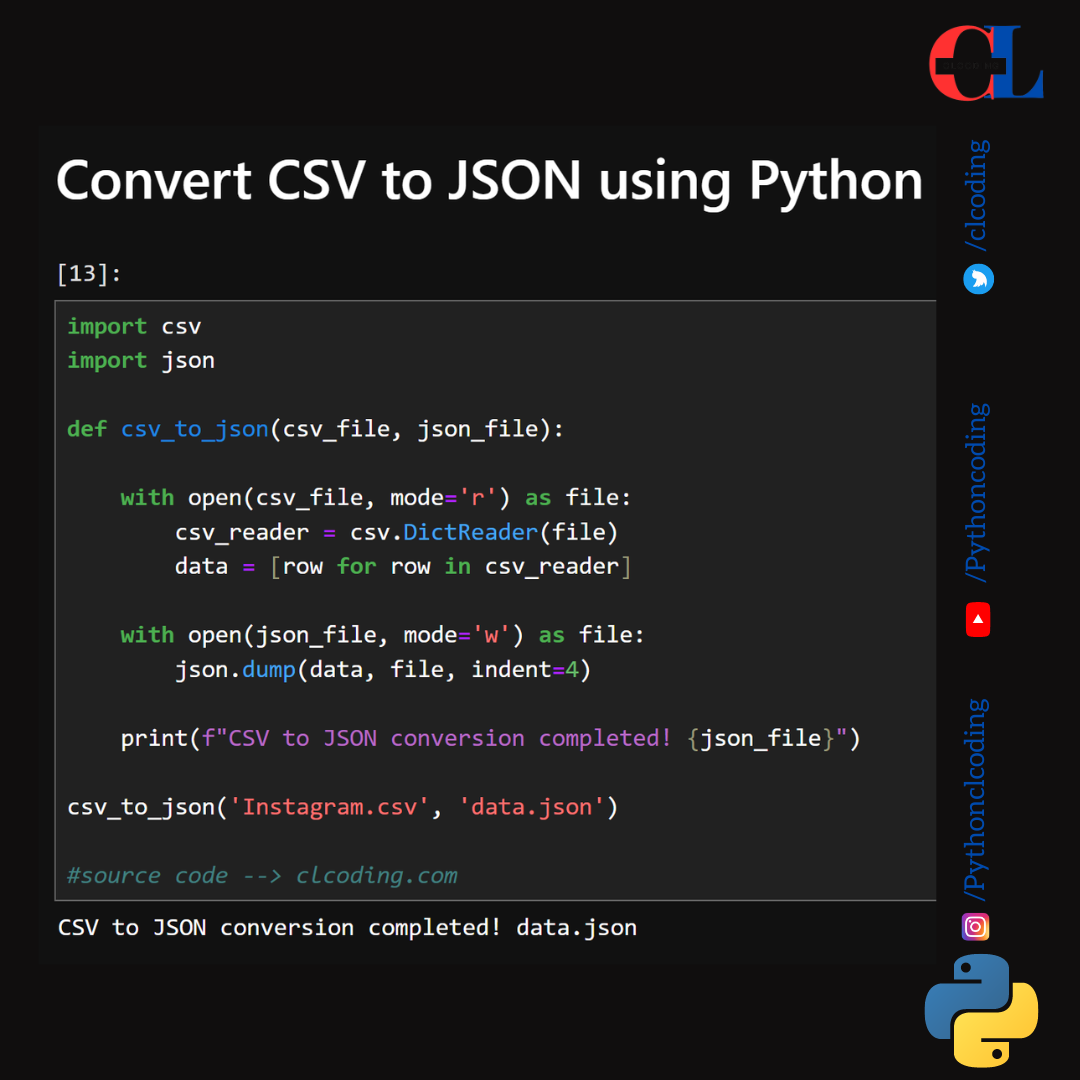
Now it's time to combine what you've learned. A common task is to process data from one format and output it in another. Your task is to write a Python script that reads data from a CSV file and writes it to a JSON file.
This task involves:
- Reading a CSV file row by row, treating each row as a dictionary.
- Appending each dictionary to a list.
- Writing the entire list to a new JSON file.
The following image shows a complete code snippet for this exact task. Try to implement it yourself first, then use the image as a guide.
Your Task:
- Create a file named
users.csvwith the following content:id,name,email 1,Alice,alice@example.com 2,Bob,bob@example.com 3,Charlie,charlie@example.com - Write a Python script named
converter.py. - In your script, implement the logic to read
users.csvand create ausers.jsonfile. The final JSON file should look like this:
Remember to use[ { "id": "1", "name": "Alice", "email": "alice@example.com" }, { "id": "2", "name": "Bob", "email": "bob@example.com" }, { "id": "3", "name": "Charlie", "email": "charlie@example.com" } ]indentto make the output readable!
Click here to see a possible solution
import csv
import json

def convert_csv_to_json(csv_path, json_path):
    """
    Reads data from a CSV file and writes it to a JSON file.
    """
    data = []

    try:


        # Open the CSV file for reading
        with open(csv_path, mode='r', encoding='utf-8') as csv_file:


            # Use DictReader to read the data into a list of dictionaries
            csv_reader = csv.DictReader(csv_file)
            for row in csv_reader:
                data.append(row)


        # Open the JSON file for writing
        with open(json_path, mode='w', encoding='utf-8') as json_file:


            # Use json.dump to write the list of dictionaries to the file
            # Use indent=4 for pretty-printing
            json.dump(data, json_file, indent=4)

        print(f"Successfully converted '{csv_path}' to '{json_path}'.")

    except FileNotFoundError:
        print(f"Error: The file '{csv_path}' was not found.")
    except Exception as e:
        print(f"An unexpected error occurred: {e}")


# Define file paths
csv_file_path = 'users.csv'
json_file_path = 'users.json'


# Call the function to perform the conversion
convert_csv_to_json(csv_file_path, json_file_path)
Conclusion
Great job! You have successfully learned how to handle two of the most important data formats in modern software development. This is a practical skill that you will use constantly as you build full-stack AI applications, whether you're loading a dataset, reading a configuration file, or interacting with a web API.
Here are the key takeaways:
- The
csvmodule is the standard way to handle tabular data in Python.DictReaderandDictWriterare particularly useful for working with files that have headers. - The
jsonmodule provides a simple way to serialize Python objects (like lists and dictionaries) into JSON and deserialize JSON back into Python objects. - Always use the
with open(...)context manager when working with files. It ensures files are closed properly, even if errors occur. - Remember the
_ssuffix: functions likeloads()anddumps()work with strings, whileload()anddump()work with file objects.
In our next lesson, we will broaden our knowledge of Python's standard library. We'll explore powerful modules like os for interacting with the operating system and file system, datetime for working with dates and times, and collections for advanced data structures.