Hello! Welcome back to our React course.
In the last lesson, we focused on making our components interactive by updating their state in response to user events. We learned how to use event handlers like onClick and onChange to trigger state updates with the useState hook. This gave us the power to change a component's internal data.
Today, we'll learn how to make the user interface dynamically react to those state changes. This lesson is all about conditional rendering: showing, hiding, or switching between different JSX elements based on the current state or props. Specifically, we'll focus on the two most common inline patterns you'll use every day in React: the ternary operator and the logical && operator.
The Two Main Scenarios for Conditional UI
When building dynamic interfaces, you'll constantly face two situations:
- The "Either-Or" Scenario: You need to render one thing or another. For example, showing a "Login" button for a logged-out user and a "Profile" button for a logged-in user.
- The "Show-or-Hide" Scenario: You need to render something or nothing. For example, showing a notification badge only if there are new messages.
JavaScript gives us concise operators that are perfect for handling these scenarios directly within our JSX.
1. The Ternary Operator (? :) for "Either-Or" Logic
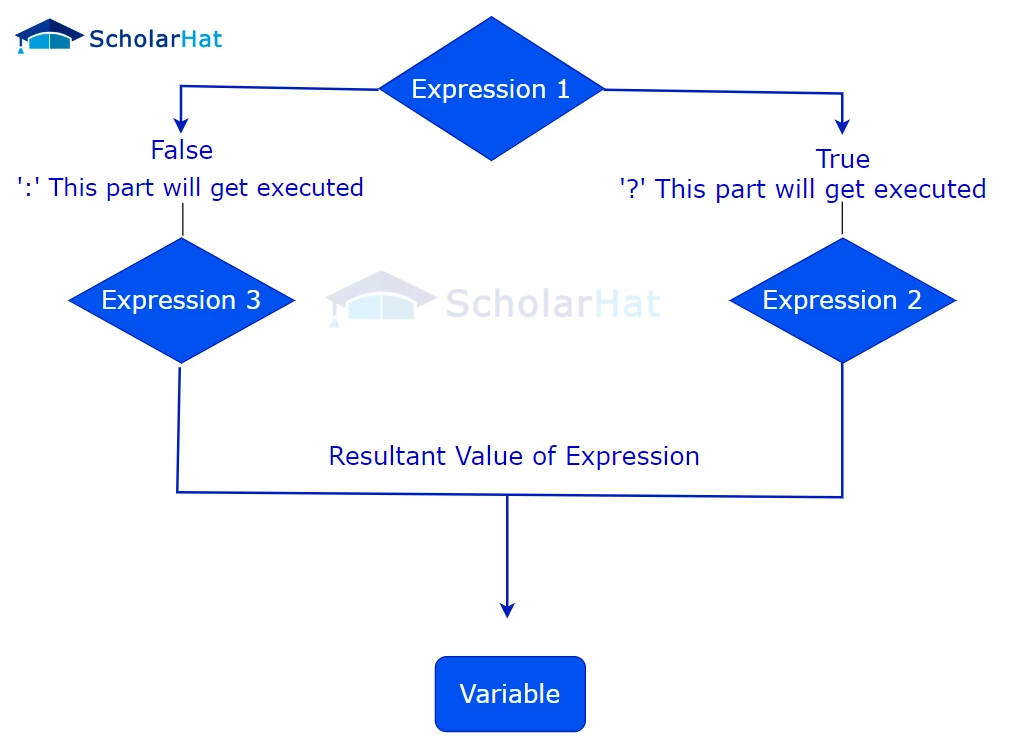
When you need to choose between two different JSX expressions, the ternary operator is the perfect tool. Its syntax is condition ? expressionIfTrue : expressionIfFalse.
Let's imagine we have an isLoggedIn state variable. We can use a ternary operator to display a different welcome message depending on its value:
import { useState } from 'react';

function LoginStatus() {
  const [isLoggedIn, setIsLoggedIn] = useState(false);

  return (
    <div>
      <h1>
        {isLoggedIn ? 'Welcome back!' : 'Please log in.'}
      </h1>
      <button onClick={() => setIsLoggedIn(!isLoggedIn)}>
        {isLoggedIn ? 'Log Out' : 'Log In'}
      </button>
    </div>
  );
}
This operator follows a simple branching logic. The following flowchart visualizes exactly how it works.
To see this applied in a React component, let's turn to the official documentation.
The official React documentation provides a clear and concise explanation of using the ternary operator for conditional rendering.
Read the section titled 'Conditional (ternary) operator (? :)'. Focus on how it provides a compact way to express 'if-else' logic directly within your JSX, which is something a standard if statement cannot do.
Now, let's watch a practical demonstration of how this cleans up your code.
React 19 Tutorial - 10 - Conditional Rendering
The following video from Codevolution shows how the ternary operator can refactor a component with multiple if/else returns into a single, cleaner return statement.
Watch from 04:30 to 06:30. Notice how the operator is used for both conditional text and for choosing between entirely different HTML elements (<button> vs. <small>).
As you can see, the ternary operator is incredibly useful when you have a clear A-or-B choice to make in your UI.
2. The Logical AND Operator (&&) for "Show-or-Hide" Logic
What if you don't have an "else" case? For example, you want to show an admin dashboard link only if the user is an admin, and show nothing otherwise. This is the "show-or-hide" scenario.
For this, you can use the logical && (AND) operator. This works because of a JavaScript feature called "short-circuiting":
- If the expression on the left of
&&is falsy (e.g.,false,null,0,""), JavaScript stops and returns that falsy value. React rendersfalse,null,undefined, and""as nothing. - If the expression on the left is truthy, JavaScript continues and returns the value of the expression on the right.
In JSX, this looks like:
function Dashboard({ user }) {
  return (
    <div>
      <h1>Welcome, {user.name}</h1>
      {/* The link is only rendered if user.isAdmin is true */}
      {user.isAdmin && <a href="/admin">Admin Dashboard</a>}
    </div>
  );
}
Let's read the official documentation for this pattern.
The React docs also cover this convenient shortcut for rendering an element or nothing.
Read the section 'Logical AND operator (&&)'. Pay close attention to the pitfall mentioned at the end—it's a very important detail.
The && Operator Pitfall: The Number Zero
As the documentation warned, there is a common trap with the && operator. What happens if you have a variable unreadMessages that holds a number?
You might write this:{unreadMessages && <p>You have new messages!</p>}
If unreadMessages is 1 (truthy), you see the message. Great. But if unreadMessages is 0 (falsy), the expression 0 && ... short-circuits and returns 0. Unlike false or null, React renders the number 0 to the screen!
This can lead to confusing bugs where a "0" unexpectedly appears in your UI.
The solution is to always make sure the left side of the && operator is a true boolean (true or false).
Correct way:{unreadMessages > 0 && <p>You have new messages!</p>}
Now, if unreadMessages is 0, the expression 0 > 0 evaluates to false, and React correctly renders nothing.
This next video does an excellent job of breaking down this specific problem and its solutions.
Stop Conditional Rendering in React Without Knowing This (&& vs Ternary Operator)
The && operator's behavior with the number 0 is a classic 'gotcha' in React. This short video from ByteGrad explains the problem clearly and shows you exactly how to avoid it.
Watch from 01:09 to 03:01. Focus on why falsy values like 0 and NaN get rendered to the page, and take note of the two solutions presented: making the condition an explicit boolean (count > 0) or using double negation (!!count).
Conclusion
You've just learned the two most common patterns for conditional rendering in React. They allow you to create dynamic and responsive user interfaces that adapt to your application's state.
Key Takeaways:
- Ternary Operator (
? :): Use for "either-or" situations. It's perfect when you need to render one of two options based on a condition.- Syntax:
condition ? <ShowThisIfTrue /> : <ShowThisIfFalse />
- Syntax:
- Logical AND Operator (
&&): Use for "show-or-hide" situations. It's ideal for rendering an element only if a condition is met, and rendering nothing otherwise.- Syntax:
condition && <ShowThisIfTrue />
- Syntax:
- The
&&Pitfall: Be careful not to use numbers as the condition for&&. A value of0will be rendered to the screen. Always convert your condition to a true boolean (e.g.,count > 0).
Next Up:
Now that we can show or hide individual elements, we're ready to tackle dynamic collections of data. In our next lesson, we will learn how to render a list of components from an array of data using the .map() method. We'll see how conditional rendering can be used inside these lists to make them even more powerful.