Hello! Let's continue our exploration of React Router.
In our last lesson, we built a static navigation system using the <Link> and <NavLink> components. This allows users to move between our HomePage and AboutPage without triggering a full-page refresh. However, what if our application needed to display details for hundreds of different items, like products in an e-commerce store or user profiles on a social media site? Creating a separate, static route for each one would be impractical and unmaintainable.
This lesson tackles that exact problem. We will learn how to create dynamic routes and access URL parameters with the useParams hook. This powerful feature allows a single route definition, like /products/:productId, to render unique content for an unlimited number of products by capturing the productId directly from the URL.
Let's look at where this fits into the overall picture of React Router.
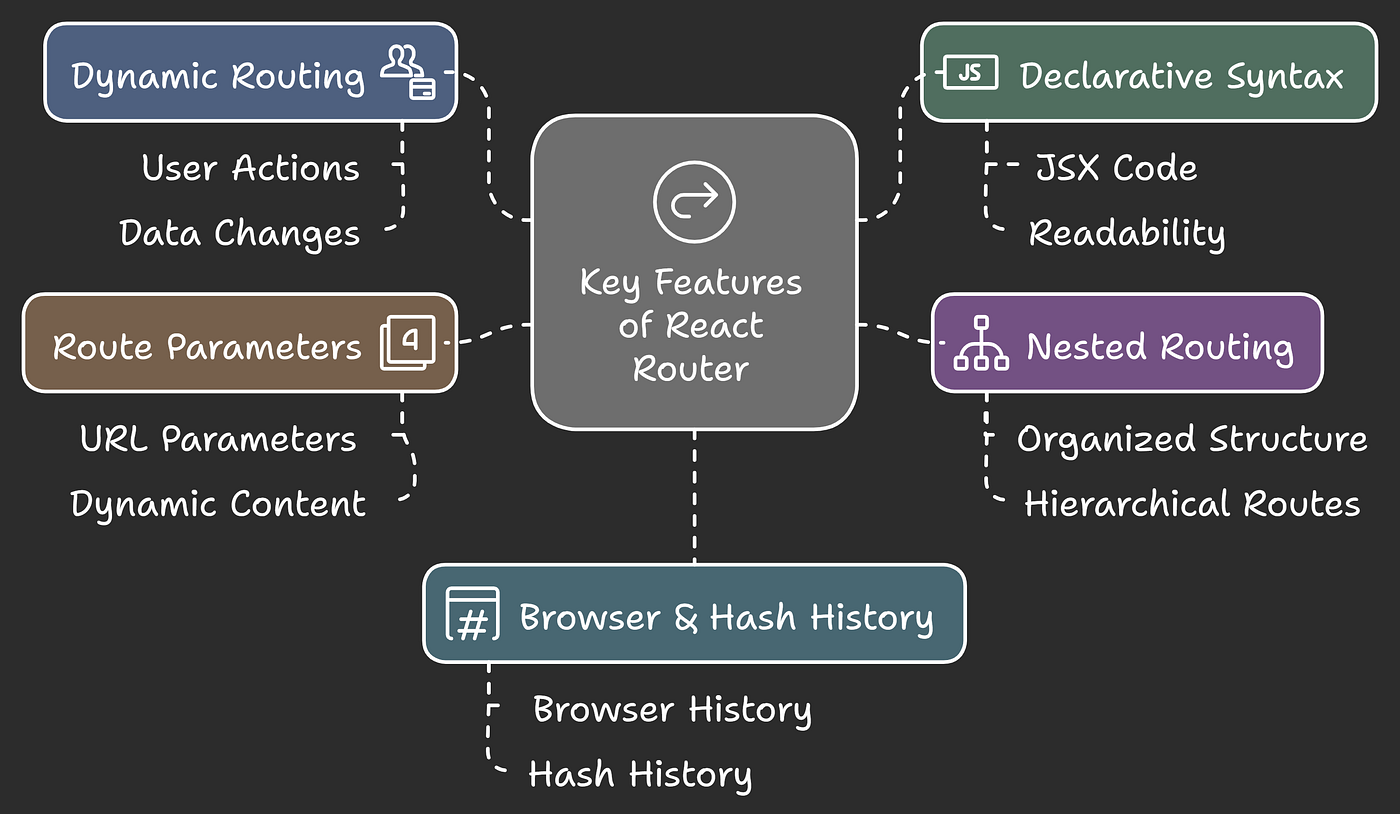
The Problem with Static Routes
Imagine you're building a user directory. You have a page at /users that lists all users. When you click on a user, you should be taken to a details page, like /users/1 for the first user, /users/2 for the second, and so on.
Let's watch a short video that illustrates why creating a static <Route> for every single user is not a scalable solution.
React Router Tutorial - 10 - Dynamic Routes
This video from Codevolution clearly explains the problem of creating multiple static routes for detail pages and introduces the need for dynamic routes.
Watch from the beginning until 03:33. The first minute (00:04 - 00:59) sets up the user-details scenario. The next part (02:08 - 03:33) shows the impractical approach of hardcoding a route for each user.
As you can see, this approach would require you to add a new <Route> every time a new user is added. This is not sustainable.
Creating Dynamic Routes
React Router solves this with dynamic segments, also known as URL parameters. Instead of a fixed path, you can specify a placeholder that captures whatever value is in that part of the URL.
A dynamic segment is prefixed with a colon (:). For our user example, instead of creating routes for /users/1, /users/2, etc., we can create a single dynamic route:
<Route path="/users/:userId" element={<UserDetails />} />
The :userId part is the URL parameter. It tells React Router to match any URL that follows the /users/ pattern, such as /users/1, /users/some-name, or /users/123-abc. The value in that segment will be captured and made available to our component.
Let's see this in action.
React Router Tutorial - 10 - Dynamic Routes
Continuing with the same video, let's see how to replace the multiple static routes with a single dynamic one.
Watch from 03:33 to 04:59. This section demonstrates how to use the :userId syntax to create a dynamic route that matches any user ID.
A Note on Route Specificity
What happens if you have a static route that looks like it could match a dynamic one? For example, what if you have /users/admin and also /users/:userId? Which one will render when you navigate to /users/admin?
React Router is smart about this: it will always prioritize the more specific route. A static path like /users/admin is considered more specific than a dynamic path like /users/:userId. Therefore, navigating to /users/admin will render the component for that specific route, not the dynamic user details page.
Accessing URL Parameters with useParams
Now that we've defined a dynamic route, we need a way to access the value of the parameter (e.g., the userId) inside our component. This is where the useParams hook comes in.
The useParams hook returns an object of key/value pairs from the current URL. The keys correspond to the dynamic segment names in your route path.
React Router Tutorial - 11 - URL Params
This next video from Codevolution focuses entirely on the useParams hook. It will show you how to import it and use it to extract the parameter value.
Watch from the beginning to 02:38. This covers why you need the parameter, how to import and call useParams, and how to access the specific parameter from the returned object.
Let's put this into a complete example.
1. Create Mock Data and New Pages
First, let's create a couple of new pages in our src/pages folder. We'll also create a mock data file.
Create src/data.js:
// src/data.js
export const products = [
  { id: 1, name: "Wireless Mouse", price: 25.99 },
  { id: 2, name: "Mechanical Keyboard", price: 89.99 },
  { id: 3, name: "USB-C Hub", price: 45.50 },
];
Create src/pages/ProductsPage.jsx:
// src/pages/ProductsPage.jsx
import { Link } from 'react-router-dom';
import { products } from '../data';

function ProductsPage() {
  return (
    <div>
      <h2>Our Products</h2>
      <ul>
        {products.map((product) => (
          <li key={product.id}>
            <Link to={`/products/${product.id}`}>{product.name}</Link>
          </li>
        ))}
      </ul>
    </div>
  );
}

export default ProductsPage;
Create src/pages/ProductDetailsPage.jsx:
This is where we'll use useParams.
// src/pages/ProductDetailsPage.jsx
import { useParams } from 'react-router-dom';
import { products } from '../data';

function ProductDetailsPage() {
  // Use destructuring to get productId directly
  const { productId } = useParams();

  // Find the product from our data array.
  // Note: URL params are always strings, so we convert our product.id to a string for comparison.
  // In a real app, you might need to parse the param to a number: const numericId = parseInt(productId, 10);
  const product = products.find((p) => p.id.toString() === productId);

  if (!product) {
    return <div>Product not found!</div>;
  }

  return (
    <div>
      <h2>{product.name}</h2>
      <p>Product ID: {product.id}</p>
      <p>Price: ${product.price}</p>
    </div>
  );
}

export default ProductDetailsPage;
This ProductDetailsPage component is a great example of a common pattern:
- Extract the ID from the URL with
useParams. - Use that ID to find or fetch the corresponding data. (Here we use
.find()on our local array; in Module 11, you'll learn to fetch this data from an API). - Render the details of the found item or a "not found" message.
2. Update Routes and Navigation
Now, let's add these new pages to our App.jsx and Navbar.jsx.
Update src/App.jsx to include the new routes:
// src/App.jsx
import { Routes, Route } from 'react-router-dom';
import Navbar from './components/Navbar';
import HomePage from './pages/HomePage';
import AboutPage from './pages/AboutPage';
import ProductsPage from './pages/ProductsPage'; // Import
import ProductDetailsPage from './pages/ProductDetailsPage'; // Import
import NotFoundPage from './pages/NotFoundPage';

function App() {
  return (
    <div>
      <Navbar />
      <main style={{ padding: '20px' }}>
        <Routes>
          <Route path="/" element={<HomePage />} />
          <Route path="/about" element={<AboutPage />} />
          <Route path="/products" element={<ProductsPage />} />
          {/* This is our new dynamic route! */}
          <Route path="/products/:productId" element={<ProductDetailsPage />} />
          <Route path="*" element={<NotFoundPage />} />
        </Routes>
      </main>
    </div>
  );
}

export default App;
Update src/components/Navbar.jsx to add a link to the products page:
// src/components/Navbar.jsx
import { NavLink, Link } from 'react-router-dom';
import './Navbar.css';

function Navbar() {
  return (
    <nav className="navbar">
      <Link to="/" className="nav-brand">MyApp</Link>
      <ul className="nav-links">
        <li><NavLink to="/">Home</NavLink></li>
        <li><NavLink to="/about">About</NavLink></li>
        <li><NavLink to="/products">Products</NavLink></li> {/* Add this line */}
      </ul>
    </nav>
  );
}

export default Navbar;
Now, run your app. You can navigate to the "Products" page, and from there, clicking any product will take you to its unique details page. Notice how the URL changes and the ProductDetailsPage component correctly displays data for the ID in the URL.
Conclusion
You have just unlocked a critical and powerful feature of React Router. Dynamic routes are the foundation for building scalable, data-driven applications where content changes based on user interaction and URL state.
Key Takeaways:
- Dynamic Routes: Use a colon (
:) in a route'spath(e.g.,/products/:id) to define a dynamic segment that can match variable values. useParamsHook: This hook is essential for accessing the values of dynamic segments within your components. It returns an object where keys are the parameter names from the route path.- Common Pattern: A typical workflow is to get an ID from
useParams, use that ID to find or fetch data, and then render that data. - Route Precedence: React Router matches more specific, static routes before it falls back to general, dynamic routes.
Next Up:
In several of our examples, we've seen layouts where a main content area changes while other parts of the UI, like a navigation bar, remain constant. React Router offers a more powerful way to handle this for complex layouts using nested routes. In the next lesson, we will explore how to nest routes and use the <Outlet> component to create sophisticated, hierarchical page structures, like a user dashboard with a persistent sidebar.