Hello! Welcome back to our final module on Professional ALM and DevOps.
In our last lesson, you learned how to create portable solutions using environment variables and connection references. This is a critical skill for building solutions that can be deployed across different environments without manual rework. However, successful deployment is only half the story. What happens when your perfectly packaged solution is deployed into a complex environment and doesn't behave as you expect?
This lesson addresses that exact problem. Your learning outcome is to use the 'See solution layers' feature to troubleshoot component conflicts and unexpected behavior. As a developer who has managed complex Dynamics 365 deployments, you've likely encountered situations where one customization overrides another. Solution layering is the formal mechanism that governs these interactions in the Power Platform, and understanding it is essential for diagnosing post-deployment issues.
The Problem: "Why Didn't My Change Apply?"
Imagine you deploy a managed solution to a UAT environment. The solution contains a change to the main Account form—perhaps you've hidden a field or changed a label. After the deployment succeeds, you open the app, navigate to the Account form, and find that your change isn't there. The old label is still present, or the field is still visible.
This is a classic symptom of a solution layering conflict. The Power Platform environment isn't just running your one solution; it's a composite of the base system, potentially multiple managed solutions from Microsoft, third parties, and your own organization, plus any direct "ad-hoc" customizations. Solution layering is the system that determines which customization "wins" when there are conflicting definitions for the same component.
Understanding the Layers
To diagnose these issues, you first need to understand the hierarchy. Every customizable component in Dataverse (like a form, a view, a field, or a workflow) is composed of layers.
To get a clear picture of this concept and why it's so important for troubleshooting, let's start with a well-framed article.
How to Master Solution Layering and Troubleshoot ...
This article, 'How to Master Solution Layering and Troubleshoot...', provides an excellent, problem-oriented introduction to the concept.
Please read the first two sections, 'What Is Solution Layering in Dynamics 365 CRM?' and 'How Do Layer Conflicts Happen?'. Focus on understanding the three key layers and the distinction between 'Merge' and 'Last One Wins' behavior.
As the article explains, there are three fundamental levels in the hierarchy:
- System (Base) Layer: The out-of-the-box definition of a component provided by Microsoft. This is the foundation.
- Managed Layers: Each managed solution you import creates a new layer on top of the System layer. If you install multiple managed solutions that customize the same component, they stack up. The most recently installed or upgraded solution sits at a higher level.
- Unmanaged Layer: This is the single, topmost layer. Any direct customization made in an environment (e.g., using the "Customize the System" interface) or any change imported via an unmanaged solution resides here.
The crucial rule is that the topmost layer determines the runtime behavior. This is often described as a "Last one wins" principle for conflicting properties.
However, some components exhibit a merge behavior. For example, if one managed solution adds Field A to a form and a second managed solution adds Field B to the same form, the final form will show both fields. But if both solutions try to set the display name of the form itself, the one from the top-most solution layer will be applied.

The most common source of troubleshooting headaches is the Unmanaged Layer, because it sits above all managed solutions.
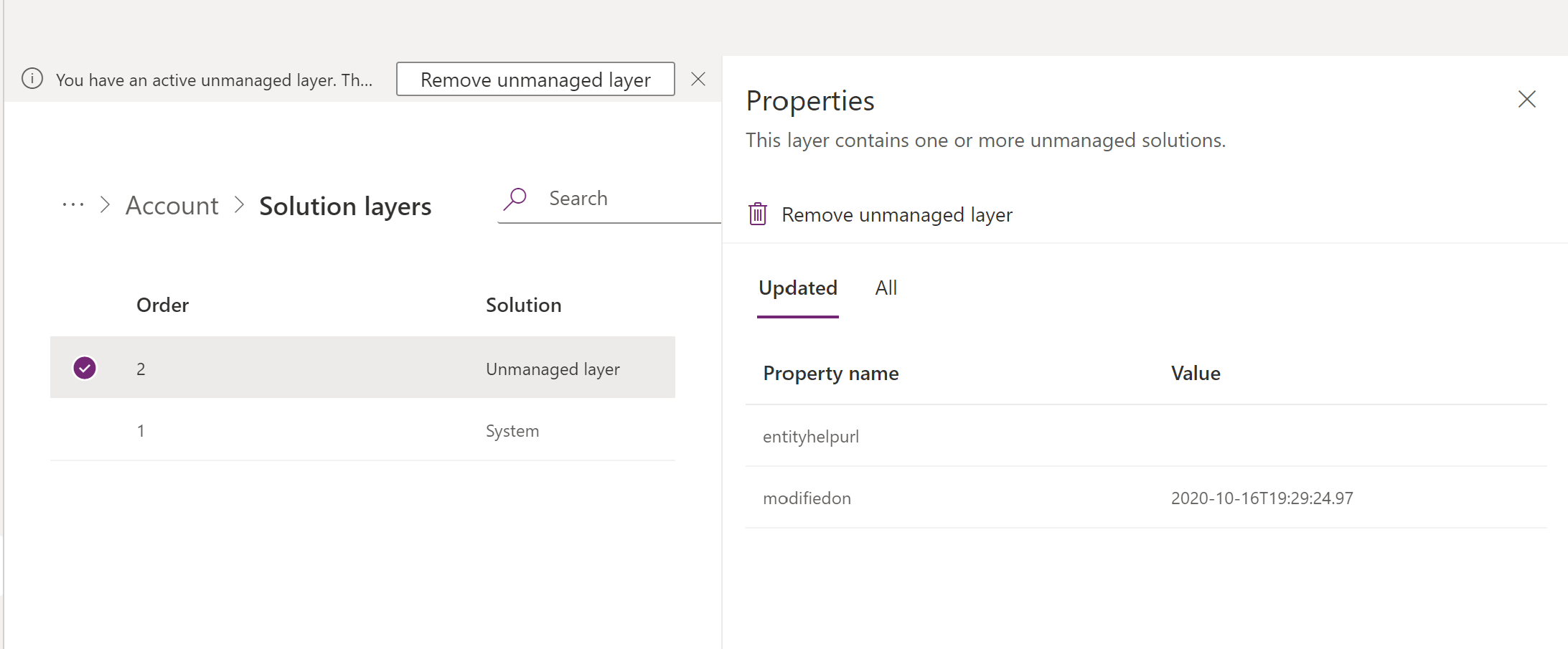
Using the "See Solution Layers" Diagnostic Tool
Now that you understand the theory, let's look at the practical tool you'll use for diagnosis. The Power Platform provides a built-in viewer that lets you inspect the full stack of layers for any solution component.
The official Microsoft documentation provides a clear, step-by-step guide on how to access and use this feature.
Solution layers in Power Platform - Power Apps
This documentation page, 'Solution layers in Power Platform', details the precise steps for using the tool.
Please read the section 'View the solution layers for a component'. This will walk you through navigating to the tool and interpreting what you see. Pay attention to how it distinguishes between the 'Updated' properties and 'All Properties' for a given layer.
Let's walk through a practical scenario:
- The Problem: You've deployed a managed solution that changes the "Description" field on the Contact table to be Business Required. However, users report they can still save a Contact record without filling it in.
- The Diagnosis:
- Navigate to your solution in the Power Apps maker portal (make.powerapps.com).
- Find the Contact table, select it, and then find the "Description" column (field).
- Click the ellipsis (...) next to the column and select Advanced > See solution layers.
- The Analysis: The Solution Layers page opens. You see your managed solution layer, where the
RequiredLevelproperty is set torequired. However, you see another layer at the very top labeled "Unmanaged layer". When you select this layer, you see in its properties that theRequiredLevelis set tonone.
Because the Unmanaged layer is on top, its configuration wins, and the field remains optional. You have successfully identified the root cause of the unexpected behavior.
Taking Action: Resolving Layering Conflicts
Once you've diagnosed the problem, the next step is to fix it. The course of action depends on the nature of the conflict.
Resolving Unmanaged Layer Conflicts
The unmanaged layer is a "double-edged sword," as the article we read earlier puts it. It's useful for developers in a dev environment but can cause major issues in downstream environments like UAT and Production. The best practice is for these environments to have no unmanaged layers on your solution components.
Solution layers in Power Platform - Power Apps
Let's review the official guidance on dealing with the most common problem: the unmanaged layer.
Read the section 'Remove an unmanaged layer'. Pay close attention to the warning about this action being irreversible.
As the documentation states, you can select the unmanaged layer and click Remove active customizations. This deletes the layer, allowing the next layer down (in our scenario, your managed solution) to take effect.
Warning: This action cannot be undone. If the unmanaged layer introduced a new field that now contains data, removing the layer will also delete the field and its data. Always investigate why an unmanaged change was made before removing it. It might have been a critical hotfix that now needs to be properly incorporated into your managed solution in your development environment.
Resolving Managed Layer Conflicts
Sometimes, a conflict can occur between two different managed solutions. For example, a solution from a third-party vendor and your own solution might both try to modify the same property of a component.
How to Master Solution Layering and Troubleshoot ...
The Medium article we looked at earlier also provides excellent strategies for this scenario.
Read the section 'Resolving Managed Solution Conflicts' to understand your options.
Your options for managed conflicts include:
- Re-importing a solution: The last solution imported sits on top. You can re-import the solution that you want to "win."
- Creating a patch: You can create a small, targeted managed patch solution that contains only the fix. When deployed, this patch will sit on top of the conflicting solutions and enforce the behavior you want. This is a clean, surgical approach that aligns with professional ALM.
Test your understanding!
You deploy a managed solution from your Dev environment to the UAT environment. This solution is supposed to make a specific field ("Credit Limit") on the Account form required. However, after deployment, testers report that the field is still optional. You use "See solution layers" on the "Credit Limit" field and see three layers:
- System (Base layer from Microsoft)
- YourSolution_v1.2 (Your managed solution)
- Unmanaged Layer (At the very top)
What is the most likely cause of the issue, and what are your two primary options for resolving it?
Show answer
-
Cause: The Unmanaged Layer is overriding the settings from your managed solution. Someone likely made a direct customization in the UAT environment that set the field's "Required" property back to optional. Since the unmanaged layer is on top, its configuration is what users experience.
-
Resolution Options:
- Remove the Unmanaged Layer: Use the "Remove active customizations" feature on the field. This will delete the unmanaged layer, allowing the configuration from your managed solution ("YourSolution_v1.2") to become the active behavior. You should first verify this unmanaged change isn't a deliberate, necessary hotfix before removing it.
- Incorporate and Redeploy: If the unmanaged change was a necessary hotfix, the correct ALM process is to replicate that change in your source solution in the Dev environment. Then, increment the solution version and deploy a new managed solution to UAT. This brings the "ad-hoc" change under proper source control and makes your managed solution the authoritative source of truth again.
Conclusion
In this lesson, we moved from deploying solutions to diagnosing them. Understanding solution layers is not just about fixing bugs; it's about understanding the architectural reality of a Power Platform environment and managing it professionally.
Key Takeaways:
- Solution layers determine the runtime behavior of components based on a "last one wins" principle for conflicting properties.
- The hierarchy is crucial: System -> Managed Layers -> Unmanaged Layer.
- The 'See solution layers' feature is your essential diagnostic tool for troubleshooting unexpected behavior after a deployment.
- Unmanaged layers in UAT and Production environments are a common source of conflicts and should generally be avoided or removed with caution.
- Conflicts between managed solutions can be resolved by managing import order or, more strategically, by using patches.
What's Next?
We've now covered how to package solutions for deployment and how to diagnose their behavior once deployed. The next logical step is to automate the handling of the solution files themselves. In our next lesson, you will use the Power Platform CLI to pack, unpack, and manage solution files. This is the gateway to integrating your Power Platform development with modern source control systems like Git and building automated CI/CD pipelines.