Hello! Welcome back to our final module on the path to your PL-400 certification.
In our previous lesson, we established a robust framework for monitoring your Power Platform integrations using Azure Monitor and Application Insights. This ability to observe and diagnose is critical for maintaining production systems. Now, we shift our focus from observing running solutions to professionally deploying and managing them in the first place.
This lesson kicks off our module on Professional ALM and DevOps. Your learning outcome is to implement connection references and environment variables for deployment flexibility across environments. Mastering this is the first and most crucial step in moving away from manual, error-prone deployments toward the automated, reliable Application Lifecycle Management (ALM) processes used in professional software development.
The Problem with Hard-Coded Configurations
In your development career, you've likely experienced the pain of managing configuration files across different environments. A solution built in a development environment often contains hard-coded values—database connection strings, API endpoints, or specific user email addresses—that are invalid in a test or production environment.
The traditional Power Platform equivalent of this problem is building an app or flow that connects directly to, for example, a specific SharePoint site. When you move that solution to a production environment, you have to manually open the app and flow, remove the old connection, and re-point it to the production SharePoint site. This process is not only tedious but also a significant source of deployment failures.
The Solution: Decoupling Configuration from Definition
To solve this, we adopt a core principle of good software architecture: separating the definition of a component from its configuration. In Power Platform, we achieve this using two key solution components:
-
Environment Variables: These act as configurable input parameters for your apps and flows. They store values that change between environments, such as a SharePoint site URL, an API key, a branding color, or an admin's email address. They can hold simple text or numbers, or even point to a specific data source like a SharePoint site or Dataverse table.
-
Connection References: These are placeholders, or pointers, for a connection. Your app or flow uses the reference, not the actual connection itself. When you deploy the solution to a new environment, you simply map the connection reference to a valid connection in that environment. The app and flow don't need to be changed at all.
This diagram perfectly illustrates the concept. A single solution package is deployed across Dev, QA, and Prod. In each environment, the same environment variables and connection references point to the correct, environment-specific SharePoint resources.

A Practical Walkthrough: Building a Portable Solution
The best way to understand this is to see it in action. The following video provides a complete, hands-on demonstration of building a solution with a Canvas App and a Power Automate flow, making them portable using these components.
Solutions in Power Platform | ALM, Power Apps, flows & Environments
This detailed video by Reza Dorrani covers the entire lifecycle, from creating a new solution to deploying it in a different environment.
Watch the following segments to see the process in action: Creating and Using Environment Variables (08:07 - 15:07): See how to create data source and text-based environment variables and then use them within both a Canvas App and a Power Automate flow. Preparing for Export (15:35 - 17:42): Pay close attention to the critical best-practice step of removing the current values from the environment variables before exporting. Importing and Configuring (17:42 - 20:17): Observe how the import wizard prompts for the new values for the target environment, completing the deployment process.
As you saw in the video, the recommended workflow is:
- Always work inside a solution.
- Create environment variables for any values that will differ across environments.
- Build your apps and flows, referencing the environment variables instead of hard-coding values. The platform automatically creates connection references for you.
- Before exporting, edit each environment variable and Remove the 'Current Value' from the solution. This is vital to ensure you are prompted to provide a new value during import.
- Export the solution as Managed for deployments to test and production environments.
- Import the solution into the target environment. The import wizard will guide you through mapping the connection references and setting the new values for your environment variables.
Deepening Your Understanding
Let's reinforce these concepts and explore a few more nuances with another excellent tutorial. This video highlights some useful shortcuts and clarifies the role of connection references.
Power Apps and Automate Solutions and Environment Variables for SharePoint
This video from Shane Young offers a different perspective, focusing on some time-saving settings and the specifics of connection references.
Please watch these two key sections: Automatic Variable Creation (03:31 - 07:03): Learn about the 'Automatically create environment variables when adding data sources' setting in Canvas Apps. This ensures you follow best practices from the start. Understanding Connection References (14:46 - 16:24): This part clearly explains what connection references are, how they appear in the solution, and how the 'Add required objects' feature acts as a safety net to ensure all dependencies are included.
Key takeaways here are the utility of the "Automatically create..." setting and understanding that solution components have dependencies that must be managed. The "Add required objects" feature is your tool to ensure your solution is complete before you export it.
Test your understanding!
You are building a solution containing a Canvas App and a Power Automate flow.
- The app connects to a SharePoint list.
- The flow is triggered by an item creation in the same list and then calls a custom connector to a third-party billing API, which requires an API Key.
You need to deploy this from your Dev environment to a Prod environment. What specific environment variables would you create, and what would be the conceptual difference in their values between Dev and Prod? What connection references will be present in your solution?
Show answer
You would need the following:
Environment Variables:
SharePoint Site URL: A 'Data Source' type variable. In Dev, it points to your development SharePoint site. In Prod, it will point to the production SharePoint site.SharePoint List Name: A 'Data Source' type variable linked to the site URL variable. In Dev, it points to the list in the dev site. In Prod, it will point to the list in the production site.Billing API Key: A 'Text' or 'Secret' type variable. In Dev, it holds a sandbox/test API key. In Prod, it will hold the live production API key.
Connection References:
Your solution will contain two connection references, which are automatically created when you add these connections to your solution-aware components:
- A connection reference for the SharePoint connection.
- A connection reference for your custom connector for the billing API.
During import to Prod, you'll map these references to actual connections that have been created in the Prod environment and provide the Prod values for the three environment variables.
From Manual Import to Automated DevOps
The interactive import wizard is effective for manual deployments, but it's not suitable for a fully automated CI/CD pipeline. To enable automation, we use a deployment settings file. This is a JSON file that you provide to the build tools during the solution import step, telling the pipeline what values to use for the environment variables and which connection IDs to use for the connection references in the target environment.
Let's review the official documentation to see how this works.
Pre-populate connection references and environment variables for automated deployments
This Microsoft Docs article explains how to pre-populate connection and environment variable values for automated deployments, which is the foundation of Power Platform DevOps.
Skim through this document, focusing on the overall process: Deployment settings file: Examine the JSON structure. Note the sections for EnvironmentVariables (identified by SchemaName) and ConnectionReferences (identified by LogicalName). Step 1: Generate the file: See that you can use the Power Platform CLI to generate a template of this file from your solution. Step 2 & 3: Get and Update Information: Understand that you need to find the ConnectionId of pre-existing connections in the target environment and manually populate the JSON file with these target-specific values. Step 4: Use in Build Tools: Look at the final screenshot. This shows exactly where the deployment settings file is used in a standard Azure DevOps pipeline.
This image from the documentation is the final piece of the puzzle, showing the "Power Platform Import Solution" task in an Azure DevOps pipeline.
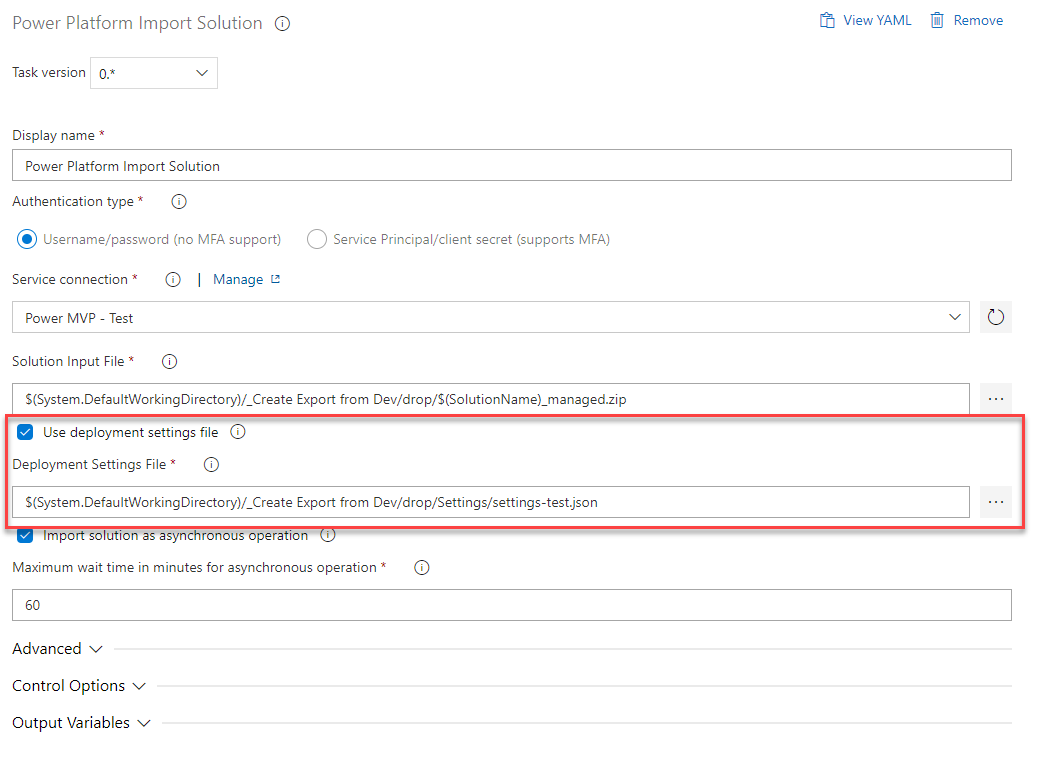
Your background in development and Scrum makes this connection to automated pipelines particularly relevant. The deploymentSettings.json file is analogous to other configuration transformation files you may have used in .NET or other application deployments.
Conclusion
In this lesson, you have learned the foundational technique for modern Power Platform ALM. By using environment variables and connection references, you can create robust, portable solutions that can be deployed across multiple environments with confidence and ease.
Key Takeaways:
- Decouple Configuration: Environment variables and connection references separate what your solution does from how it connects to the outside world.
- Work in Solutions: These components are only effective when used within a Power Platform solution.
- Export Cleanly: Always remove the "Current Value" from environment variables before exporting a managed solution to avoid carrying over development settings.
- Automate with JSON: For CI/CD, use a
deploymentSettings.jsonfile to provide environment-specific values during an automated import process.
This practice is non-negotiable for any professional Power Platform developer and is a recurring theme in the PL-400 exam.
What's Next?
Now that we understand how to package and deploy solutions correctly, we need to understand what happens when multiple solutions or patches are applied to the same environment. In our next lesson, you will learn to use the 'See solution layers' feature to troubleshoot component conflicts and unexpected behavior. This will give you the tools to diagnose and resolve complex issues that arise from a history of deployments.