Hello! Welcome to your third lesson.
In our last session, you successfully created your first Laravel project and ran it on a local server. When you opened the project folder, you were likely greeted by a large number of files and subdirectories. This can seem overwhelming at first, but it's a highly organized structure designed for clarity and scalability.
This lesson will serve as your guided tour of a new Laravel project. We will demystify the directory structure and focus on the five most important directories you'll be working with. By the end of this lesson, you will be able to identify the purpose of the key app, routes, config, database, and resources directories. Understanding this map is fundamental to knowing where to find and write code as we build our application.
A Bird's-Eye View: The Model-View-Controller (MVC) Pattern
Before we dive into individual folders, it's helpful to understand the architectural pattern that underpins Laravel: Model-View-Controller (MVC). Given your computer science background, you might already be familiar with this design pattern. It separates an application into three interconnected components:
- Model: The "data" layer. It's responsible for interacting with your database. For example, a
Usermodel would handle fetching, creating, and updating user records in theuserstable. - View: The "presentation" layer. This is what the user sees. In a web application, this is the HTML, CSS, and JavaScript rendered in the browser. In an API, the "view" is often a structured data format like JSON.
- Controller: The "logic" layer. It acts as the intermediary, handling incoming user requests, interacting with the Model to fetch or save data, and then telling the View what to display.
Laravel's directory structure is designed to guide you into this separation of concerns.
To get a visual overview of how these concepts map to the directories, take a look at the following chart. We'll be discussing each of these folders in detail.
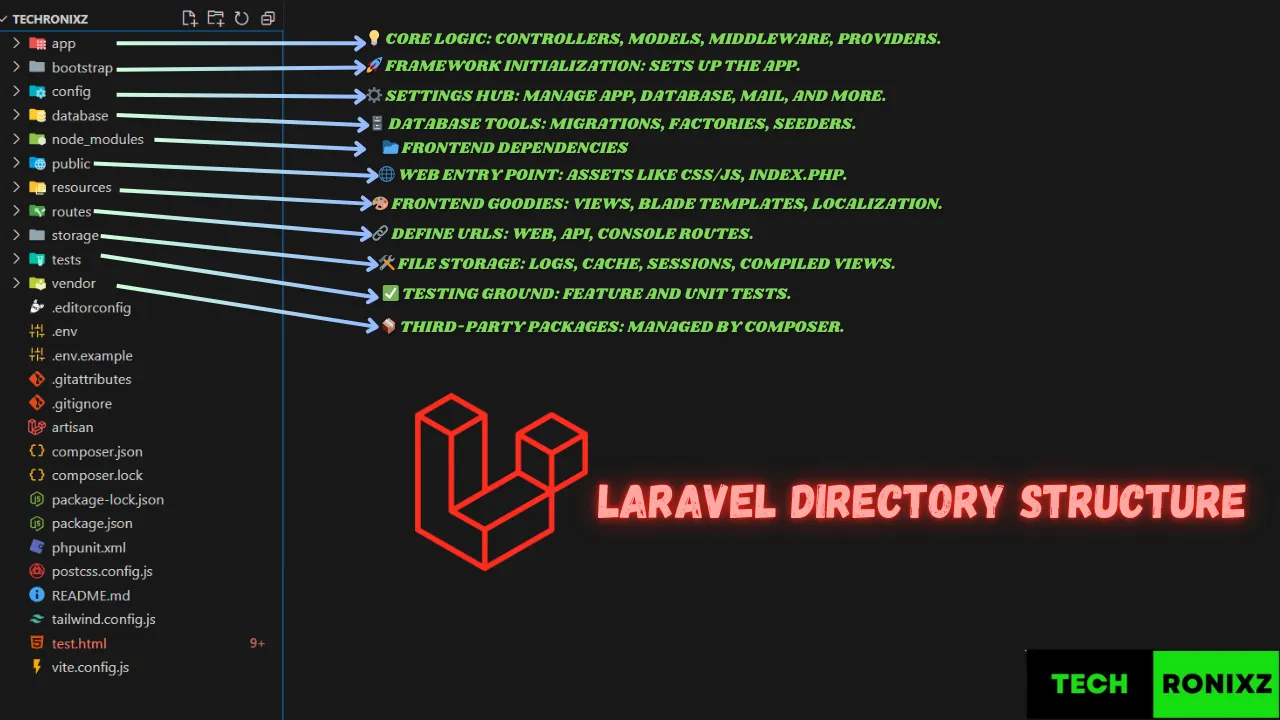
Exploring the Key Directories
Now, let's explore the five directories that are central to almost everything you will do in Laravel. The official documentation provides the most definitive explanation, and the video below offers a great verbal walkthrough.
We'll start with a short reading from a blog post that explains the folders clearly.
Laravel Directory Structure Explained
The blog post 'Laravel Directory Structure Explained' provides a concise summary of the most important folders. We will use it as our guide.
Please read the descriptions for the following five directories: /app /config /database /resources /routes Focus on the one-sentence description for each to get a high-level understanding.
Next, let's supplement this with a video that walks through the same structure, which can help solidify your understanding.
Understanding Laravel’s Directory Structure | Learn Laravel The Right Way
The video 'Understanding Laravel’s Directory Structure' from Program With Gio offers a clear, narrated tour of the project folders. Watching this will help reinforce what you've just read.
Watch the following segments which correspond to the key directories: app directory: 00:00 - 01:58 config directory: 02:38 - 03:14 database directory: 03:03 - 03:40 resources directory: 03:57 - 04:24 routes directory: 04:12 - 05:04
Now that you have a general sense from the resources, let's break down each directory's role in the context of our project.
1. The routes Directory
This is where you define all the "endpoints" or URLs for your application. When a request comes in, Laravel checks the files in this directory to see what to do.
routes/web.php: For standard web application routes that are accessed through a browser. These routes manage session state, which is how the application remembers a user between requests.routes/api.php: This is where you will define the routes for your REST API. Routes here are stateless, meaning each request must include all information needed to process it (like an authentication token). This is central to your goal of building APIs.routes/console.php: For defining custom Artisan commands.
In the MVC pattern, the routes directory is the entry point that directs a request to a specific Controller.
2. The app Directory
This is the heart of your application, containing its core logic. Almost all the PHP classes you write will live here.
app/Http/Controllers: This is where your Controllers live. A controller is a class with methods that handle specific requests. For example,UserControllermight have ashow()method to display a user's profile.app/Models: This is where your Eloquent Models are stored. Each model class corresponds to a database table and allows you to interact with that table using PHP instead of writing raw SQL. For example, aProductmodel would map to aproductstable. This will be very powerful given your database experience.app/Http/Middleware: Middleware provides a mechanism for filtering HTTP requests. For example, Laravel includes middleware to check if a user is authenticated. You can also write your own.
As your application grows, you'll create other directories inside app for things like handling events, jobs, and sending emails.
3. The resources Directory
This directory contains your "raw" assets and views.
resources/views: This is where your Views are stored. Laravel uses a powerful templating engine called Blade. Files here end in.blade.php(e.g.,welcome.blade.php). This is where you'll build the frontend components you were interested in learning.resources/css&resources/js: This is where you place your un-compiled CSS and JavaScript files. Laravel can then bundle and optimize them for production.
4. The database Directory
As the name suggests, this directory holds everything related to your database structure and data.
database/migrations: Migrations are like version control for your database schema. Each file here defines a change to your database structure (like creating a table or adding a column). This allows you to build and modify your database schema in a structured, repeatable way.database/seeders: Seeders are classes used to populate your database with initial or test data. For example, you could create a seeder to add a default admin user to youruserstable.
5. The config Directory
This directory contains all of your application's configuration files. You'll find files for setting up your database connection (database.php), mail services (mail.php), session handling (session.php), and much more. It's a good practice to familiarize yourself with these files to see what options are available. The settings here are often controlled by the variables in your .env file.
Test your understanding!
Imagine you are tasked with adding a new feature: a page that displays a list of products from your database. Based on what you've learned, in which specific file or subdirectory would you put each of the following pieces of code?
- The URL definition for
/products. - The PHP logic to fetch all products from the database.
- The database table structure for
products. - The HTML template to display the list of products.
Show answer
- URL definition:
routes/web.php(since it's a page for a browser). - PHP logic: In a new controller, likely
app/Http/Controllers/ProductController.php. The logic itself would use aProductmodel defined inapp/Models/Product.php. - Database table structure: In a new migration file inside
database/migrations/. - HTML template: In a new Blade view file, such as
resources/views/products/index.blade.php.
Conclusion
You now have a foundational map of a Laravel project. While there are other directories, these five are the ones you will interact with daily.
Let's recap the key takeaways:
routes: Defines the URLs and connects them to controllers.app: Contains the core logic of your application, including Models and Controllers (the M and C of MVC).resources: Holds the frontend assets, primarily the Blade templates for your Views (the V of MVC).database: Manages your database schema with migrations and test data with seeders.config: Stores all the configuration settings for your application.
Knowing "what goes where" is a critical first step. It organizes your code, makes it easier for you to find things, and helps you think like a Laravel developer.
Preview of the Next Lesson:
Now that you know the layout of your project, you might be wondering how to create all these new files, like controllers and models. Manually creating each file would be tedious. In the next lesson, we will dive into Artisan, Laravel's powerful command-line interface, which helps you generate these files and perform other common tasks with simple commands.