Hello! Welcome back to our journey into Bash scripting.
In the previous lesson, we focused on the logic of a script. You learned how to use variables to store data and how to use command substitution ($()) to capture the output of commands. This allowed you to write dynamic sequences of commands, like the log analyzer for your pacman.log.
Today, we'll bridge the gap between writing script logic and creating a real, reusable tool. You'll learn how to take the commands you wrote, save them into a file, and turn that file into a program you can run directly from your terminal.
This lesson covers two essential concepts for making your scripts work:
- Making a script executable: Granting a file the necessary permissions to be run as a program.
- The shebang line (
#!/bin/bash): A special instruction that tells the system which interpreter should execute your script.
By the end of this lesson, you'll be able to create a proper, standalone Bash script and execute it just like any other Linux command.
From Logic to a Script File
Let's start by taking the dynamic greeting logic from our last lesson and saving it as a script. A Bash script is, at its core, just a plain text file containing a sequence of commands.
- Open your favorite terminal-based text editor (like
nanoorvim). - Create a file named
greeting.sh. While the.shextension is not technically required for the script to run, it's a universal convention that helps you and others immediately identify it as a shell script. - Type or paste the following lines into the file:
current_user=$(whoami)
server_hostname=$(hostname)

echo "Welcome, $current_user! You are logged into $server_hostname."
echo "The current time is: $(date)"
- Save the file and exit the editor.
You now have a script file in your current directory.
The "Permission Denied" Problem
The most direct way to run a program located in your current directory is by prefixing its name with ./. The . is a reference to the current directory, so ./greeting.sh means "execute the file named greeting.sh found right here."
Go ahead and try it. In your terminal, run:
./greeting.sh
You will almost certainly see this error:bash: ./greeting.sh: Permission denied
This error is a core security feature of Linux. By default, new files are created with permissions to be read and written, but not executed. This prevents you from accidentally running a file that you downloaded or created. To run our script, we need to explicitly grant it execute permission.
The following article explains this concept and how to check a file's current permissions using ls -l.
How to Make a Bash Script File Executable in Linux
The article 'How to Make a Bash Script File Executable in Linux' from KodeKloud explains this process very clearly. Let's start by understanding why our script isn't executable by default.
Read the sections 'File Permissions in Linux' and 'Making a Bash Script File Executable in Linux' (up to the point where it first tries to run the script and gets 'Permission denied'). Focus on the breakdown of the permission string from ls -l.
Making the Script Executable with chmod
As you just read, the x bit is what grants execute permission. The command to change file permissions, or "mode," is chmod. You've used this before in our first module, and we'll use it again now.
The simplest way to make your script executable is to add the execute bit.
1. Add Execute Permission:
Run the following command in your terminal:chmod +x greeting.sh
+xis the symbolic way of saying "add the execute permission." This adds it for the owner, group, and others.
2. Verify the Change:
Now, check the permissions again with ls -l:ls -l greeting.sh
You'll notice two changes: an x has appeared in the permission string for all three categories (user, group, other), and your terminal will likely display the filename in a different color (often green) to visually flag it as executable.

3. Run the Script:
Try running the script again:./greeting.sh
This time, it should work perfectly, printing your personalized welcome message.
The following short video clip provides a live demonstration of this exact process.
Bash Scripting Tutorial for Beginners
The video 'Bash Scripting Tutorial for Beginners' by TechWorld with Nana has a great segment showing exactly how to fix the 'Permission denied' error.
Watch from 14:43 to 15:45. Notice how chmod +x changes the file's properties and allows it to be executed.
The Shebang: Telling the System How to Run the Script
You've made the script executable, but there's one crucial piece missing. How did the operating system know to use the bash shell to interpret your script? What if it had been a Python or Perl script?
Right now, your interactive shell (bash) is making an assumption and running the script itself. This works for simple cases, but it's not reliable. The proper way to control this is with a shebang.
The shebang is a special character sequence, #!, which must be the very first two bytes in the file. It is followed by the absolute path to the interpreter that should be used to run the script. For a Bash script, this is typically #!/bin/bash.
When you execute a script directly (like ./greeting.sh), the Linux kernel's execve() system call looks at the first few bytes of the file. If it sees a shebang, it invokes the specified interpreter and passes the script file to it as an argument.
The following article provides an excellent, in-depth explanation of the shebang, its syntax, and why it's so important for creating portable and reliable scripts.
Bash Shebang Explained (#!/bin/bash)
Now that our script is executable, we need to understand this crucial component: the shebang. The article 'Bash Shebang Explained' from Linuxize provides a detailed explanation.
Read the introduction and the sections 'Shebang Interpreter Directive', 'Using Shebang in Bash Scripts', and '#!/bin/sh vs #!/bin/bash'. Pay special attention to the explanation of portability using #!/usr/bin/env bash.
As the article explains, there are two common forms of the Bash shebang:
#!/bin/bash: The direct, absolute path. This is simple but fails if Bash is installed elsewhere (uncommon on Linux, but possible on other UNIX-like systems).#!/usr/bin/env bash: This is the more portable and generally recommended method. Theenvcommand searches your system's$PATHfor thebashexecutable. Since you're using Arch, you're familiar with configuring your system, and you can appreciate how this makes your scripts more robust and less dependent on hardcoded paths.
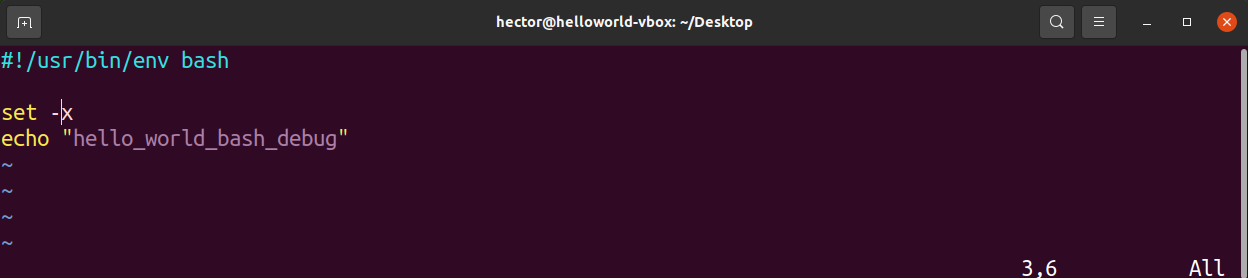
Let's update our greeting.sh script to include the proper shebang. Open the file again and add #!/usr/bin/env bash as the very first line. The file should now look like this:
#!/usr/bin/env bash

current_user=$(whoami)
server_hostname=$(hostname)

echo "Welcome, $current_user! You are logged into $server_hostname."
echo "The current time is: $(date)"
Save the file. Your script is now a complete, portable, and correctly defined executable.
Hands-On: Create a Reusable Log Analyzer
Now, let's put everything together. We'll convert the pacman log analyzer logic from the previous lesson into a proper, executable script.
-
Create the script file: Create a new file named
log_analyzer.sh. -
Add the shebang: Make the first line
#!/usr/bin/env bash. -
Add the script logic: Paste in the logic from our previous lesson. Remember to use a variable for the log file path to make it easy to change later.
# Define the path to the log file
LOG_FILE="/var/log/pacman.log"

echo "Analyzing log file: $LOG_FILE"
echo "---"


# Use command substitution with a pipeline to count occurrences
# The -c flag for grep is a more efficient shortcut for piping to `wc -l`
installed_count=$(grep -c "\[ALPM\] installed" "$LOG_FILE")
removed_count=$(grep -c "\[ALPM\] removed" "$LOG_FILE")


# Print the report
echo "Packages installed: $installed_count"
echo "Packages removed: $removed_count"
Note: You may need to run your final script with
sudo ./log_analyzer.shif your user doesn't have read permissions for/var/log/pacman.log. -
Make it executable: Use
chmod +x log_analyzer.sh. -
Run it: Execute your new tool with
./log_analyzer.sh.
You have now created a reusable command-line tool from scratch.
Conclusion
Congratulations! You have successfully bridged the gap from writing disconnected lines of code to creating a true, executable script. This is a foundational skill for all automation and systems administration work in Linux.
Key Takeaways:
- A Bash script is a text file containing commands. The
.shextension is a helpful convention. - Files are not executable by default. You must grant execute permission using
chmod +x script_name.sh. - A script must begin with a shebang (
#!) to tell the operating system which interpreter to use. - The
#!/usr/bin/env bashshebang is the most portable and recommended choice for Bash scripts.
Next Lesson Preview:
Your scripts can now run, but they run the same way every time. How do you make them react to different situations? In our next lesson, we will introduce conditional logic using if/else statements, allowing your scripts to make decisions and perform different actions based on specific conditions.