Hello! Welcome back to our series on Bash scripting.
In our last lesson, you learned how to turn a sequence of commands into a proper, executable script using chmod +x and the shebang (#!/usr/bin/env bash). Your scripts can now run, but they follow a single, linear path. To build truly useful tools, especially in cybersecurity, your scripts need to be able to react to different situations.
This lesson introduces a fundamental concept in programming: conditional logic. You will learn how to use if, else, and elif statements to make your scripts "smart" by allowing them to make decisions and execute different blocks of code based on specific conditions. This is essential for tasks like checking for root privileges, validating user input, or checking if a file exists before trying to use it.
By the end of this lesson, you will be able to implement conditional logic using if/else statements to control the flow of your Bash scripts.
1. The Basic if Statement
At its core, an if statement checks whether a certain condition is true. If it is, the script executes a block of commands. If not, it skips them. The basic structure looks like this:
if [ condition ]; then


  # commands to run if the condition is true
fi
Notice the specific syntax:
- The condition is enclosed in square brackets
[ ]. Crucially, there must be spaces on both sides of the brackets.[condition]will fail. - The
ifline ends with a semicolon;followed bythen. Alternatively, you can putthenon a new line without a semicolon. - The block of code ends with the
fikeyword (which isifspelled backward).
Let's watch a short video that walks through this syntax with a simple example.
Shell Scripting - If & If/else
The video 'Shell Scripting - If & If/else' from HackerSploit provides a clear introduction to the if statement syntax.
Watch from 02:38 to 06:43. Pay close attention to the if [ condition ]; then ... fi structure and the importance of spaces, especially when comparing variables.
2. Understanding Conditions
The most important part of an if statement is the condition itself. In Bash, the square brackets [ ] are actually a command called test. This command evaluates the expression inside it and returns an exit code: 0 for true and a non-zero value for false. This is a core UNIX principle: a command's success (true) is indicated by a 0 exit status.
There are three main categories of conditions you'll use constantly:
| Category | Description | Example |
|---|---|---|
| String Comparison | Checks if strings are equal, not equal, or empty. | if [ "$USER" == "root" ] |
| Numerical Comparison | Checks if numbers are equal, greater than, or less than. | if [ $count -gt 10 ] |
| File Checks | Checks for file attributes, like existence or permissions. | if [ -f "/etc/shadow" ] |
To see the full range of possible tests, you need a good reference. The following article provides an excellent table of common test operators.
If Statements - Bash Scripting Tutorial
The article 'If Statements - Bash Scripting Tutorial' from ryanstutorials.net has a fantastic, clear table of test operators. This will be your reference for building conditions.
Read the section titled 'Test'. Focus on the table of operators. You don't need to memorize it, but familiarize yourself with the different types of comparisons available for strings, integers, and files.
A few key takeaways from that table:
- For strings, use
==or!=. - For numbers, use flags like
-eq(equal),-gt(greater than), and-lt(less than). You cannot use>or<directly, as the shell would interpret them as redirection operators. - For files, flags like
-f(is a regular file),-d(is a directory), and-x(is executable) are extremely useful.
Hands-On 1: A Root-Check Script
Let's write a practical script. A common task in security and administration is to check if a script is being run with root privileges.
-
Create a new script named
check_root.sh. -
Add the shebang and the following logic:
#!/usr/bin/env bash


# Check if the user ID is 0 (the UID for the root user)
if [ $(id -u) -eq 0 ]; then
  echo "Running with root privileges. High power, high responsibility."
fi

echo "Script execution finished."
id -uis a command that prints the numeric user ID of the current user. Root's UID is always0.- We use command substitution
$(...)to get the output ofid -u. -eqis the numerical comparison operator for "equal to".
-
Make the script executable (
chmod +x check_root.sh). -
Run it:
./check_root.sh. -
Now run it with
sudo:sudo ./check_root.sh.
Notice how the message inside the if block only appears when the condition (UID equals 0) is true.
3. Handling the "False" Case with else
What if you want to perform a different action when the condition is false? That's what the else block is for. It provides an alternative execution path.
The syntax is a natural extension of the if statement:
if [ condition ]; then


  # commands to run if the condition is true
else


  # commands to run if the condition is false
fi
A very common use case is to check if the user provided a required command-line argument. The positional parameter $1 holds the first argument, $2 the second, and so on.
Beginner Linux for Ethical Hackers - Scripting with Bash
Let's watch a clip from The Cyber Mentor's 'Beginner Linux for Ethical Hackers' video. He demonstrates how to use if/else to check if a command-line argument was provided.
Watch from 11:29 to 14:10. He uses the condition if [ "$1" = "" ], which checks if the first argument is an empty string. This is a classic way to ensure your script gets the input it needs.
Hands-On 2: Enhancing the Root-Check Script
Let's improve our check_root.sh script by adding an else block to provide feedback when not running as root.
Modify your check_root.sh file to match this:
#!/usr/bin/env bash

if [ $(id -u) -eq 0 ]; then
  echo "Running with root privileges. Accessing sensitive system files..."


  # Future commands that require root would go here
else
  echo "You are not root. Some operations may fail."
  echo "Please run this script with 'sudo' for full functionality."
  exit 1 # Exit the script with a non-zero status code to indicate an error
fi

echo "This message will only be seen if the script is run as root."
- The
exit 1command immediately terminates the script. This is a standard way to stop execution when a critical requirement (like root access) is not met.
Run the script again with and without sudo to see how the else block changes its behavior.
4. Multiple Conditions with elif
Sometimes you need to check more than two possibilities. Instead of nesting multiple if statements, you can use elif (short for "else if"). This keeps your code clean and readable.
The structure allows you to chain multiple checks together. The script will execute the code block for the first condition that evaluates to true. If none are true, the final else block is executed.
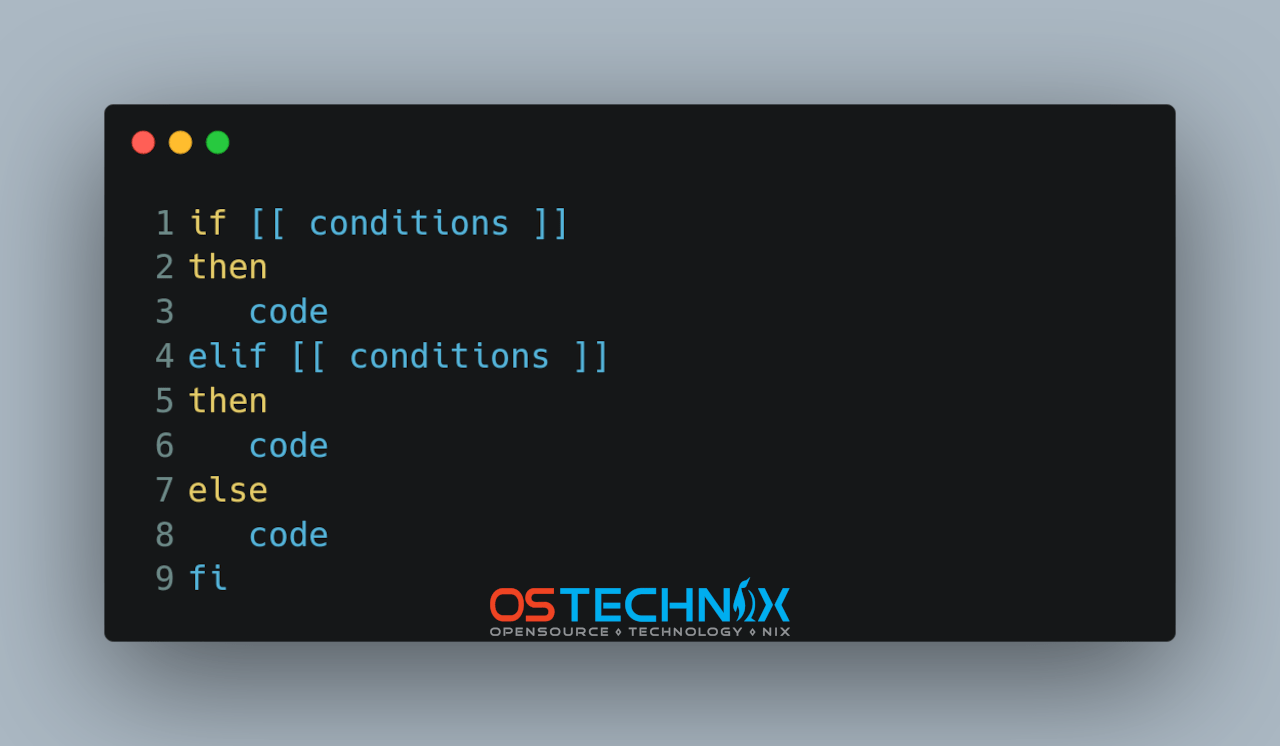
Let's look at a practical example.
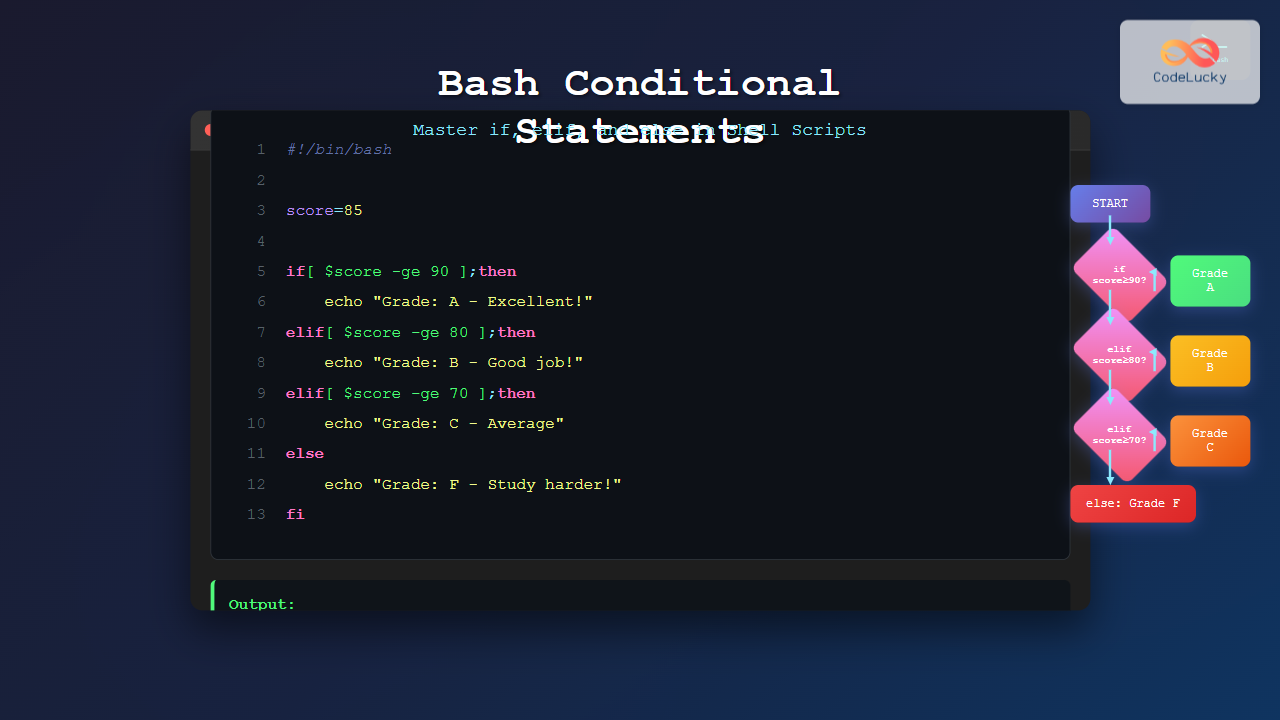
Hands-On 3: A Simple Service Checker
Let's create a script that pretends to check the security status of a network service provided as a command-line argument. This simulates a basic enumeration tool.
-
Create a file named
service_check.sh. -
Add the following code:
#!/usr/bin/env bash

SERVICE=$1 # Store the first argument in a variable with a clear name


# First, check if an argument was provided at all
if [ -z "$SERVICE" ]; then
  echo "Error: No service name provided."
  echo "Usage: $0 [ssh|http|ftp]"
  exit 1
fi

echo "Analyzing service: $SERVICE"

if [ "$SERVICE" == "ftp" ]; then
  echo "Result: DANGER! FTP is unencrypted. Use SFTP instead."
elif [ "$SERVICE" == "http" ]; then
  echo "Result: WARNING. HTTP is unencrypted. Use HTTPS."
elif [ "$SERVICE" == "ssh" ]; then
  echo "Result: OK. SSH is a secure protocol."
else
  echo "Result: UNKNOWN. Service '$SERVICE' is not in our list."
fi
-z "$SERVICE"is a test that returns true if the variableSERVICEis empty. This is another way to check if an argument was supplied.$0is a special variable that holds the name of the script itself, making the usage message dynamic.
-
Make it executable and test it with different arguments:
./service_check.sh(no argument)./service_check.sh ftp./service_check.sh ssh./service_check.sh telnet
This script now has multiple execution paths and behaves differently based on the input you give it—the core of a useful tool.
Conclusion
You have now added one of the most powerful tools to your scripting arsenal: decision-making. By mastering if, elif, and else, you can create scripts that are robust, intelligent, and responsive to their environment.
Key Takeaways:
- Conditional logic is built with
if [ condition ]; then ... fi. - The
[ ... ]construct is thetestcommand, which returns0(true) or non-zero (false). - Conditions can test strings (
==), numbers (-eq,-gt), and file attributes (-f,-d). - The
elseblock provides an alternative path when theifcondition is false. - The
elifkeyword lets you test multiple, sequential conditions cleanly. - Always quote your variables inside test conditions (e.g.,
"$VAR") to prevent errors if the variable is empty or contains spaces.
Next Lesson Preview:
Your scripts can now make decisions, but how do you make them perform repetitive actions? In our next lesson, we will explore loops. You'll learn how to use for and while loops to iterate over lists of items (like target IP addresses) or repeat a command until a certain condition is met, unlocking a new level of automation.