Hello! Welcome to the first lesson in our module on Bash scripting.
In the last module, you mastered the art of building powerful command-line pipelines using tools like grep, awk, and xargs. This skill allows you to perform complex data manipulation in a single line. However, what happens when you want to save that complex one-liner to reuse later, or when a task becomes too complex for just one line?
This is where scripting comes in. A script is simply a text file containing a sequence of commands that the shell can execute. It's how you move from one-off commands to creating reusable, automated tools.
Today, we'll take the first and most crucial step in that direction. We will focus on two fundamental building blocks of scripting that allow you to manage and manipulate data within your scripts:
- Variables: How to store information like text or numbers in a named placeholder.
- Command Substitution: How to run a command and capture its output directly into a variable.
By the end of this lesson, you will be able to write the core logic for a simple Bash script that uses these two concepts. We'll focus on the content of the script first; in the next lesson, we'll cover how to save it as a file and make it executable.
Part 1: Introducing Variables
In scripting, a variable is a named placeholder for a piece of data. Using variables makes your scripts clean, reusable, and much easier to manage. Instead of typing the same file path or setting multiple times, you can store it in a variable once and refer to it by name.
The video below provides an excellent introduction to the syntax and purpose of variables in Bash.
How To Write Bash Scripts In Linux - Complete Guide (Part 3 - Variables)
Let's watch a section of "How To Write Bash Scripts In Linux - Complete Guide (Part 3 - Variables)" from Learn Linux TV. This part will show you the basic syntax for creating a variable and how to access its value.
Watch from 00:54 to 04:19. Pay close attention to these two key syntax rules: When you assign a value to a variable, there are no spaces around the = sign (e.g., myname='Jay'). When you read or reference the variable's value, you must use a dollar sign $ in front of it (e.g., echo $myname).
As you saw, the syntax is strict but simple. For example:my_variable='some text' assigns the value.echo $my_variable reads and displays the value.
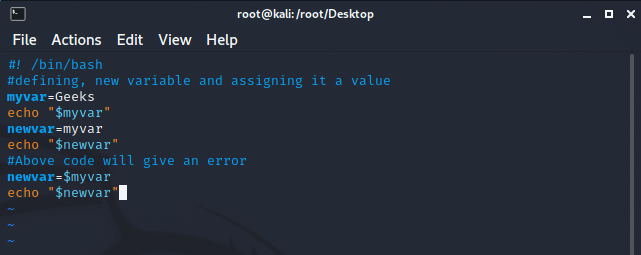
A common convention you'll see, which is also a good practice to adopt, is using lowercase letters for variables you create yourself (my_variable) and uppercase for system environment variables that are already defined (like $USER or $HOME). The video touches on this later (section 5, from 19:28), and it's a good habit to start now to make your scripts more readable.
Part 2: The Critical Role of Quotes
When you assign values to variables, especially values that contain spaces, you must use quotes. Bash provides two types of quotes, and their difference is one of the most important concepts to master in scripting.
The next segment of the video explains this perfectly.
How To Write Bash Scripts In Linux - Complete Guide (Part 3 - Variables)
Let's continue with the Learn Linux TV video. This section demonstrates the crucial difference between using single quotes (') and double quotes (") when working with variables.
Watch from 08:18 to 10:32. The key takeaway is: Double quotes (") allow for variable expansion. The shell replaces $variable with its value. Single quotes (') treat everything literally. The shell sees $variable as the literal text characters $ v a r i a b l e.
To summarize this critical point:
echo "My user is $USER"will printMy user is your_username.echo 'My user is $USER'will printMy user is $USER.
For now, a good rule of thumb is to use double quotes whenever you are creating a string that needs to include the value of a variable.
Part 3: Command Substitution
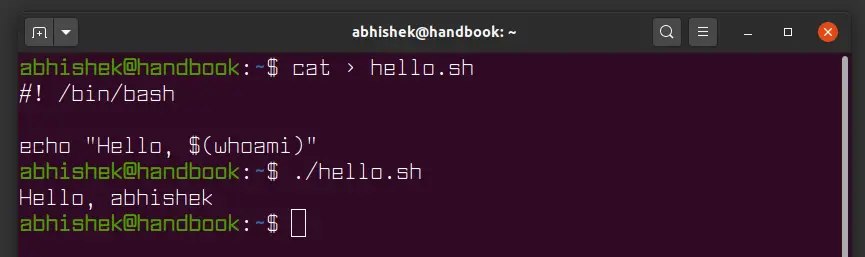
This is where your command-line skills from the previous module connect directly to scripting. Command substitution allows you to run any command and capture its output into a variable. This is incredibly powerful. You can run grep to find a specific line, date to get the current timestamp, or whoami to get the current user, and store the result for use throughout your script.
The syntax for this is variable=$(command).
How To Write Bash Scripts In Linux - Complete Guide (Part 3 - Variables)
The final video segment from Learn Linux TV will show you how to perform command substitution.
Watch from 14:09 to 18:34. Notice how the output of commands like ls, pwd, and date is stored in variables, which can then be used in echo statements later.
This technique is fundamental to making dynamic scripts. Instead of hard-coding information, you can generate it on the fly.
Part 4: Hands-On: Writing Your First Script Logic
Let's combine these concepts to write the content of a simple script. For now, you can copy and paste these lines directly into your terminal to see the immediate result. This reinforces the idea that a script is just a series of commands.
Challenge 1: A Dynamic Greeting
Your goal is to create a script that greets you by name and displays some system information.
- Open a text editor (like
nanoorvim) or just type these lines one by one in your terminal. - Create a variable named
current_userthat captures the output of thewhoamicommand. - Create another variable named
server_hostnamethat captures the output of thehostnamecommand. - Use
echoto print a welcome message that uses these variables. It should look something like: "Welcome,your_username! You are logged intoyour_hostname." - Add another
echoline that prints the current date and time, using command substitution with thedatecommand directly inside theechostring.
Click here to see a possible solution.
# 1. Define variables using command substitution
current_user=$(whoami)
server_hostname=$(hostname)


# 2. Print the welcome message using the variables
echo "Welcome, $current_user! You are logged into $server_hostname."


# 3. Print the date using command substitution inside the echo command
echo "The current time is: $(date)"
Challenge 2: A Practical Log Analyzer
This challenge connects to what you learned in the previous module. Your task is to write script logic that analyzes a log file. Since you use Arch Linux, the pacman log at /var/log/pacman.log is a perfect target.
Let's write script logic to count the number of packages that have been "installed" and "removed" according to this log.
- Create a variable named
LOG_FILEand assign it the string/var/log/pacman.log. Using a variable for the file path makes the script easy to change later if you want to analyze a different file. - Create a variable named
installed_count. Its value should be the result of a pipeline that first usesgrepto find lines containing"[ALPM] installed"in$LOG_FILE, and then pipes that towc -lto count the lines. - Create a similar variable named
removed_countthat does the same for lines containing"[ALPM] removed". - Use
echoto print a summary report, like:Log analysis for: /var/log/pacman.logPackages installed: 1234Packages removed: 56
Click here to see a possible solution.
# 1. Define the path to the log file
LOG_FILE="/var/log/pacman.log"


# 2. Use command substitution with a pipeline to count occurrences
# The -c flag for grep is a shortcut for | wc -l
installed_count=$(grep -c "\[ALPM\] installed" "$LOG_FILE")
removed_count=$(grep -c "\[ALPM\] removed" "$LOG_FILE")


# 3. Print the report
echo "Log analysis for: $LOG_FILE"
echo "Packages installed: $installed_count"
echo "Packages removed: $removed_count"


# Note: You may need to run the grep commands with 'sudo' if you don't have read permission
# for the log file, e.g., installed_count=$(sudo grep -c ...).
Conclusion
Congratulations, you've just learned the fundamental building blocks for adding data and dynamic command output to a script. This is the first major step toward true automation.
Key Takeaways:
- Variables are defined with
name=value(no spaces) and read with$name. They make scripts maintainable. - Double quotes (
") are essential as they allow your variables to be expanded into their values. Single quotes (') prevent this. - Command substitution (
$()) is the bridge between the command line and your script's logic, allowing you to capture the output of any command.
Next Lesson Preview:
You've now written the content of a script. But how do you save this into a file and run it as a single, reusable program? In the next lesson, we'll cover exactly that: making a script executable and understanding the role of the shebang line (#!/bin/bash).