Hello and welcome to the first lesson of our new module, "System Internals." In the last module, we focused on Bash scripting, learning how to write and interpret scripts to automate tasks. That was about telling the system what to do. Now, we're diving deeper to understand and control how the system runs.
As an aspiring ethical hacker, controlling services is a fundamental skill. Services are the background programs that provide a system's core functionality—like a web server handling website requests, an SSH server allowing remote login, or a database server managing data. Whether you are hardening a system or assessing its vulnerabilities, you'll need to interact with these services.
In this lesson, we will focus on the modern standard for managing services on most Linux distributions, including your Arch Linux system. Our goal is to manage system services using systemctl (start, stop, enable, disable, status).
From Init Scripts to systemd
For many years, Linux used a system of shell scripts (init scripts) to manage services. It worked, but it could be slow and complex. Most modern distributions, including Arch, Debian, Ubuntu, Fedora, and CentOS, have adopted systemd.
systemd is a system and service manager. It's the first process that starts after the kernel boots (it has Process ID 1), and it is responsible for starting and managing all other processes and services on the system.
The command you'll use to interact with systemd is systemctl.
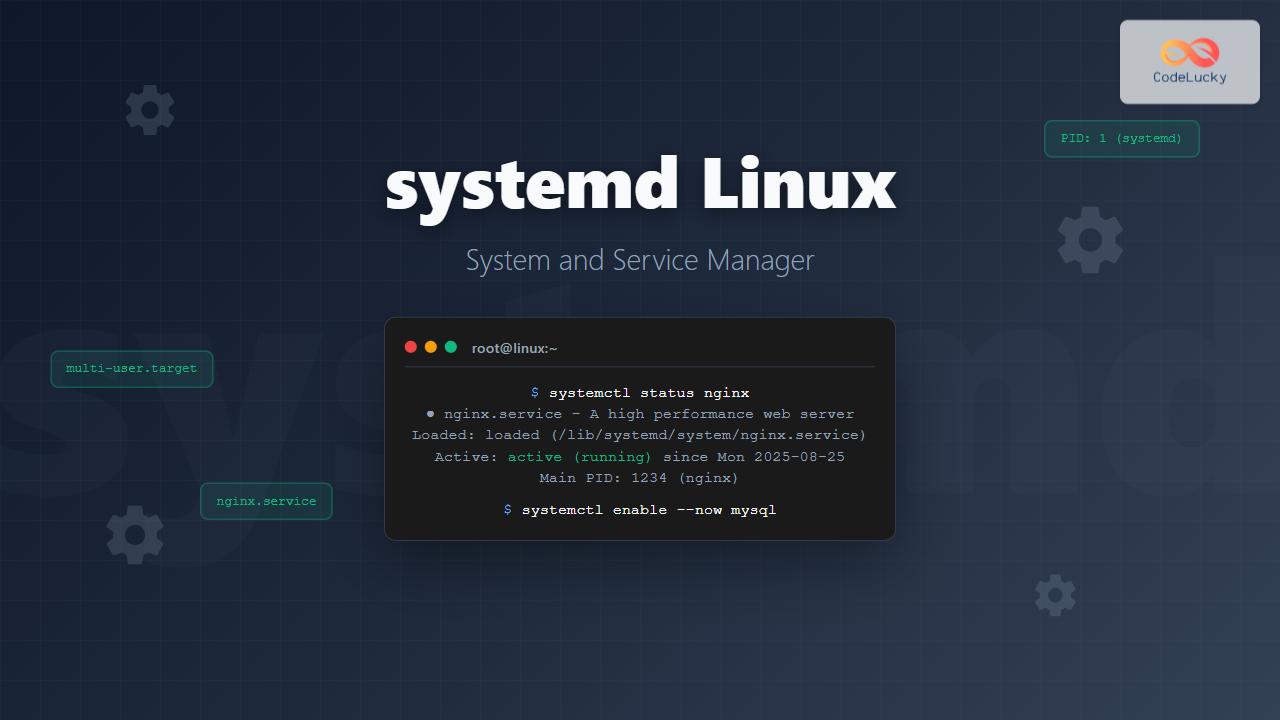
systemd manages resources called units. There are different types of units (for devices, mount points, etc.), but the most common ones you'll work with are service units. These have files ending in .service (e.g., sshd.service). Fortunately, systemctl is smart, and you can usually omit the .service suffix.
Checking the Status of a Service
Before you do anything, you need to know a service's current state. The status subcommand is your go-to tool for this. It's non-destructive and provides a wealth of information.
The basic syntax is:systemctl status <service_name>
This command doesn't require sudo and is essential for troubleshooting. Let's watch a video that demonstrates its use.
Linux Crash Course - systemd: Using the systemctl command
The video 'Linux Crash Course - systemd: Using the systemctl command' from Learn Linux TV provides an excellent, practical walkthrough of the core systemctl commands. We'll start by seeing how to check a service's status.
Watch the section from 06:50 to 08:51. The presenter uses the Apache web server (httpd) as an example. Note the key pieces of information the status command provides: whether the service is 'active' or 'inactive', and whether it's 'enabled' or 'disabled'. We'll explore what these mean next.
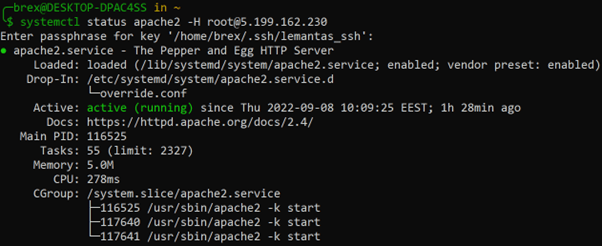
As you saw, the output of systemctl status gives you several key lines:
Loaded: Shows where the service's configuration file is and whether it was loaded correctly.Active: Tells you if the service is running right now. It can beactive (running)orinactive (dead).Main PID: The Process ID of the main service process.- Log Entries: The last few log messages from the service, which are incredibly useful for debugging.
Runtime vs. Boot-time: The Core Concept
This is the most critical concept to understand when using systemctl. You are managing two different states for a service:
- Runtime State: Is the service running right now? (Controlled by
startandstop). - Boot-time State: Will the service run automatically when the system boots? (Controlled by
enableanddisable).
Changing one does not automatically change the other. Let's read a clear explanation of this distinction.
Getting started with systemctl
The Red Hat article 'Getting started with systemctl' provides a fantastic and concise explanation of how to manage services. Pay close attention to the sections distinguishing between starting/stopping and enabling/disabling.
Please read the sections 'Service status', 'Starting and stopping services', 'Enable and disable services', and 'Use start and enable together'. These sections clearly define the core commands and explain the crucial difference between them using the SSH service (sshd) as an example.
The Essential systemctl Commands
Based on what you've just read and watched, let's summarize the essential commands. Note: Any command that changes the system's state requires elevated privileges, so you must use sudo.
Managing the Current Session (Runtime)
sudo systemctl start <service_name>: Starts a service immediately. This change does not persist after a reboot.sudo systemctl stop <service_name>: Stops a service immediately. This change also does not persist.
Managing Boot Behavior
sudo systemctl enable <service_name>: Configures a service to start automatically when the system boots. This does not start the service now.sudo systemctl disable <service_name>: Prevents a service from starting automatically at boot. This does not stop the service if it is currently running.
Applying Configuration Changes
When you edit a configuration file for a service, you need to tell the service to apply the changes.
sudo systemctl restart <service_name>: This is the forceful way. It completely stops the service and then starts it again. This will drop all active connections, causing a brief outage.sudo systemctl reload <service_name>: This is the graceful way. It asks the service to reload its configuration without shutting down. This is preferred as it doesn't interrupt active users, but not all services support this command.
Putting It All Together: A Practical Workflow
Let's walk through a common scenario: you've just installed a new web server and you want to get it running now and ensure it starts automatically on every boot.
-
Install the service: On your Arch machine, you can install NGINX, a popular web server.
sudo pacman -S nginx -
Check its initial status:
systemctl status nginxYou will likely see that it is
inactive (dead)anddisabled. -
Start the service for the current session:
sudo systemctl start nginx -
Verify it's running:
systemctl status nginx # It should now say 'active (running)' but still 'disabled'. # You can also test it locally. curl http://localhost # You should see the NGINX welcome page HTML. -
Enable the service to start on boot:
sudo systemctl enable nginxNow, if you check
systemctl status nginx, it will showactive (running)andenabled.
The --now Shortcut
Doing start and then enable is very common. systemctl provides a handy shortcut to do both at once:
sudo systemctl enable --now <service_name>
This will both enable the service for boot and start it in the current session.
Let's see this and the restart command in action.
Linux Crash Course - systemd: Using the systemctl command
Let's return to the Learn Linux TV video to see how to combine these commands and how restart works.
Watch from 08:51 to 13:38 to see the enable, start, and stop commands in action, plus the --now flag. Then, watch from 23:43 to 25:30 to understand the important difference between restart and reload.
Your Turn: Hands-on Practice
Theory is good, but practice makes it stick. Open your terminal and perform the following actions. I recommend using the nginx service you installed earlier.
-
Stop and Disable: If
nginxis currently running, stop it and disable it from starting at boot.# Command to stop the service sudo systemctl stop nginx # Command to disable the service sudo systemctl disable nginxVerify with
systemctl status nginx. It should beinactive (dead)anddisabled. -
Enable and Start (in one go): Use the
--nowflag to get it running again.# Command to enable and start the service sudo systemctl enable --now nginxVerify with
systemctl status nginxandcurl http://localhost. -
Restart: Practice restarting the service.
# Command to restart the service
sudo systemctl restart nginx
While it feels instantaneous for a simple service, remember this caused a full stop and start.
When you're finished experimenting, you can leave nginx stopped and disabled if you don't plan to use it.
Conclusion
You now have control over the fundamental services that run on a Linux system. Understanding how to manipulate these services with systemctl is non-negotiable for system administration and penetration testing. You can now start and stop services to enable or disable functionality, ensure critical tools are running after a reboot, and restart services to apply new configurations—a common task when exploiting a misconfiguration.
Key Takeaways:
systemdis the modern service manager on Arch Linux and many other distributions.systemctlis your command-line interface tosystemd.start/stopaffect the service now.enable/disableaffect the service at boot time.statusis your best friend for checking the current state of a service.restartis a hard reset, whilereloadis a graceful configuration update.- Most
systemctlactions that change the state of the system requiresudo.
Next Lesson Preview:
Services are great, but they run in the background. How do we know what they're doing, especially if something goes wrong? systemd has an integrated logging system called the journal. In our next lesson, we will learn how to read and search system logs using journalctl, allowing you to peer into the inner workings of your system and its services.