Hello and welcome back.
In our last few lessons, you've built a solid foundation in Bash scripting. You've learned to use variables to store data, if/else statements to make decisions, and for/while loops to perform repetitive tasks. These are the fundamental building blocks of automation.
Now, we'll shift our focus from writing to reading. As an aspiring ethical hacker, you will constantly encounter scripts written by others—whether they are system administration tools, exploit scripts, or security audit tools. Being able to quickly read a script and understand its function is a critical skill. It allows you to vet tools for safety, modify them for your needs, and understand what's happening on a compromised system.
This lesson synthesizes everything you've learned in this module. Our goal is to read and interpret a short Bash script to determine its function. We will develop a systematic approach to deconstruct any script you encounter.
A Systematic Approach to Reading Scripts
When you first open a script, it can look like a confusing wall of text. The key is to break it down methodically. Here's a five-step process you can use every time:
- Start at the Top: Look for the shebang (
#!/bin/bash) to confirm the interpreter. Read any comments (#) at the beginning; they often explain the script's purpose, author, and usage. - Identify Inputs: How does the script get its data?
- Hardcoded variables:
VARIABLE="some_value" - Command-line arguments:
$1,$2,$@ - User input:
read VARIABLE_NAME
- Hardcoded variables:
- Trace the Logic Flow: Identify the main control structures.
- Conditionals: What decisions does the script make (
if,else)? What conditions ([ -f file ],[ "$VAR" == "val" ]) does it test? - Loops: What actions are being repeated (
for,while)? What list or condition controls the repetition?
- Conditionals: What decisions does the script make (
- Understand the Core Commands: Inside the loops and conditionals, what are the key commands doing the actual work? (e.g.,
grep,find,ping,cp,mkdir). - Follow the Output: Where does the information go?
- Printed to the screen (
echo)? - Saved to a file (
> report.txtor>> log.txt)? - Discarded (
> /dev/null)?
- Printed to the screen (
Let's apply this method to a few examples.
Example 1: Conditionals and Arguments
Take a look at this image showing a simple script and its execution.
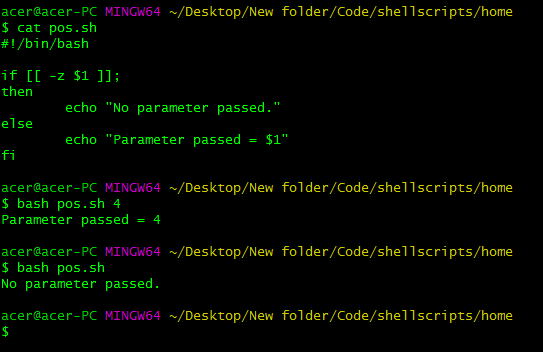
Let's analyze it with our five-step process:
- Top: No shebang or comments are visible, but the context implies a Bash script.
- Inputs: It uses
$1, the first command-line argument. - Logic: An
if-elsestatement. The condition is[[ -z $1 ]]. The-zoperator tests if a string is empty. So, the script is asking, "Was the first command-line argument empty?" - Core Commands: The only command is
echo, which prints text to the screen. - Output: It prints "No parameter passed." if the condition is true (no argument given) and "Parameter passed = ..." if the condition is false (an argument was provided).
Interpretation: This script checks if it was run with a command-line argument. It then prints a message indicating whether an argument was received and what that argument was.
Example 2: A Practical Backup Script
Now for something more complex and useful. This script aims to back up a project directory.
A Sample Backup Script with If Statements
The article 'Linux Tutorial - 13. Bash Scripting' provides an excellent, practical example of a backup script that uses variables, command substitution, and conditionals. We will analyze the more robust version of this script.
Focus on the code block under the 'If Statements' heading (starting from line 1). We will break this script down together. You don't need to memorize it, just follow along as we apply our analysis method.
Here's the script from the resource for easy reference:
#!/bin/bash
# Backs up a single project directory
# Ryan 2/3/2026

if [ $# != 1 ]
then
    echo Usage: A single argument which is the directory to backup
    exit
fi
if [ ! -d ~/projects/$1 ]
then
    echo 'The given directory does not seem to exist (possible typo?)'
    exit
fi
date=`date +%F`


# Do we already have a backup folder for todays date?
if [ -d ~/projectbackups/$1_$date ]
then
    echo 'This project has already been backed up today, overwrite?'
    read answer
    if [ $answer != 'y' ]
    then
        exit
    fi
else
    mkdir ~/projectbackups/$1_$date
fi
cp -R ~/projects/$1 ~/projectbackups/$1_$date
echo Backup of $1 completed
Let's break it down:
- Top: Shebang is
#!/bin/bash. Comments tell us it backs up a project directory and who wrote it. - Inputs:
$#: The number of command-line arguments.$1: The first command-line argument (the project directory name).read answer: Interactive input from the user.- Command substitution:
date=\date +%F`captures the output of thedate` command into a variable.
- Logic Flow:
- First
if: Checks if the number of arguments is not equal to 1. If so, it prints a usage message andexits. This is input validation. - Second
if: Checks if the directory~/projects/$1does not exist (! -d). If it doesn't, it prints an error andexits. More input validation. - Third
if-else: Checks if a backup for today already exists (-d ~/projectbackups/$1_$date).- If it exists, it prompts the user to overwrite (
read answer) and has a nestediftoexitif the answer isn't 'y'. - If it doesn't exist, the
elseblock runs, creating the backup directory withmkdir.
- If it exists, it prompts the user to overwrite (
- First
- Core Commands: The main actions are
mkdirto create a directory andcp -Rto recursively copy the project files into the new backup directory. - Output: It uses
echoto provide usage instructions, error messages, prompts, and a final completion message.
Interpretation: This script automates the process of backing up a specific project directory. It's designed to be robust by first validating its input (correct number of arguments, existence of the source directory) and then handling the case where a backup for the current day already exists by asking the user for confirmation before proceeding.
The Main Event: Deconstructing a Log Analyzer
Now let's tackle a more advanced script. In the video below, the presenter builds a script to analyze log files. We will analyze the final version of that script, which uses variables, arrays, command substitution, nested loops, and conditionals.
Bash Scripting Tutorial for Beginners
The 'Bash Scripting Tutorial for Beginners' video from TechWorld with Nana builds a fantastic real-world script. We are going to analyze the final version, which demonstrates many concepts working together.
You don't need to re-watch the whole creation process. Just know that the video covers variables (27:06), command substitution (34:43), for loops (36:45), nested loops (44:10), and if statements (56:14), all of which are present in our final script. We will analyze the finished product below.
Here is the final script we'll be interpreting:
#!/bin/bash

log_directory="/path/to/your/logs" #<-- Assumed path
error_patterns=("error" "fatal" "critical")
report_file="log_analysis_report.txt"
threshold=10

echo "Analyzing logs in $log_directory..." > $report_file
echo "Report generated on $(date)" >> $report_file

log_files=$(find "$log_directory" -name "*.log" -mtime -1)

for log_file in $log_files; do
    echo -e "\n--- Analyzing file: $log_file ---" >> $report_file
    for pattern in "${error_patterns[@]}"; do
        echo "Searching for '$pattern' issues..." >> $report_file

        grep "$pattern" "$log_file" >> $report_file

        error_count=$(grep -c "$pattern" "$log_file")
        echo "Found $error_count instances of '$pattern'." >> $report_file

        if [ "$error_count" -gt "$threshold" ]; then
            echo "WARNING: High number of '$pattern' issues in $log_file!"
            echo "ACTION REQUIRED: Too many '$pattern' issues ($error_count) in $log_file" >> $report_file
        fi
    done
done

echo -e "\n--- Analysis Complete ---" >> $report_file
echo "Log analysis complete. Report saved to $report_file"
- Top: Shebang is
#!/bin/bash. No comments, but the variable names are descriptive. - Inputs:
- Hardcoded variables:
log_directory,error_patterns(an array),report_file,threshold. These make the script configurable. - Command substitution:
log_files=$(find ...)stores the output of thefindcommand. This command finds all files ending in.login the specified directory that were modified in the last day (-mtime -1).
- Hardcoded variables:
- Logic Flow:
- Outer
forloop: Iterates through each file path stored in thelog_filesvariable. - Inner
forloop: For each log file, it iterates through theerror_patternsarray ("error","fatal","critical"). ifstatement: Inside the inner loop, it checks if theerror_countis greater than (-gt) thethreshold.
- Outer
- Core Commands:
find: Locates the relevant log files.grep "$pattern" "$log_file": Searches for the current error pattern within the current log file.grep -c: Counts the number of lines matching the pattern.
- Output:
- All analysis output (
echo,grep) is redirected (>for the first line,>>to append for all others) into thereport_file. - A
WARNINGmessage is printed to the terminal and the report file if the error threshold is exceeded. - A final completion message is printed to the terminal.
- All analysis output (
Interpretation: This script is an automated log monitoring tool. It finds all log files modified in the last 24 hours, then systematically searches each file for a list of predefined error keywords. It generates a detailed report of its findings and, most importantly, provides an immediate alert to the console if the number of any specific error type in any single file exceeds a set threshold. This is a classic sysadmin/security task.
Your Turn to Interpret
Now it's your turn to apply the five-step method. Analyze the script below and describe its purpose and function.
#!/bin/bash


# A script to display system information

echo "--- System Information ---"
echo "Hostname: $(hostname)"
echo "Uptime: $(uptime -p)"
echo ""

echo "--- Memory Usage ---"
free -h | grep "Mem"
echo ""

echo "--- Disk Usage ---"
df -h / | tail -n 1
echo ""

echo "--- Network Information ---"
ip a | grep "inet " | grep -v "127.0.0.1"

echo "--------------------------"
Take a moment to analyze it before reading the explanation below.
Analysis:
- Top: The shebang and a descriptive comment are present.
- Inputs: There are no user-provided inputs. The script gets all its information from system commands via command substitution (e.g.,
$(hostname)). - Logic Flow: The script is purely sequential. It runs one command after another with no conditionals or loops.
- Core Commands:
hostname: Gets the system's name.uptime -p: Gets the system's uptime in a "pretty" format.free -h: Shows memory usage in human-readable format.df -h /: Shows disk usage for the root filesystem.ip a: Shows network interface information.- It also uses
grepandtailto filter the output offree,df, andipto show only the most relevant lines.
- Output: All output is printed to the terminal using
echoto provide formatted headings for each section.
Interpretation: This is a simple system information-gathering script. It runs several standard Linux commands to collect key details about the system—hostname, uptime, memory, disk space, and IP address—and presents them in a clean, readable report on the command line. This kind of script is very useful for getting a quick health check of a server.
Conclusion
You now have a powerful and repeatable method for dissecting and understanding Bash scripts. This skill is a force multiplier; it allows you to learn from the work of others, leverage existing tools, and quickly understand the automated processes running on any Linux system you encounter.
Key Takeaways:
- Reading scripts is as important as writing them.
- A systematic approach (Top, Inputs, Logic, Commands, Output) can deconstruct any script.
- Understanding how variables, conditionals, loops, and command substitution work together is the key to interpretation.
- Descriptive variable names and comments are signs of a well-written, easy-to-understand script.
Next Lesson Preview:
This lesson concludes our module on Bash scripting. You've gone from basic commands to writing and interpreting complex automation scripts. In the next module, "System Internals: Services, Logs, and Scheduling," we'll take a deeper look at the operating system itself. You'll learn how to manage the core services that run in the background using systemctl, a crucial skill for any system administrator or penetration tester.