Hello! In our last lesson, we dove into the world of system logs. You learned how to use journalctl and tools like grep and tail to find errors, track user activity, and understand what your system is doing.
But what happens when you find a problem in a log? For instance, you might see log entries indicating a misconfiguration in your SSH service. The next logical step isn't just to find the problem, but to fix it. That almost always involves editing a configuration file. This is a fundamental skill for system administration and a critical one for ethical hacking, as misconfigurations are a common entry point.
This lesson directly addresses the learning outcome: Edit system configuration files using a terminal text editor like vim or nano. Since you often won't have a graphical user interface when working on remote servers or in minimal environments, mastering a terminal-based text editor is non-negotiable.
We will cover the two most common editors:
nano: Simple, intuitive, and great for beginners or quick edits.vim: Extremely powerful and efficient, with a steeper learning curve. It is found on nearly every Linux/Unix system ever made.
By the end of this lesson, you'll be able to confidently open, edit, and save files using both, and you'll understand the secure way to edit sensitive system files.
Why Terminal Editors Are Essential
Before we dive into the commands, let's understand why these tools are so important.
The Linux User's Ultimate Guide to Text Editors
The article 'The Linux User's Ultimate Guide to Text Editors' from The New Stack provides an excellent overview of why text editors are a cornerstone of Linux administration. It sets the stage for our practical work with nano and vim.
Please read the section titled 'Why Are Text Editors So Important?'. Focus on the connection between text editors and managing the configuration files that control how your system and its applications behave.
Part 1: nano – The Friendly Editor
nano is the editor most people start with. Its commands are always displayed at the bottom of the screen, making it easy to learn and use without memorizing complex key combinations.
On your Arch system, nano should be installed, but you can always verify with which nano. If it's missing, you can install it with sudo pacman -S nano.
Let's watch a video that walks through the fundamentals.
Linux Crash Course - nano (command-line text editor)
The video 'Linux Crash Course - nano' from Learn Linux TV is a clear and practical guide. It will show you how to perform the most common tasks: opening, saving, exiting, and searching.
Watch from 00:46 to 07:43. This covers the core functionality you need: Opening files: nano and nano <filename> (00:46 - 02:24) Saving & Exiting: Ctrl+O (Write Out) and Ctrl+X (Exit) (02:24 - 03:25) Editing system files (with sudo): The example uses /etc/ssh/sshd_config, which is very relevant for you. (03:25 - 04:49) Searching: Ctrl+W (Where is) (04:49 - 05:37) Cutting & Pasting lines: Ctrl+K (Cut) and Ctrl+U (Uncut/Paste) (06:11 - 07:43)
The nano interface is straightforward. The ^ symbol represents the Ctrl key.

Hands-on Practice with nano
Let's put this into practice. Open your terminal and follow these steps:
- Navigate to your home directory:
cd ~ - Create a new file called
my_notes.txt:nano my_notes.txt - Type a few lines of text. Something like:
This is my first file edited with nano. Common ports to check: - 22 (SSH) - 80 (HTTP) - 443 (HTTPS) - Save the file by pressing
Ctrl+O. It will prompt for the filename; just pressEnterto confirm. - Exit nano by pressing
Ctrl+X. - Verify your file was saved:
cat my_notes.txt
Part 2: vim – The Power Editor
vim (Vi IMproved) is a different beast entirely. Its power comes from its modal nature. Unlike nano, where typing a letter always inserts that letter, vim has different modes for different tasks. This is confusing at first but incredibly efficient once you get the hang of it.
The two most important modes are:
- Normal Mode: The default mode when you open
vim. Every key is a command (e.g.,dto delete,jto move down). You use this mode to navigate and manipulate text. - Insert Mode: This is where you type text like in a normal editor. You enter this mode by pressing
i(for "insert") from Normal mode. To get back to Normal mode, you press theEsckey.
Mantra: When in doubt, press Esc. This will always return you to Normal mode.
Let's read a clear explanation of how to perform basic tasks in vim.
We'll return to the 'Ultimate Guide to Text Editors' article. Its section on vim does a great job of explaining the modal concept and walking you through the essential 'four tasks': open, edit, save, and exit.
Read the section titled 'The vim Text Editor', focusing on the subsections 'Basic Document Management With vim' and 'Additional vim Tricks'. Pay close attention to: The explanation of Normal vs. Insert mode. The commands to save (:w), quit (:q), and do both (:wq). How to quit without saving (:q!). How to search using /.
Because vim commands can be hard to remember at first, a cheat sheet is invaluable.
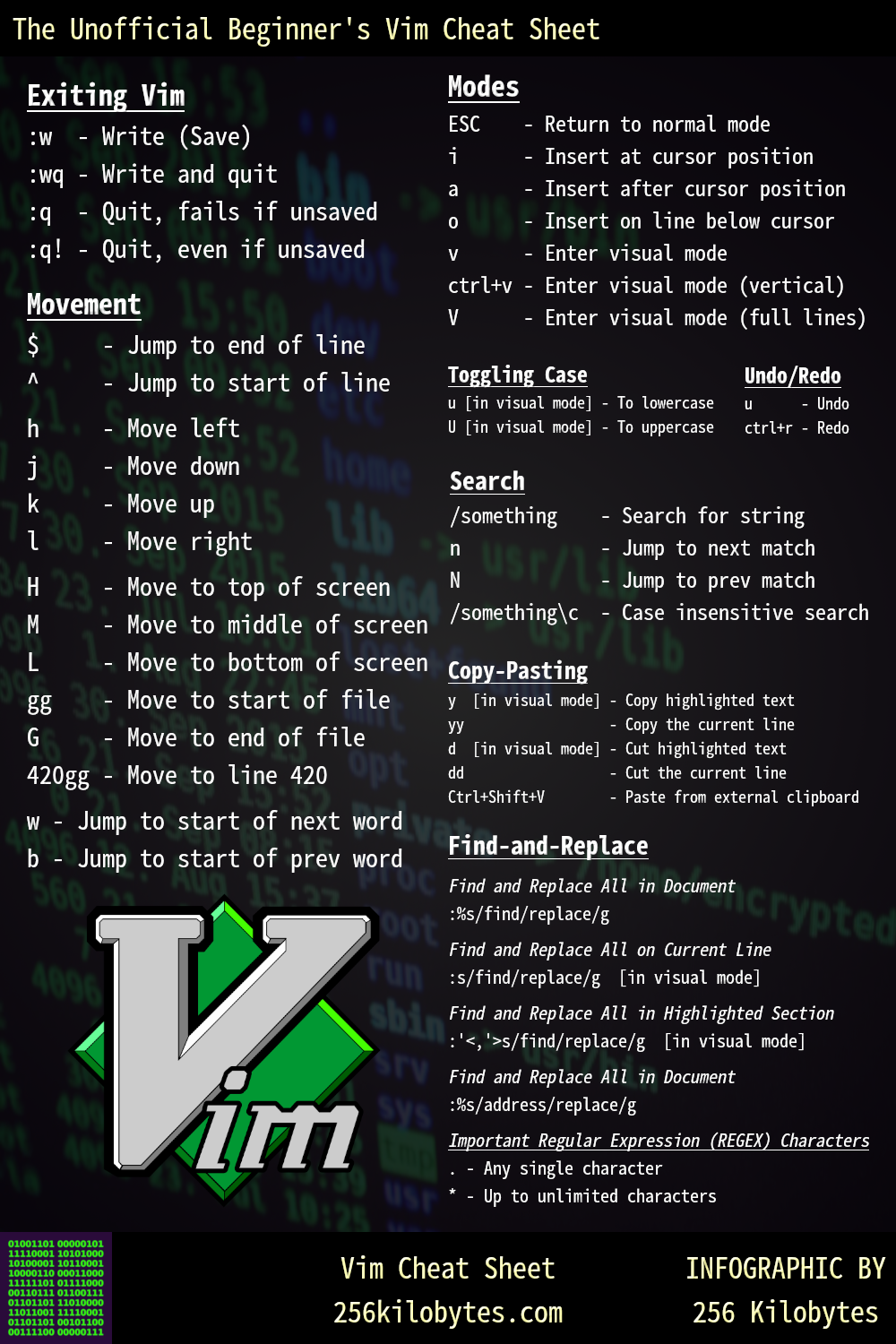
Hands-on Practice with vim
Time to try it out.
- Open the file you created earlier with
vim:vim my_notes.txt - You are in Normal mode. You cannot type yet. Use the arrow keys (or
h,j,k,l) to move the cursor around.jmoves down,kmoves up. - Move your cursor to the end of the last line.
- Press
a(for "append") to enter Insert mode after the cursor. Notice the-- INSERT --indicator at the bottom. - Add a new line:
- 53 (DNS) - Press
Escto return to Normal mode. The-- INSERT --indicator disappears. - Now, let's save and quit. Type
:wqand pressEnter. The colon:puts you in command-line mode at the bottom of the screen.wis for write,qis for quit. - Verify your changes:
cat my_notes.txt
Congratulations! You've successfully performed a basic edit in vim.
Part 3: Editing System Files Securely
Now for the most important part: editing files that require root privileges, like /etc/fstab or /etc/ssh/sshd_config.
Your first instinct might be sudo nano /etc/ssh/sshd_config. While this works, it's a security risk because it runs the entire nano process as the root user. If there were a vulnerability in nano, it could be exploited with root privileges.
There's a safer, purpose-built command: sudoedit.
Editing System Files Safely with Root Privileges
The article 'How to Edit a File in Linux' from ARPHost has a fantastic section explaining why sudoedit is the superior and more secure method for editing system files. This is a professional best practice.
Please read the section 'Editing System Files Safely with Root Privileges', focusing on 'The Superiority of Sudoedit'. Understand the process it follows: creating a temporary file, opening it with your user's editor, and then safely overwriting the original.
sudoedit uses the editor defined in your shell's $EDITOR environment variable. To use nano with sudoedit, you can set it like this:
export EDITOR=nano
sudoedit /etc/ssh/sshd_config
If you prefer vim, you would set export EDITOR=vim. You can add this export line to your shell's configuration file (e.g., ~/.bashrc or ~/.zshrc) to make it permanent.
Hands-on Practice with sudoedit
Let's safely view a system file. We won't make any changes.
- Set your preferred editor for this session. Let's use
nano:export EDITOR=nano - Run
sudoediton a configuration file. A good, safe one to look at is the Pacman config:sudoedit /etc/pacman.conf - You will be prompted for your
sudopassword. After entering it, the file will open innano. - Look around the file using your arrow keys.
- Do not make any changes. Simply exit by pressing
Ctrl+X. Because you didn't modify the file,sudoeditwill do nothing. If you had made changes, it would have prompted you to save, and then it would have safely updated the original file.
Conclusion
You've now learned the foundational skill of editing files from the command line, a requirement for any serious Linux user, administrator, or ethical hacker.
Key Takeaways:
- Terminal-based editors are essential for managing remote systems where no GUI is available.
nanois a simple, modeless editor. Commands are displayed on-screen and typically use theCtrlkey. It's great for quick, straightforward edits.vimis a powerful, modal editor. You must switch between Normal mode (for commands) and Insert mode (for typing). Its efficiency is unmatched once you build muscle memory.- For editing system configuration files,
sudoeditis the secure and professional standard. It minimizes the time any process runs as root, reducing your system's attack surface.
Next Lesson Preview:
Now that you can edit files, you can configure almost anything on your system. In our next lesson, we will put this new skill to immediate use. We will learn how to schedule automated tasks using cron by editing a special file known as a crontab. This will be your first step toward system automation.