Hello! Welcome back to our second module, "Linux User and Process Administration."
In the last lesson, we got hands-on with the commands that bring users and groups to life: useradd, usermod, and groupadd. We created, modified, and deleted identities on our system. Now, it's time to pull back the curtain and see where all that information is actually stored.
This lesson directly addresses the learning outcome: Explain the role of /etc/passwd, /etc/shadow, and /etc/group in user authentication. Understanding these files is not just academic; for an ethical hacker, they are a treasure map. They reveal who is on a system, what they can potentially do, and, in the case of /etc/shadow, hold the encrypted secrets to their accounts. Analyzing these files is a fundamental step in post-exploitation information gathering and privilege escalation.
1. The Core User and Group Files
On your Arch Linux system, and indeed on almost all Linux systems, user and group information is managed by a core set of plain-text files located in the /etc/ directory.
The ArchWiki provides a concise table listing the key files for user management. It also gives a crucial warning that you should know before proceeding.
Read the short section titled "File list". Pay close attention to the purpose of each of the four files listed and the important warning about editing them.
As the ArchWiki states, while these are text files, you should never edit them directly by hand. Always use the commands we learned (useradd, usermod, etc.). These tools are designed to lock the files and prevent corruption. Manually editing them can easily render your system unable to log in.
2. The Public User List: /etc/passwd
The /etc/passwd file is the original user database from the early days of Unix. Its job is to map usernames to User IDs (UIDs) and provide basic account information. Crucially, this file must be readable by everyone on the system for many programs to function correctly (e.g., the ls -l command needs it to show usernames instead of just UIDs).
Linux Crash Course - Managing Users
This video from Learn Linux TV provides a clear, field-by-field breakdown of the /etc/passwd file. It's a great way to understand the structure.
Watch the segment from 24:25 to 28:11. Focus on understanding the purpose of each of the seven colon-separated fields.
To summarize the video and provide a clear reference, here is a visual breakdown:

Let's break down a typical line for a user named hacker:hacker:x:1001:1001:Ethical Hacker:/home/hacker:/bin/bash
- Username:
hacker - Password:
x- This is the most important security feature here. It's a placeholder indicating that the actual password hash is stored elsewhere, in the/etc/shadowfile. In the very early days, the password hash itself was stored here, which was a major security risk as the file is world-readable. - UID:
1001- The unique number identifying this user. - GID:
1001- The ID of the user's primary group. - GECOS:
Ethical Hacker- A comment field, typically for the user's full name. - Home Directory:
/home/hacker- The user's home directory. - Shell:
/bin/bash- The command interpreter that runs when the user logs in. If this is set to/sbin/nologinor/bin/false, the user cannot get an interactive shell.
Hands-On: Exploring /etc/passwd
Open your terminal and inspect this file.
# View the entire file
cat /etc/passwd


# Find the entry for your own user
# Replace 'your_username' with your actual username
grep your_username /etc/passwd


# Find the entry for the root user
grep root /etc/passwd
Notice how system accounts (like mail or systemd-network) often have /sbin/nologin as their shell, preventing direct login.
3. The Secret Store: /etc/shadow
Because /etc/passwd is world-readable, storing password information there is insecure. The solution was the "shadow password system," which moves the sensitive data to a highly restricted file: /etc/shadow.
This file contains the hashed passwords, password aging policies, and account expiration information. It is readable only by the root user. For an attacker, gaining read access to this file is a major milestone, as it allows for offline password cracking attempts.
Linux Crash Course - Managing Users
The same video from Learn Linux TV continues with an excellent explanation of the more complex /etc/shadow file.
Watch from 28:11 to 32:04. Pay special attention to the password hash field and the fields that control password expiration.
Here's a visual guide to this complex file:
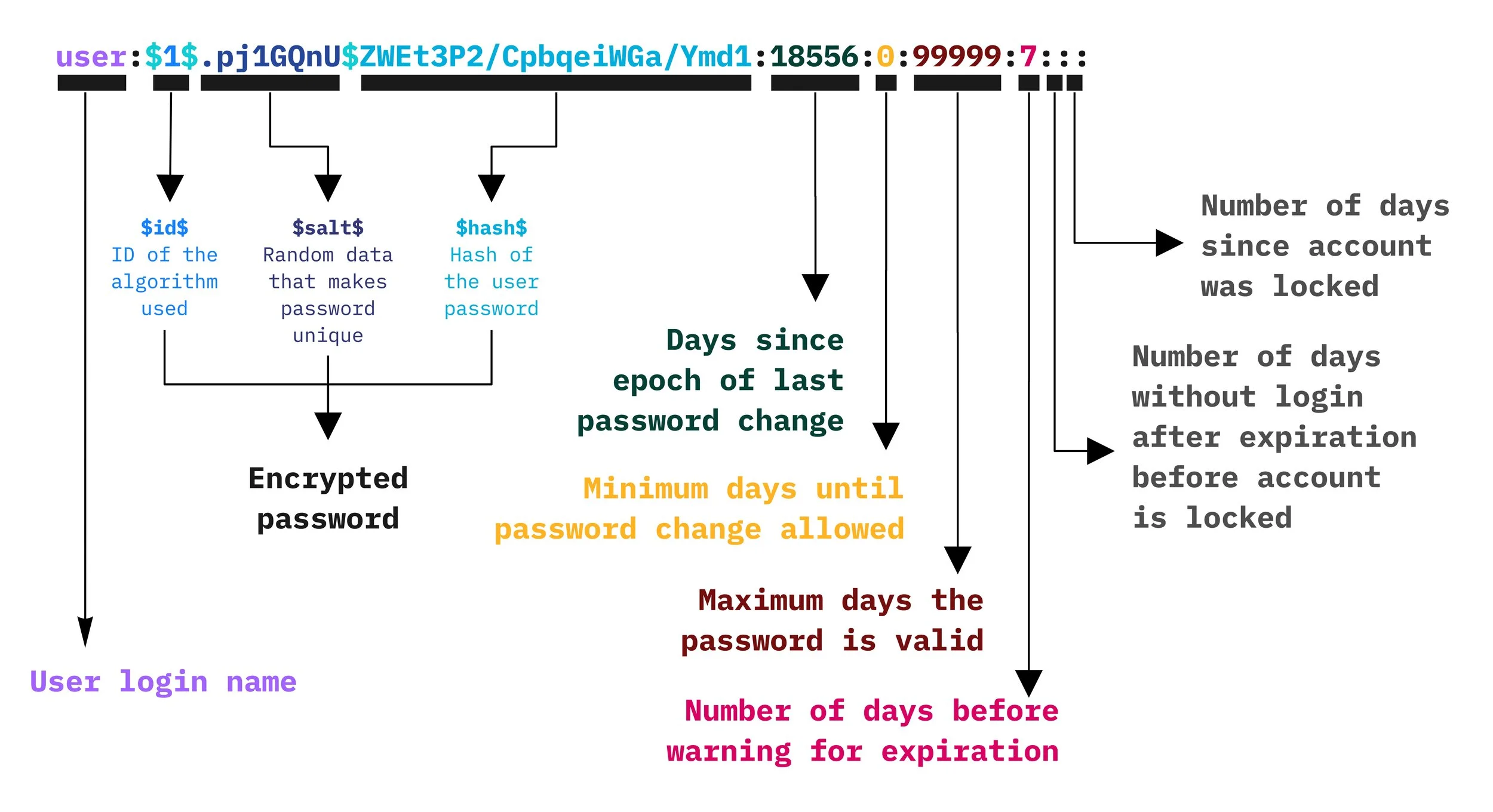
The key fields for an ethical hacker to understand are:
- Username: Links back to the
/etc/passwdentry. - Encrypted Password: This is the main prize.
- If it contains
!or*at the beginning, the account is locked for password-based login. - If it's a long string of characters, it's a password hash. The
$id$part indicates the hashing algorithm (e.g.,$6$is SHA-512).
- If it contains
- Password Aging Fields: The other fields control how often a user must change their password, when they get warnings, and when the account might expire. These can be useful for understanding an organization's security policies.
Hands-On: The Permission Barrier
-
First, try to read the
/etc/shadowfile as your regular user.cat /etc/shadowYou will get a
Permission deniederror. This is the Linux permission model working as intended. -
Now, use your
sudoprivileges to read it.sudo cat /etc/shadowThis time, it works. You can now see the hashed passwords for all users on your system. This simple exercise demonstrates why gaining root access is the ultimate goal of many attacks.
4. The Group Directory: /etc/group
The /etc/group file defines all the user groups on the system and lists their members. Like /etc/passwd, it is world-readable.
Linux Crash Course - Managing Groups
To complete our tour, this video from the same series explains the structure of the /etc/group file.
Watch from 05:20 to 09:14. This segment explains each of the four fields and clarifies how group members are listed.
An entry in /etc/group looks like this:sudo:x:27:your_username
- Group Name:
sudo - Group Password:
x(Group passwords are a legacy feature and are rarely used; we can ignore this). - Group ID (GID):
27 - Member List:
your_username(A comma-separated list of all users who have this group as a supplementary group).
From a security perspective, this file is critical for identifying privilege. A user in the sudo, wheel, or docker group has significantly more power than a standard user. Enumerating group memberships is a key step in finding privilege escalation pathways.
Hands-on: Querying Group Membership
# Find the entry for the 'sudo' or 'wheel' group (the name varies between distributions)
grep 'sudo' /etc/group
grep 'wheel' /etc/group


# Find all the groups your user belongs to
grep 'your_username' /etc/group
5. Putting it all together: A Practical Lab
Let's trace the full process from command to file entry.
-
Create a test user.
sudo useradd -m testuser -
Inspect the files. Look for the
testuserentries.# Check the user database grep 'testuser' /etc/passwd # Check the group database grep 'testuser' /etc/group # Check the shadow database sudo grep 'testuser' /etc/shadowNotice in the
/etc/shadowoutput that the password field fortestusercontains a!or!!, meaning the account is locked. -
Set a password.
sudo passwd testuserEnter a password when prompted.
-
Inspect
/etc/shadowagain.sudo grep 'testuser' /etc/shadowNow, the password field has been populated with a long hash string. You've just seen the
passwdcommand in action, updating the shadow file. -
Clean up.
sudo userdel -r testuser
Conclusion
You now understand the "source code" of Linux user and group management. These three files work together to define identities and secure credentials on the system.
Key Takeaways:
- /etc/passwd: A world-readable file mapping usernames to UIDs, home directories, and shells. The password field is a placeholder (
x). - /etc/shadow: Readable only by root. It stores the actual password hashes and password aging policies. Gaining read access to this file is a major security objective for an attacker.
- /etc/group: A world-readable file defining groups and listing their members. It's essential for mapping out user privileges.
- Security commands like
useraddandpasswdare safe frontends for manipulating these sensitive files.
Next Lesson Preview:
We've created users and seen where their credentials are stored. But how do we actually use other user accounts or execute commands with higher privileges? In the next lesson, we'll cover two of the most important commands in a system administrator's (and a hacker's) toolkit: su and sudo.