Hello! Welcome to the next lesson in our module on Practical Network Analysis and Troubleshooting.
In our last lesson, we learned how to use ip route to see your system's "map"—the intended path for sending network packets. But a map only tells you where you're supposed to go; it doesn't tell you if the roads are open or if you'll encounter traffic jams.
Today, we'll learn how to test the actual journey. Our learning outcome is to test connectivity and troubleshoot network issues using ping and traceroute. These are two of the most fundamental and frequently used tools in networking and security. ping tells you if you can reach a destination, and traceroute shows you the path you take to get there.
1. ping: The Network Sonar
The ping command is your first-line tool for checking network connectivity. Its function is simple: it sends a small message to a target host and waits for a reply. It's like shouting "Are you there?" across the network and listening for a "Yes, I'm here!" in response.
This "conversation" uses a specific language called the Internet Control Message Protocol (ICMP).
- Your machine sends an ICMP Echo Request.
- The target machine, if it's online and not configured to ignore you, sends back an ICMP Echo Reply.
Let's watch a video that introduces the command and its purpose.
Linux Crash Course - The ping Command
The video 'Linux Crash Course - The ping Command' from the Learn Linux TV channel gives a great introduction to what ping is and the protocol it uses.
First, watch the introduction from 00:25 to 00:56 to get a high-level overview. Then, jump to 05:38 - 06:42 to understand the underlying protocol, ICMP.
Using ping in Your Terminal
Now, let's put this into practice. Open your terminal and try pinging a well-known server.
ping google.com
You'll see a continuous stream of replies. On Linux, ping will run indefinitely until you stop it. To stop it, press Ctrl+C.

When you stop the command, you'll see a summary of the session. Let's look at the key pieces of information from a single reply line:
64 bytes from lhr48s12-in-f14.1e100.net (142.250.187.238): icmp_seq=1 ttl=118 time=11.5 ms
icmp_seq: The sequence number. Since packets can arrive out of order, this helps keep track.ttl=118: Time To Live. This is a value that prevents packets from looping forever on the internet. Each router (or "hop") the packet passes through decreases the TTL by 1. If it hits 0, the packet is discarded. It can give you a rough idea of how many hops away the target is.time=11.5 ms: The Round-Trip Time (RTT). This is the latency—how long it took for the packet to go to the target and come back. This is a key indicator of network performance.- Packet Loss: In the final summary,
0% packet lossis what you want to see. A high percentage indicates a problem somewhere on the network path.
Practical ping Usage
A continuous ping isn't always what you need. You can specify the number of pings to send with the -c (count) flag.
ping -c 4 google.com
This will send exactly four pings and then stop automatically, which is similar to the default behavior of ping on Windows.
To see these options in action and learn about some classic troubleshooting scenarios, let's return to our video.
Linux Crash Course - The ping Command
This next segment of the 'Linux Crash Course - The ping Command' video demonstrates the -c option and explains two very common, practical use cases for ping.
Watch the following segments: 03:16 - 05:38: See a live demo of pinging an IP vs. a domain name and how to stop it. 06:42 - 09:38: Learn about the -c option and how to interpret the final statistics like RTT and packet loss. 09:38 - 12:02: Understand a critical troubleshooting technique: pinging a known IP (like Google's DNS server 8.8.8.8) to rule out DNS problems. 12:02 - 14:01: See how ping is used to monitor a server while it reboots.
A quick note for hacking: ping is a fundamental tool for reconnaissance (the information-gathering phase). An attacker will often perform a "ping sweep" across a range of IP addresses to discover which hosts are online. However, be aware that many firewalls are configured to block ICMP traffic to make systems "invisible" to simple pings. A failed ping doesn't always mean the host is offline.
2. traceroute: Mapping the Journey
What if ping fails? You know there's a problem, but where? Is it your local router, an issue with your ISP, or a problem near the destination server? That's where traceroute comes in. It shows you the sequence of routers—the "hops"—that your packets pass through on their way to the destination.
How traceroute Works: The TTL Trick
traceroute works by cleverly manipulating the Time To Live (TTL) field we saw in the ping output.
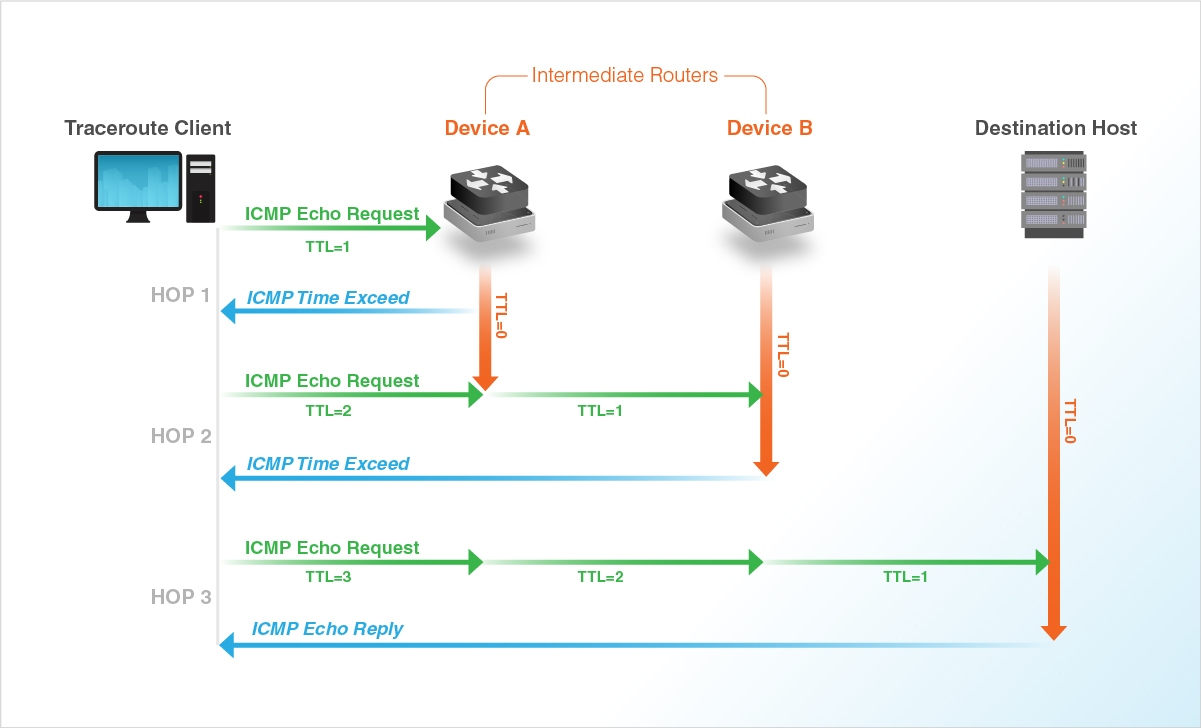
- It sends a packet to the destination with a TTL of 1. The first router on the path receives it, decreases the TTL to 0, and discards the packet. It then sends an ICMP "Time Exceeded" message back to you.
tracerouterecords this router's IP address. - Next, it sends a packet with a TTL of 2. This packet makes it past the first router (which decrements TTL to 1), but is stopped by the second router, which sends back another "Time Exceeded" message.
- This process continues, incrementing the TTL by 1 each time, revealing each hop along the path one by one.
This diagram provides a great visual summary of the process.
For a more detailed explanation of this mechanism, the following article is excellent.
Traceroute - NetworkLessons.com
The article 'Traceroute - NetworkLessons.com' provides a clear, step-by-step explanation of the TTL mechanism that powers traceroute.
Read the introductory section and the section titled 'So, how does traceroute work?'. This will solidify your understanding of the theory before we move to the practical demonstration.
Using traceroute and Its Variations
To use it, just type traceroute followed by a destination.
traceroute google.com
You'll see a list of hops, with the IP address (and sometimes hostname) and the round-trip time for three separate test packets (probes) to that hop. If you see asterisks (* * *), it means that router did not reply to the probe, likely due to a firewall or configuration.
A critical point for you as a Linux user is that traceroute works differently on different operating systems.
- Linux & macOS: By default,
traceroutesends UDP packets to a high-numbered, likely unused port. When the packet reaches the final destination, the host's OS sees that no service is listening on that port and sends back an ICMP "Port Unreachable" message, which signals totraceroutethat the destination has been reached. - Windows (
tracert): Uses ICMP Echo Requests, just likeping.
The following video dives deep into how traceroute works, using Wireshark to show you the exact packets being sent and received. It also clearly demonstrates the difference between the Windows and Linux implementations.
Traceroute explained // Featuring Elon Musk // Demo with Windows, Linux, macOS
David Bombal's video 'Traceroute explained' is a fantastic deep dive. He uses Wireshark to visualize the packets, which is an invaluable perspective for anyone interested in network analysis.
Watch these two key segments: 02:40 - 10:59: This part explains the core TTL mechanism using a tracert on Windows and Wireshark. Even though it's on Windows, the TTL/ICMP principle is universal and very well explained. 15:26 - 21:44: This is the crucial part for you. It shows how traceroute on macOS and Linux uses UDP packets by default and compares it to the ICMP method. It also shows you how to force traceroute to use ICMP with a command-line flag.
As the video mentioned, you can force the Linux traceroute to behave like the Windows version by using the -I (for ICMP) flag. This can be useful if a firewall is blocking the default UDP probes but allowing ICMP.
# Force traceroute to use ICMP Echo packets instead of UDP
traceroute -I google.com
3. Hands-On Investigation
Time to use these tools yourself.
Activity 1: Ping Practice
In your terminal, run the following commands:
ping -c 4 127.0.0.1(This is your loopback address, or "localhost". It should be instant).ping -c 4 <YOUR_ROUTER_IP>(Find this withip r. It should be very fast, likely < 5ms).ping -c 4 8.8.8.8(Google's public DNS server. A good baseline for your internet latency).ping -c 4 192.0.2.1(This is a non-routable test IP. It should fail withDestination Host Unreachableor 100% packet loss).
Compare thetime=and summary statistics for each.
Activity 2: Traceroute Exploration
traceroute google.comtraceroute bbc.co.uk(A server in the UK).traceroute anu.edu.au(A server in Australia).
Compare the number of hops and the final latency. You should see a significant increase for the server that is physically farther away.
Activity 3: Compare Traceroute Methods
traceroute -q 1 archlinux.org(The-q 1sends only one probe per hop to speed it up).traceroute -q 1 -I archlinux.org(This does the same trace using ICMP).
Do you get the same path? Sometimes one method works better than the other depending on network firewalls.
Conclusion
You now have two of the most essential network diagnostic tools in your arsenal. You've moved from just looking at the map (ip route) to actively probing the roads.
Key Takeaways:
pingis used to test reachability and measure latency (RTT) using ICMP Echo Requests/Replies.- A failed
pingdoesn't guarantee a host is offline; firewalls can block ICMP. tracerouteis used to map the path to a destination by sending packets with incrementally increasing TTL values.- The
tracerouteimplementation on Linux (UDP packets) differs from Windows'tracert(ICMP packets). You can usetraceroute -Ion Linux to use the ICMP method. - These tools are the first step in both network troubleshooting and security reconnaissance.
Next Lesson Preview:
We've confirmed a host is online (ping) and we know the path to get there (traceroute). The logical next step in reconnaissance is to see what doors are open on that host. In the next lesson, we will learn how to identify which processes are listening on network ports using ss and netstat. This is how you begin to discover the services (like web servers or SSH) running on a target machine.