Hello! Welcome back to our module on Practical Network Analysis and Troubleshooting.
In our last lesson, we focused on looking inward, using ip a to see the IP addresses assigned to our own machine's network interfaces. Now, we'll shift our focus to looking outward. Once your machine has an IP address, how does it know the path to send a packet to another computer, whether it's on your local network or across the internet?
This lesson will answer that fundamental question. Our goal is to display and interpret the routing table using ip route to understand how routing decisions are made. Think of the routing table as your system's GPS for all network traffic. For a penetration tester, understanding a target's "GPS" is critical for mapping out the network and finding pathways to other systems.
1. The Core Concepts of Routing
When you send a data packet to an IP address, your Linux kernel needs to make a decision: where does this go?
- If the destination is on your local network, it can be sent directly.
- If the destination is on a different network (like a web server), it must be sent to a gateway (a router) that knows how to forward it.
This decision-making process is called routing. The kernel consults a routing table—a set of rules—to find the correct path.
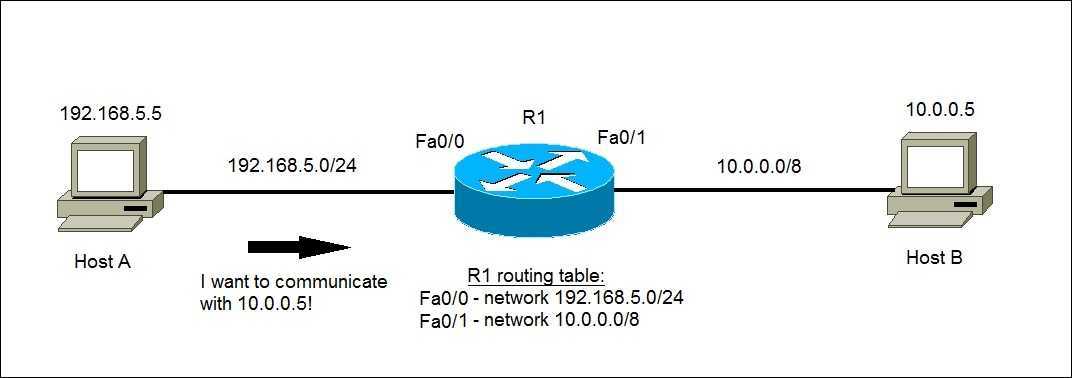
To build a solid theoretical foundation, let's read a short excerpt that defines these concepts clearly.
The article 'Linux Routing Fundamentals' provides a concise and accurate definition of a routing table, a route, a prefix, and a next-hop.
Read the section titled 'Routing tables'. It clearly defines the components of a route and introduces the 'hot potato' principle of routing, which is a great way to visualize the process.
How the Kernel Chooses the Best Route
A routing table can have multiple entries. So, how does the kernel pick the right one for a given destination IP? It follows two simple but powerful rules in order:
- The Longest Prefix Match: The kernel always chooses the most specific route. For example, a route to
192.168.1.0/24is more specific than a route to192.168.0.0/16. A route to a single host (1.1.1.1/32) is more specific still. The route with the longest matching prefix (the highest CIDR number) wins. - The Metric: If two routes have the same prefix length, the kernel uses the metric as a tie-breaker. The route with the lower metric is considered "cheaper" or more preferred.
The following video explains these two critical concepts—longest prefix match and metric—very clearly.
Linux IP Routing Basics: Routes, Tables, and Policy-Based Routing Explained
The video 'Linux IP Routing Basics' from LinuxCloudHacks does an excellent job visually explaining how the kernel selects the best route.
Watch from 10:29 to 12:05. Pay close attention to the explanation of the longest prefix match and how the metric is used as a tie-breaker. This is the core logic of all routing decisions.
2. Viewing and Interpreting the Routing Table
Now that we have the theory, let's see it in practice. The command to view the main routing table is ip route, which can be shortened to ip r.
Open your terminal and run ip r. You will see output similar to this:

Let's break down the two most common types of entries you'll see:
1. The Default Route:default via 192.168.1.1 dev enp0s3 proto dhcp metric 100
default: This is the route for all traffic that doesn't match a more specific entry. It's your gateway to the internet.via 192.168.1.1: This specifies the next-hop or gateway. All default traffic is sent to this router's IP address.dev enp0s3: The network interface your computer will use to send the packet.proto dhcp: How the route was learned.dhcpmeans your router told your PC to use this route.kernelmeans the kernel added it automatically.staticmeans a user added it manually.metric 100: The "cost" of this route.
2. The Local Network Route:192.168.1.0/24 dev enp0s3 proto kernel scope link src 192.168.1.33 metric 100
192.168.1.0/24: The destination network this route applies to. This is your local subnet.dev enp0s3: Traffic for this network goes out this interface. Notice there is novia. That's because the destination is on the local network, so no router is needed.scope link: This confirms the destination is on the local network ("link"). The default route typically hasscope global.src 192.168.1.33: The source IP the kernel will use for packets sent on this route. This is your machine's own IP on that network.
The next video demonstrates the ip route command live and explains the output in a conversational way.
Deep Dive: The ip Command in Linux
Let's watch a segment from the 'Deep Dive: The ip Command in Linux' video by Prowse Tech. This will reinforce what we've just discussed and introduce some useful command options.
Watch from 35:46 to 44:04. The first part covers the basic ip route show command and its output. The second part demonstrates how to use color (-c) and formatting (| column -t) to improve readability, and gives a practical explanation of the metric value.
3. Hands-On with the Routing Table
Now for the practical application. The most impactful way to understand the routing table is to see what happens when it's broken. We're going to watch a simulation of a common server issue: a missing default gateway.
Warning: Do not perform the ip route del command shown in the video on your main computer, as you will lose your internet connection! The video provides a safe way to observe the effects within a virtual machine.
Deep Dive: The ip Command in Linux
This next segment from the Prowse Tech video is a perfect practical scenario. It shows how a sysadmin would diagnose and fix a server that has lost its connection to the outside world.
Watch from 44:04 to 49:31. Pay close attention to the troubleshooting steps: 1) test connectivity (ping), 2) inspect the routing table (ip r), 3) identify the missing default route, and 4) fix it (sudo ip route add default via ...). This directly demonstrates the critical role of the default route.
Your Turn to Investigate
Now, apply what you've learned to your own system.
-
View your routing table:
ip rIdentify your default route and your local network route. What is your gateway's IP address? Which interface is used for internet traffic?
-
Ask the kernel for a route: You can ask the kernel exactly which route it would choose for a specific destination using
ip route get. This is an excellent tool for troubleshooting and understanding routing logic.# How would we get to Google's DNS server? ip route get 8.8.8.8 # How would we get to a machine on our local network? # (Replace with an IP on your local network, e.g., your router's IP) ip route get 192.168.1.1Analyze the output. When you query
8.8.8.8, you should see it uses your default route (via ...). When you query a local IP, it should show a direct connection on a specific device (dev ...) with no gateway.
4. The Hacker's Perspective
Understanding and manipulating the routing table is a key skill in penetration testing.
- Network Reconnaissance: When you gain a shell on a target system, running
ip ris as important asip a. The routing table reveals the target's view of the network topology. You might discover routes to internal, non-public networks (e.g.,10.0.0.0/8or172.16.0.0/12), which are prime targets for pivoting your attack. - Pivoting: If a compromised server has routes to both the internet and a firewalled internal database network, you can add routes on your own machine to funnel your attack traffic through the compromised server to reach the database network.
- Traffic Interception: In advanced scenarios, an attacker can manipulate a target's routing table to redirect traffic through an attacker-controlled machine. This is a form of Man-in-the-Middle (MITM) attack, allowing the attacker to inspect or modify all of the target's network traffic.
Conclusion
You now have the tools to read your system's network "map." You can see not only your own address but also the paths your data will take to reach any destination.
Key Takeaways:
- The routing table is a set of rules the Linux kernel uses to forward packets.
- The
ip route(orip r) command is used to display and manage the routing table. - The default route (
default via ...) is the catch-all entry for sending traffic to external networks, like the internet. - The kernel chooses the best path using the Longest Prefix Match rule first, and the metric as a tie-breaker.
- For a penetration tester, the routing table is a treasure map of the target network.
Next Lesson Preview:
We know how to see our IP (ip a) and how to see the path traffic should take (ip r). But how do we test if that path is actually working? In our next lesson, you'll learn to test connectivity and trace the real-world path of your packets using two essential network diagnostic tools: ping and traceroute.