Hello! Welcome to your fourth and final lesson in the "Harnessing Google Gemini Pro Features" module.
In our last lesson, we dove deep into Google Sheets, using Gemini to generate formulas, clean data, and even write Apps Script code. You learned how to transform raw data into structured analysis. Now, we'll focus on the crucial next step: communicating your findings effectively.
Today's lesson is designed to help you use Gemini within Google Docs and Slides to draft, summarize, and reformat content for reports and presentations. We'll bridge the gap between your analytical work in spreadsheets and the polished, professional documents needed to share your insights with stakeholders, whether they're colleagues in a board meeting or potential investors for a startup.
1. Activating and Understanding the Interface
Before we begin, it's important to ensure Gemini is properly integrated with your Google Workspace apps. This involves enabling smart features within your Google account settings.
Master 85% of Google Gemini in 12 Minutes
This short clip from Jeff Su provides a clear, step-by-step guide on how to enable the necessary settings for Gemini to work across your Workspace apps. It's a crucial one-time setup.
Watch from 00:10 to 00:51 to see how to enable 'Smart features' in Gmail settings and connect Google Workspace in Gemini's settings. This ensures all the following exercises will work correctly.
Once enabled, you'll primarily interact with Gemini in Docs and Slides through a side panel, which acts as your AI collaborator directly within your document.
2. Streamlining Your Work in Google Docs
Google Docs, powered by Gemini, transforms from a simple word processor into a dynamic writing partner. This is especially powerful for finance professionals who frequently draft reports, memos, and summaries.
There are two primary ways to invoke Gemini in Docs:
- The "Ask Gemini" side panel: Accessed by clicking the Gemini icon at the top right. This is for broader tasks like summarizing the document, brainstorming, or pulling in information from other files.
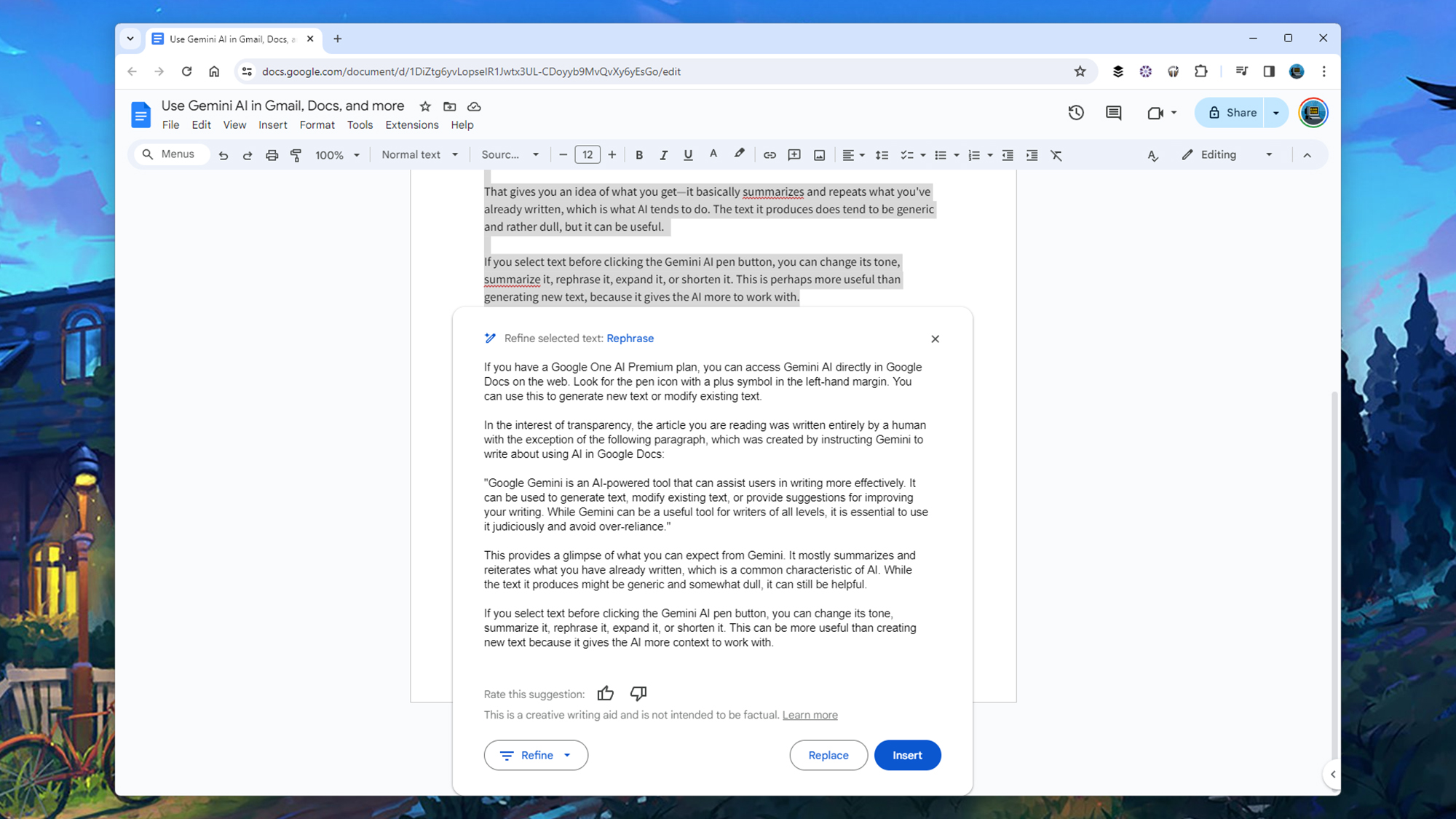
- The "Help me write" feature: Appears when you start a new line or can be accessed by highlighting text. This is for in-context writing, rewriting, and refinement.
Let's explore the core capabilities.
A. Drafting Content from Scratch
You can generate a first draft of almost any document type with a well-structured prompt. This is a massive time-saver, allowing you to focus on refining the content rather than starting with a blank page.
Example Finance Prompt:
"You are a senior financial analyst. Draft a one-page executive summary for the Q3 financial performance of a publicly traded tech company. The summary should be addressed to the board of directors. Include sections for: Key Performance Indicators (Revenue, Net Income, EPS), a comparison against Q2 performance and last year's Q3, and a brief outlook for Q4. Use a formal and concise tone."
B. Summarizing and Synthesizing Information
This is where Gemini becomes a powerful research and analysis assistant, perfectly aligning with your goal to analyze public documents without uploading them to external portals. By using the @ symbol, you can reference files directly from your Google Drive.
Master 85% of Google Gemini in 12 Minutes
Let's watch a demonstration of how you can use the @ command to pull information from a Google Sheet directly into a Google Doc to create a summary. This same method works for PDFs, other Docs, and more.
Watch from 08:35 to 09:21. Pay close attention to how the presenter uses @ to find a specific Google Sheet and then prompts Gemini to write a paragraph based on its contents. This is the key to working securely with your data within the Google ecosystem.
Imagine saving a company's annual report as a PDF in your Drive. You can then open a new Google Doc and use a prompt like: Summarize the 'Risk Factors' section from @[Company_Annual_Report_2023.pdf] to get a concise summary without ever copying or uploading the document's content.
C. Reformatting and Refining Content
Gemini excels at taking existing text and repurposing it. You can change the tone, alter the format, or adjust the length with simple commands.
- Change Tone: "Rewrite this in a more casual tone," or "Make this sound more persuasive."
- Change Format: "Turn these paragraphs into a bulleted list," or "Organize this information into a two-column table."
- Change Length: "Shorten this to one paragraph," or "Elaborate on this point."
To get a comprehensive view of what's possible, the official Google prompting guide is an invaluable resource. It's filled with role-specific examples that you can adapt for your work.
Gemini for Google Workspace Prompting Guide 101
This guide from Google is your playbook for effective prompting in Workspace. It provides dozens of real-world scenarios for different professional roles.
You don't need to read this entire document now, but I encourage you to skim the following use cases to understand the breadth of applications in Google Docs: Create a press release (Page 12) Craft internal communications (Page 14) Summarize content into a clear policy (Page 19) Develop technical summaries (Page 26) Communicate key findings to leadership (Page 36) Report on project status (e.g., meeting transcripts) (Page 47) Create a project retrospective (Page 48) Summarize pain points from a call (Page 55) Create a comparison table between documents (Page 59) Bookmark this guide for future reference. It's a great source of inspiration.
3. Creating Professional Presentations in Google Slides
Just as with Docs, Gemini is integrated directly into Google Slides, helping you go from idea to polished presentation much faster.
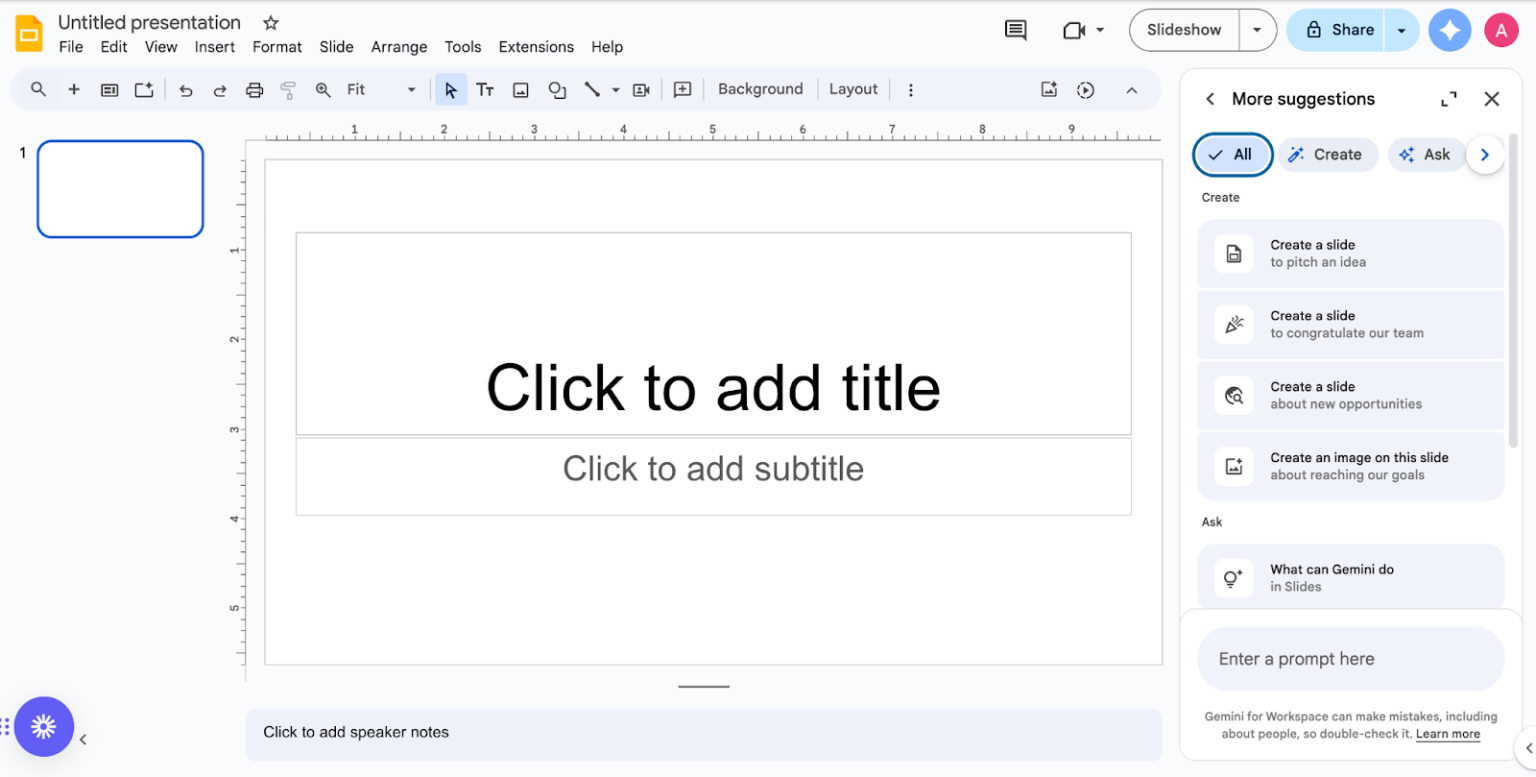
A. Summarizing and Understanding Decks
When you receive a lengthy presentation, Gemini can provide a quick overview.
Gemini Tutorial for Google Workspace — 3 Power Moves You Need to Know!
This video clip shows how Gemini can instantly summarize a long presentation and even answer specific questions about its content, pointing you to the relevant slides.
Watch from 06:35 to 07:37. Notice how the user asks for a summary and then follows up with a specific question about sales growth, which Gemini answers by referencing the exact slide numbers.
B. Generating Slides from Documents (The Docs-to-Slides Workflow)
One of the most powerful workflows is turning a report or outline in Google Docs into a presentation. You can use the @ command in Slides to reference your Doc and build your deck.
Example Prompt in Slides:
"Using my document @[Q3 Financial Report], create a 5-slide presentation.
- Slide 1: Title slide with the report title.
- Slide 2: A summary of the key financial highlights in bullet points.
- Slide 3: A slide titled 'Revenue Breakdown' using the main data points.
- Slide 4: A summary of the 'Outlook for Q4' section.
- Slide 5: A concluding slide with a call for questions."
C. Creating Custom Images
A professional presentation often needs compelling visuals. Gemini's integrated image generator (based on Google's Imagen model) allows you to create custom images directly within Slides.
Gemini Tutorial for Google Workspace — 3 Power Moves You Need to Know!
Let's see the image generator in action. This is a fantastic way to create unique visuals for title slides, section breaks, or to illustrate a concept.
Watch from 14:14 to 14:57. The presenter demonstrates how to access the image generator, type a description, choose from different styles, and insert the final image onto the slide.
For more detailed step-by-step instructions, the official Google Help documentation is a great reference.
Collaborate with Gemini in Google Docs
This official help page provides a clear, text-based reference for Gemini in Docs, and it also links to the equivalent page for Slides. It's good to know where to find the official documentation.
Skim this page to see the official breakdown of features. Then, click the link under 'Related resources' for 'Collaborate with Gemini in Google Slides' to see the specific instructions for presentations. This will reinforce what you've seen in the videos.
4. Practice Exercise: From Report to Presentation
Let's put everything together in a workflow that mirrors a common task in corporate finance.
- Create a new Google Doc. Imagine you have analyzed the (public) quarterly report of a fictional company, "Innovate Corp."
- Draft the analysis: Use the following prompt in the Gemini side panel:
"You are a financial analyst. Draft a 1-page memo summarizing the key takeaways from Innovate Corp's latest quarterly report. Create three sections: 'Financial Highlights' (list 3-4 key metrics like revenue and profit margin), 'Strategic Wins' (describe one successful product launch or market expansion), and 'Identified Risks' (mention one market or operational risk). Use a professional tone."
- Refine the Doc: After Gemini generates the text, highlight the "Financial Highlights" section and use the refine option (the pencil icon) to rephrase it.
- Create a new Google Slides presentation.
- Generate the presentation: In the Gemini side panel in Slides, use this prompt:
"Create a 4-slide presentation based on my document @[name of the Google Doc you just created].
- Slide 1 should be a title slide.
- Slide 2 should summarize the 'Financial Highlights'.
- Slide 3 should have two columns comparing 'Strategic Wins' and 'Identified Risks'.
- Slide 4 should be a simple 'Q&A' slide."
- Add a visual: On the title slide, use the image generator (
Create image with Gemini) to create a visual. Prompt it with something like:A modern, abstract image representing financial growth and innovation, using blue and silver colors.
This exercise simulates a complete cycle: drafting a report in Docs, refining it, and then quickly converting it into a presentation in Slides, complete with a custom visual.
Conclusion
You have now completed the workflow from data analysis to professional communication. By integrating Gemini into Docs and Slides, you can significantly reduce the time spent on drafting, summarizing, and formatting, allowing you to focus on the strategic message of your work.
Key Takeaways:
- AI as a Writing Partner: Use Gemini in Docs to draft first versions of reports, memos, and emails, freeing you from the "blank page" problem.
- The Power of
@: Securely summarize and reference information from any file in your Google Drive (Docs, Sheets, PDFs) without leaving your current document. - Effortless Reformatting: Instantly change the tone, length, and structure of your text to suit different audiences and formats.
- Rapid Presentation Building: Transform detailed documents into concise, visually appealing presentations in minutes using the Docs-to-Slides workflow and the built-in image generator.
In our next module, "AI-Enhanced Corporate Finance Workflow," we will begin by focusing on the very first step of many financial tasks: research. The next lesson will teach you how to use AI as a research assistant to summarize industry trends, regulations, and market data from public sources. The skills you've learned today for manipulating text will be directly applicable as you start gathering and synthesizing this external information.