Hello! Welcome to your next lesson in the "Harnessing Google Gemini Pro Features" module.
In our last lesson, we focused on Gemini's multimodal capabilities, learning how to extract data and insights from visuals like charts and diagrams. This is a powerful skill for dealing with static information in reports and presentations.
Today, we're taking the next logical step. We'll move from analyzing images of data to working with live, dynamic data directly inside one of the most critical tools for any finance professional: the spreadsheet. This lesson is designed to help you use Gemini within Google Sheets to generate formulas, organize data, and create analysis templates. Mastering this will be a significant productivity boost for your corporate finance work and a powerful capability for building tools for future startup ideas.
1. Getting Started: Gemini in Your Spreadsheet
The Gemini integration in Google Sheets brings AI capabilities directly into your data environment. This is a key advantage for security and workflow efficiency, as you don't need to copy and paste sensitive data into a separate chat window.
Gemini appears in two main places:
- The "Ask Gemini" sidebar: A chat-style interface for analysis, formula generation, and asking questions about your data. You can access it via the star icon in the top-right.
- The "Help me organize" button: A feature for generating structured tables and templates from a simple prompt.
Collaborate with Gemini in Google Sheets
To start, let's get a quick official overview of Gemini's capabilities in Sheets and how to access them. Please review the following guide from Google.
Please read the sections titled 'Get started with Gemini in Sheets' and 'Things to ask Gemini in Sheets'. This will quickly familiarize you with the interface and the range of possible actions.
Now that you have a sense of the landscape, let's dive into the core functionalities.
2. Core Capability: Generating Formulas and Cleaning Data
One of the most immediate benefits of Gemini in Sheets is its ability to act as a formula expert. Instead of recalling complex syntax for functions like VLOOKUP, QUERY, or nested IF statements, you can describe what you want in plain English.
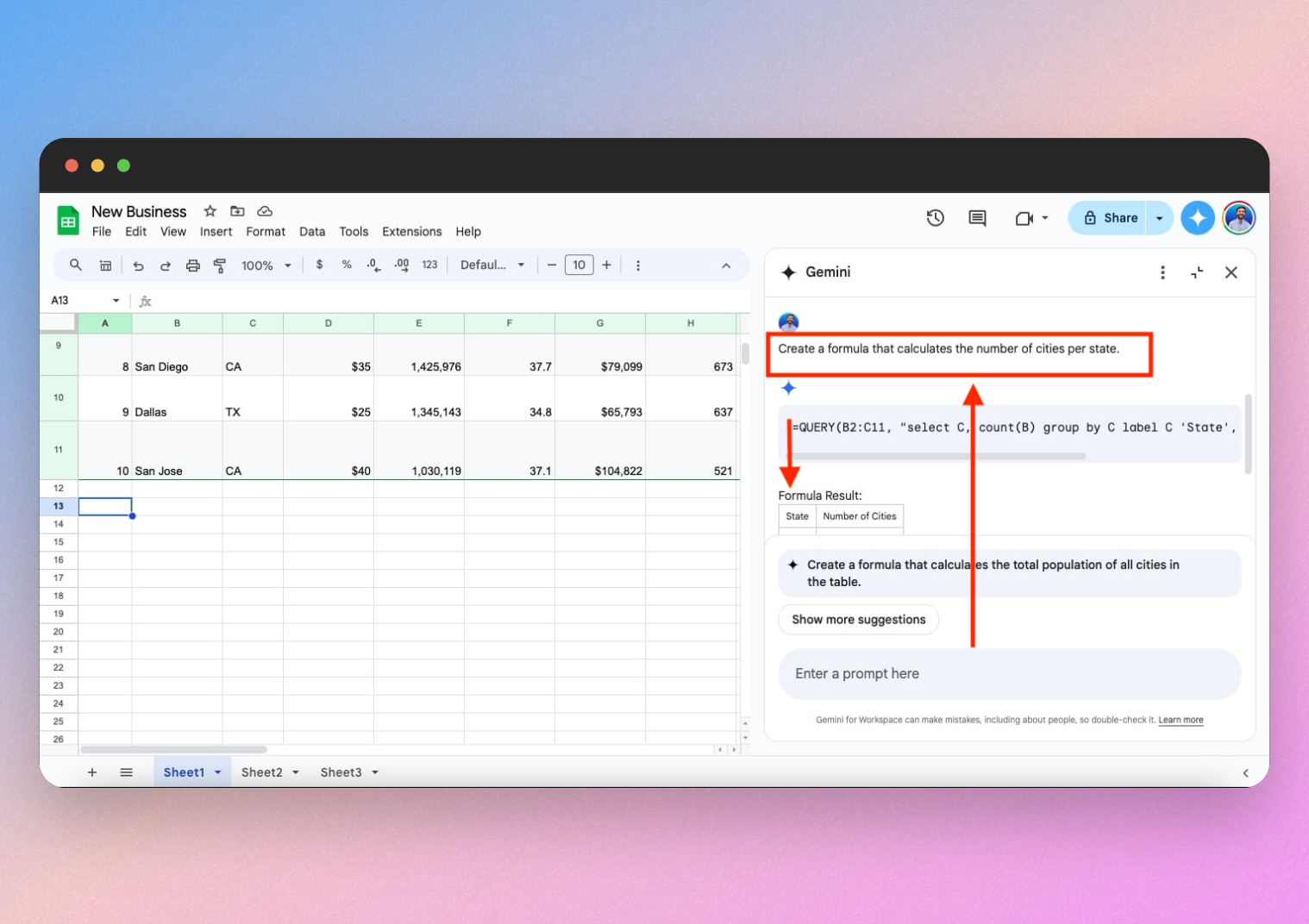
Let's see this in action, combined with data cleaning, which is often a prerequisite for any analysis.
How to Use Gemini 3 AI in Google Sheets! (Full Tutorial)
This video provides an excellent, real-time demonstration of using Gemini for both data cleaning and formula generation. It shows how you can use prompts to perform multiple data organization tasks at once.
Please watch the segment from 05:00 to 07:55. Notice how the presenter issues a multi-part prompt to: Replace values in one column with random numbers. Normalize text entries (changing 'cyber security' to 'CS'). Expand the data range to include all rows. This demonstrates how you can chain commands to perform complex data cleaning efficiently.
Trust but Verify: The 5-Second Audit
While incredibly powerful, AI-generated formulas are not infallible. Given your work in corporate finance, data integrity is non-negotiable. It is crucial to adopt a "trust but verify" mindset.
How to Use Gemini in Google Sheets: Complete Guide
The following guide offers a concise and practical checklist for auditing any formula that Gemini generates. Internalizing these steps is essential for using this tool responsibly in a professional setting.
Please read the section titled 'The 5-Second Audit (Trust but Verify)'. Focus on the five simple checks: referencing the correct range, checking syntax for regional settings, the 'dummy test', testing edge cases, and verifying against known data.
This auditing process is your safeguard against the subtle errors AI can sometimes make, ensuring the reliability of your analysis.
3. From Raw Data to Structured Analysis
Beyond generating single formulas, Gemini excels at structuring entire datasets and creating analysis templates from scratch. This directly addresses your goal of building reusable tools.
Generating Templates
You can start with a blank sheet and have Gemini build a complete, formatted template for a specific task.
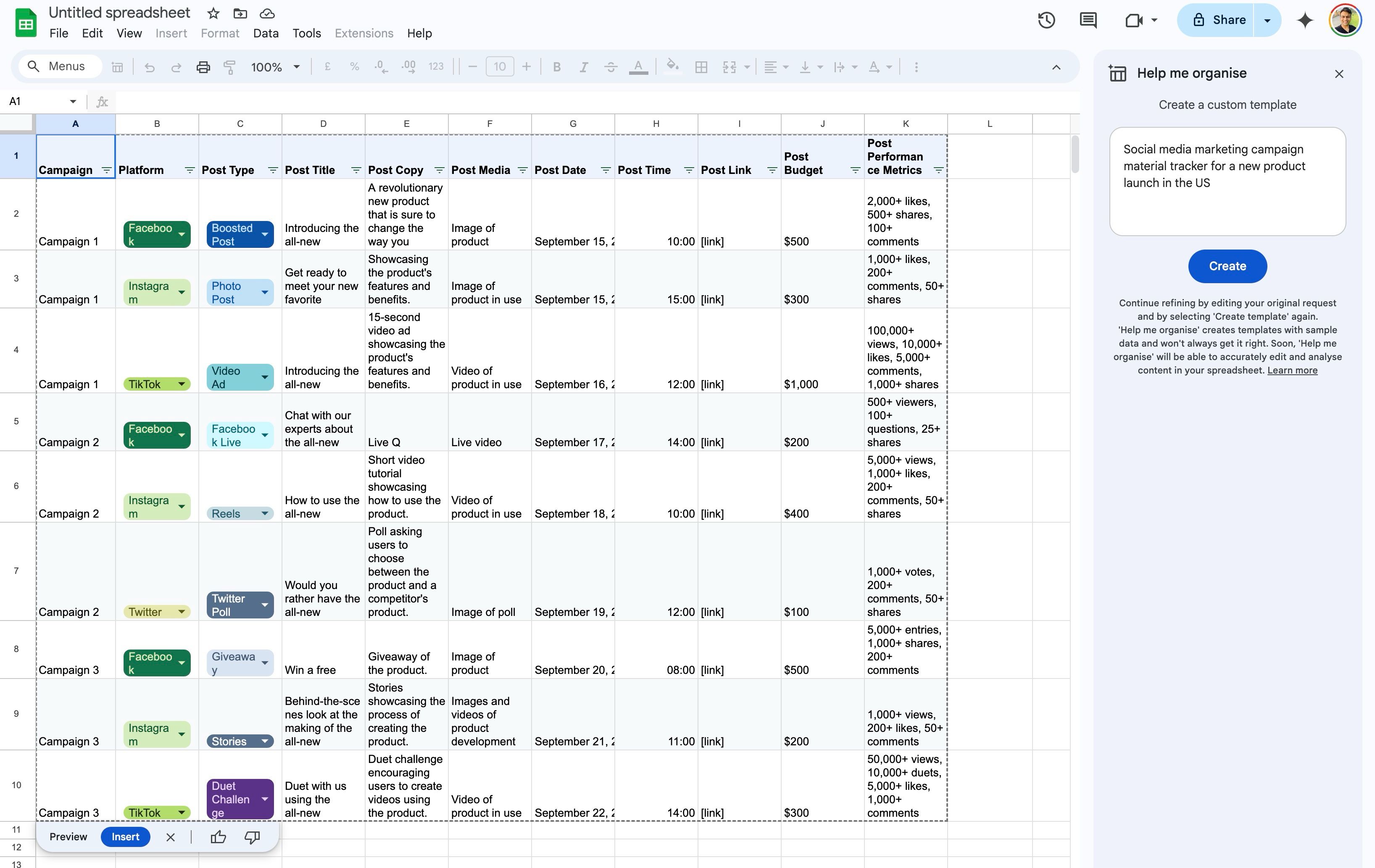
Analyzing and Structuring Existing Data
When you already have data, Gemini can help you make sense of it by creating summaries, pivot tables, and visualizations. A common challenge is data inconsistency, such as trailing spaces, which can break pivot tables. Gemini can identify and fix these issues.
How to Use Gemini 3 AI in Google Sheets! (Full Tutorial)
Let's return to the video tutorial to see a practical example of creating a pivot table and having Gemini troubleshoot it.
Please watch from 07:44 to 09:53. Pay close attention to how the presenter first creates a pivot table, then asks Gemini why there is an inconsistency (two rows for 'AI'). Gemini correctly identifies the trailing space and the presenter then refines the prompt to normalize the data and create a dynamic table.
This iterative process—generate, inspect, refine—is central to working effectively with AI. It's a dialogue where you guide the AI toward the correct and most useful output.
Practice Exercise: Building a Simple Analysis Template
Let's apply these concepts to a practical scenario. Imagine you have raw sales data and need to create a summary dashboard.
- Create a new Google Sheet.
- Generate sample data: In the Gemini sidebar, use the following prompt:
"Create a table with 20 rows of sample sales data. Include columns for 'Date' (within the last 90 days), 'Product Category' (options: 'Hardware', 'Software', 'Services'), 'Sales Rep' (Names: 'Alice', 'Bob', 'Charlie', 'Diana'), and 'Sale Amount' (between $500 and $10,000)."
- Insert the data into your sheet.
- Organize and analyze: Use a series of prompts in the sidebar to perform the following actions:
- Conditional Formatting: "In the 'Sale Amount' column, highlight all sales over $7,500 in green."
- Formula Generation: "Add a new column called 'Commission'. Create a formula to calculate a 5% commission on the 'Sale Amount'."
- Pivot Table: "Create a pivot table in a new sheet that shows the total sales amount for each 'Sales Rep'."
- Charting: "Based on the pivot table, create a bar chart visualizing the total sales per rep."
This exercise walks you through the entire workflow: generating data, formatting it, adding calculations, and summarizing it with a pivot table and chart, all through natural language prompts.
4. Advanced Automation with Apps Script
Given your proficiency in Python, you're well-positioned to use one of Gemini's most powerful features: generating Google Apps Script code. Apps Script is JavaScript-based and allows you to automate tasks far beyond what standard formulas can do. With Gemini, you don't need to be a JavaScript expert; you can describe the logic, and it will write the code.
How to Use Gemini in Google Sheets: Complete Guide
This is where you can truly build powerful, automated workflows. This guide provides a clear example of how to prompt Gemini to write an Apps Script for an automated email notification.
Please read the section 'Beyond Formulas: Writing Macros without Coding'. Focus on the example prompt for sending an email when a status changes. This workflow—describe, generate code, copy to Apps Script editor, and set a trigger—is a template for creating countless custom automations.
Think of the applications for your work:
- Automatically email a summary when a financial model's status is changed to "Final".
- Create a custom menu button to trigger a multi-step data cleaning process.
- Archive rows from a "live" data sheet to an "archive" sheet once a project is marked "Complete".
This capability transforms you from a user of the software to a creator of custom solutions within it, which is invaluable for both corporate efficiency and startup agility.
Conclusion
Today, we've integrated AI directly into your spreadsheet workflow. You've learned how to offload the cognitive burden of formula syntax, data cleaning, and template creation to Gemini, freeing you to focus on the strategic insights from the data.
Key Takeaways:
- Natural Language is Your New Interface: You can generate complex formulas, clean data, apply formatting, and build pivot tables by describing your goals in English.
- Create Templates on Demand: Go from a blank sheet to a fully structured template for budgets, trackers, or analysis frameworks in minutes.
- Trust but Verify: AI is a powerful assistant, not an infallible expert. Always audit generated formulas and data to ensure accuracy, especially in a financial context.
- Automate with Code Generation: For advanced needs, you can use Gemini to write Google Apps Script, creating custom automations without needing to be a JavaScript developer.
In our next lesson, we will focus on communicating the insights you've just generated. We will explore how to use Gemini within Google Docs and Slides to draft, summarize, and reformat content for reports and presentations, completing the workflow from raw data to polished, professional communication.