Welcome to your first lesson in the C++ Algorithms and Data Structures course! I'm excited to guide you on this journey. Given your interest in AI and programming, building a strong foundation in a powerful language like C++ is an excellent first step.
Today, we'll start at the very beginning. The goal for this lesson is to write and compile a basic C++ program that produces output. We will cover:
- The essential tools you need: a code editor and a compiler.
- How to set up your programming environment.
- The structure of a simple C++ program.
- The process of compiling your code and running it to see the output.
Let's begin!
1. Your C++ Toolkit: Editor and Compiler
To start programming in C++, you need two fundamental tools:
- A Text Editor: This is a program where you will write your human-readable C++ code. It can be as simple as Notepad, but specialized code editors offer features like syntax highlighting (coloring your code to make it more readable) and auto-completion, which are very helpful.
- A Compiler: C++ is a compiled language. This means the code you write, called source code, cannot be understood directly by your computer's processor. A compiler is a special program that translates your source code into a machine-readable executable file.
You have two main paths to set up these tools:
- Path A: The Manual Approach. You install a code editor and a compiler separately and use the command line (like Command Prompt on Windows or Terminal on macOS/Linux) to compile and run your programs. This approach gives you a clearer understanding of the compilation process.
- Path B: The Integrated Approach. You install an Integrated Development Environment (IDE). An IDE is a single application that bundles a code editor, a compiler, and other helpful tools (like a debugger, which we'll discuss much later). This is often simpler for beginners as compiling and running is usually just a single click.
Since you aim for a deep understanding, I recommend starting with Path A, but either choice is perfectly fine.
Setting Up Your Environment
To set up your environment, please watch the following video. It details the steps for both Windows and Mac/Linux users, corresponding to Path A. If you'd prefer the IDE approach (Path B), I have provided an alternative resource below the video.
Learn C++ With Me #1 - How to Compile and Run C++ Code
This video from Tech With Tim will guide you through installing a text editor (Sublime Text) and a C++ compiler (g++ via MinGW for Windows).
Please watch the section from 03:43 to 09:25. Follow the instructions for your operating system (Windows, Mac, or Linux). Don't worry about understanding everything perfectly; the goal is to get the tools installed.
Alternative (Path B): Installing an IDE
If you prefer an all-in-one solution, you can install the Code::Blocks IDE. The following article from W3Schools will guide you.
This article from W3Schools explains what an IDE is and shows how to install Code::Blocks, a popular choice for beginners.
Read the section titled 'Install C++ IDE'. It provides a link to download Code::Blocks. Make sure you download the file that includes 'mingw-setup.exe' as it contains the compiler.
Once you have your environment set up, we can move on to writing our first program.
2. Understanding the "Hello, World!" Program
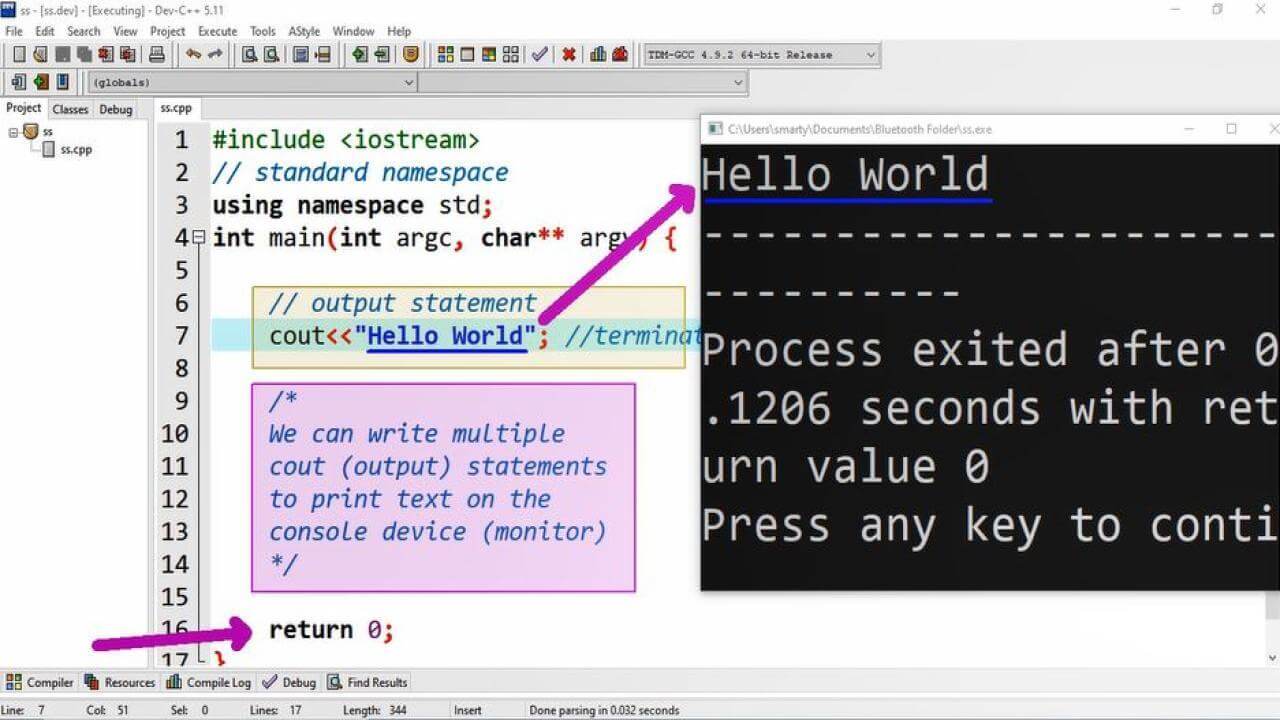
In programming tradition, the first program you write in a new language is one that simply prints "Hello, World!" to the screen. It's a simple way to verify that your setup is working correctly.
Here is the code:
#include <iostream>

using namespace std;

int main() {
    // This line prints "Hello, World!" to the console
    cout << "Hello, World!";

    return 0;
}
This might look cryptic at first, but each line has a specific purpose. To understand the code in detail, please read the following article.
Understanding First C++ Program
The article 'Understanding First C++ Program' from GeeksforGeeks provides a clear, line-by-line explanation of the 'Hello, World!' program.
Read the section that begins 'Let us now understand every line and the components of the above program.' Focus on the explanations for Preprocessor Directives, Namespace, Main Function, Output Statement, and Return Statement.
Key Components of a C++ Program
Let's summarize the essential parts from that article.

-
#include <iostream>: This is a preprocessor directive. It tells the compiler to include theiostreamfile, which is a standard library that contains the code for handling inputs and outputs (like printing to the screen). -
using namespace std;: C++ organizes its features into namespaces. Theiostreamlibrary is part of thestd(standard) namespace. This line tells the compiler that we plan to use elements from thestdnamespace, so we don't have to writestd::before every feature (likestd::cout). -
int main(): This is the main function. Every C++ program must have amainfunction. It is the entry point—the very first part of your code that runs when you execute the program. Theintindicates that the function will return an integer value when it finishes. -
{ ... }: These curly braces define the beginning and end of the main function's body. Your program's logic goes inside these braces. -
cout << "Hello, World!";: This is the statement that does the work.cout(pronounced "see-out") is the character output stream. It's your tool for printing to the console.<<is the insertion operator. It "inserts" the text on its right into thecoutstream."Hello, World!"is a string literal—the text you want to display.;is a semicolon. In C++, semicolons are used to terminate most statements, much like a period at the end of a sentence.
-
return 0;: This line ends themainfunction. Returning a value of0is a standard convention to signal to the operating system that the program executed successfully.
Test your understanding!
What do you think would happen if you forgot the semicolon at the end of the cout line and tried to compile the program?
Show answer
The compiler would generate an error. It would likely say something like "error: expected ';' before 'return'". This is because the compiler uses semicolons to know where one statement ends and the next begins. Without it, the compiler gets confused. This is a very common mistake for beginners!
3. Compiling and Running Your Program
Now that you've written the code, it's time to bring it to life. The process depends on whether you chose Path A (command line) or Path B (IDE).
If you chose Path A (Command Line)
The next part of the Tech With Tim video demonstrates exactly how to compile and run the file you just created.
Learn C++ With Me #1 - How to Compile and Run C++ Code
This section of the video shows you how to use the g++ compiler from your terminal or command prompt to turn your .cpp file into an executable program and then run it.
Watch from 13:33 to the end. Follow the steps to compile and run your code. Pay close attention to the part where he changes the code and has to recompile it to see the changes. This is a critical concept.
In summary, the steps are:
- Save your code in a file with a
.cppextension (e.g.,hello.cpp). - Open your terminal/command prompt and navigate to the directory where you saved your file using the
cd(change directory) command. - Compile the code by typing
g++ -o hello hello.cpp.g++is the command to invoke the compiler.-o hellotells the compiler to name the output executable filehello.hello.cppis the name of your source code file.
- Run the program. On Windows, type
hello. On Mac/Linux, type./hello.
You should see "Hello, World!" printed in your terminal!
If you chose Path B (IDE - Code::Blocks)
An IDE makes this process much simpler.
This W3Schools article shows how to create, save, and run a program within the Code::Blocks IDE.
Read the section titled 'C++ Quickstart'. It walks you through creating a new file, adding the 'Hello World' code, and using the 'Build and Run' command, which compiles and executes your program in one step.
The IDE's "Build and Run" button performs the same compilation and execution steps you saw in the command-line video, but it hides the complexity from you.
Conclusion
Congratulations! You have successfully written, compiled, and run your first C++ program. This is a huge milestone.
Key Takeaways:
- C++ development requires a text editor to write code and a compiler to translate it into an executable file.
- An IDE bundles these tools into a single application for convenience.
- Every C++ program has a
main()function, which is the program's entry point. - The
#include <iostream>directive allows you to usecoutfor printing output. - The command
g++is a common C++ compiler. You must recompile your code every time you make changes to the source file for them to take effect.
In our next lesson, we will explore variables. You'll learn how to declare, initialize, and use variables of fundamental data types like int, double, char, and bool. This will unlock the ability to store data, perform calculations, and create much more dynamic and interesting programs.