Hello! Welcome to the third lesson in our journey to becoming a backend developer.
In the last two lessons, we got our tools ready by installing Python and setting up our professional code editor, Visual Studio Code. Your development environment is now fully configured and waiting for your first instructions.
Today is an exciting milestone: you will write and run your very first computer program. We'll start with the time-honored tradition of making the computer say "Hello, World!". This lesson will bridge the gap between setting up software and actually making it do something. You'll learn what a Python script is, how to write a basic command, and how to execute your program to see the output right inside VS Code.
From Instructions to Output
At its core, a computer program is a sequence of instructions that you, the programmer, write for the computer to follow. These instructions are saved in a file, which is often called a script. For Python, these files always end with the .py extension, which is how your computer and VS Code recognize them as Python code.
Our goal is to write a single instruction that tells the computer to display some text on the screen. The area where this text appears is called the console or terminal. In VS Code, this is conveniently built right into the editor.
Your First Python Command: print()
The simplest and most common instruction for displaying information is the print() function. A function in programming is a named block of code that performs a specific task. The print() function's task is to display whatever you put inside its parentheses to the console.
When you want to print text, you must enclose it in double quotes (") or single quotes ('). Text enclosed in quotes is called a string.
For example, to print the message "Hello, World!", the code would be:
print("Hello, World!")
Writing and Running Your First Script
Now, let's put this knowledge into practice. The following reading from the official Visual Studio Code documentation provides a perfect, step-by-step guide. It will show you how to create your first Python file and run it.
Getting Started with Python in VS Code
This official tutorial from Microsoft will walk you through creating a Python file and running it within VS Code. It is a concise and authoritative guide to this fundamental process.
Please read the sections titled 'Create a Python source code file' and 'Run Python code'. Focus on understanding how to create a file with a .py extension and the different ways to execute it, especially using the 'Run Python File' play button.
As described in the reading, the easiest way to run your script is by using the play button in the top-right corner of the editor.
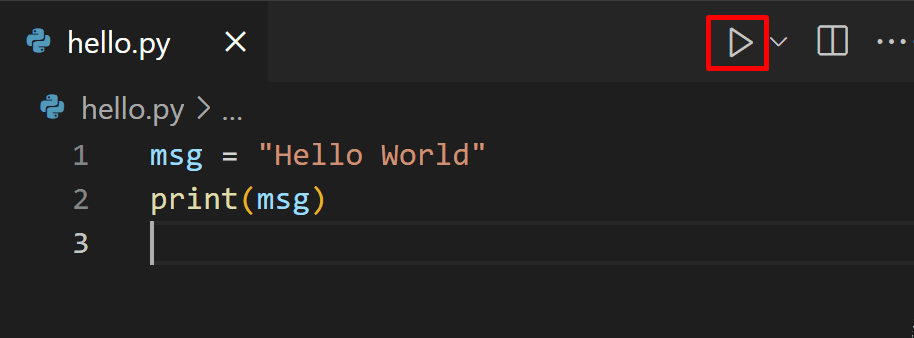
When you click this button, VS Code will open a terminal panel, and you will see the output of your program.

Your Turn to Code
Now it's your turn to apply what you've learned.
- If you haven't already, open the
python-projectsfolder you created in the last lesson (File > Open Folder...). - Create a new file named
hello.py. - In this file, type the following code:
print("Hello, World!") - Save the file (
Ctrl+SorCmd+S). - Click the play button in the top-right corner to run the script.
If everything is set up correctly, you should see Hello, World! appear in the terminal pane at the bottom of VS Code.
Congratulations! You have successfully written and executed your first program.
To reinforce this, try modifying the string inside the print() function. Change it to print your name or a different message, save the file, and run it again to see the updated output. This confirms you understand how to edit and re-run your code.
Conclusion
In this lesson, you took a huge step forward. You moved from setting up tools to actively commanding the computer to perform a task. This fundamental loop—write code, run code, see output—is the essence of all programming.
Key Takeaways:
- A Python script is a text file with a
.pyextension that contains instructions for the computer. - The
print()function is a built-in command used to display output in the console. - Textual data in code is called a string and must be wrapped in quotes (e.g.,
"some text"). - VS Code allows you to run your Python scripts directly within the editor and see the output in the integrated terminal.
Next Up:
Now that you can display information, what about storing it for later use? In our next lesson, we will dive into variables and data types. You'll learn how to create containers for data like numbers and text, which is a crucial building block for writing any useful program.