Introduction
In the previous lesson, you successfully imported your first set of practice tracks into the Rekordbox 'Collection', creating a master database of your music. Now, with all your tools in one place, it's time to start organizing them for practical use. A large, unsorted collection can be overwhelming, especially when you need to find the right track at the right moment.
This lesson focuses on the next crucial step in library management: creating and using playlists. Think of this as building the foundational information architecture for your music library. Good organization now will dramatically improve your workflow later. By the end of this session, you will have created your first playlist, named 'Practice', and filled it with the tracks we just imported, setting the stage for you to begin mixing.
The Role of Playlists in DJing
Before we dive in, let's clarify the difference between the 'Collection' and a 'Playlist'.
- Collection: This is your master library. It contains every single track you've imported into Rekordbox.
- Playlists: These are smaller, curated lists of tracks taken from your Collection. DJs use them to group songs by genre, energy level, or for a specific gig.
For our purposes, we will create a dedicated 'Practice' playlist to hold the tracks you'll be using throughout this course. This keeps your learning environment clean and focused.
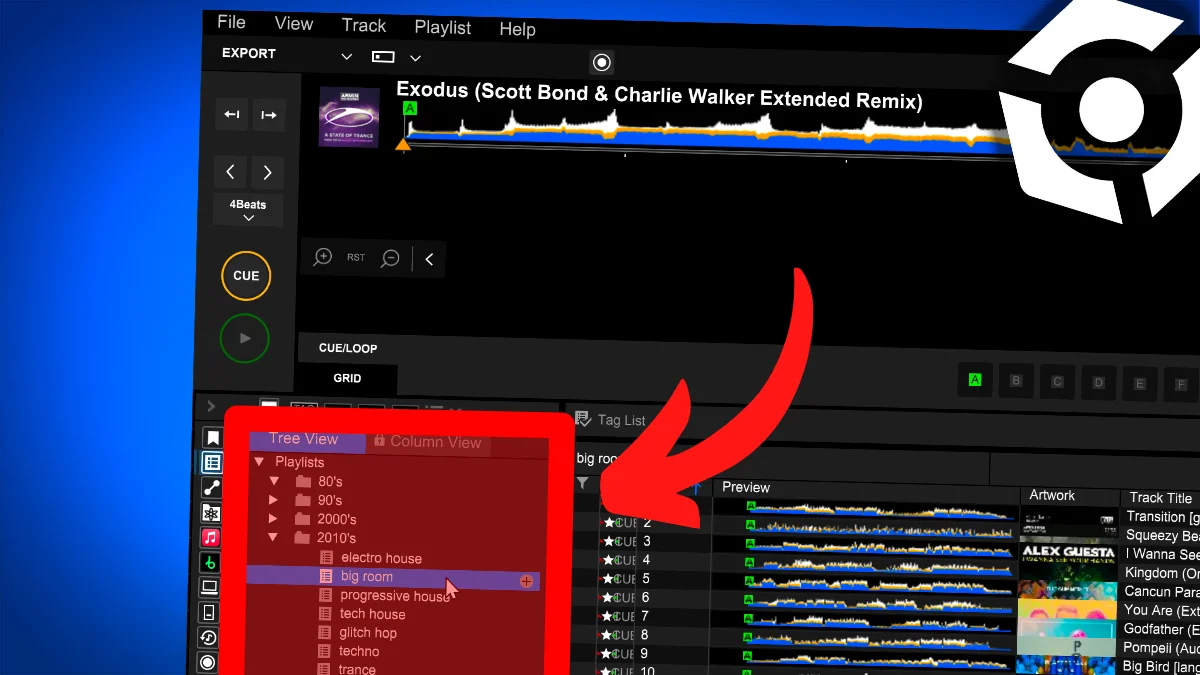
Playlists are managed in the 'Tree View' on the left side of the Rekordbox interface.
Step 1: Creating Your 'Practice' Playlist
The first step is to create an empty playlist. The most direct way to do this is by using the plus (+) icon next to the 'Playlists' heading.
The following video from Dexxter Clark Music shows this process clearly. Have your Rekordbox open so you can follow along.
How to make playlist on Rekordbox
This clip will guide you through creating a new playlist.
Watch from this section. The presenter points to the 'Playlists' section on the left and clicks the small plus icon to create a new one. Follow this step now, and when prompted, name your new playlist Practice.
You should now see the 'Practice' playlist appear under the main 'Playlists' folder in your Tree View. It's currently empty, but we're about to fix that.
Step 2: Adding Tracks to Your Playlist
With your playlist created, it's time to populate it. We will move the tracks you imported in the last lesson from the main Collection into your new 'Practice' playlist. The most efficient way to do this is by selecting all the tracks and dragging them over in one go.
- First, click on 'Collection' at the very top of the Tree View. This will display all the tracks in your master library.
- Next, you need to select all the practice tracks you imported. Click on the first track in the list to highlight it. Then, hold down the Shift key on your keyboard and click on the very last track in the list. This will select all the tracks in between.
- Finally, click and hold on the selected block of tracks and drag them over to the left, dropping them directly onto the 'Practice' playlist you just created.
The same video we just watched demonstrates this drag-and-drop action.
How to make playlist on Rekordbox
This next part of the video shows how to drag songs into your new playlist. The presenter selects tracks individually, but you can use the Shift-click method we just discussed to select all of them at once.
Watch how it's done from this part. Once you've dragged your tracks over, click on your 'Practice' playlist to confirm that all the tracks have been successfully added.
When you click on your 'Practice' playlist, the main window should now display the list of tracks you just added. This playlist is now your dedicated workspace.
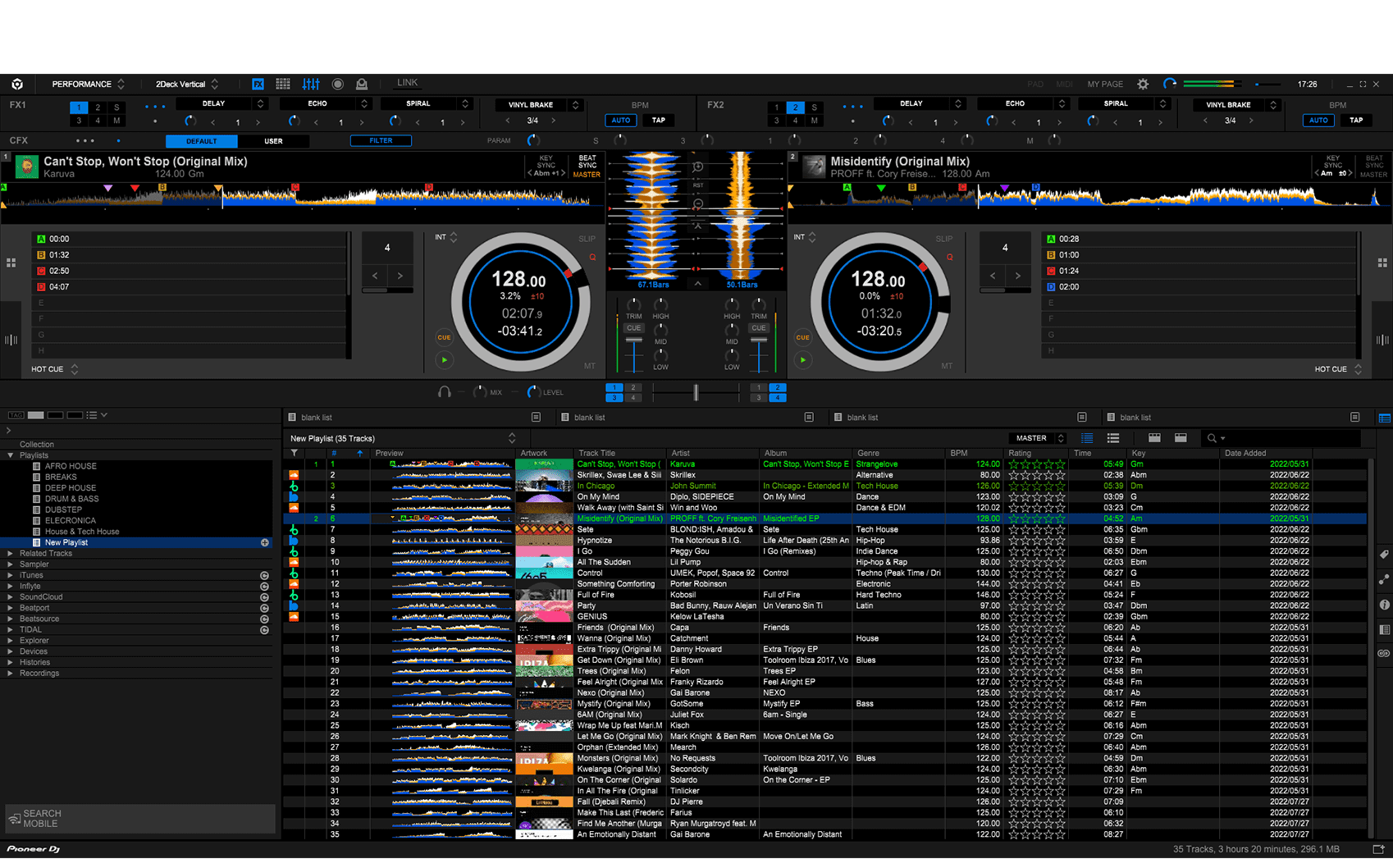
While drag-and-drop is often the fastest method, it's worth knowing that Rekordbox, like many software applications, provides multiple ways to accomplish a task. For example, you could also right-click a track and use the 'Add to playlist' menu, as shown in the "Rekordbox 7 playlist tutorial" video from Deejay Plaza. For now, mastering the drag-and-drop workflow is all you need.
Conclusion
Fantastic work. You have now transitioned from simply having tracks in your software to actively organizing them for a specific purpose. This is a fundamental skill for any DJ.
In this lesson, you learned:
- The difference between the master 'Collection' and specific 'Playlists'.
- How to create a new playlist in Rekordbox and name it.
- How to efficiently select and add multiple tracks from your Collection to your new 'Practice' playlist using a drag-and-drop workflow.
Your music is now imported and organized. However, before you can mix these tracks, Rekordbox needs to analyze them to gather crucial data. In our next lesson, we will cover how to analyze the tracks in your 'Practice' playlist to determine their BPM (beats per minute) and generate their visual waveforms, which are essential for beatmatching.