Introduction
In our last session, you organized your first set of tracks by creating a 'Practice' playlist. This was a crucial step in building your music library. However, before you can start mixing, Rekordbox needs to understand the fundamental properties of these tracks. It needs to know their speed, their structure, and their sonic landscape. This process is called track analysis.
This lesson will guide you through analyzing the tracks in your 'Practice' playlist. You'll learn what data Rekordbox extracts and why it's essential for DJing. By the end of this session, your tracks will be fully prepared with their BPM (Beats Per Minute) and visual waveform data, setting the stage for you to start learning the fundamentals of rhythm.
What is Track Analysis?
Think of track analysis as Rekordbox listening to each song and taking detailed notes. When you analyze a track, the software processes the audio file and extracts key information:
- BPM (Beats Per Minute): The tempo or speed of the track. This is arguably the most critical piece of data for beatmatching.
- Waveform: A visual representation of the track's audio. It allows you to "see" the song's structure, including kicks, snares, vocals, and breakdowns.
- Beatgrid: A series of markers laid over the waveform that align perfectly with the beats of the track. This is the underlying grid that makes features like SYNC and quantize possible.
- Key: The musical key of the track, which is useful for advanced mixing techniques (harmonic mixing).
Without this data, a track is just an audio file. After analysis, it becomes a tool that you can visually and technically manipulate within Rekordbox.
Step 1: Checking Your Analysis Settings
Before you tell Rekordbox to analyze your music, it's good practice to check that the settings are optimized for the type of music you're playing. For most electronic dance music, the default settings are fine, but it's important to know where they are and what they mean.
The video below from Blake Moussa gives a quick tour of the analysis settings.
How to Import & Analyse tracks in #Rekordbox | Quick #DJTechTutorial
This short clip shows you the 'Analysis' tab in the Rekordbox preferences. We'll focus on just a couple of key settings.
Watch from this section. Pay attention to two things: Track Analysis Mode: The presenter explains the difference between 'Normal' and 'Dynamic'. For the DJ-friendly tracks we are using, 'Normal' is the correct setting. Track Analysis Setting: Note that 'BPM / Grid' and 'KEY' are checked. This tells Rekordbox to gather the data we need.
Another important setting is 'Auto Analysis'. When enabled, Rekordbox will automatically analyze any new track you import into your collection. This is very convenient.
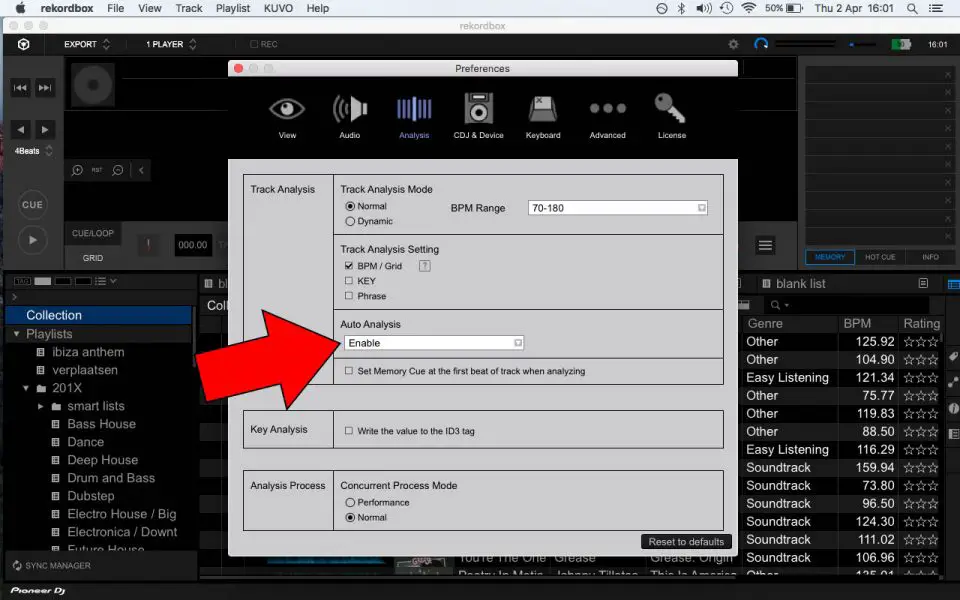
For now, go into your Rekordbox Preferences (Rekordbox > Preferences on Mac, or File > Preferences on Windows), navigate to the 'Analysis' tab, and ensure the 'Enable' box for 'Auto Analysis' is checked. This will save you a step in the future.
Step 2: Manually Analyzing Your Playlist
Even with Auto Analysis enabled, you sometimes need to analyze tracks manually. This might be because you changed the settings and want to re-analyze, or because the initial import didn't trigger the analysis. Learning to do this manually gives you full control over your library.
The process is simple: you select the tracks you want to analyze and tell Rekordbox to begin.
- In Rekordbox, click on your 'Practice' playlist in the left-hand panel to view its contents.
- Select all the tracks in the playlist. You can do this by clicking the first track, then holding the Shift key and clicking the last track.
- Right-click on the selected tracks to open the context menu, and choose 'Analyze Track'.
The image below shows exactly where to find this option.

Once you click 'Analyze Track', you'll see a status bar appear at the bottom of the Rekordbox window, indicating that it's processing your files.
The following video from Deejay Plaza, while demonstrating a bulk import, clearly shows what the analysis process looks like as it happens.
Rekordbox 7 step-by-step beginner tutorial - 2026
This clip shows what Rekordbox does after tracks are added to the library. Notice the analysis status bar at the bottom and how the waveform information appears once a track is processed.
Watch from this part. You'll see the text "Analyzing X tracks" at the bottom of the screen. As the process completes, the main track list populates with waveform overviews and BPM values. Your 'Practice' playlist will look similar once the analysis is finished.
Go ahead now and analyze all the tracks in your 'Practice' playlist.
Step 3: Verifying the Results
Once the analysis is complete, how can you tell it worked? Your track list will now be populated with new data. You should see values in the 'BPM' and 'Key' columns for every track. You will also see a small, colored overview of the waveform next to each track title.
When you load one of your analyzed tracks onto a deck, you'll see the full-color waveform and the precise BPM value displayed in the player section.
Rekordbox 7 step-by-step beginner tutorial - 2026
This final clip points out where the key data appears on the deck display after a track has been analyzed and loaded.
Watch from this brief section. The presenter highlights the Key and BPM displayed at the top of the virtual deck. This is the direct result of the analysis you just performed.
Your library is now fully prepared. Each track has been mapped, measured, and visualized, ready for you to start mixing.
Conclusion
In this lesson, you've completed a vital, behind-the-scenes step that all DJs must perform. By analyzing your music, you have empowered Rekordbox with the data it needs to be an effective DJ tool.
Here are the key takeaways:
- Track analysis extracts essential data like BPM, beatgrids, and waveforms.
- You can configure analysis settings in the Rekordbox Preferences, including enabling Auto Analysis for convenience.
- The primary method for analysis is to select tracks, right-click, and choose 'Analyze Track'.
- The results of a successful analysis are visible in your playlist columns (BPM, Key) and in the detailed waveform display when a track is loaded.
Now that the software knows the precise rhythm of your tracks, the next step is for you to learn it. In our next lesson, we will begin developing your own sense of rhythm by learning how to listen for and count the beats in a 4/4 dance track—the foundational skill of all DJing.