Introduction
In our last session, we took the crucial first step of building your music library by downloading a pack of DJ-friendly tracks and, most importantly, organizing them into a permanent DJ Music folder on your computer. This foundational work is about to pay off.
Today, we bridge the gap between your computer's files and your DJ software. This lesson focuses on importing those practice tracks directly into the Rekordbox 'Collection'. This is the final step in setting up your library, making your music visible, accessible, and ready to be played through your DDJ-FLX4. By the end of this lesson, you will see your tracks inside Rekordbox for the first time.
The Rekordbox Collection: Your Music's Home Base
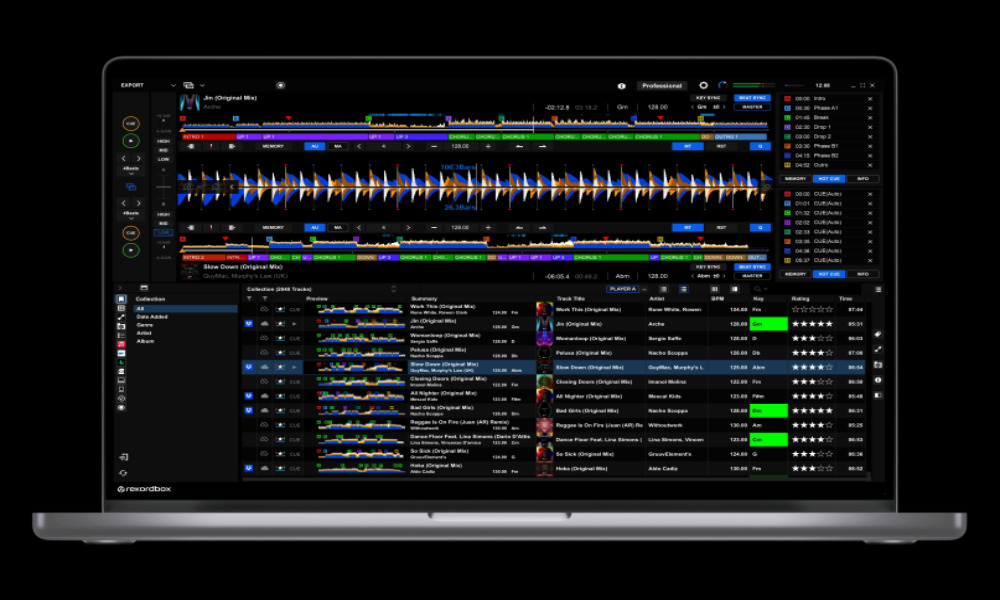
Before we begin, let's get oriented. Think of the Rekordbox 'Collection' as the central database for all the music you ever plan to use for DJing. It doesn't copy the music files themselves; it simply logs their location and stores important information about them, like their waveform, key, and BPM.
The main area at the bottom of the Rekordbox screen is where your Collection lives. Right now, it's likely empty. Our goal is to populate this section with the practice tracks you downloaded.
The Easiest Method: Drag and Drop
The most intuitive and common way to import music into Rekordbox is by simply dragging the files from your computer's file browser directly into the Collection window. Given your background in user interface design, you'll appreciate how this direct manipulation simplifies the workflow.
Let's watch how it's done. I recommend having Rekordbox open on one side of your screen and your DJ Music folder open on the other, so you can follow along.
04 / Importing Tracks - Beginners Guide Rekordbox
This video from the channel Dirty Secretz provides a very clear, step-by-step demonstration of the drag-and-drop method.
Please watch from this section. The presenter shows you how to select all your tracks in the folder and drag them directly into the Rekordbox Collection. Go ahead and do this now with the tracks from your "Crossfader Music Pack" folder.
After you drop the files, you should see Rekordbox add them to your Collection. The track titles, artists, and other information will appear in the list.
An Alternative Method: Importing a Folder
Another way to achieve the same result is by using the menu within Rekordbox. This method is particularly useful if you want to import an entire folder without having to open it separately. It reinforces the benefit of the organized DJ Music folder we set up in the last lesson.
This next video from Dexxter Clark demonstrates this process and also gives another great explanation for why keeping all your music in one folder is so vital for long-term organization.
How to import music to rekordbox // importing files, tracks and songs
This clip shows how to use the 'File' menu to import an entire folder of music.
Watch from this part of the video. The presenter navigates to File > Import > Folder and selects the folder containing his music. You don't need to do this step if the drag-and-drop method already worked for you, but it's a good alternative to know about.
Conclusion
Excellent work. You have now officially linked your music files to your DJ software. By importing the practice tracks, you have populated your Rekordbox Collection, which is the master list of all your available music. You've learned the two primary ways to do this: the intuitive drag-and-drop method and the menu-based folder import.
Now that your tracks are in the system, the next logical step is to start organizing them for actual use. A collection of thousands of songs can be overwhelming. For DJing, you'll work with smaller, curated lists called 'Playlists'. In our next lesson, we will create your very first playlist, name it 'Practice', and add the tracks we just imported, preparing you for the next stage of learning.