In our last lesson, we saw how a browser requests a page from a server and then renders it. A key part of that process was parsing an HTML file to create the Document Object Model (DOM). Today, we're going to learn how to write that HTML file.
HTML, or HyperText Markup Language, is the standard language for creating web pages. It provides the structure for your content. Your Rust code in Leptos will ultimately generate HTML, so understanding its syntax and most common elements is a fundamental prerequisite. This lesson will cover how to write a basic HTML document using headings, paragraphs, lists, links, and the versatile <div> and <span> elements.
The Anatomy of an HTML Element
First, let's establish what an HTML "element" is. Unlike variables or objects in Rust, an HTML element is a component of a webpage that defines its structure and content. Most elements consist of a start tag, some content, and an end tag.

The tags are the keywords in angle brackets (<>) that tell the browser what kind of content it's looking at. The closing tag is identical to the opening tag, but with a forward slash (/) before the tag name.
Some elements are "empty," meaning they don't wrap any content and therefore don't need a closing tag. We'll see an example of this later.
Basic Document Structure and Core Elements
Every HTML page has a fundamental structure that acts as its skeleton. To get a quick, visual overview of this skeleton and the most essential tags, let's watch a short video from w3schools.com.
Learn HTML for Beginners - W3Schools.com
This video provides a concise introduction to what HTML is, the concept of tags and elements, and the basic boilerplate structure of a web page.
Please watch the following segments: What is HTML?: This introduces the basic document structure: <!DOCTYPE html>, <html>, <head>, and <body>. How tags work: This reinforces the concept of start and end tags forming an element. HTML Elements: This part discusses how elements can be nested inside one another and introduces the idea of empty elements.
As the video explained, all of the visible content of your webpage will go inside the <body> element. Now, let's learn about the most common elements you'll use to structure that content.
The following video from web development instructor Kevin Powell provides an excellent, focused guide to the tags you'll use most often. He helpfully groups them into categories. We'll focus on his "content related" and "layout" tags.
The only tags you need when first learning HTML
This video cuts through the noise of over 100 possible HTML tags to focus on the ~20 you will actually use day-to-day. It's a pragmatic guide that aligns perfectly with our goal of learning the essentials.
Please watch these two main sections: First, watch the segment on content-related tags. Pay close attention to his explanations for: Paragraphs (<p>) and Headings (<h1>-<h6>), especially the importance of using headings for structure, not just styling. Lists (<ul>, <ol>, <li>). Links (<a>, the anchor tag). The generic inline container, <span>. Next, skip ahead to his discussion of a key layout tag, starting from his introduction of the div element. Watch the segment from the div tag. This tag is a generic container that is fundamental for grouping elements and creating layouts.
Reviewing the Essential Tags
That video covered a lot of ground. Let's solidify our understanding by reviewing the key elements you need to know, with some code examples. The freecodecamp.org article "HTML for Beginners" is a great text-based reference for this.
HTML for Beginners – HTML Basics With Code Examples
This article provides clear definitions and code examples for the basic HTML tags. We will use it as a reference to review the elements covered in the video.
As you read through these sections, try to match the descriptions back to what you heard in the video. Headings and Paragraphs: In the "Tags and Elements" section, read the descriptions for Headings and Paragraphs. This covers <h1>-<h6> and <p>. Lists: A bit further down, read the section on the List Tag to see examples of <ul>, <ol>, and <li>. Links: Under the "Links" heading, find the subsection on the Anchor Tag. This explains the <a> element. Grouping Containers: Finally, find the descriptions for the two most important generic containers: the block-level Div and the inline Span Tag.
The core distinction between <div> and <span> is that <div> is a block-level element, while <span> is an inline element.
- Block-level elements (like
<h1>,<p>,<ul>,<div>) start on a new line and take up the full width available. They are used for larger blocks of content. - Inline elements (like
<a>,<span>,<img>) do not start on a new line and only take up as much width as necessary. They are used for smaller pieces of content within a block.
Putting It All Together
Now let's see how these elements combine to form a complete, albeit simple, HTML document.
<!DOCTYPE html>
<html lang="en">
<head>
    <meta charset="UTF-8">
    <title>My First Web Page</title>
</head>
<body>

    <h1>An Introduction to Web Structure</h1>

    <p>This document uses several common HTML tags to structure its content. HTML is a markup language, which means it uses tags to define elements. This is different from a programming language like Rust, as it contains no logic.</p>

    <div>
        <h2>Key Elements Covered</h2>
        <p>Here are some of the elements we've learned about:</p>
        <ul>
            <li>Headings (like the `<h2>` above)</li>
            <li>Paragraphs (like this one)</li>
            <li>Unordered Lists (like the one you're reading)</li>
            <li>Links, such as this one to the <a href="https://leptos.dev/">Leptos documentation</a>.</li>
        </ul>
        <p>We can even use a <span> to style just a <span style="color: purple; font-weight: bold;">small part</span> of a sentence without creating a new block.</p>
    </div>

</body>
</html>
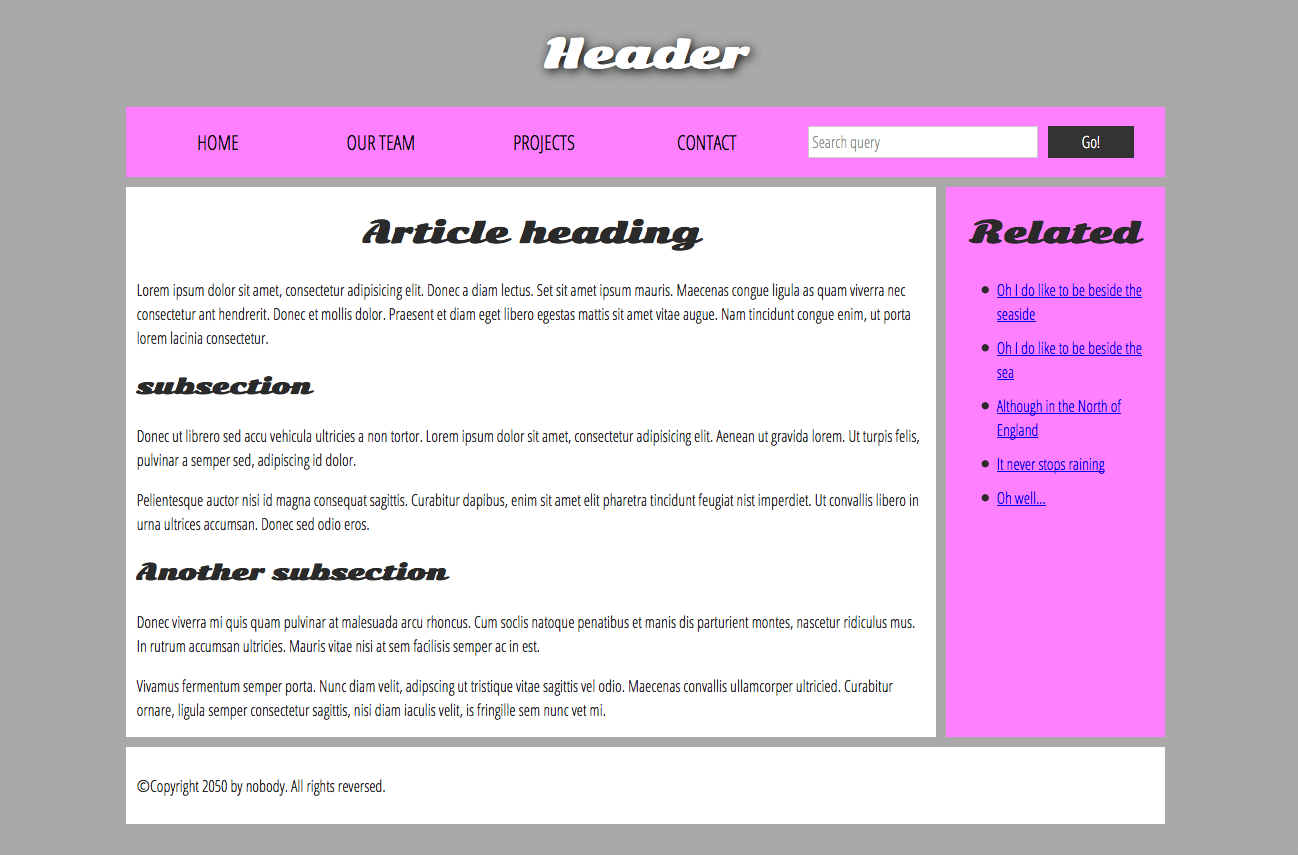
If you were to save this code in a file named index.html and open it in your browser, you would see a structured document. The browser reads the tags and renders the content accordingly—the <h1> would be large and bold, the list items would have bullets, and the link would be clickable. These individual elements are the building blocks for complex layouts like the one shown in this sample website structure.
Conclusion
In this lesson, we moved from the theory of browser rendering to the practical skill of writing the code that gets rendered. You now have the foundational vocabulary of the web's structural language.
Key Takeaways:
- HTML provides the structure and meaning (semantics) for web content.
- An HTML document is built from a tree of elements, most of which have an opening tag, content, and a closing tag.
- The
<body>tag contains all visible content. - Headings (
<h1>-<h6>) create a document outline. - Paragraphs (
<p>) group blocks of text. - Lists (
<ul>,<ol>,<li>) organize items. - Links (
<a>) make the web interconnected. <div>(block) and<span>(inline) are generic containers used to group elements for styling and layout.
Next Up:
We've mentioned that the browser reads your HTML file and builds an internal representation of it called the Document Object Model (DOM). In the next lesson, we will explore what the DOM is, why it's represented as a tree, and how it serves as the crucial bridge between your HTML code and what the user sees on the screen. This is the structure that Leptos will ultimately manipulate.