Hello! Welcome to the final lesson in our module on "Sharing Insights and Collaboration."
In our previous lesson, we covered how to share your Power BI dashboards and reports and manage who has access to them. This is a vital step in distributing information. However, a shared report is only useful as long as its data is current. A sales report showing last month's figures is of little use if today is the end of a new quarter.
This brings us to the crucial topic of automation and a key challenge for any data-driven organization: keeping information up-to-date without constant manual effort. This lesson will equip you to teach your workshop participants how to solve this problem by addressing the learning outcome: Explain the purpose and benefits of scheduling a data refresh.
We will explore what a data refresh is, why it’s essential for reliable reporting, and how to configure it in the Power BI Service. This automated process is one of the most significant benefits of using a tool like Power BI, as it transforms static reports into living, breathing decision-making tools.
The Problem with Manual Updates
Imagine a manager needs a weekly sales report. Without automation, the workflow looks like this:
- Open Power BI Desktop.
- Click "Refresh" to pull in the latest sales data.
- Wait for the data to load and all transformations to run.
- Publish the updated report to the Power BI Service, overwriting the old one.
- Notify the team that the report is updated.
Doing this every week is time-consuming and prone to human error (e.g., forgetting to do it). Scheduled refresh automates this entire process.
Refresh Reports AUTOMATICALLY using Scheduled Refresh // Beginners Guide to Power BI in 2021
This video from the Fernan | Power BI channel perfectly sets the stage by contrasting the inefficient manual workflow with the power of automated refreshes.
Watch the segment from 00:32 to 01:49. Notice how the presenter frames scheduled refresh as the solution to the repetitive work of creating recurring reports.
What Exactly is a Data Refresh?
When you explain this to your workshop audience, it's important to be clear about what "refresh" means in different contexts.
-
Refreshing a Visual: Clicking the "Refresh" button while viewing a report in the Power BI service simply reloads the visuals with the data already in the dataset. It does not go back to the original source (e.g., the Excel file) to get new data. Resource LINK clarifies this well in its section "Using the 'Refresh' Button in Power BI Online."
-
Refreshing the Dataset (Semantic Model): This is the real data refresh. Power BI connects to the original data sources, imports any new or changed data, and reapplies all the data cleaning and transformation steps you built in Power Query.
This process ensures that the entire data foundation of your report is current.

How to Schedule a Data Refresh
The process of setting up a scheduled refresh is done in the Power BI Service on the dataset (also called a semantic model), not the report.
This video provides an excellent walkthrough of the entire setup.
Power BI Expert Reveals Data Refreshing Tips You Need to Know
This video by Pragmatic Works will guide you through the settings for a scheduled refresh. Pay close attention to the distinction made between data sources on your desktop versus in the cloud.
Watch the following segments: 00:00 - 02:21: This explains the purpose of a refresh and the difference between 'Import' mode (which needs a refresh) and 'DirectQuery' (which doesn't). 02:50 - 03:58: This covers the critical concept of a Data Gateway for local data sources. 06:19 - 10:30: This is a step-by-step demonstration of configuring the refresh schedule, setting the frequency, and adding failure notifications.
To summarize the key steps for your workshop:
- Navigate to the workspace containing your report.
- Find the Dataset (Semantic Model) for your report. It will have a different icon than the report itself.
- Click the ellipsis (...) and select Settings.
- Expand the Scheduled refresh section.
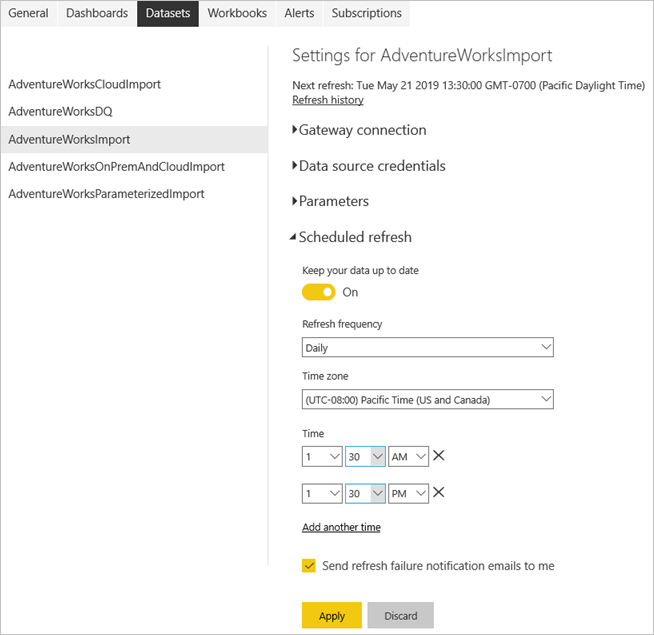
Here, you can configure:
- Frequency: Daily or Weekly.
- Time Zone: To ensure refreshes run at the correct local time.
- Time: You can add specific times for the refresh to run.
- Send refresh failure notifications: You can specify who receives an email if the refresh fails. This is crucial for troubleshooting.
Key Considerations Your Managers Need to Know
Setting up a refresh isn't just about clicking buttons. There are practical considerations that impact whether it will work.
1. Data Source Location: Cloud vs. On-Premise
As the video explained, where your data lives matters.
- Cloud Sources: If your data is from a cloud source like SharePoint Online, an Azure database, or a web page, Power BI can connect to it directly. No extra setup is needed.
- On-Premise Sources: If your data is in a file on your local computer, a shared network drive, or a local SQL server, Power BI Service cannot reach it directly. You need a Data Gateway. The gateway is a small piece of software installed on a computer within your network that acts as a secure bridge, allowing the Power BI Service to access the local data. Explaining this concept is vital, as many organizations still rely on local files.
2. License and Refresh Limits
The number of times you can automatically refresh a dataset per day depends on your Power BI license.
- Power BI Pro: Up to 8 scheduled refreshes per 24 hours.
- Power BI Premium: Up to 48 scheduled refreshes per 24 hours.
This is a key piece of information for managers to understand the capabilities and limitations of their setup. It helps them decide if a license upgrade is necessary based on how frequently they need fresh data.
Test your understanding!
A marketing manager has a report based on an Excel file saved on her laptop. She needs the report updated for her team meeting every morning at 9 AM. What two critical things must be in place for her scheduled refresh to work automatically at 8 AM every day?
Show answer
- A Power BI Data Gateway: Because the Excel file is on her local laptop (an on-premise source), a data gateway must be installed and configured on her computer to allow the Power BI Service to access the file.
- Her laptop must be turned on and connected to the internet: The gateway can only function if the computer it's installed on is running and has a network connection at the time of the scheduled refresh.
Benefits of Scheduled Refresh
When concluding this topic in your workshop, circle back to the "why." What are the tangible benefits for a manager and their team?
How to Schedule Data Refresh in Power BI: A Step-by-Step Guide
This article from Creatum Online provides a great summary of the strategic advantages of data refresh. It will help you articulate the business value to your audience.
Read the 'Introduction' and 'Conclusion' sections. Focus on the language used to describe the benefits, such as 'operational excellence,' 'informed decision-making,' 'free up valuable resources,' and 'strategic advantage.'
The key benefits you should emphasize are:
- Timeliness and Accuracy: Decisions are based on the most current and reliable data available.
- Efficiency: Frees up employees from the repetitive, manual task of updating reports, allowing them to focus on analysis and other strategic initiatives.
- Consistency: The process is automated and runs on a schedule, ensuring reports are always updated at the same time, building trust and routine.
- Scalability: Once set up, the process works reliably whether the report is shared with five people or five hundred people.
Conclusion
You are now equipped to explain one of the most powerful and practical features in Power BI. By automating data refreshes, managers can ensure their teams operate with timely, accurate, and trustworthy information, turning their Power BI reports from static documents into dynamic tools for decision-making.
Key Takeaways for Your Workshop:
- Purpose: Scheduled refresh automates the process of updating your dataset with the latest information from the source.
- Benefit: It saves time, reduces errors, and ensures that all shared reports and dashboards display current data, leading to better and faster decisions.
- Process: Refreshes are configured in the Settings of a Dataset (Semantic Model) within the Power BI Service.
- Key Considerations: A Data Gateway is required for on-premise data sources (e.g., local files), and the number of daily refreshes is limited by the Power BI license (Pro or Premium).
Preview of the Next Lesson:
We have now covered the full cycle of creating, sharing, and maintaining live reports in the Power BI Service. In the next lesson, "Export reports and visuals for use in presentations and documents," we'll cover the final step in the communication process: how to extract your insights from Power BI for use in other formats like PowerPoint slides and PDF documents.