Hello! In our last lesson, we focused on setting the correct data types and formats, which is like teaching the computer the "grammar" of your data. Now, we'll continue our data cleaning journey by tackling another common and critical task: tidying up messy text fields.
This lesson addresses how to trim whitespace and clean text fields. For the managers in your workshop, this is one of the most important data cleaning skills. Seemingly identical text entries like "Product A" and " Product A " (with a leading space) are treated as completely different items by computers. This can lead to incorrect reports, failed lookups, and inaccurate summaries.
By the end of this lesson, you will be equipped to teach managers how to:
- Identify "invisible" data quality issues like extra spaces and non-printable characters.
- Use the
Trimfunction to remove leading and trailing whitespace. - Use the
Cleanfunction to remove non-printable characters like line breaks. - Apply a simple, multi-step process to fully standardize text fields.
The "Invisible" Problems in Your Data
When you copy and paste data from emails, websites, or older systems, you often bring along invisible clutter. This clutter falls into two main categories:
- Whitespace: These are blank spaces before the text begins (leading space) or after it ends (trailing space). Sometimes, you might also have multiple spaces between words.
- Non-Printable Characters: These are control characters that are not visible in the cell but affect formatting. The most common are line breaks (which make text wrap to a new line within a cell) and tab characters.
These invisible characters are a primary cause of issues in VLOOKUPs, data merges, and reporting, because they make text that looks identical to the human eye completely different to the computer.
A great practical tip you can share in your workshop is to copy a sample of messy data into Microsoft Word and turn on "Show Paragraph Marks" (¶). As the article from G Com Solutions below explains, this makes spaces visible as dots, tabs as arrows, and line breaks as paragraph marks, helping managers diagnose the problem.
The Two Essential Tools: Trim and Clean
Power Query provides two distinct, purpose-built tools to solve these problems. It is crucial to understand that they do different things.
- Trim: Removes all leading and trailing spaces from a text string. It does not affect spaces between words, nor does it remove non-printable characters.
- Clean: Removes all non-printable characters (like line breaks and tabs) from a text string. It does not remove any spaces.
To teach this distinction clearly, the following video provides a perfect side-by-side comparison.
Trim Vs Clean in Power BI and Power Query
This short video from RADACAD clearly explains and demonstrates the difference between the Trim and Clean functions. It's an ideal resource to show your workshop participants.
Watch from the beginning to 02:40. Pay close attention to how the presenter first shows the messy text with hidden characters and then applies Trim and Clean separately to show their distinct effects.
As the video demonstrates, you can access these functions by selecting a column, navigating to the Transform tab, and using the Format dropdown.
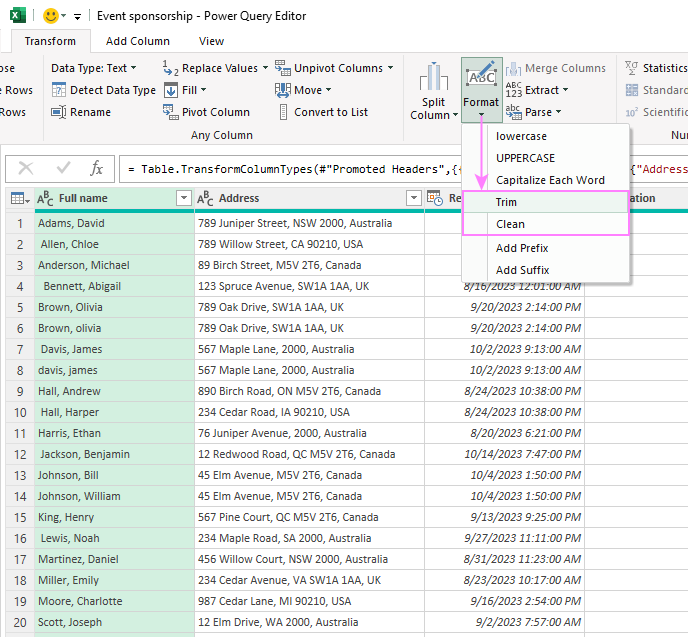
A Standard Text Cleaning Workflow
Because Trim and Clean solve different problems, you will often use them together. A reliable workflow for cleaning any text column is to apply them sequentially.
- Select the column(s) you want to clean.
- Apply the Clean transformation first. This removes any problematic line breaks or tabs.
- With the column(s) still selected, apply the Trim transformation. This removes any leftover leading or trailing spaces.
Each action will be recorded as a new step in the Applied Steps pane, creating a repeatable cleaning process.
Handling the Exception: Extra Spaces Between Words
There's one common issue that neither Trim nor Clean will fix: multiple spaces between words (e.g., "First Name"). This is a frequent result of poorly formatted exports.
The solution is to use the Replace Values feature.
Power Query Trim and Clean Functions
The article 'Power Query Trim and Clean Functions' from G Com Solutions provides a written walkthrough of these functions and offers a practical solution for handling extra internal spaces.
Read the sections 'Using the Trim Function', 'Using the Clean Function', and 'Using the Replace Values Command'. Note the key insight: Trim in Power Query does not remove extra spaces between words, unlike its Excel worksheet counterpart. The article shows how to use 'Replace Values' to replace two spaces with a single space.
This adds a final step to our standard workflow:
- Clean: Remove non-printable characters.
- Trim: Remove leading/trailing spaces.
- Replace Values: In the
Transformtab, selectReplace Values. In the dialog box, enter two spaces in Value To Find and one space in Replace With. You may need to repeat this step if some text has three or more spaces, but one or two passes is usually sufficient.
Test your understanding!
A manager imports a CSV file containing a Customer Name column. They notice three problems:
- Some names have extra spaces at the beginning.
- Some names were copied from a web form and have a line break in the middle.
- Some names have two spaces between the first and last name (e.g.,
"John Doe").
What three transformations should the manager apply in Power Query, and in what order, to fix all these issues?
Show answer
The recommended three-step sequence is:
- Clean: This will remove the non-printable line break character from the text.
- Trim: This will remove the leading spaces from the beginning of some names.
- Replace Values: This will fix the internal spacing issue. They should replace all occurrences of a double space (
" ") with a single space (" ").
This order ensures that each step effectively targets a specific problem without interfering with the others.
An Advanced Tip for You, the Instructor
While the three-step manual process is perfect for teaching managers, you might encounter situations where you need to clean dozens of text columns at once. Applying these steps manually to each one would be tedious.
As an engineer, you'll appreciate that there's a more dynamic way to do this by making a small edit to the M code that Power Query generates.
Power Query - Clean & Trim EVERYTHING at Once... Dynamically
This video from BCTI demonstrates a powerful technique for applying Trim and Clean to all text columns in a table dynamically. This is a valuable trick for your own toolkit when building robust queries.
Watch from 06:07 to 07:46. The presenter shows how to delete the hardcoded column names from the Table.TransformColumns function in the formula bar and replace them with a default transformation (Text.Trim or Text.Clean). This tells Power Query to apply the function to every column, making the query resilient to future changes in the data source.
This advanced method is likely beyond the scope of a beginner workshop for managers, but it's an excellent example of how Power Query's flexibility can automate repetitive tasks on a larger scale.
Conclusion
You are now ready to teach a fundamental and highly practical data cleaning lesson. By mastering the Trim, Clean, and Replace Values functions, the managers in your workshop will be able to solve some of the most common and frustrating data quality issues they face.
Key Takeaways for Your Workshop:
- "Invisible" characters like spaces, tabs, and line breaks are a major source of errors in data analysis.
Trimremoves spaces at the beginning and end of text.Cleanremoves non-printable characters like line breaks and tabs.- Use
Replace Valuesto fix extra spaces between words. - A standard cleaning process is to apply Clean, then Trim, then Replace Values.
Preview of the Next Lesson:
Now that we've cleaned up the content within our columns, we'll look at another common transformation: combining text fields. In the next lesson, we will learn how to merge multiple columns into a single column, such as taking separate "First Name" and "Last Name" columns and merging them into a "Full Name" column.