Hello! In our last lesson, we focused on combining information by merging columns. Now, we'll shift our attention to ensuring the data within those columns is correctly understood by the computer. This is a fundamental step in data cleaning that prevents many common errors down the line.
This lesson focuses on changing data types and formatting columns appropriately. For the managers in your workshop, this is like teaching a computer the "grammar" of your data. If a column of product codes is mistaken for numbers to be added, or if dates are seen as plain text, any resulting analysis will be flawed.
By the end of this lesson, you will be equipped to teach managers how to:
- Identify and understand different data types in Power Query.
- Change data types using simple, point-and-click methods.
- Apply basic formatting to text and numbers.
- Solve one of the most common data import problems: incorrect date formats.
Why Data Types Matter: The Foundation of Accurate Analysis
Every column in your data has a "type" that tells Power Query how to treat its values. Getting this right is non-negotiable for accurate analysis. A great way to explain this to your managers is with a simple, practical example.
An ID column (like EmployeeID or SKU) might contain only numbers, so Power Query might guess it's a 'Whole Number'. But you would never want to calculate the sum or average of employee IDs. By changing its type to 'Text', you tell tools like Excel and Power BI to simply treat it as a unique label for counting or filtering, not for calculation.
The official Microsoft documentation provides an excellent introduction to what data types are and how to spot them. It also includes a handy reference table of the most common types.
Read the introduction to understand the role of data types. Then, review the table of common data types. For your workshop, you'll want to focus on explaining Text, Whole Number, Decimal Number, Fixed Decimal Number (Currency), Percentage, Date, and True/False.
In Power Query, each data type has a small icon in the column header. Teaching your managers to recognize these icons is the first step to spotting potential issues.
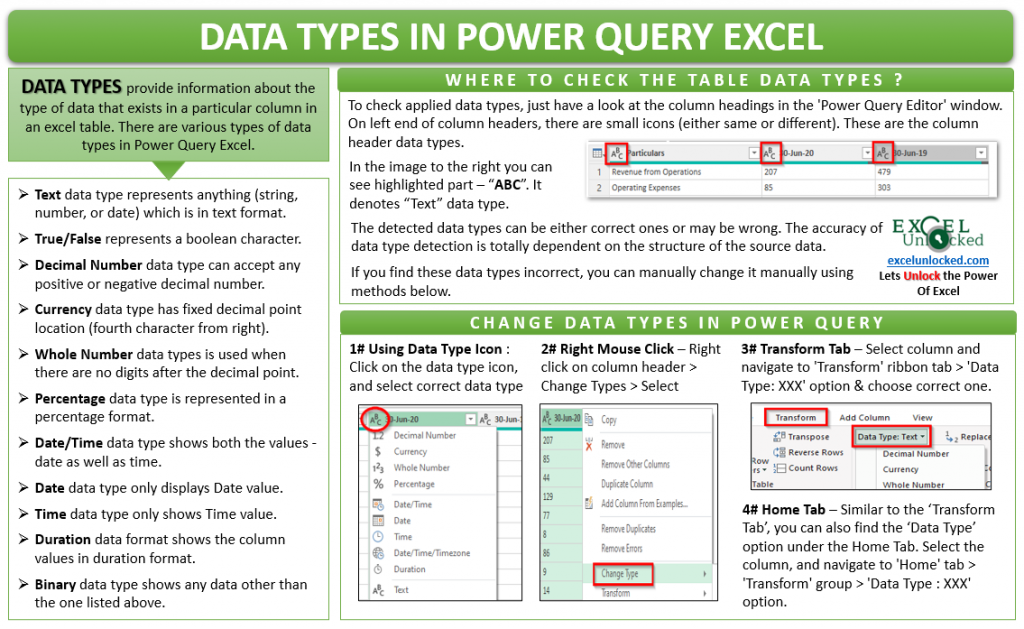
How to Change Data Types: The Four-Click Rule
Once an incorrect data type is identified, changing it is straightforward. Power Query provides several ways to do this, all through the user interface. You should emphasize the easiest method for your audience.
The four ways to change a column's data type are:
- From the Home tab: In the
Transformgroup, use theData Typedropdown. - From the Transform tab: In the
Any Columngroup, use theData Typedropdown. - By right-clicking the column header: Select
Change Typefrom the context menu. - By clicking the icon in the column header: This is the quickest and most direct method.
For your workshop, recommend that managers simply click the icon in the column header. It's fast, intuitive, and reduces the number of clicks.

Let's see this in action.
How to use Microsoft Power Query
This short clip from a broader Power Query tutorial by Kevin Stratvert provides a perfect, real-world example of changing multiple columns to the 'Currency' data type.
Watch from 09:45 to 10:03. Notice how the presenter selects multiple columns (Revenue, Cost, Profit) and changes their type to 'Currency' in one step. The icon in the column header then changes to a dollar sign, giving immediate visual feedback.
Formatting Columns for Professional Reports
Beyond setting the correct type, you often need to format the content for clarity and professionalism. This is especially important for text fields that will appear in reports.
A common issue is inconsistent capitalization (e.g., "female", "Female", "FEMALE"). Power Query's Format menu can fix this instantly.
Power Query For Data Preparation In Excel
This article from EVAL-Academy gives a simple, practical example of formatting a text column to improve its appearance, a great tip for managers who share their data.
Read the section titled 'Capitalizing All Words'. This demonstrates how to select one or more text columns and apply consistent capitalization using the 'Format' option on the 'Transform' tab.
This same Format menu can be used to trim extra spaces or convert text to uppercase or lowercase, which we will cover in more detail in the next lesson.
Solving the #1 Data Type Problem: Dates and Locales
Perhaps the most frequent and frustrating data type issue managers will encounter is with dates, especially when importing data from CSV files or from colleagues in different countries.
A common scenario:
- Your computer is set to the UK format (
day/month/year). - You receive a file from the US, where dates are
month/day/year. - When you import it, any date where the day is 13 or higher (e.g.,
10/25/2023) will cause an error or be treated as text, because Power Query can't find a 25th month.
The solution is not to change the data type directly, but to tell Power Query the "locale" or regional format of the source data.
Easily Fix Dates Formatted as Text with Power Query
This video from MyOnlineTrainingHub is an essential resource for you. It masterfully explains and demonstrates how to fix date formatting issues, particularly the critical 'Using Locale' feature.
Watch the segment from 08:11 to 09:33. The presenter clearly explains why a US-formatted date causes an error in their system and walks through the fix: click the data type icon, choose 'Using Locale', set the type to 'Date', and then specify the original locale as 'English (United States)'. This is the exact workflow you should teach.
This Using Locale technique is a powerful, yet simple, solution that will save your workshop participants hours of frustration.
Test your understanding!
A manager receives a sales report in a CSV file from a German subsidiary. In the file, the SaleDate column is in DD.MM.YYYY format (e.g., 28.11.2023), and the SaleAmount column is text that uses a comma as the decimal separator (e.g., 1.299,50).
When they open it in Power Query, both columns are imported as 'Text'. What are the two specific steps they must take to correctly prepare these columns for analysis?
Show answer
-
For the
SaleAmountcolumn: They should right-click the column header, select Change Type -> Using Locale.... In the dialog box, they will set the Data Type toDecimal NumberorFixed decimal numberand the Locale toGerman (Germany). This tells Power Query to interpret the period as a thousands separator and the comma as the decimal separator. -
For the
SaleDatecolumn: They will do the same. Right-click the column header, select Change Type -> Using Locale.... They will set the Data Type toDateand the Locale toGerman (Germany). This tells Power Query to correctly parse theDD.MM.YYYYformat.
In both cases, simply changing the data type directly would result in errors. Using the Locale is the key.
Conclusion
You are now prepared to teach a crucial lesson in data integrity. By ensuring every column has the correct data type and format, your managers will build a reliable foundation for all their subsequent analysis and visualization work.
Key Takeaways for Your Workshop:
- Data types are rules that tell Power Query how to handle data. Getting them right prevents calculation errors and enables proper analysis.
- The icon in the column header is the quickest way to both identify and change a data type.
- For presentational purposes, use the Format menu on the
Transformtab to clean up text capitalization. - When dealing with date or number formats from different regions, the "Using Locale" feature is the most important tool to use.
Preview of the Next Lesson:
We've now covered how to handle the "type" and "format" of data. Next, we'll continue our data cleaning journey by learning how to trim whitespace and clean text fields. This involves removing pesky extra spaces and non-printable characters that can corrupt lookups and merges, another common and essential task in making raw data analysis-ready.