Hello! In our previous lessons, we focused on cleaning and standardizing data within a single table, such as trimming messy text fields. Now, we'll move on to a powerful data transformation technique: combining data from entirely different tables.
This lesson addresses how to combine data from multiple tables using merge operations (joins). This is a fundamental skill for creating rich, analytical datasets. For the managers in your workshop, this is the equivalent of a VLOOKUP or INDEX/MATCH in Excel, but far more powerful and scalable. It allows them to link different business datasets—like sales transactions, customer details, and product information—into a single, unified view for analysis.
By the end of this lesson, you will be prepared to teach managers how to:
- Understand what it means to "merge" or "join" tables.
- Identify the common column (the "key") required to link two tables.
- Use the
Merge Queriesfeature in Power Query to combine data. - Understand the most common type of join (
Left Outer) and when to use it.
Why Do We Need to Merge Data?
In most real-world business scenarios, data isn't stored in one giant table. It's usually split into several logical tables to avoid redundancy. For example:
- A Sales table contains transaction data (like
ProductID,CustomerID,SaleDate,Quantity). - A Products table contains product details (like
ProductID,ProductName,Category). - A Customers table contains customer information (like
CustomerID,CustomerName,Region).
If a manager wants to analyze sales by Region or Product Category, they need a way to bring this information together. This is what a merge operation does. It uses a common column (like ProductID) to look up and add columns from one table to another.
The following short video clip clearly distinguishes between merging (adding columns from different tables) and appending (stacking rows from similar tables, which we will cover in a later lesson).
How to Join Tables in Excel | Merge or Append Data From Different Sheets Using Power Query
Watch this brief introduction from the video 'How to Join Tables in Excel' by Chester Tugwell to grasp the core difference between merging and appending data.
Watch from 00:21 to 01:03. Focus on the visual example that shows merging as combining columns from related tables to create a wider, more detailed table.
Understanding Joins: The Logic Behind the Merge
Before we perform a merge in Power Query, it's crucial to understand the logic that governs how the tables are combined. This logic is defined by Join Kinds.
In any merge, there are two tables:
- The Left Table: Your primary table (the one you are adding data to).
- The Right Table: The lookup table (the one you are getting data from).
Power Query offers six different join kinds, but for most business analytics, you'll primarily use the Left Outer Join.
- Left Outer Join (Most Common): Keeps all rows from the left (primary) table and brings in matching rows from the right table. If a row in the left table has no match in the right table, the new columns will simply be
null(blank). This is how Excel's VLOOKUP function works. - Inner Join: Keeps only the rows that have a match in both tables. This is useful if you want to analyze only the data that is complete across both tables.
The cheat sheet below provides a fantastic visual summary of all join types. For your workshop, you should focus on explaining the Left Outer Join and Inner Join as they cover the vast majority of use cases.

To deepen your understanding so you can explain it clearly, the following article provides excellent conceptual explanations using Venn diagrams.
Types of Merges in Power Query (Power BI)
This article, 'Types of Merges in Power Query (Power BI)' by Vidi Corp, breaks down the terminology of joins in a very accessible way.
Read the sections 'Intro' and 'Left Outer Join – Power BI'. Pay attention to how it defines the 'Left' and 'Right' tables and uses a VLOOKUP analogy to explain the Left Outer Join. This will be very helpful for your audience.
How to Merge Tables in Power Query: A Step-by-Step Guide
Now let's walk through the practical steps. For this to work, you must first have both tables loaded into the Power Query Editor.
- Start from your primary ("Left") table.
- On the Home tab in the Power Query ribbon, click Merge Queries. You have two options:
- Merge Queries: Adds the merged columns to your current table.
- Merge Queries as New: Creates an entirely new query with the combined result, leaving your original tables untouched. This is often a safer choice for beginners.
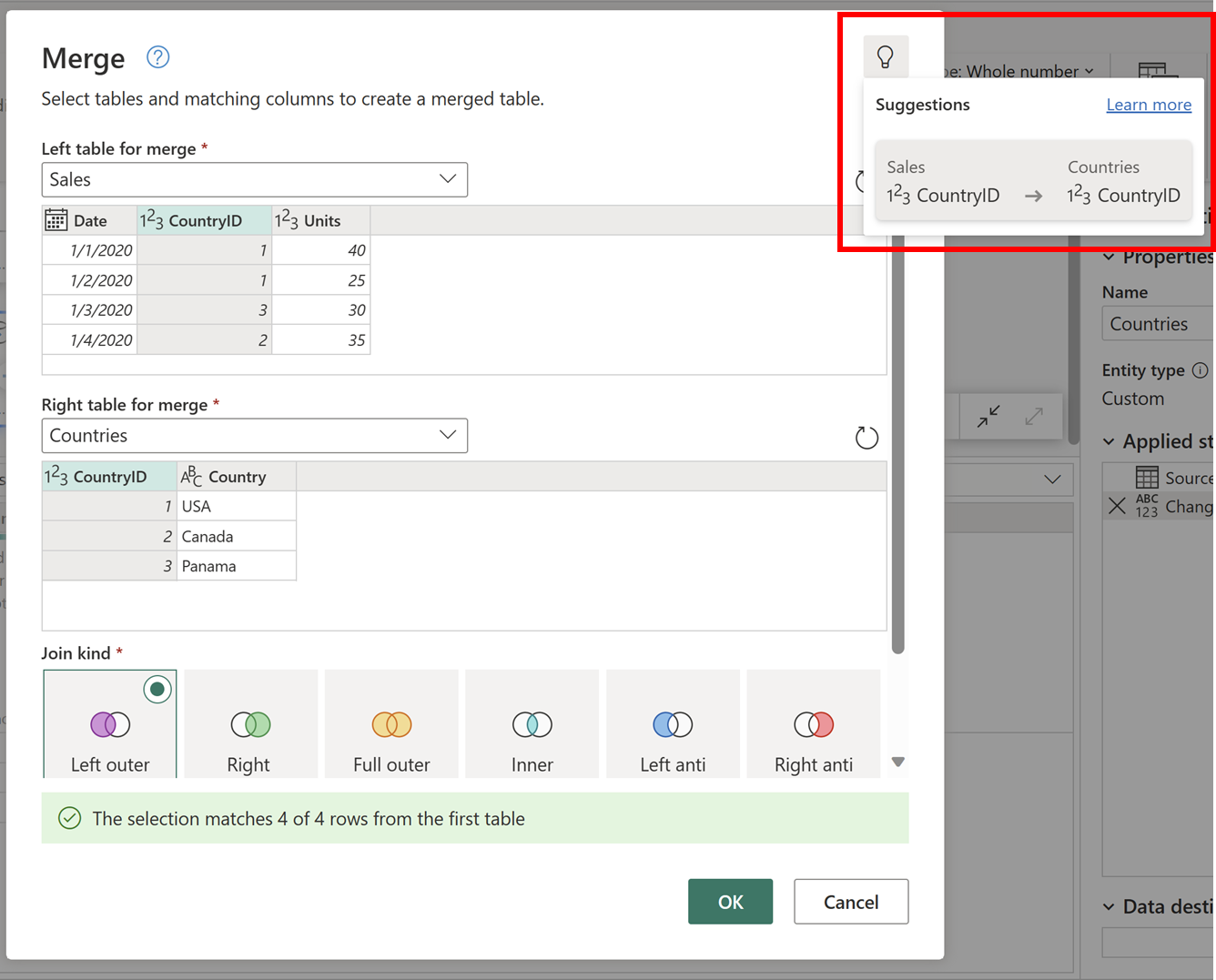
- The Merge dialog box will appear.
-
Configure the Merge:
- The top table is your Left table (it's the one you started from).
- In the dropdown menu, select your Right (lookup) table.
- Select the common column in both tables that will be used to match the rows (e.g.,
ProductID). Power Query will give you a helpful message at the bottom telling you how many rows match. - Select the Join Kind. For now, we'll use Left Outer (all from first, matching from second).
- Click OK.
-
Expand the New Column:
- A new column will be added to your table. The column name will be the name of your right table, and each cell will contain the word
Table. This column holds all the data from the right table for each matching row. - Click the expand icon (two arrows pointing in opposite directions) in the column header.
- A dropdown will appear, listing all the columns from your right table. Uncheck the original key column (as you already have it) and any other columns you don't need.
- It's good practice to uncheck "Use original column name as prefix" to get cleaner column names.
- Click OK. The columns you selected will be added to your table.
- A new column will be added to your table. The column name will be the name of your right table, and each cell will contain the word
The following video provides a complete demonstration of this process.
How to Join Tables in Excel | Merge or Append Data From Different Sheets Using Power Query
This video, 'How to Join Tables in Excel', walks through a full example of merging three tables together. It clearly shows every step, from loading the data to expanding the final columns.
Watch from 05:40 to 08:38. Follow along as the presenter: Creates queries for each table. Performs the first merge, linking transactions to products. Expands the new columns. Performs a second merge to add employee data.
Test your understanding!
A manager has two tables:
- A
Salestable with columns:OrderID,ProductID,Units Sold. - A
Productstable with columns:ProductID,Product Name,Price.
The manager wants to calculate the total revenue for each sale (Units Sold * Price). The Price information is missing from the Sales table.
Describe the steps they would take in Power Query to achieve this. What join kind should they use and why?
Show answer
Here are the steps:
- Load both the
SalesandProductstables into the Power Query Editor. - Starting with the
Salesquery, go to the Home tab and click Merge Queries. - In the Merge dialog, the
Salestable is the "Left" table. Select theProductstable as the "Right" table. - Select the
ProductIDcolumn in both tables as the matching key. - Choose the Left Outer Join. This is the best choice because they want to keep all their sales records, even if a
ProductIDis invalid and doesn't have a match in theProductstable. This allows them to identify data quality issues later. - Click OK.
- Expand the new
Productscolumn, selecting only thePricecolumn to be added to theSalestable. - Now that
Units SoldandPriceare in the same table, they can create a new custom column to calculate the revenue.
Conclusion
You are now equipped to teach managers one of the most powerful data transformation features in Power Query. Merging tables is the key to breaking down data silos and creating the comprehensive datasets needed for meaningful analysis and visualization.
Key Takeaways for Your Workshop:
- Merging is used to add columns from one table to another based on a shared key (common column).
- The Left Outer Join is the most common and functions like an Excel VLOOKUP: it keeps everything from your main table and adds matching data from a second table.
- The process is simple: Merge Queries -> Select tables and keys -> Choose join kind -> Expand the new column to select the fields you want.
Preview of the Next Lesson:
We've just learned how to combine tables horizontally by adding columns. In the next lesson, we will learn how to combine them vertically. We will cover how to append data from multiple sources into a unified dataset, which is perfect for tasks like stacking monthly sales reports into a single year-to-date table.