Introduction
Hello! Welcome back.
In our last lesson, we laid the critical groundwork for your inventory by defining a structured format for all your product information. We designed a logical SKU system and created a comprehensive template that includes every piece of data you'll need, from product names and categories to supplier codes and cost prices.
This lesson takes us from planning to action. Today, you will perform the initial setup of an inventory tracking system using a sample set of products. We'll bridge the gap between the data structure on paper and a functioning system ready to track your inventory in real-time. By the end of this lesson, you'll have a clear, step-by-step process for populating your chosen inventory system, turning abstract data points into a powerful management tool.
The 5-Step Process for Setting Up Your System
Setting up an inventory system from scratch can feel daunting, but it can be broken down into a logical sequence of steps.
Inventory Tracking: A 5-Step Guide for Retail Businesses
This article from Shopify provides an excellent high-level roadmap for establishing an inventory tracking system. We've already touched on some of these concepts, but seeing them as a complete process is very helpful.
Please read the section titled 'How to set up your inventory tracking system in five steps'. This outlines the full journey: assigning SKUs, choosing software, conducting a physical count, integrating tracking, and scheduling audits. Today, we are focusing on the practical side of steps 1, 2, and 3.
As the article highlights, the process begins with data (SKUs), moves to technology (software), and then connects to the physical world (counting and daily operations). Our goal today is to get your product data loaded into a system.
Step 1: Preparing Your Product Data
Even though we're aiming to use a modern Point-of-Sale (POS) system, the most efficient way to perform the initial setup is to first organize all your product data in a spreadsheet. This allows you to gather, review, and format everything in one place before uploading it in bulk.
Let's use the data structure we defined in the previous lesson to create a sample product list for your beauty mini-market.
Imagine you've decided on these five products for your initial stock:
| Brand | Product | Variation |
|---|---|---|
| CeraVe | Hydrating Facial Cleanser | 236ml |
| The Ordinary | Niacinamide 10% + Zinc 1% | 30ml |
| Maybelline | SuperStay Matte Ink Lipstick | Shade: 20 'Pioneer' |
| e.l.f. | Poreless Putty Primer | Universal Sheer |
| L'Oréal | Voluminous Lash Paradise Mascara | Blackest Black |
Now, let's translate this into the structured format we created. This is the file you would prepare for import.
| SKU | Product Name | Description | Category | Brand | Supplier Name | Supplier Code | Cost Price | Retail Price |
|---|---|---|---|---|---|---|---|---|
| CRV-SKN-HCL-236 | CeraVe Hydrating Facial Cleanser | 236ml | Skincare > Cleansers | CeraVe | BeautyDistro Inc. | BD-101 | $8.50 | $14.99 |
| ORD-SER-NIA-30 | The Ordinary Niacinamide Serum | 30ml | Skincare > Serums | The Ordinary | ProBeauty Supply | PBS-55A | $4.50 | $7.50 |
| MAY-LIP-MAT-20 | Maybelline SuperStay Matte Ink | Shade: 20 Pioneer | Makeup > Lips | Maybelline | BeautyDistro Inc. | BD-345 | $5.00 | $9.49 |
| ELF-PRM-PUT-UNV | e.l.f. Poreless Putty Primer | Universal Sheer | Makeup > Face | e.l.f. | ProBeauty Supply | PBS-91C | $6.00 | $10.00 |
| LOR-MAS-VOL-BLK | L'Oréal Lash Paradise Mascara | Blackest Black | Makeup > Eyes | L'Oréal | BeautyDistro Inc. | BD-218 | $7.25 | $12.99 |
This spreadsheet is your initial inventory database. Having this organized before you even touch the software makes the setup process incredibly smooth.

Step 2: Populating Your Inventory System
With your data prepared, it's time to get it into your inventory system. As we discussed, a POS system is the recommended path. We'll use Square, a popular choice for small retailers, as our example. The principles shown here apply to most modern POS systems.
The Recommended Path: Using a POS System
1. Bulk Importing Your Initial Products
The spreadsheet you just prepared is perfect for a bulk import. This saves you the time and effort of entering dozens or hundreds of products one by one.
Let's see how you can take a spreadsheet of products and upload it directly into a POS system. This video from FitSmallBusiness demonstrates the process in Square.
Watch from 00:52 to 02:30. Notice how the system uses a template to ensure your data is formatted correctly, then quickly populates the item library. This is why our data structuring work in the previous step was so important.
2. Adding a New Product Individually
After your initial setup, you'll add new products as you decide to stock them. The process is similar, but done one item at a time.
Now, let's see how to add a single new item. This is particularly useful for understanding how to handle product variations, like different shades of a foundation or sizes of a lotion.
Watch from 02:30 to 04:22. Pay close attention to how 'variations' are created for a single item. For your beauty store, this is how you'll manage different lipstick shades or foundation colors under one main product.
3. Entering Your Initial Stock Count
Once a product is in the system, you must tell the system how many units you physically have. This is based on your initial physical inventory count. This step is what makes your inventory "live."
Finally, adding a product isn't complete until you've entered the quantity on hand. This clip shows how to 'receive stock' in the system, input your cost price, and set up low-stock alerts.
Watch from 04:22 to 05:39. Focus on how to input the initial quantity and the unit cost. This connects directly to the 'Cost Price' column in our spreadsheet and is essential for future profit reporting.
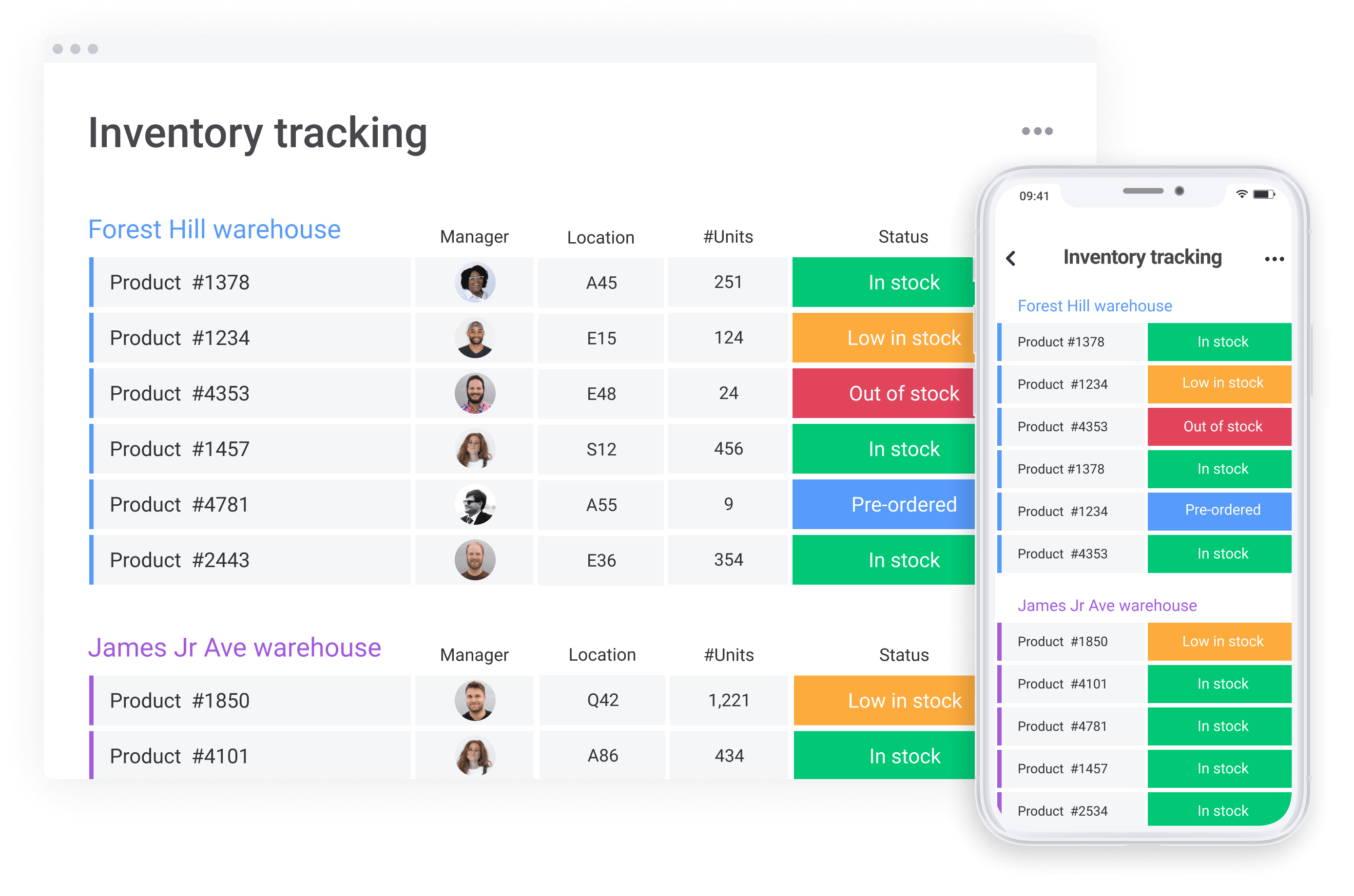
After these steps, your inventory dashboard will start to come to life, giving you a clear, real-time view of all your products.
Step 3: Connecting Digital Tracking to Physical Reality
An inventory system is only as good as the real-world processes that support it. For a cosmetics business, one of the most important physical processes is managing expiration dates.
The principle to follow here is FIFO (First-In, First-Out). This means you must always sell the oldest stock first.
How to Set Up an Efficient Inventory System for Your Cosmetic Startup
This article from Cosmetic Index explains why FIFO is so important for beauty products and how to set up your physical storage to support it.
Please read the section 'Setting Up Efficient Storage Solutions'. It gives practical advice on categorizing products, labeling shelves, and, most importantly, implementing a FIFO system. This ensures the products your customers buy are always fresh.
Practically, this means when a new shipment arrives, you should place the new items at the back of the shelf or in a bin behind the existing stock. This simple habit ensures that older products are picked and sold first, minimizing waste from expired goods.
Conclusion
Congratulations! You've successfully navigated the process of taking a structured data plan and implementing it in a real-world inventory system. This is a foundational skill for any retail owner.
Key Takeaways:
- The most effective way to start is by organizing all your product data in a spreadsheet, following the structure we defined previously.
- Modern POS systems make it easy to bulk import your initial product list and then add items individually as your business grows.
- Activating inventory tracking requires you to perform an initial physical count and "receive" that stock into the system, along with your cost price.
- For a beauty store, digital tracking must be paired with a physical FIFO (First-In, First-Out) storage process to manage product expiration dates effectively.
Preview of the Next Lesson:
Now that your products are in the system and the initial quantities are being tracked, a new question arises: how do you know when to reorder a product before it sells out? In our next lesson, we will focus on how to calculate reorder points and safety stock levels for key product categories. You'll learn the simple but powerful formulas that help you automate reordering decisions and prevent costly stockouts.