Hello! Welcome back to your journey into React.
Introduction
In our last lesson, we successfully rendered a dynamic list of user profiles from an array using the .map() method. We ended with a key question: what should happen if our users array is empty? Displaying a blank space isn't ideal. We need a way to show a helpful message like "No users found" instead.
This is where conditional rendering comes in. It's the technique you use to show, hide, or change UI elements based on the state of your application. Today's lesson is dedicated to this fundamental concept. Our learning outcome is to apply conditional rendering using ternary operators and the logical && operator.
For you as a Laravel developer, this is the React equivalent of using @if, @else, and @unless directives in a Blade template to control which parts of your HTML get rendered. In React, we use standard JavaScript expressions directly inside our JSX to achieve the same goal.
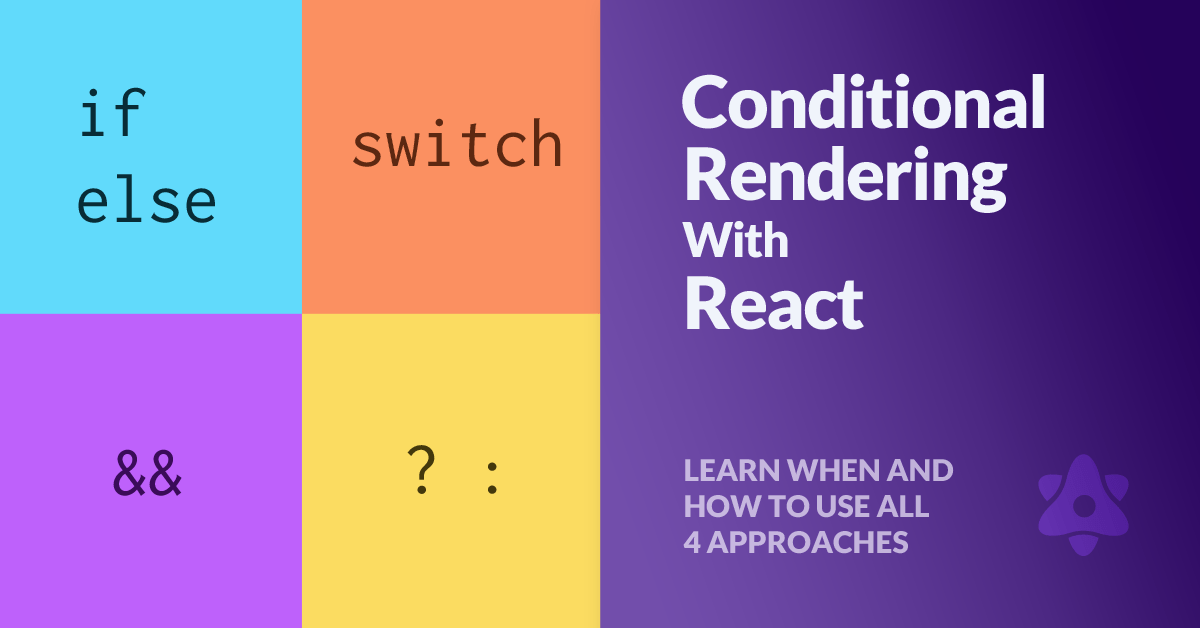
The Ternary Operator (? :) for "Either/Or" Scenarios
The most common way to handle an "either/or" condition directly within your JSX is with the JavaScript ternary operator. Its syntax is condition ? expressionIfTrue : expressionIfFalse.
This is perfect for our empty list problem. We can check if the users array has items. If it does, we render the list; otherwise, we render a message.

To see this in action, let's watch a video that explains how to use the ternary operator to render different JSX based on a component's props.
React 19 Tutorial - 10 - Conditional Rendering
The video "React 19 Tutorial - 10 - Conditional Rendering" by Codevolution provides a clear demonstration of several conditional rendering techniques. We'll focus on the section covering the ternary operator.
Watch the segment on the ternary operator from 04:30 to 06:25. Pay attention to how it allows you to conditionally render different text and even different HTML elements within a single return statement, making the code cleaner than multiple if statements.
As the video illustrates, the ternary operator is incredibly useful because it's an expression, meaning it resolves to a value. This allows you to embed it directly inside JSX using curly braces {}.
Let's apply this to our list from the previous lesson:
// Inside App.jsx

const users = []; // Let's pretend our user list is empty for now

function App() {
  return (
    // ...
    <main>
      <h1>Notable Scientists</h1>
      <div className="profile-list">
        {users.length > 0 ? (
          users.map(user => (
            <ProfileCard
              key={user.id}
              {...user}
              imageSize={90}
            />
          ))
        ) : (
          <p>No users found. Please check back later!</p>
        )}
      </div>
    </main>
    // ...
  );
}
Here, if users.length is greater than 0, React will render the array of <ProfileCard> components. Otherwise, it will render the <p> tag with our "not found" message.
The Logical && Operator for "Show or Hide" Scenarios
Sometimes, you don't have an "either/or" situation. You simply want to render an element if a condition is true, and render nothing if it's false. While you could use a ternary operator like condition ? <Component /> : null, there's a more concise shortcut: the logical AND (&&) operator.
This works because of how JavaScript evaluates && expressions. If the expression on the left of && is falsy (e.g., false, null, 0, ""), the evaluation stops, and the falsy value is returned. If it's truthy, the expression on the right of the && is returned.
React is smart enough not to render false, null, or undefined. So, you can write:isLoggedIn && <UserProfile />
This reads as: "if isLoggedIn is true, then render <UserProfile />".
The && Pitfall: The Number Zero
There's a very common "gotcha" with the && operator that trips up many developers. What happens if the expression on the left is the number 0? In JavaScript, 0 is a falsy value, so the expression on the right won't be evaluated. However, the expression itself resolves to 0, and React will render the number 0 to the screen!
This often happens when checking the length of an array: messages.length && <p>New messages</p>. If messages is an empty array, messages.length is 0, and your UI will unexpectedly display a "0".
The following video does an excellent job of explaining this specific problem and how to avoid it.
Stop Conditional Rendering in React Without Knowing This (&& vs Ternary Operator)
The video "Stop Conditional Rendering in React Without Knowing This" from ByteGrad is a fantastic deep dive into the practical differences between the ternary and && operators, with a special focus on the 'zero' rendering bug.
Watch from 00:39 to 03:05. The first part introduces && as a shortcut. The crucial part starts at 01:09, where it demonstrates the surprising result of rendering 0. Finally, it shows the correct solutions, such as using an explicit boolean check (length > 0) or coercing the value to a boolean (!!).
The key takeaway is to always ensure the left side of your && operator is a true boolean value.
Incorrect: messages.length && <Component /> (might render 0)
Correct: messages.length > 0 && <Component /> (evaluates to true or false)
The official React documentation also has a great, concise section on this.
The official React documentation on "Conditional Rendering" covers these patterns clearly. Reading the section on the logical AND operator will reinforce what you just saw and highlight the pitfall once more.
Read the section titled "Logical AND operator (&&)". Pay close attention to the "Pitfall" box, which explains exactly why you shouldn't put numbers on the left side of &&.
Let's Practice
Let's apply this to a new feature. Imagine we want to add a "Featured" badge to some of our scientist profiles.
-
Update your
usersdata inApp.jsx. Add a newisFeaturedboolean property.const users = [ { id: 1, name: 'Hedy Lamarr', bio: 'Inventor and Actress', imageUrl: 'https://i.imgur.com/yXOvdOSs.jpg', isFeatured: true // Hedy is featured! }, { id: 2, name: 'Grace Hopper', bio: 'Computer Scientist & US Navy Admiral', imageUrl: 'https://i.imgur.com/Mk3eW3As.jpg', isFeatured: false }, // ... more users ]; -
Update your
ProfileCard.jsxcomponent.- First, destructure the new
isFeaturedprop. - Then, use the
&&operator to render a badge only ifisFeaturedistrue.
// src/components/ProfileCard.jsx

export default function ProfileCard({ name, bio, imageUrl, imageSize, isFeatured }) {
  return (
    <div className="profile-card">
      <img
        src={imageUrl}
        alt={'Photo of ' + name}
        width={imageSize}
        height={imageSize}
      />
      <h3>
        {name}
        {isFeatured && <span className="featured-badge">⭐️ Featured</span>}
      </h3>
      <p>{bio}</p>
    </div>
  );
}
(You can add some simple CSS for
.featured-badgeto make it stand out). - First, destructure the new
Now, only Hedy Lamarr's profile card will show the "Featured" badge. This is a perfect example of the "show or hide" pattern where && shines.
Conclusion
Great job! You now have the tools to make your React applications truly dynamic by controlling what the user sees based on application data and state.
Key Takeaways:
- Ternary Operator (
? :): Use for "either/or" logic inside JSX. It's an expression that must return something in both thetrueandfalsecases. Example:isLoggedIn ? <Welcome /> : <Login />. - Logical AND Operator (
&&): Use for "show or hide" logic. It's a concise way to render an element only when a condition is true, and render nothing otherwise. Example:hasErrors && <ErrorMessage />. - The
&&Pitfall: Be careful when using&&with numbers. A value of0will cause the number0to be rendered in your UI. Always use an explicit boolean comparison likearray.length > 0to avoid this.
Preview of Next Lesson:
Our components can now display data and conditionally render UI, but they're not yet interactive. How do we respond when a user clicks a button, types in a form, or interacts with our app in other ways? In the next lesson, we will explore handling user events like clicks and input changes to make our applications respond to user actions.