Hello! Welcome to your next lesson in the "Prospect and Company Research" module.
In our last session, you learned a powerful framework for researching a company's product, customers, and market position. The goal was to understand their Ideal Customer Profile (ICP). Today, we'll take that knowledge and turn it into action. This lesson is all about moving from the abstract concept of an ICP to finding the actual people who fit that profile.
Your goal for this lesson is to learn how to use LinkedIn to identify prospects who match an Ideal Customer Profile. This is a fundamental, day-to-day skill for any SDR. Mastering it will not only prepare you for the job but also allow you to demonstrate practical skills in your interviews. We'll cover how to use both the standard free LinkedIn search and the professional-grade tool, LinkedIn Sales Navigator.
From ICP to Searchable Criteria
In the last lesson, you identified a company's ICP by looking at its customer stories, product, and market. An ICP might look something like this:
- Company: B2B Software-as-a-Service (SaaS) firms in the United States.
- Company Size: 50-200 employees (often called mid-market or SMB).
- Job Title: Vice President of Sales, Sales Director, or Head of Revenue.
- Pain Point: They struggle to get their new sales reps productive quickly.
The first step in prospecting is to translate these attributes into specific search filters on LinkedIn. To build a solid foundation for this, we'll start by reviewing a clear guide on defining these attributes.
How Do I Use LinkedIn Advanced Search to Find My Ideal ...
The article 'How Do I Use LinkedIn Advanced Search to Find My Ideal Customer?' provides an excellent breakdown of how to deconstruct an ICP into searchable components. This will formalize the process we started in the last lesson.
Please read the section titled 'Step 1: Define Your Ideal Customer Profile.' Pay close attention to the two main categories: 'Individual (Persona) Details' and 'Company Attributes.' This structure is your blueprint for every search you build.
Prospecting with a Standard LinkedIn Account
You don't need a paid subscription to start finding prospects. The free version of LinkedIn, combined with some smart searching, is a powerful tool. Let's see how to apply the ICP attributes we just defined.
HOW To Generate LEADS On LinkedIn in 2023 (+ EXAMPLES)
This clip from Jacob Sotiris's video 'HOW To Generate LEADS On LinkedIn' demonstrates the basic workflow for finding people using the standard search filters.
Watch from 01:17 to 03:15. Notice how he uses the search bar, clicks 'All Filters,' and then applies criteria for location, industry, and job title to narrow down his results. This is the fundamental process we'll build on.
As you saw, you can filter by:
- Keywords in the main search bar (e.g., "Vice President of Sales")
- Industry (e.g., "Software Development")
- Locations (e.g., "United States")
- Current Company
This is a great start, but what if you want to find a "VP of Sales" OR a "Head of Revenue"? Or what if you want to exclude assistants and interns? For that, you need to supercharge your search.
Supercharging Your Search with Boolean Logic
Boolean search is a method of using special words and symbols—called operators—to give your searches more precision. Given your strong research skills, you'll find this technique both powerful and intuitive. It works in the main LinkedIn search bar (and in Sales Navigator, as we'll see later).
The main operators are AND, OR, and NOT.

To understand how to apply these specifically for sales prospecting on LinkedIn, let's dive into a dedicated resource.
Boolean Search on LinkedIn: The Sales Superpower You ...
The article 'Boolean Search on LinkedIn: The Sales Superpower You ...' from Close.com is a fantastic, practical guide. We'll use it to master the operators and then see some real-world templates.
First, read the section 'How LinkedIn Boolean Search Works' to get a detailed definition of each operator (NOT, OR, AND) and modifier (Parentheses, Quotes). Then, review '3 Boolean Search Templates to Streamline Your LinkedIn Prospecting.' These templates are incredibly practical and can be adapted for almost any search.
Let's apply this to our example ICP: "Sales Leaders (VP, Director) at US-based B2B SaaS companies with 50-200 employees."
Using the "Job Title Filtering" template from the article, we could type this into the main LinkedIn search bar:
("Vice President of Sales" OR "Sales Director" OR "Head of Sales") AND SaaS
This is far more powerful than a simple search. You can then use the standard filters to narrow by location and company size.
Test your understanding!
Imagine you're targeting marketing leaders at financial technology ("FinTech") companies, but you want to avoid anyone in an "assistant" or "specialist" role. How would you write the Boolean search string for their job titles?
Show answer
A good Boolean string would be:
("Marketing Director" OR "VP of Marketing" OR "CMO") NOT (Assistant OR Specialist)
This string looks for the senior titles you want while explicitly excluding the junior roles, giving you a much cleaner list of prospects.
The Professional's Toolkit: LinkedIn Sales Navigator
While you can achieve a lot with the free version, virtually all professional SDR teams use LinkedIn Sales Navigator. In your interviews, you will be expected to know what it is and why it's valuable. Think of it as the advanced, super-powered version of LinkedIn search, built specifically for sales professionals.
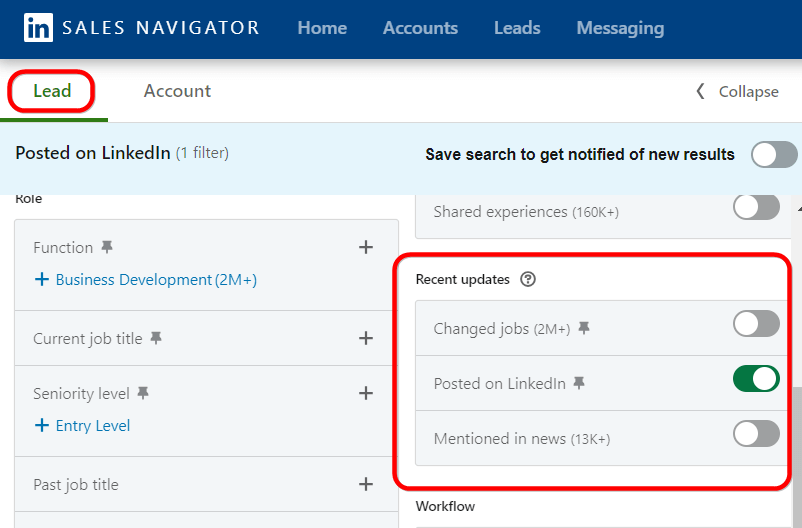
Sales Navigator offers many more filters, including:
- Company Headcount (more reliable than free search)
- Seniority Level (e.g., VP, Director, Manager)
- Function (e.g., Sales, Marketing, Operations)
- Spotlights: This is a key feature that highlights prospects who are more likely to be receptive, such as those who have changed jobs in the last 90 days or have been mentioned in the news.
Let's watch a video that demonstrates some of the most powerful strategies you can use with Sales Navigator.
How to Use LinkedIn Sales Navigator For Lead Generation (2025 Update)
The 'How to Use LinkedIn Sales Navigator For Lead Generation' video from Sell Better showcases several pro-level tactics. We'll focus on a few that are especially important for an SDR.
Watch the following three sections to understand the core value of Sales Navigator: Setting up Personas (01:19 - 02:29): See how an ICP is built directly into the tool. Job Changers Strategy (02:29 - 04:17): Learn why new decision-makers are prime targets and how to find them. Headcount Growth Strategy (04:17 - 06:08): Understand how to find companies that are rapidly growing, as growth often signals a need for new tools and services.
Being able to discuss these strategies in an interview—for example, "I would start by building a lead list in Sales Navigator targeting VPs of Sales at companies with 10%+ headcount growth in their sales department, and I'd prioritize those who started their role in the last 90 days"—will show hiring managers that you understand the modern SDR workflow.
Conclusion
You now have the tools to translate an Ideal Customer Profile into a concrete list of potential prospects on LinkedIn. This process of identifying the right people to contact is the first and most crucial step in building a sales pipeline.
Key Takeaways:
- Start with the ICP: Always begin by translating your ICP's attributes (job title, industry, company size, etc.) into specific search criteria.
- Master Boolean Search: Using operators like
AND,OR,NOT, and()is a superpower that dramatically improves the quality of your search results on both free LinkedIn and Sales Navigator. - Know Sales Navigator's Value: Understand that Sales Navigator is the industry standard. Its advanced filters, especially "Spotlights" like job changers and company growth indicators, are what allow SDRs to work efficiently and effectively.
- Identification is Step One: Prospecting is a process. Today you learned how to identify prospects. The next logical step is to find out how to contact them directly.
In our next lesson, we'll tackle that exact problem: How to find accurate prospect contact information (email and phone) using common research techniques. You'll learn the methods SDRs use to turn a name on a LinkedIn list into a phone number they can call and an email they can personalize.