Hello! Welcome back to your R programming course.
Introduction
In our last lesson, you learned how to write and execute R code using both the interactive console and reproducible R scripts. You now have the fundamental skill for telling R what to do.
But a real data analysis project, especially in a research setting, is more than just a single script. It involves raw data files, cleaned data, multiple scripts for different analysis stages, plots, and final reports. If these files are scattered across your computer, your project quickly becomes disorganized and difficult to share or even revisit yourself.
This lesson tackles that exact problem. Today, you will learn how to create an RStudio Project to establish a self-contained analysis environment. Think of an RStudio Project as a "lab notebook" for the 21st century—a dedicated, organized, and portable folder for each one of your analyses. This practice is the bedrock of reproducible research, a non-negotiable standard in the academic and clinical fields you're aiming for.
The Problem: The Working Directory
Before we see the solution, let's understand the problem RStudio Projects solve. R always operates from a "working directory." This is the folder on your computer where R looks for files by default.
You can see your current working directory by typing getwd() in the console:
getwd()
You might see something like /Users/yourname/Documents or C:/Users/yourname/Documents.
For years, a common but fragile practice was to use setwd() at the top of a script to tell R where the project files were. However, this uses an absolute file path, which is specific to your computer's folder structure. If you send that script to a collaborator, their folder structure will be different, and the code will fail. This makes the analysis non-portable and difficult to reproduce.
RStudio Projects provide a much more robust solution.
What is an RStudio Project and Why Use It?
An RStudio Project is simply a folder on your computer that contains all the files associated with a particular analysis. The magic is that when you open a project, RStudio automatically sets the working directory to that folder.
This seemingly small feature has profound benefits:
- Organization: All your files—data, scripts, and outputs—are kept together.
- Portability: You can move the entire project folder to another computer, share it via email or a cloud service, and it will just work.
- Reproducibility: By keeping everything self-contained, it's easy for your future self or a collaborator to understand and rerun your analysis from start to finish.
The following short article from "R for Data Science" by Hadley Wickham, a key figure in the R community, explains this workflow beautifully.
8 Workflow: projects - R for Data Science - Hadley Wickham
Please read this section to understand why projects are the standard best practice for organizing any data analysis.
Read the sections titled '8.2 Where does your analysis live?' (covering the working directory), '8.4 RStudio projects' (covering project creation), and '8.5 Summary' (providing a workflow recap). Focus on the distinction between absolute and relative paths and the summary of benefits.
Creating Your First RStudio Project
Now let's create a project. The process is straightforward. You'll navigate a menu to create a new, empty project in a new folder on your computer.
The image below shows the main dialog window you will use.
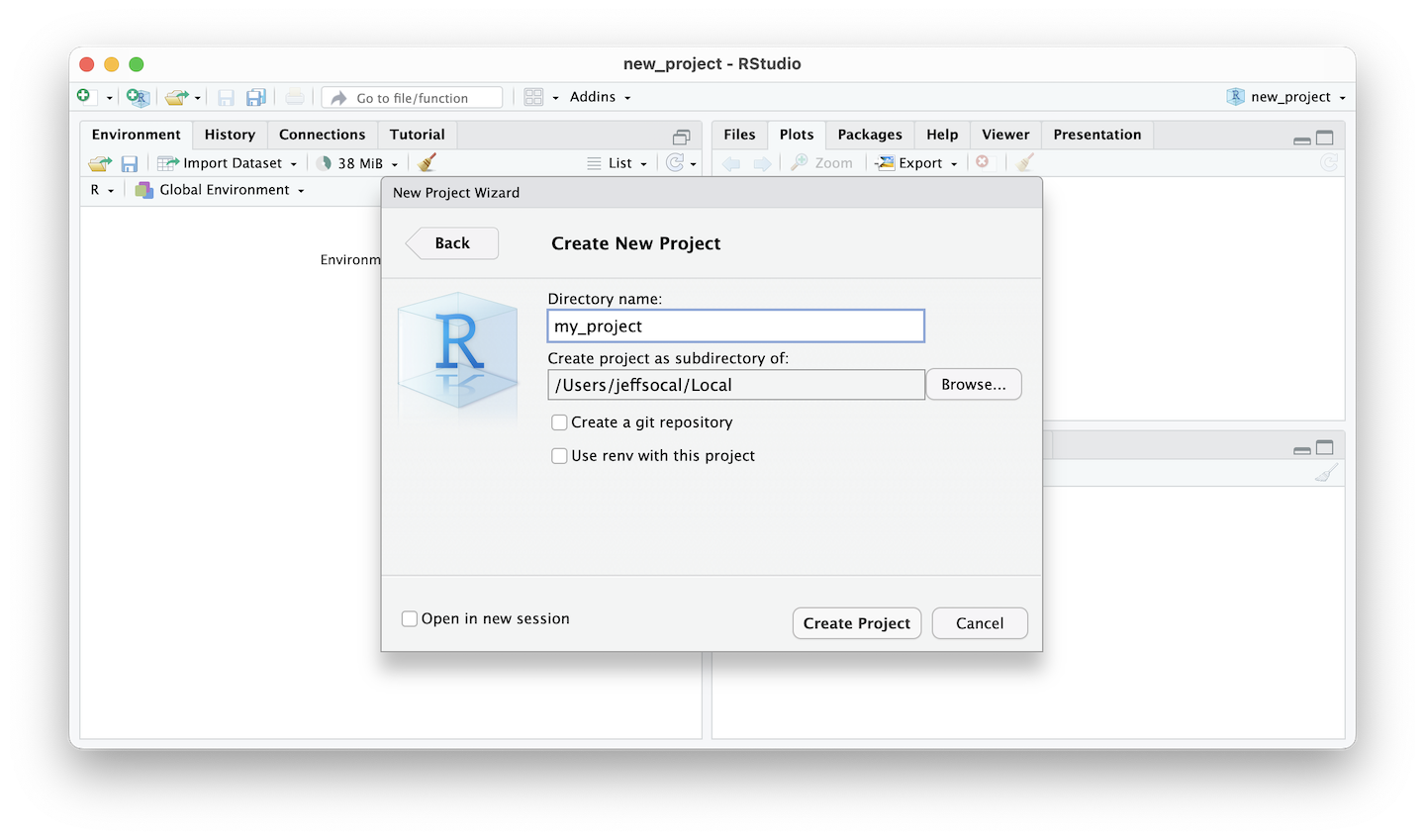
This video provides a clear, step-by-step walkthrough of the creation process.
RStudio Projects - Quick & Easy Guide
Watch this video to see how to create a new RStudio Project from scratch.
From the beginning of the video, watch the project setup. Pay attention to the steps: Navigating to File > New Project. Choosing 'New Directory' and 'New Project'. The importance of giving your project a descriptive name with no spaces or special characters. Ensuring 'Open in new session' is checked for a clean, fresh start.
As you saw, the key steps are:
- Go to
File > New Project.... - Choose
New Directory. - Choose
New Project. - Enter a descriptive name for your project directory (e.g.,
my-first-analysis). - Choose a sensible location on your computer to save the project folder.
- Click
Create Project.
RStudio will restart, and you'll now be "inside" your new project. Notice two things:
- The project name appears in the top-right corner of RStudio.
- The path at the top of the Console pane now points to your new project folder.
A Sensible Project Structure
Your project is like an empty lab; now you need to organize the benches and shelves. A consistent folder structure is crucial for keeping your work tidy. For most data analysis projects, a simple and effective structure includes three sub-folders.
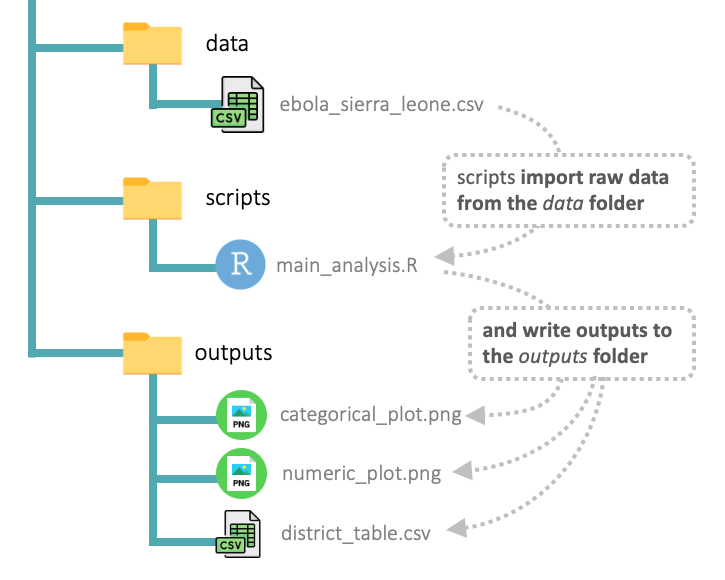
data/: A folder to hold your raw data files (e.g., CSVs, SPSS files). It's a critical rule of reproducible analysis to never modify your raw data. Treat it as read-only. If you need to clean or process it, do so with an R script and save the cleaned version to a new file.scripts/: A folder to hold your R script files (.R). This separates your code from your data.outputs/: A folder to save any outputs your scripts generate, such as plots, tables, or cleaned data files.
Let's create these folders inside your new project now. You can do this by clicking the "New Folder" button in the Files pane in RStudio.
The Power of Portability and Relative Paths
The single most important benefit of using projects is that they enable relative file paths.
- An absolute path is a file's full address from the root of your computer's hard drive (e.g.,
C:/Users/yourname/Documents/project/data/my_data.csv). It will break on anyone else's computer. - A relative path is the address relative to the project's root folder (e.g.,
data/my_data.csv). Because the project folder is the working directory, this path will work on any computer, as long as the project's internal folder structure is intact.
This video masterfully explains and demonstrates this concept.
How to use RStudio Projects | Foundations of data analysis with R (lesson 5)
This video walks through an entire analysis within a project, highlighting how to create sub-folders and, most importantly, demonstrating the power of relative paths for importing and exporting files.
Please watch two segments from this video: At about 6 minutes in, watch Creating Folders: See how to create the data, scripts, and outputs folders within RStudio. Around 11 and a half minutes, review Using Relative Paths: This is the most crucial part. Pay close attention to the explanation of relative vs. absolute paths and see how the Tab key in RStudio helps you auto-complete relative paths to your files.
To drive this point home, the following clip shows the ultimate test: zipping a project folder, moving it to a completely different computer with a different operating system, and running the script. Because it uses relative paths, it works flawlessly.
RStudio Projects - Quick & Easy Guide
This short clip demonstrates the 'magic' of portability that RStudio Projects provide.
About ten minutes in, watch the portability demonstration. You will see how a project created on a Mac is moved to a Windows machine and runs without any changes. This is the payoff for using projects.
Let's Practice
Time to put it all together.
- Create a new RStudio Project named
clinical-trial-practice. - Inside the project, using the Files pane, create three folders:
data,scripts, andoutputs. - Create a new R Script (
File > New File > R Script). - Save the script inside your
scriptsfolder with the name01-analysis.R. - In the script, add a comment line:
# My First Project Analysis Script.
When you want to stop working, you can simply close RStudio. To resume, navigate to your clinical-trial-practice folder on your computer and double-click the clinical-trial-practice.Rproj file. RStudio will open the project exactly where you left off, with your scripts open and the working directory set correctly.
Conclusion
Congratulations! You have just adopted one of the most important habits of a professional data analyst.
Key Takeaways:
- An RStudio Project is a self-contained folder that organizes all the files for a specific analysis.
- Projects solve the working directory problem by automatically setting the working directory to the project's root folder.
- Using projects allows you to use relative paths (e.g.,
data/my_data.csv), making your analysis portable and reproducible. - A standard project structure includes
data,scripts, andoutputsfolders to keep your work organized and clean.
Preview of the Next Lesson:
Using relative paths like data/my_data.csv is a massive improvement. However, even these can sometimes be tricky, especially as your projects get more complex or when you start using R Markdown for reporting. In the next lesson, we will learn about the here package, a tool you specifically asked about. It provides a foolproof way to build file paths that are always correct, no matter where your script is located within the project.