Hello! Let's dive into our next lesson.
Introduction
In our last session, we took a critical step toward professional data analysis by learning how to organize your work into self-contained RStudio Projects. You learned that projects automatically set the working directory to the project's root folder, allowing you to use simple relative paths like data/my_data.csv to access your files. This makes your analysis portable and reproducible.
However, as you correctly anticipated when asking to learn about specific tools, even this system has a potential weakness. What happens if a script needs to be run from a sub-folder? More importantly, and this is a common scenario in research, what happens when you use tools like R Markdown to create reports? These tools can sometimes change the working directory, causing your relative paths to break.
Today, we'll learn the solution to this problem. As per your request, we will focus on how to use here::here() to create robust, project-relative file paths. The here package provides a simple function that builds file paths in a completely reliable way, ensuring your code works every single time, regardless of where or how it's run. This is a cornerstone of the "solid foundation" you're looking to build.
The Problem: Why Simple Relative Paths Can Fail
Before we introduce the solution, let's explore the problem, following your preferred "problem-first" approach.
RStudio Projects are fantastic because they set the project's root folder as the working directory when you're working interactively. But some tools change this behavior. The most common example is R Markdown, which you'll learn about in detail later. When you "knit" an R Markdown (.Rmd) file to produce a report, R's working directory is, by default, set to the folder containing that .Rmd file.
Imagine your clinical-trial-practice project has this structure:
clinical-trial-practice/
├── clinical-trial-practice.Rproj
├── data/
│   └── raw_patient_data.csv
└── reports/
    └── 01-preliminary-findings.Rmd
If the 01-preliminary-findings.Rmd file contains the code read.csv("data/raw_patient_data.csv"), it will fail. R will look for a data folder inside the reports folder, which doesn't exist. The path would need to be ../data/raw_patient_data.csv to work, which is confusing and fragile. If you move the .Rmd file, the path breaks again.
This is the exact "pain point" that the here package is designed to eliminate.
The following article by Jenny Bryan, a leading figure in the R community, hilariously but effectively explains why hard-coded paths are a problem and introduces the here package as a key part of the solution.
Project-oriented workflow - Tidyverse
Please read these sections from the influential 'Project-oriented workflow' blog post. It will solidify your understanding of the problem and introduce the solution we're about to explore.
Please read the sections 'What’s wrong with setwd()?' and 'Use projects and the here package'. The first section describes the core problem with absolute paths, and the second provides the first glimpse of how here() solves it.
The Solution: The here Package
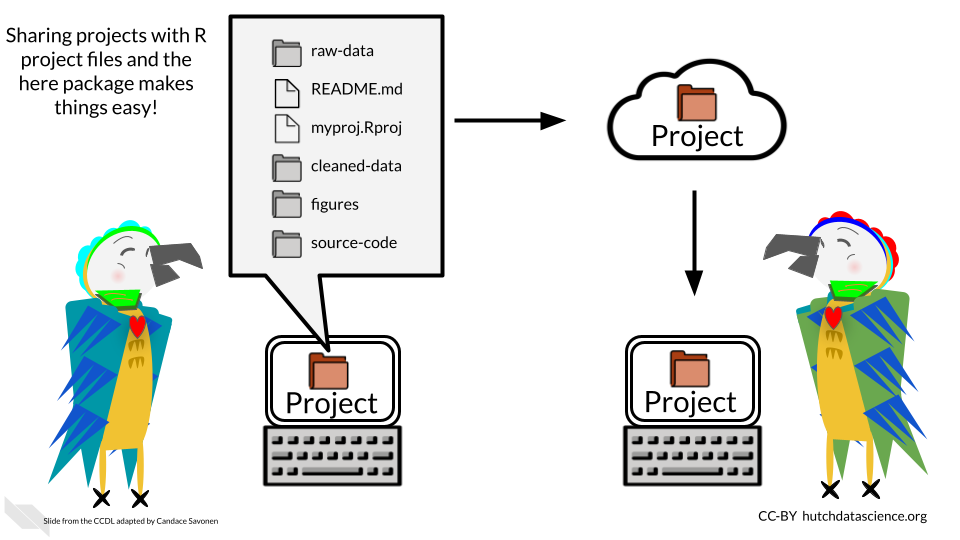
The here package offers a beautifully simple function, here(), that constructs a file path starting from your project's root directory. It finds the root by looking for the .Rproj file, making your code independent of the current working directory.
This short video gives a great overview of exactly why you need here even when you are already using RStudio Projects.
useR! 2020: Why use the Here Package When You're Already Using Projects? (M. Barrett), lightning
This presentation directly answers the question, 'Why use the here package when you're already using projects?' It clearly explains the R Markdown scenario we just discussed.
Starting at the two-minute mark, watch the proposed solutions. The speaker explains how RStudio Projects solve the first problem (absolute paths) and then details why here is still necessary, especially for tools like R Markdown.
Using here::here()
Let's see it in action. Using the package involves three simple steps: installing it, loading it, and using the here() function.
1. Install the Package
First, you need to install the package from CRAN (the Comprehensive R Archive Network). You only need to do this once per computer (or R version). Type this into your console:
install.packages("here")
2. Load the Package
Before you can use the functions from a package in a script, you must load it into your R session using the library() function. You should do this at the top of every script that uses it.
library(here)
When you run this command, you'll see a message like here() starts at /Users/yourname/Documents/clinical-trial-practice. This is the package confirming it has successfully located your project's root.
3. Construct Paths with here()
The here() function takes folder and file names as arguments and pieces them together into a full, correct path from the project root.
Instead of writing read.csv("data/raw_patient_data.csv"), you would write:
read.csv(here("data", "raw_patient_data.csv"))
This code will always work, whether you run it from the console, from a script in the scripts folder, or from an R Markdown file in the reports folder.
This excellent video provides a concise, practical demonstration of this entire process.
Locating files in R with here()
This tutorial provides a clear, step-by-step walkthrough of installing, loading, and using the here package to import a data file.
Starting around the one-minute mark, watch the package demonstration. The video demonstrates installing and loading the package, and then using here() to build a path to an Excel file.
Let's Practice
Let's apply this to the clinical-trial-practice project you created in the last lesson.
- Open your project: Double-click the
clinical-trial-practice.Rprojfile. - Open your script: In the Files pane, navigate to your
scriptsfolder and open01-analysis.R. - Install
here: If you haven't already, runinstall.packages("here")in the Console. - Modify your script: Add the following lines to the top of your
01-analysis.Rscript.
# Load necessary packages
library(here)


# This script now uses the `here` package for robust file paths.
- Create a dummy file: Now, let's practice writing a file using
here(). Theirisdataset is built into R. We'll save it as a CSV file in youroutputsfolder. Add this code to your script:
# Create a dummy data frame (we'll use the built-in iris dataset)
dummy_data <- iris


# Save the data frame to the 'outputs' folder using a robust path
write.csv(
  x = dummy_data,
  file = here("outputs", "iris_data.csv")
)
- Run the code: Execute these lines of code. You can run the whole script by clicking "Source" at the top of the editor pane, or run the lines one by one with
Ctrl+Enter(orCmd+Returnon Mac).
Now, look in your outputs folder using the Files pane. You should see a new file named iris_data.csv. You've just created a file using a completely robust, portable, and reproducible file path!
Troubleshooting and Advanced Use
The here package is very reliable, but it's useful to know a bit more about how it works for the rare cases when things go wrong.
The package documentation provides more details on its features.
This is the official introduction to the here package. Skimming it will show you a few extra tools that can be useful.
Quickly read the sections 'project-relative paths' and 'situation report'. The first section reinforces the syntax. The second introduces dr_here(), a very useful function for checking how here() has identified your project root.
As you saw, the dr_here() function gives you a "doctor's report" on your project setup, which is invaluable for debugging. If you ever get an error, running dr_here() in your console should be your first step.
Conclusion
You have now added a powerful and professional tool to your workflow. By combining RStudio Projects with the here package, you are building an analysis environment that is organized, portable, and highly reproducible—all hallmarks of a skilled data analyst.
Key Takeaways:
- RStudio Projects are essential, but relative paths can still be fragile in some contexts (like R Markdown).
- The
herepackage solves this by providing thehere()function, which always builds paths from the project's root. - The
herepackage finds the project root by looking for the.Rprojfile. - The syntax is simple and readable:
here("folder", "file.csv"). - You can diagnose path issues using the
dr_here()function.
Preview of the Next Lesson:
In this lesson, you used install.packages() and library() to start using the here package. R's ecosystem of packages is its greatest strength, providing tools for everything from data cleaning to advanced statistical modeling and visualization. In our next lesson, we will formalize this knowledge and learn how to install and load any R package, giving you access to the full power of the R language.