Hello! Welcome to our next lesson.
Introduction
In our last session, you learned how to create robust and portable file paths using the here package. As part of that process, you used two important functions: install.packages("here") and library(here). You saw how they allowed you to access a new tool that wasn't part of the base R installation.
Today, we will formalize and expand on that experience. This lesson is dedicated to mastering the skill of installing and loading R packages. R's single greatest strength is its vast ecosystem of packages, which provide specialized functions for nearly any data analysis task imaginable—from creating publication-quality graphics to performing advanced statistical modeling.
For your goal of analyzing clinical research data, you will constantly be using packages written by experts in statistics and data science. Understanding how to manage these packages is the key that unlocks the full power of R.
What are R Packages?
Before we dive into the "how," let's clarify the "what." In simple terms, R packages are bundles of code, data, and documentation that extend R's capabilities. Think of your base R installation as a new smartphone: it has core functions like a calculator and a web browser. Packages are like the apps you install from an app store to give it new powers, like social media, navigation, or photo editing.
In R, the main "app store" is CRAN, the Comprehensive R Archive Network. It's a vast repository of thousands of quality-controlled packages that you can download and use for free.
To get a good overview of this concept, please watch the first part of this video from Andy Field.
RStudio: Installing and loading packages and here()
This video explains what R packages are, why they're so important, and how they relate to the CRAN repository.
Watch the first four minutes for the package introduction. The speaker provides a helpful analogy comparing R packages to browser extensions or Excel add-ins.
The Two-Step Process: Installing vs. Loading
Using a package is always a two-step process. This is one of the most important fundamental concepts in R.
- Install: You download the package from CRAN and save it to your computer. This is a one-time action for each package on a given computer (or until you update R).
- Load: You make the package's functions available in your current R session. You must do this every time you start a new R session or run a script that needs the package.
The diagram below provides a perfect visual summary of this workflow.
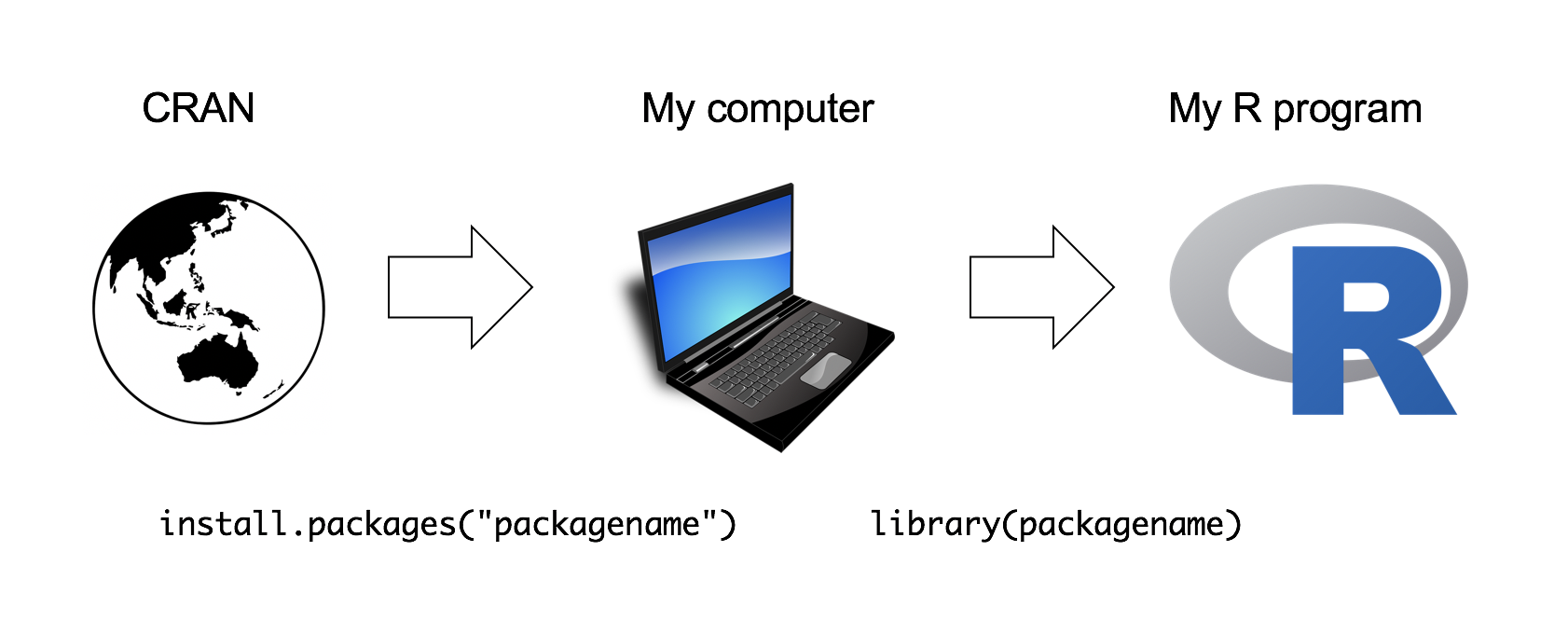
Why the two steps? The main reasons are efficiency and organization. Loading every single package you have installed would slow R down and could lead to conflicts where two different packages have functions with the same name. By loading only what you need for a specific analysis, you keep your workspace clean and efficient.
This distinction can be a bit confusing because of the terminology. A common analogy, popularized by R expert Hadley Wickham, clarifies it:
"A package is like a book, a library is like a library building. You use the
library()function to check a package out of the library."
Your computer has a "library" folder where all your installed R "books" (packages) are stored. The library() command brings a specific book off the shelf for you to read (use).
How to Manage Packages
There are two primary ways to install and load packages: using R code (the best practice for reproducible work) and using the RStudio graphical user interface (GUI).
The Code-Based Method (Recommended)
This is the method you'll use in your scripts because it makes your work transparent and reproducible.
To Install a Package:
Use the install.packages() function. The package name must be a character string, meaning it needs to be in quotes. You should always run this command in the Console, not save it in your script.
# To install a single package
install.packages("dplyr")


# To install multiple packages at once
install.packages(c("ggplot2", "readr", "tidyr"))
Running this connects to CRAN, downloads the package, and installs it in your R library.
To Load a Package:
Use the library() function. By convention, the package name is written without quotes. You should place all your library() calls at the very top of your R script. This serves as a clear declaration of the tools your analysis depends on.
library(dplyr)
library(ggplot2)
The video you watched earlier continues with a great demonstration of this exact process.
RStudio: Installing and loading packages and here()
Please continue with the video from Andy Field. He will now demonstrate the install.packages() and library() functions and highlight the crucial best practice of where to run each command.
Watch managing R packages. Pay close attention to his advice about running install.packages() in the console and putting library() at the start of your script file.
The RStudio GUI Method
RStudio also provides a point-and-click interface for managing packages, which can be handy for quick tasks.
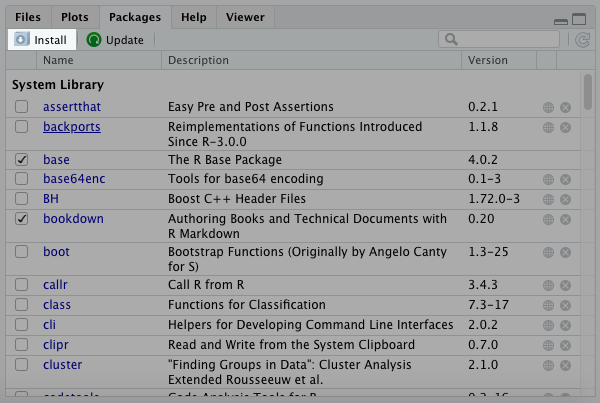
- Go to the Packages pane (usually in the bottom-right of RStudio).
- To Install: Click the
Installbutton. Type the name of the package in the dialog box and clickInstall. - To Load: Find the package in the list and click the checkbox next to its name.
This video provides a quick demonstration of the GUI method.
How to Install Packages in R Studio and Handling Installation Errors
This short clip demonstrates how to use the RStudio graphical interface to install and load a package.
Watch from about 45 seconds in to see how the 'Packages' tab works.
While the GUI is convenient, getting comfortable with the install.packages() and library() functions is essential for building the professional, reproducible workflows you're aiming for.
Let's Practice: Installing the Tidyverse
Now it's your turn. One of the toolsets you expressed interest in is the tidyverse. This is actually a "meta-package" that installs and loads a collection of powerful packages for data manipulation (dplyr), visualization (ggplot2), data import (readr), and more, all of which share a common design philosophy.
- Open your
clinical-trial-practiceproject in RStudio. - In the Console pane, type the following command and press Enter. This might take a few minutes as it will install many packages.
install.packages("tidyverse") - Once the installation is complete, open your
01-analysis.Rscript from thescriptsfolder. - At the top of the script, below
library(here), add a new line to load thetidyverse.# Load necessary packages library(here) library(tidyverse) - Run the
library(tidyverse)line by placing your cursor on it and pressingCtrl+Enter(orCmd+Returnon Mac).
You will see some messages in the console listing the packages that were attached (like ggplot2, dplyr, etc.) and noting any "conflicts." This is normal and simply means that the tidyverse has some functions with the same name as functions in base R. The message confirms that the tidyverse version will be used by default.
Congratulations! You have just installed and loaded one of the most important toolkits in modern data analysis.
Troubleshooting Common Issues
When you're starting, you might run into a few common problems.
-
Installation Fails:
- "Warning in install.packages : package ‘...' is not available": Double-check your spelling of the package name. It's case-sensitive!
- Permission Errors (especially on Windows): Sometimes R doesn't have the permissions to write to the folder where packages are stored. As mentioned in the second video, closing RStudio and re-opening it by right-clicking and selecting "Run as administrator" often solves this.
-
Loading Fails:
- "Error in library(...) : there is no package called ‘...’": This is the most common error. It means you tried to load a package that you haven't installed yet. The solution is to run
install.packages("...")in your console.
- "Error in library(...) : there is no package called ‘...’": This is the most common error. It means you tried to load a package that you haven't installed yet. The solution is to run
Conclusion
You have now acquired a fundamental skill for any R user. You can find, install, and load the tools you need to perform your analyses. This opens the door to the vast and powerful R ecosystem.
Key Takeaways:
- Packages are add-ons that extend R's functionality, with CRAN being the main repository.
- Using a package is a two-step process:
install.packages("package_name")(once, in the console) andlibrary(package_name)(in every script). - Your
library()calls should always be at the top of your script to declare its dependencies. - The
tidyverseis a powerful collection of packages that you now have ready for future lessons.
Preview of the Next Lesson:
With the foundational skills of project setup (RStudio Projects, here) and tool management (install.packages, library) now in place, you are ready to start programming. In our next lesson, we will begin writing R code to assign values to variables and work with R's basic data types, such as numbers, text, and logicals.