Hello! Let's dive into our second lesson on networking fundamentals.
In our last session, we explored the TCP/IP model and established that communication across the internet relies on IP addresses to route packets to the correct destination machine. This raises a critical question: when you want to visit a website like freecodecamp.org, how does your computer discover its IP address? You certainly don't memorize and type 104.26.2.33.
This is where the Domain Name System (DNS) comes in. It's an essential Application Layer protocol that acts as the internet's distributed, hierarchical phonebook, translating human-friendly domain names into machine-readable IP addresses.
Today's Goal: By the end of this lesson, you will be able to explain how DNS resolution works, from the moment you type a URL into your browser to the point where your computer receives the corresponding IP address.
1. The Big Picture: A Distributed Hierarchy
At its core, DNS is a globally distributed database. No single server holds all the information. Instead, the responsibility is delegated through a hierarchy. To understand the process, we first need to meet the key players.
The Cloudflare article 'What is DNS?' provides excellent, clear definitions for the main servers involved in a DNS lookup. Understanding their roles is the first step to understanding the entire process.
Please read the introductory section 'What is DNS?' and the section 'There are 4 DNS servers involved in loading a webpage:'. Focus on the role of each of the four servers described.
As you just read, the main roles are:
- DNS Recursor (or Recursive Resolver): This is the server that your computer talks to first. It's often operated by your Internet Service Provider (ISP) or a public provider like Google (
8.8.8.8). Its job is to accept your query and do all the work to find the answer. - Root Nameserver: This is the first stop for the recursor. The root servers don't know the IP address for
google.com, but they know who is responsible for all.comdomains. - TLD (Top-Level Domain) Nameserver: This server manages a specific top-level domain, like
.com,.org, or.net. It doesn't know the IP forgoogle.comeither, but it knows which server is the final authority for thegoogle.comdomain. - Authoritative Nameserver: This is the final stop. It holds the actual DNS records for a specific domain (e.g.,
google.com) and can provide the definitive IP address.
This hierarchical structure is what makes the system so scalable and resilient.
2. The Full Journey of a DNS Query
Now, let's trace the complete, step-by-step path of a DNS query. It's a fascinating journey that happens in milliseconds. The process cleverly combines local caching for speed with a series of network queries when the information isn't locally available.
Step 1: Checking the Local Caches
Before your computer even thinks about sending a query over the network, it checks for the answer locally. This is the fastest way to get a resolution.
How DNS Works: A Guide to Understanding the Internet's Address ...
The article 'How DNS Works' from freeCodeCamp provides a detailed look at the initial steps of DNS resolution, which happen right on your own machine. This highlights the system's focus on efficiency.
Please read the section titled 'How DNS Resolution Powers Your Application’s Network Requests', focusing on the first three steps: '1. Valid IP Check', '2. Application Cache Lookup', and '3. Operating System Cache Check'.
To summarize the local process:
- Browser Cache: Modern browsers keep their own cache of recently visited domains. This is the very first place it looks.
- Operating System Cache: If the browser cache is empty, the browser asks the OS. The OS maintains its own DNS cache (managed by a service called a "stub resolver" or DNS client).
- Hosts File: The OS also checks a special file called the
hostsfile. This is a simple text file on your computer that lets you manually map domain names to IP addresses. It's often used by developers to force a domain to point to a local or test server.
If the IP address is found in any of these local caches, the DNS process stops here, and your browser can immediately initiate a connection.
Step 2: The Recursive and Iterative Dance
If the answer isn't found locally, your computer sends a query over the network to the DNS Recursive Resolver you're configured to use. From here, a "recursive" and "iterative" query process begins.
- Recursive Query: Your computer sends a single recursive query to the resolver. This is like saying, "Please find the IP for
google.comand don't come back until you have the final answer." - Iterative Queries: The resolver then performs a series of iterative queries to find the answer. This is the "door-to-door" search we mentioned earlier.
Let's watch a video that visualizes this process beautifully.
This classic video from Computerphile explains the step-by-step process of a DNS lookup clearly and concisely. It illustrates the journey from your computer to the ISP's resolver and then through the DNS hierarchy.
Watch the segment from 00:43 to 05:44. Pay close attention to the roles of the ISP name server (the recursive resolver), the root server, the .com name server (TLD), and the final authoritative name server.
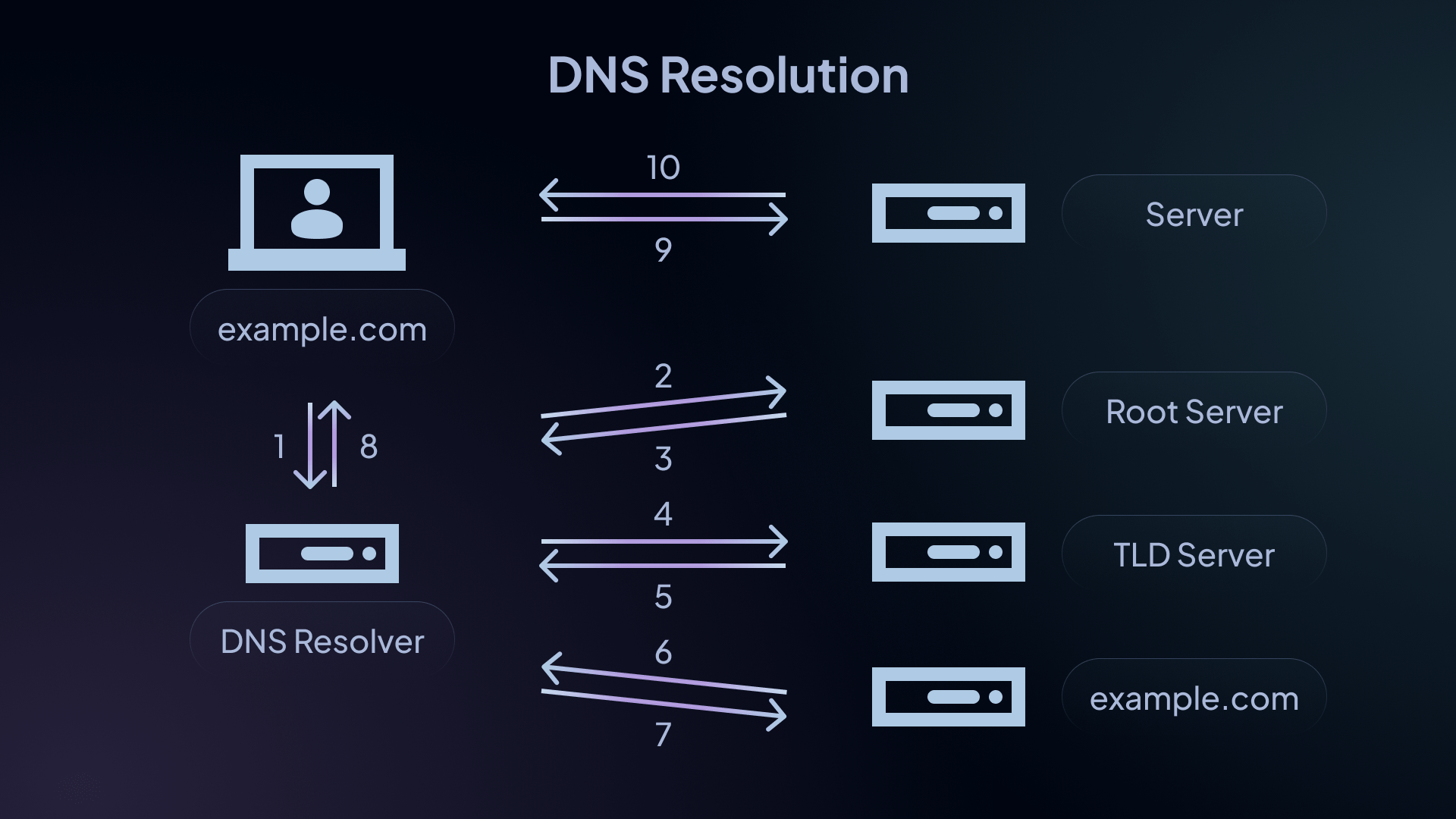
Let's break down the iterative process performed by the recursive resolver:
- The resolver checks its own cache first. If another user of the same ISP recently went to
google.com, the answer will be cached and returned immediately. - If not cached, the resolver contacts a Root Server. It asks, "Who handles
.com?" The root server doesn't know aboutgoogle.com, but it replies with the addresses of the TLD servers for.com. - The resolver then contacts a .com TLD Server and asks, "Who is the authority for
google.com?" The TLD server replies with the addresses of Google's authoritative nameservers (e.g.,ns1.google.com). - Finally, the resolver contacts one of Google's Authoritative Nameservers and asks, "What is the IP address for
www.google.com?" This server has the answer and returns the IP address. - The resolver receives the IP address, caches it for future requests, and sends the final answer back to your computer.
Now, your computer has the IP address and can proceed to establish a TCP connection and send an HTTP request, as we discussed in the previous lesson.

3. The Power of Caching and Time-To-Live (TTL)
As you've seen, caching is a fundamental part of DNS. It happens at every level: your browser, your OS, and the recursive resolver. Without it, the root servers would be overwhelmed with requests for every single click on the internet.
But how long does a server cache a record? This is controlled by a value called Time-To-Live (TTL).
When an authoritative server provides a DNS record, it includes a TTL value (in seconds). This value tells any resolver that caches the record how long it's allowed to keep it.
- A high TTL (e.g., 86400 seconds, or 24 hours) means resolvers will cache the record for a long time. This reduces load on the authoritative server but makes changes slow to propagate.
- A low TTL (e.g., 300 seconds, or 5 minutes) means changes propagate quickly, but it increases the number of queries to the authoritative server.
This TTL mechanism is a critical trade-off between performance and agility in the DNS system.
4. Going Deeper: Record Types and dig
So far, we've mostly talked about getting an IP address. The record that maps a domain name to an IPv4 address is called an A record. But DNS can store many other types of records. For a backend developer, knowing a few others is useful:
- AAAA Record: Maps a domain to an IPv6 address.
- CNAME (Canonical Name) Record: Creates an alias, pointing one domain name to another (e.g.,
www.example.commight be a CNAME toexample.com). - MX (Mail Exchange) Record: Specifies the mail servers responsible for handling email for a domain.
- NS (Name Server) Record: Delegates a domain or subdomain to a set of authoritative name servers.
You can inspect these records yourself using command-line tools. The most common tool on Linux and macOS is dig (Domain Information Groper).
For example, try running dig google.com in your terminal. You'll see the A record in the "ANSWER SECTION". Now try dig google.com MX to see its mail servers.
To see the entire iterative process we just discussed, you can use the +trace option:
dig +trace google.com
This command will show you the query to the root servers, then to the TLD servers, and finally to the authoritative servers. It's a powerful way to see the theory in action.
Conclusion
You now have a solid understanding of one of the internet's most critical, yet often invisible, services. DNS is a perfect example of a system that is complex under the hood but provides a simple, essential service.
Key Takeaways:
- DNS translates human-readable domain names into machine-readable IP addresses.
- The process starts with checking local caches (browser, OS) for efficiency.
- If not found locally, your computer sends a recursive query to a DNS resolver.
- The resolver performs iterative queries, "walking down" the hierarchy from Root servers -> TLD servers -> Authoritative servers to find the IP.
- Caching is crucial for performance and is controlled by the Time-To-Live (TTL) value on each DNS record.
- DNS supports various record types beyond the basic
Arecord, such asCNAME,MX, andNS.
Preview of the Next Lesson:
We've successfully translated a domain name into an IP address. We now have the "street address" for the server we want to contact. But a server can run many different applications (a web server, a database server, an email server). How do we specify which application we want to talk to? In the next lesson, we will explore IP addresses, ports, and sockets, and see how they work together to form a unique identifier for a specific connection to a specific service on a machine.